> This is part 1 of 3 of the full documentation (pages 1–100 of 202).
> The content is paginated: fetch every part to see all of it.
> Next part: https://wiki.astrawireless.net/astra-wireless-documentation/llms-full.txt/1
> Page index: https://wiki.astrawireless.net/astra-wireless-documentation/llms.txt

# Technical documentation

Technical User Manuals


# Astrawireless Quasar Technical User Manual

**Astrawireless Quasar** is the devices family used for deployment of wireless Point-to-Point links in 4900 - 7100 MHz frequency range, with a maximal performance of up to 2.1 Gbps in 160 MHz band.

**Astrawireless Quasar** family combines the wide network functionality of previous generations devices with cutting-edge development in the communication system performance.

## About This Manual

This manual provides detailed technical information for the **Astrawireless Quasar** families devices, including system specifications, installation, commissioning, maintenance and troubleshooting.

The document is intended to be used by qualified RF engineers/technicians and IT professionals. Qualified personnel should have skills and experience with:

* Outdoor/indoor radio equipment installation
* Outdoor wireless networks
* TCP/IP networking protocols
* Safety procedures and instructions for installing antenna equipment
* Professional manipulation with electrical equipment and accessories
* Safety procedures and instructions for working at height.

## Important Notice

### Legal Rights <a href="#astraquanta-technicalusermanual-legalrights" id="astraquanta-technicalusermanual-legalrights"></a>

© Copyright 2026 ⁣Astrawireless. All rights reserved.

The information contained in this document is originated by, proprietary, confidential and owned by Astrawireless. No part of this document should be disclosed, reproduced or distributed without the express written permission of Astra Wireless Technology LLC-FZ.

Astra Wireless Technology LLC-FZ. reserves the right to change the information contained in this document without prior notice. No part of this document may be considered as a part of any contract or warranty.

### Statement of Conditions <a href="#astraquanta-technicalusermanual-statementofconditions" id="astraquanta-technicalusermanual-statementofconditions"></a>

Astra Wireless Technology LLC-FZ shall not be liable for errors contained herein or for incidental or consequential damages in connection with the furnishing, performance or use of this manual or equipment supplied with it.

### Disclaimer <a href="#astraquanta-technicalusermanual-disclaimer" id="astraquanta-technicalusermanual-disclaimer"></a>

The software is sold on an "AS IS" basis. Astrawireless, its affiliates or its licensors make no warranties, whatsoever, whether express or implied, with respect to the software and the accompanying documentation. Astrawireless specifically disclaims all implied warranties of merchantability and fitness for a particular purpose and non-infringement with respect to the software. Units of product (including all the software) delivered to purchaser hereunder are not fault tolerant and are not designed, manufactured or intended for use or resale in applications where the failure, malfunction or inaccuracy of products carries a risk of death or bodily injury or severe physical or environmental damage (“high risk activities”). High risk activities may include, but are not limited to, use as part of on-line control systems in hazardous environments requiring fail-safe performance, such as in the operation of nuclear facilities, aircraft navigation or communication systems, air traffic control, life support machines, weapons systems or other applications representing a similar degree of potential hazard. Astrawireless specifically disclaims any express or implied warranty of fitness for high risk activities.

### Indication of the countries <a href="#astraquanta-technicalusermanual-indicationofthecountries" id="astraquanta-technicalusermanual-indicationofthecountries"></a>

Astrawireless equipment has no geographical limitations for selling and can be supplied to any country of the world.

### Limitation of Liability <a href="#astraquanta-technicalusermanual-limitationofliability" id="astraquanta-technicalusermanual-limitationofliability"></a>

Astrawireless shall not be liable to the purchaser or to any third party, for any loss of profits, loss of use, interruption of business or for any indirect, special, incidental, punitive or consequential damages of any kind, whether arising under breach of contract, tort (including negligence), strict liability or otherwise and whether based on this agreement or otherwise, even if advised of the possibility of such damages.

To the extent permitted by applicable law, in no event shall the liability for damages hereunder of Astrawireless or its employees or agents exceed the purchase price paid for the product by purchaser, nor shall the aggregate liability for damages to all parties regarding any product exceed the purchase price paid for that product by that party (except in the case of a breach of a party’s confidentiality obligations).

### Disposal instructions

<figure><img src="https://2734851754-files.gitbook.io/~/files/v0/b/gitbook-x-prod.appspot.com/o/spaces%2FnG7V17JtC1mMJOmveKc6%2Fuploads%2FKHqE6yWcYO2skLRzKlp2%2Fimage.png?alt=media&amp;token=a3b66073-7a54-45bf-a03a-bfe13ac8c6c7" alt="" width="188"><figcaption></figcaption></figure>

This symbol means that this product is subject to Waste of electrical and electronic equipment (WEEE) regulations. Do not dispose of your product with other regular/household waste. Instead, hand over your waste equipment to a designated collection point for recycling.


# Introduction

### Document structure <a href="#introduction-documentstructure" id="introduction-documentstructure"></a>

This document consists of the following chapters:

* ​Introduction⁣⁣⁣⁣⁣⁣⁣ - presents the information about this document’s purpose and structure.
* ​Planning considerations - describes the principles of wireless system planning.
* ​Installation⁣⁣⁣⁣⁣⁣⁣ - describes the steps to be taken when installing the equipment at the installation sites and installation site requirements.
* ​Operation & Administration - presents the functionalities of the web interface, a simple and efficient way to monitor the device status, configure and maintain the equipment.
* ​Troubleshooting - describes the actions to be taken during occured problems investigation.

### Document marks <a href="#introduction-documentmarks" id="introduction-documentmarks"></a>

CAUTIONAll caution warnings are marked with a special warning sign. One should pay a great deal of attention to what is written in the Caution section. NOTEAll notes are marked with a special note sign. Notes usually contain useful comments or hints to the described section of the document.

{% hint style="danger" %}
CAUTION

All caution warnings are marked with a special warning sign. One should pay a great deal of attention to what is written in the Caution section.
{% endhint %}

{% hint style="warning" %}
NOTE

All notes are marked with a special note sign. Notes usually contain useful comments or hints to the described section of the document.&#x20;
{% endhint %}


# Key Features⁣⁣⁣⁣⁣

**Astrawireless Quasar** is a wireless point-to-point solution with an impressive maximal performance of up to 2,1 Gbps, a packet perfomance is up to 500 000 pps.&#x20;

**Astrawireless Quasar** operates in frequency range from 4900 MHz to 6060 MHz for QSR5, from 6000 MHz to 7100 MHz for QSR6 and supports the channel width 20, 40, 80, 160 MHz.

### Radio <a href="#keyfeatures-radio" id="keyfeatures-radio"></a>

* **Automatic Modulation Control (AMC)** – modulation control algorithm selects the most appropriate modulation-coding scheme in order to maximize the link performance.
* **Automatic Repeat Request (ARQ)** – a technology which enables packet re-transmission in case of previous unsuccessful delivery, allows to achieve reliable connectivity even in highly congested spectrum.
* **Automatic Transmit Power Control (ATPC)** – a technology which allows to extend the life of devices and optimize energy consumption.
* **Automatic range detection** - the guard interval optimal for the actual distance is automatically determined.

### Networking\* <a href="#keyfeatures-networking" id="keyfeatures-networking"></a>

* MAC/IP filtering.
* RIPv2 / OSPFv2 /static routing.
* Tunneling (Ethernet‑over‑IP, IP‑over‑IP).
* L2/L3 Firewall.
* NAT (multipool, H.323‑aware).
* DHCP client/server/relay.
* Stacked VLAN support (Q-in-Q) avoids the limitation in the number of available VLANs (4096), which can be useful for large networks. In addition, Q-in-Q allows you to organize L2 channels within a limited VLAN list, which is widely used in provider networks and on leased communication channels.

### Quality of Service\* <a href="#keyfeatures-qualityofservice" id="keyfeatures-qualityofservice"></a>

* 17 priority queues.
* IEEE 802.1p support.
* IP TOS / DiffServ support.
* Full voice support.
* Traffic limiting (absolute, relative, mixed).
* Traffic redirection.

### Environment <a href="#keyfeatures-environment" id="keyfeatures-environment"></a>

* Operating temperature range -40 ... +60 ºС, in arctic edition: -55 ... +60 ºС.
* Dust and water protection in compliance with IP66/IP67.
* Wind load up to 160 kph - operation, 200 kph - survival.

### Power <a href="#keyfeatures-power" id="keyfeatures-power"></a>

The device has following electrical parameters:

* Consumption is up to 20 W.
* Power options: \
  &#x20;  \- via eth0: 110-240 VAC\~ @ 50/60 Hz, ±43..56 VDC. 802.3at support or proprietary passive PoE.\
  &#x20;  \- via port DC-IN: ±12V..56V
* AC/DC injector: IDU-CPE-G(30W) is included to the packing list.

\*Pending


# Hardware Platform

## Wireless device <a href="#hardwareplatform-wirelessdevice" id="hardwareplatform-wirelessdevice"></a>

The wireless device contains both the radio and networking electronics. Implemented in a robust all-weather metal enclosure, this equipment can be used to create point-to-point wireless links at long distances. The wireless device is supplied in the following configurations:

* with removable integrated antenna 26 dBi (QSR5-26 / QSR6-26);
* with removable integrated antenna 29 dBi (QSR5-29 / QSR6-29​);
* connectorized (waveguide to coaxial adapter required) (QSR5-Ep / QSR6-Ep​).

<figure><img src="https://2734851754-files.gitbook.io/~/files/v0/b/gitbook-x-prod.appspot.com/o/spaces%2FnG7V17JtC1mMJOmveKc6%2Fuploads%2F7r6CB0RG5xGaHwj9ICPh%2Fqsr%20for%20doc2.png?alt=media&amp;token=cd388231-2b90-429a-8018-b810b00f2d7a" alt=""><figcaption></figcaption></figure>

<figure><img src="https://2734851754-files.gitbook.io/~/files/v0/b/gitbook-x-prod.appspot.com/o/spaces%2FnG7V17JtC1mMJOmveKc6%2Fuploads%2FjesLT9HVrfG4t4Nl27Dk%2Fqsr%20for%20doc.png?alt=media&amp;token=91ea9013-f900-4089-b95f-c46a2d201269" alt=""><figcaption></figcaption></figure>

### Ports

The enclosure has 4 ports:

* 1x 2,5 Gigabit Ethernet port (10/100/1000/2,5G Base‑T), RJ‑45 connector: Data + Power.
* 1x 10 Gigabit SFP+ port: Data.
* 1x SYNC port - for connection external synchronization device\*.
* 1x DC IN port - for powering the device directly from a DC source.

### Indication

{% hint style="warning" %}
NOTE

Power and wired statuses indication is performed via glassy plug of the cable gland for ETH, SFP and SYNC ports.
{% endhint %}

<table><thead><tr><th width="130.33333333333331">State</th><th width="172">Status</th><th>Description</th></tr></thead><tbody><tr><td>Flash</td><td>Initialization</td><td>The LEDs on ETH and SFP ports light up with white on second. Then LEDs check is performed: red, blue, green are lightened up sequentially.</td></tr><tr><td>Flash</td><td>Loading</td><td>Only for ETH port: at the beginning green is lightened a few seconds, on the second loading stage switches to blue.</td></tr><tr><td>ON/Blue</td><td>Power</td><td>Only for ETH port.</td></tr><tr><td>ON/Green</td><td>Speed 1000 Mbps</td><td><br></td></tr><tr><td>ON/Light Blue</td><td>Speed 2500 Mbps</td><td>Only for ETH port.</td></tr><tr><td>ON/White</td><td>Speed 10000 Mbps</td><td>Only for SFP port.</td></tr><tr><td>ON/Green</td><td>ERConsole stage</td><td>Port with the established link lights up with green, the second port remains blue.</td></tr><tr><td>ON/Red</td><td>Speed 10 Mbps</td><td>Only for ETH port.</td></tr><tr><td>ON/Yellow</td><td>Speed 100 Mbps</td><td>Only for ETH port.</td></tr></tbody></table>

<figure><img src="https://2734851754-files.gitbook.io/~/files/v0/b/gitbook-x-prod.appspot.com/o/spaces%2FnG7V17JtC1mMJOmveKc6%2Fuploads%2FmJYLgmIDytfufuXziryP%2Fqsr%20for%20doc1.png?alt=media&amp;token=bbb008df-9c5f-4225-ba11-2470d93283e2" alt=""><figcaption></figcaption></figure>

\*Pending.

## Accessories

To connect the QSR5-Ep/QSR6-Ep models to an external antenna from a third-party manufacturer, some accessories are required.

### &#x20;Waveguide to coaxial adapter AUX-WCA-5 / AUX-WCA-6

<figure><img src="https://2734851754-files.gitbook.io/~/files/v0/b/gitbook-x-prod.appspot.com/o/spaces%2FnG7V17JtC1mMJOmveKc6%2Fuploads%2FtpWfNefM0MxHgZRsnPUs%2FHob%201.jpg?alt=media&amp;token=49ffa769-130a-469c-a7fd-63a625a3ed29" alt=""><figcaption></figcaption></figure>

As the QSR5-Ep/QSR6-Ep connector is designed for waveguide of Astrawireless parabolic antennas, antennas from other manufacturers require an adapter for N-type connectors to be installed.

### CAB-RF-1M-LL

<figure><img src="https://2734851754-files.gitbook.io/~/files/v0/b/gitbook-x-prod.appspot.com/o/spaces%2FnG7V17JtC1mMJOmveKc6%2Fuploads%2FEkEg9HzF8GnY8TXJKOcR%2FCAB-RF-LL%201.png?alt=media&amp;token=079019a8-0058-4253-a618-53ea17446786" alt="" width="563"><figcaption></figcaption></figure>

The CAB-RF-1M-LL cable is a low-loss coaxial cable with N-type connectors and shrink film at both ends. The cable is one metre long. It is designed to connect Astrawireless's connectorised models QSR5-Ep/QSR6-Ep to external antennas.


# Power supply⁣⁣⁣⁣⁣⁣⁣

### Indoor AC/DC injector IDU-CPE-G(24W) <a href="#powersupply-indoorac-dcinjectoridu-cpe-g-24w" id="powersupply-indoorac-dcinjectoridu-cpe-g-24w"></a>

<figure><img src="https://2734851754-files.gitbook.io/~/files/v0/b/gitbook-x-prod.appspot.com/o/spaces%2FnG7V17JtC1mMJOmveKc6%2Fuploads%2FOEhVY1XO0ddkS1I0lXQh%2Fimage.png?alt=media&amp;token=18b443ed-778a-46dc-808f-073e4b943e26" alt=""><figcaption></figcaption></figure>

IDU-CPE-G(24W) is an indoor Gigabit PoE injector which supports 100-240 V input range from the AC mains. IDU-CPE-G(24W) feeds 48 VDC power to the device by injecting it to the CAT5 Ethernet cable.

<table><thead><tr><th width="196">Parameter</th><th>Description</th></tr></thead><tbody><tr><td><strong>Compatible models</strong></td><td>Astra Quanta and Astra Evolution (except E5-BSQ), AUX-ODU-SYNC</td></tr><tr><td><strong>Size and weight</strong></td><td>97x53.5x33.5 mm, 0.133 kg</td></tr><tr><td><strong>Connectors and Interfaces</strong></td><td><ul><li>"LAN" - Ethernet input (Data only)</li><li>"POE" - Ethernet output (Data+VDC), PASSIVE PoE</li><li>"PWR" - AC Input</li></ul></td></tr><tr><td><strong>Supported Ethernet Modes</strong></td><td>10/100/1000 Mbps</td></tr><tr><td><strong>Standards</strong></td><td><ul><li>IEEE 802.3 10Base-T                                                                          </li><li>IEEE 802.3U 100Base-TX                                                                        </li><li>IEEE 802.3ab 1000Base-T      </li></ul></td></tr><tr><td><strong>Input Power Requirements</strong></td><td><ul><li>AC Input Voltage: 100 ... 240 VAC</li><li>AC Input Current: 0.75 A</li><li>AC Frequency: 50 to 60 Hz</li></ul></td></tr><tr><td><strong>Consumption</strong></td><td>28 W</td></tr><tr><td><strong>Operating temperature range</strong></td><td>-10 °С ... +40 °С</td></tr><tr><td><strong>Operating humidity</strong></td><td>Maximum 95 %, Non-condensing</td></tr><tr><td><strong>Storage temperature</strong></td><td>-40 °С ... +70 °С</td></tr><tr><td><strong>Output Power Voltage</strong></td><td>48 VDC, 0.5 A</td></tr><tr><td><strong>Safety</strong></td><td>UL cUL, CE, GS, CCC, FCC, S-MARK, PSE, C-tick, KC(48V0.5A) BIS（24V1A</td></tr></tbody></table>

#### **Ethernet Connectors Pin-out**

| Pin | LAN | POE       |
| --- | --- | --------- |
| 1   | A+  | A+        |
| 2   | A-  | A-        |
| 3   | B+  | B+        |
| 4   | C+  | C+        |
| 5   | C-  | +VDC/ C-  |
| 6   | B-  | B-        |
| 7   | D+  | -VDC / D+ |
| 8   | D-  | -VDC / D- |

### Indoor DC/DC injector for all Astrawireless' units with integrated lightning protection IDU-LA-G(V.01) <a href="#powersupply-indoordc-dcinjectorforallastrawirelessunitswithintegratedlightningprotectionidu-la-g-v.0" id="powersupply-indoordc-dcinjectorforallastrawirelessunitswithintegratedlightningprotectionidu-la-g-v.0"></a>

IDU-LA-G(V.01) is an indoor DC/DC injector. It greatly reduces complexity of the deployment in the cases where DC source is available thus reducing both capital expenditures and total cost of ownership.

IDU-LA-G(V.01) may be used for the following purposes:

* To serve as a line protection unit for indoor network equipment connected to the second Ethernet port on ODU.
* To connect third-party DC power sources to ODU (for example, to power the unit from solar power or wind power sources).

#### **Technical parameters**

<table><thead><tr><th width="311">Parameter</th><th>Description</th></tr></thead><tbody><tr><td>Compatible models</td><td>Astra Quanta, Astra Evolution, Astra Quasar</td></tr><tr><td>Output Voltage</td><td>The same as input</td></tr><tr><td>Supported Ethernet Modes</td><td>10/100/1000 Mbps (Gigabit Ethernet pass-through)</td></tr><tr><td>Pin assignment and polarity</td><td>1/2 (+), 3/6 (-), 4/5 (+), 7/8 (-)</td></tr><tr><td>Size and Weight</td><td>115×65×40 mm, 0.15 kg</td></tr><tr><td>Operating temperature range</td><td>From 0°С to +40°С</td></tr></tbody></table>

{% hint style="danger" %}
CAUTION

Exposing unit to the unsupported voltage will result in irreparable damage to the unit! Always observe power requirements!
{% endhint %}

#### **Connectors description**

<figure><img src="https://2734851754-files.gitbook.io/~/files/v0/b/gitbook-x-prod.appspot.com/o/spaces%2FnG7V17JtC1mMJOmveKc6%2Fuploads%2FE54vC4mAuKHpHTekg9Tt%2Fimage.png?alt=media&amp;token=ae9a55ea-a19d-4901-ac34-0527a49d8f21" alt=""><figcaption></figcaption></figure>

#### **Mounting holes sizes**

<figure><img src="https://2734851754-files.gitbook.io/~/files/v0/b/gitbook-x-prod.appspot.com/o/spaces%2FnG7V17JtC1mMJOmveKc6%2Fuploads%2FcjgQ7nGaJm5Y6vts6XpV%2Fimage.png?alt=media&amp;token=ebb9339c-c836-4dec-935a-dadddd52147c" alt="" width="501"><figcaption></figcaption></figure>

#### IDU-LA-G(V.01) Packing List <a href="#powersupply-idu-la-g-v.01-packinglist" id="powersupply-idu-la-g-v.01-packinglist"></a>

<figure><img src="https://2734851754-files.gitbook.io/~/files/v0/b/gitbook-x-prod.appspot.com/o/spaces%2FnG7V17JtC1mMJOmveKc6%2Fuploads%2FHab0pnAbBpYaSKGtoMEg%2Fimage.png?alt=media&amp;token=54681840-d22a-4220-8314-96c54ef278c5" alt=""><figcaption></figcaption></figure>

#### **Cable assembly**

<figure><img src="https://2734851754-files.gitbook.io/~/files/v0/b/gitbook-x-prod.appspot.com/o/spaces%2FnG7V17JtC1mMJOmveKc6%2Fuploads%2FMdzDks1w6thxCvFsSRjp%2Fimage.png?alt=media&amp;token=ad5e347c-0544-4b8c-a7f9-32a025b5d77f" alt=""><figcaption></figcaption></figure>

### Lightning Protection Unit with Injector AUX-ODU-INJ-G <a href="#powersupply-lightningprotectionunitwithinjectoraux-odu-inj-g" id="powersupply-lightningprotectionunitwithinjectoraux-odu-inj-g"></a>

<figure><img src="https://2734851754-files.gitbook.io/~/files/v0/b/gitbook-x-prod.appspot.com/o/spaces%2FnG7V17JtC1mMJOmveKc6%2Fuploads%2F7IgJsJsBUPCh6m8nrnUv%2Fimage.png?alt=media&amp;token=62c1b973-192e-4a4d-8d59-2b288d6bf229" alt="" width="563"><figcaption></figcaption></figure>

Optional indoor/outdoor DC injector with built-in lightning protection. It greatly reduces complexity of the deployment in the cases where DC source is available on the rooftop eliminating the need of weather-sealed cabinets. AUX-ODU-INJ-G is compatible with all Astrawireless devices.

<table><thead><tr><th width="278">Parameter</th><th>Description</th></tr></thead><tbody><tr><td><strong>Size and Weight</strong></td><td>34x94x121 mm, 0.28 kg</td></tr><tr><td><strong>Connectors and Interfaces</strong></td><td><ul><li>ETH IN - Ethernet input</li><li>ETH OUT - Ethernet output (data+VDC, protected leg)</li><li>PWR - DC Input</li><li>GND - Ground clamp</li></ul></td></tr><tr><td><strong>Supported Ethernet Modes</strong></td><td>10/100/1000 Mbps (Gigabit Ethernet pass-through)</td></tr><tr><td><strong>Water and Dust Protection</strong></td><td>IP66 and IP67</td></tr><tr><td><strong>Operating temperature range</strong></td><td>-55 °C ... +60 ºC</td></tr><tr><td><strong>DC Range</strong></td><td>±43...±56 VDC </td></tr><tr><td><strong>Lightning Protection</strong></td><td><p>In compliance with:</p><ul><li>GR-1089</li><li>IEC 61000-4-2 (ESD) 15kV (air), 8kV (contact)</li><li>IEC 61000-4-4 (EFT) 40A (tp = 5/50ns)</li><li>IEC 61000-4-5 (Lightning) L5, 95A (tp = 8/20us)</li><li>ETSI ETS 300 386</li></ul></td></tr></tbody></table>

{% hint style="danger" %}
CAUTION

Using inappropriate DC source will damage the ODU, which will be not covered by warranty
{% endhint %}

#### **Ethernet Connectors Pin-out**

| Pin | LAN          | POE                 |
| --- | ------------ | ------------------- |
| 1   | Data pair A+ | Data pair A+        |
| 2   | Data pair A- | Data pair A-        |
| 3   | Data pair B+ | Data pair B+        |
| 4   | Data pair C- | +VDC + Data pair C- |
| 5   | Data pair C+ | +VDC + Data pair C+ |
| 6   | Data pair B- | Data pair B-        |
| 7   | Data pair D+ | -VDC + Data pair D+ |
| 8   | Data pair D- | -VDC + Data pair D- |

#### Packing List <a href="#powersupply-packinglist" id="powersupply-packinglist"></a>

<figure><img src="https://2734851754-files.gitbook.io/~/files/v0/b/gitbook-x-prod.appspot.com/o/spaces%2FnG7V17JtC1mMJOmveKc6%2Fuploads%2FtFbO7A0jF2qnpa6Vr3SM%2Fimage.png?alt=media&amp;token=4a5b3dc5-9191-4db1-896a-2bd29b99d02b" alt=""><figcaption></figcaption></figure>

AUX-ODU-INJ-G is supplied with a worm clamp TORRO 40-60/9 C7 W4 DIN 3017 - 2 pcs. The clamp is made of stainless steel A4, width 9 mm, allows the installation on a mast with a diameter of 35 to 60 mm. In case of mast diameter more than 60 mm, a similar clamps (up to a 230 mm diameter) with a width of up to 12-13 mm can be used.


# Lightning protection unit⁣⁣⁣⁣⁣⁣⁣⁣⁣⁣⁣

### AUX-ODU-LPU-L <a href="#lightning-protectionunit-aux-odu-lpu-l" id="lightning-protectionunit-aux-odu-lpu-l"></a>

<figure><img src="https://2734851754-files.gitbook.io/~/files/v0/b/gitbook-x-prod.appspot.com/o/spaces%2FnG7V17JtC1mMJOmveKc6%2Fuploads%2FPGA0NCpTRga8qhxtQeFB%2Fimage.png?alt=media&amp;token=c2414268-574b-4b85-abb4-572659928de9" alt=""><figcaption></figcaption></figure>

AUX-ODU-LPU-L is a bidirectional external outdoor lightning protection unit for Astrawireless systems designed to withstand the toughest conditions and protect the outdoor unit or the 3rd party networking equipment installed indoors from sudden power surges induced by lightning strikes. Despite the fact every Astrawireless device has a built-in lightning prote

ction. AUX-ODU-LPU-L, thanks to its superior GR-1089-grade protection, greatly reduces the risk of damage for the systems operating in harsh environments or difficult-to-reach locations. AUX-ODU-LPU-L is compatible with all Astrawireless devices.

{% hint style="warning" %}
NOTE

The device is not supplied by default and must be ordered separately.
{% endhint %}

<table><thead><tr><th width="273">Parameter</th><th>Description</th></tr></thead><tbody><tr><td><strong>Size and Weight</strong></td><td>45x92x55.5 mm, 0.13 kg</td></tr><tr><td><strong>Connectors and Interfaces</strong></td><td><ul><li>2 x Ethernet ports</li><li>Ground clamp</li></ul></td></tr><tr><td><strong>Supported Ethernet Modes</strong></td><td>10/100/1000 Mbps (Gigabit Ethernet pass-through)</td></tr><tr><td><strong>Water and Dust Protection</strong></td><td>IP66 and IP67</td></tr><tr><td><strong>Operating temperature range</strong></td><td>-55 °C ... +60 ºC</td></tr><tr><td><strong>Opening voltage of the arrester</strong></td><td>150 V</td></tr><tr><td><strong>Lightning Protection</strong></td><td><p>In compliance with:</p><ul><li>GR-1089</li><li>IEC 61000-4-2 (ESD) 15kV (air), 8kV (contact)</li><li>IEC 61000-4-4 (EFT) 40A (tp = 5/50ns)</li><li>IEC 61000-4-5 (Lightning) L5, 95A (tp = 8/20us)</li><li>ETSI ETS 300 386</li></ul></td></tr></tbody></table>

#### **Ethernet Pin-out**

| Pin | Data pair |
| --- | --------- |
| 1   | A+        |
| 2   | A-        |
| 3   | B+        |
| 4   | C-        |
| 5   | C+        |
| 6   | B-        |
| 7   | D+        |
| 8   | D-        |

#### Packing list <a href="#lightning-protectionunit-packinglist" id="lightning-protectionunit-packinglist"></a>

<figure><img src="https://2734851754-files.gitbook.io/~/files/v0/b/gitbook-x-prod.appspot.com/o/spaces%2FnG7V17JtC1mMJOmveKc6%2Fuploads%2FEJnDgf7l875DKrydouH0%2Fimage.png?alt=media&amp;token=fd6a473d-f273-485e-8f4c-3971526fec56" alt=""><figcaption></figcaption></figure>

AUX-ODU-LPU-L is supplied with a worm clamp TORRO 40-60/9 C7 W4 DIN 3017. The clamp is made of stainless steel A4, width 9 mm, allows the installation on a mast with a diameter of 35 to 60 mm. In case of mast diameter more than 60 mm, a similar clamp (up to a 230 mm diameter) with a width of up to 12-13 mm can be used.


# Packing List

Before the installation, please make sure you have all necessary parts and accessories.

* Outdoor unit (ODU).
* Power supply.
* Cable gland (x4).
* Shielded RJ-45 connector.
* Unshielded RJ-45 connector.
* DC connector.
* Wrench.
* Mounting kit - universal assembling kit for mounting the ODU on standard pole, wall or thick pipe (vertical/horizontal).
* Power cord - the model depends on the region, according to the Purchase Order.


# Planning considerations⁣⁣⁣⁣⁣⁣⁣⁣⁣

During link planning, such factors as distance, obstacles and the link margin should be taken into account. We strongly recommend to use a planner tool for link planning.

## Range and obstacles <a href="#planningconsiderations-rangeandobstacles" id="planningconsiderations-rangeandobstacles"></a>

Make sure that line of sight is provided when planning the antennas' placement for a point-to-point link in order to achieve maximum range and performance between two antennas. Perform a survey to identify all the obstructions (such as trees or buildings) in the path and to assess the risk of interference.

The radio beam is an electromagnetic wave and it is not as thin as a laser beam, for example. The main energy in a radio beam is concentrated along the straight line between the two antennas, inside an area with the shape of an ellipsoid (or a rugby ball). This area is called the 1st Fresnel zone and its exact form and size depend upon the frequency and the signal propagation path length.

If most of the 1st Fresnel zone is obstructed, a major part of the radio wave’s electromagnetic energy is lost, which leads to a severe signal quality degradation and as a result to a decreased coverage range or performance.

Below is an incomplete list of possible obstructions along the signal propagation path:

* Neighboring buildings.
* Trees.
* Bridges.
* Power lines.

To obtain the best results, it is necessary to perform a precise analysis of the signal propagation path and possible obstructions that may obstruct the 1st Fresnel zone.

<figure><img src="https://2734851754-files.gitbook.io/~/files/v0/b/gitbook-x-prod.appspot.com/o/spaces%2FnG7V17JtC1mMJOmveKc6%2Fuploads%2F65BJEWs9WKCJAhmcT5CF%2Fimage.png?alt=media&amp;token=80120e73-5a9d-4954-8e03-b34e99817935" alt=""><figcaption></figcaption></figure>

## Antenna Installation <a href="#planningconsiderations-antennainstallation" id="planningconsiderations-antennainstallation"></a>

General recommendations for antenna installation:

* Try to keep the LOS clear of obstructions. In case of installations over vegetation and forest, make sure the direct LOS stays above the trees; in urban environments - above the tallest buildings along the radio path.
* The influence of trees can be variable, depending on the season (ice, dew, leaves). Keep in mind that, during spring and summer, leaves can absorb high levels of radio energy. Therefore, when installing during the cold season, over forests and trees without leaves, try to achieve a higher fade margin.
* Install the devices at a distance of at least 100-150 meters from power lines having a voltage higher than 35 kV.
* Before installation, make sure the devices are located outside the area of water streams and splashes formation, which can affect the enclosure for a long time.
* Install antennas as far as possible from other antennas (the recommended distance is at least 2 meters between edges of the antennas).
* Reflecting surfaces should be considered (buildings with reflective windows, water surfaces or wet grounds). These can be useful in NLOS situations, if there is no direct clear path between the 2 antennas, so the radio signal needs to be reflected by a surface. However, reflections can also decrease the signal quality when encountered along a clear LOS link, because of fading caused by multipath propagation.
* When installing antennas over the water, tune the height bracket within a 1-3 meters range variation, because it can yield significant signal level variations due to multipath fading.

<figure><img src="https://2734851754-files.gitbook.io/~/files/v0/b/gitbook-x-prod.appspot.com/o/spaces%2FnG7V17JtC1mMJOmveKc6%2Fuploads%2FTi0bYFxEponIaiyNJZcU%2Fimage.png?alt=media&amp;token=7117c58f-5c54-4dc5-a09c-c5fcf64e1f02" alt=""><figcaption></figcaption></figure>

## Spectral aggregation <a href="#planningconsiderations-spectralaggregation" id="planningconsiderations-spectralaggregation"></a>

Spectral aggregation should be taken into account when planning composite backhauling links, when installing devices in close proximity to each other on the same pole or in order to implement redundancy and link aggregation. For more information, proceed with the "[Link aggregation, balancing and redundancy](/astra-wireless-documentation/white-papers/link-aggregation-balancing-and-redundancy)" article. The devices located close to each other can cause mutual interference. Do not ignore the spectral aggregation rules, otherwise it can lead to a degradation of the wireless links.

The document will provide recommendations on distance and frequency separation for scenarios with and without an external synchronization hub. An external clock source allows you to synchronize the time (the beginning of each second) on multiple devices, up to 7 devices, with an accuracy of less than a microsecond so that all connected devices can turn on the transmitters at the same time. This completely eliminates the mutual influence of neighboring sectors, when one transmitting device with its powerful signal prevents the neighboring device from receiving weak signals from its terminals. Wireless devices synchronization using AUX-ODU-SYNC makes it possible to reuse the frequency within the same site, that is, devices mounted back to back can operate on the same frequency channels.

#### Without synchronization <a href="#planningconsiderations-withoutsynchronization" id="planningconsiderations-withoutsynchronization"></a>

* Distance separation (vertical or horizontal) must be at least two meters between the edges of the antennas.
* Reduce the transmission power.

#### With synchronization <a href="#planningconsiderations-withsynchronization" id="planningconsiderations-withsynchronization"></a>

In case that the synchronization is enabled, in order to achieve the minimum mutual interference between colocated devices, the distance can be reduced to 1 meter.

### Synchronization settings <a href="#planningconsiderations-synchronizationsettings" id="planningconsiderations-synchronizationsettings"></a>

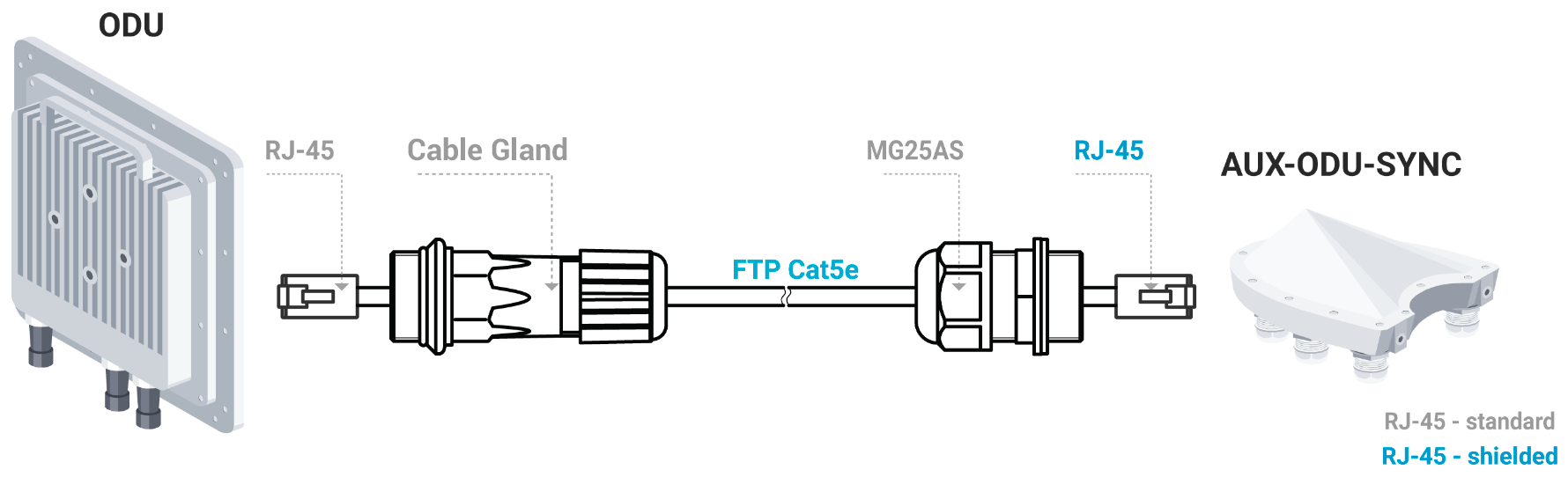
To perform synchronization using an external hub, each base station sector must be connected to an AUX-ODU-SYNC.

The following conditions should be met:

* Frame size and DL/UL ratio should be equal on all sync-end units.
* The automatic downlink ratio selection is not allowed.

{% hint style="warning" %}
NOTE

The AUX-ODU-SYNC antenna is not included in the standard packing list.
{% endhint %}

## Important notice

{% hint style="warning" %}
NOTE

<img src="https://2734851754-files.gitbook.io/~/files/v0/b/gitbook-x-prod.appspot.com/o/spaces%2FnG7V17JtC1mMJOmveKc6%2Fuploads%2FPprKo03q2w3lWQx0qakP%2Fimage.png?alt=media&amp;token=e65e8bc3-c5e9-4704-928e-25f298a38bda" alt="" data-size="line">Changes or modifications not expressly approved by the party responsible for compliance could void the user’s authority to operate the equipment.

This equipment has been tested and found to comply with the limits for a Class B digital device, pursuant to part 15 of the FCC Rules. These limits are designed to provide reasonable protection against harmful interference in a residential installation. This equipment generates, uses and can radiate radio frequency energy and, if not installed and used in accordance with the instructions, may cause harmful interference to radio communications. However, there is no guarantee that interference will not occur in a particular installation. If this equipment does cause harmful interference to radio or television reception, which can be determined by turning the equipment off and on, the user is encouraged to try to correct the interference by one or more of the following measures:

* Reorient or relocate the receiving antenna.
* Increase the separation between the equipment and receiver.
* Connect the equipment into an outlet on a circuit different from that to which the receiver is connected.
* Consult the dealer or an experienced radio/TV technician for help.
  {% endhint %}

{% hint style="warning" %}

NOTE

<img src="https://2734851754-files.gitbook.io/~/files/v0/b/gitbook-x-prod.appspot.com/o/spaces%2FnG7V17JtC1mMJOmveKc6%2Fuploads%2FUrZuTNtcMdm0ROdgVpGp%2Fimage.png?alt=media&amp;token=324682f2-114b-40cc-9884-e3f0e9b02033" alt="" data-size="line"> <img src="https://2734851754-files.gitbook.io/~/files/v0/b/gitbook-x-prod.appspot.com/o/spaces%2FnG7V17JtC1mMJOmveKc6%2Fuploads%2FOGHffNfvxGryAdW26Agb%2Fimage.png?alt=media&amp;token=586d0711-ff5a-40b6-b879-c0deff24a29a" alt="" data-size="line">On the territory of the European Union, following applies:

* the band 5150–5350 MHz is only for indoor use to reduce the potential for harmful interference to co-channel mobile satellite systems and other services. Further, EU regulations enforce EIRP limit in that band of 200mW (23dBm), output power and antenna gain (in case of devices with detachable antenna) shall be chosen accordingly;
* in the band 5470-5725 MHz, choice of the transmit power and antenna gain (in case of devices with detachable antenna) shall be such that the equipment still complies with the EIRP limit and EIRP density limit. EIRP limit in that band is 1W (30dBm), EIRP density limit is 50mW/MHz (17dBm/MHz);
* in the band 5725-5875 MHz, choice of the transmit power and antenna gain (in case of devices with detachable antenna) shall be such that the equipment still complies with the EIRP density limit. EIRP density limit in that band is 200mW/MHz (23dBm/MHz).
  {% endhint %}

{% hint style="warning" %}

NOTE

This device contains licence-exempt transmitter(s)/receiver(s) that comply with Innovation, Science and Economic Development Canada’s licence-exempt RSS(s). Operation is subject to the following two conditions:

* This device may not cause interference.
* This device must accept any interference, including interference that may cause undesired operation of the device.

This Class B digital apparatus complies with Canadian ICES-003.

Following also applies to this radio equipment:

* the band 5150–5250 MHz is only for indoor use to reduce the potential for harmful interference to co-channel mobile satellite systems;
* for devices with detachable antenna, the maximum antenna gain permitted for devices in the bands 5250-5350 MHz and 5470-5725 MHz shall be such that the equipment still complies with the e.i.r.p. limit;
* for devices with detachable antenna, the maximum antenna gain permitted for devices in the band 5725-5850 MHz shall be such that the equipment still complies with the e.i.r.p. limits as appropriate; and
* where applicable, antenna type(s), antenna models(s), and worst-case tilt angle(s) necessary to remain compliant with the e.i.r.p. elevation mask requirement set forth in section 6.2.2.3 of the RSS-247 shall be clearly indicated.\
  High-power radars are allocated as primary users (i.e. priority users) of the bands 5250-5350 MHz and 5650-5850 MHz and these radars could cause interference and/or damage LE-LAN devices.
  {% endhint %}

{% hint style="warning" %}

REMARQUE

Cet appareil contient des émetteurs / récepteurs exemptés de licence conformes à la (aux) source(s) RSS de Innovation, Sciences et Développement économique Canada. Le fonctionnement est soumis aux deux conditions suivantes:

* Cet appareil ne doit pas causer d'interférences.
* Cet appareil doit accepter toutes les interférences, y compris celles susceptibles de provoquer un fonctionnement indésirable de l'appareil.

Cet appareil numérique de la classe B est conforme à la norme NMB-003 du Canada.

Ce qui suit s’applique également à cet équipement radio:

* la bande 5150–5250 MHz est uniquement destinée à une utilisation en intérieur afin de réduire le risque de brouillage préjudiciable des systèmes de télécommunication par satellite mobiles dans le même canal;
* pour les dispositifs avec une antenna détachable, le gain d'antenne maximal autorisé pour les dispositifs des bandes 5250-5350 MHz et 5470-5725 MHz doit être tel que l'équipement soit toujours conforme à la norme e.i.r.p. limite;
* pour les dispositifs avec une antenna détachable, le gain d'antenne maximal autorisé pour les dispositifs de la bande 5725-5850 MHz doit être tel que l'équipement soit toujours conforme à la norme e.i.r.p. limites, le cas échéant; et
* le cas échéant, type (s) d’antenne, modèle (s) d’antenne et angle (s) d’inclinaison dans le cas le plus défavorable nécessaire pour rester conforme à la norme e.i.r.p. L’exigence de masque d’altitude énoncée à la section 6.2.2.3 du CNR-247 doit être clairement indiquée.\
  Les radars à haute puissance sont attribués en tant qu'utilisateurs principaux (utilisateurs prioritaires) des bandes 5250-5350 MHz et 5650-5850 MHz, et ces radars peuvent provoquer des interférences et / ou endommager les dispositifs LE-LAN.
  {% endhint %}

{% hint style="warning" %}
Este equipamento não tem direito à proteção contra interferência prejudicial e não pode causar interferência em sistemas devidamente autorizados. Para maiores informações, consulte o site da ANATEL
{% endhint %}


# Link Pre-configuration in the lab⁣⁣⁣⁣⁣⁣⁣⁣⁣

Usually, before going into the field, it is recommended to pre-configure in the lab the Astrawireless units to verify the link establishment. Take the units out of the package and place them on the table.

{% hint style="warning" %}
NOTE

A minimum set of requirements must be met during devices pre-configuration in the lab:

* Make sure that devices are positioned in such a way so that they are not directed right at each other to prevent device damage.
* In case of connectorized model configuration, it is recommended to connect the two devices in the link directly, with RF cables and RF attenuators with attenuation of at least 40 dB for each polarization (installation\deinstallation of the RF attenuators and RF cables should only be performed when the devices are switched off).
* In case an external antenna or the other unit in the link is connected to only one N-type connector do not switch on the unit.
  {% endhint %}

**Step 1: Scheme connection assembling**

The equipment list required for the lab configuration:

1. Outdoor units - 2 pcs.
2. Power supply - 2 pcs.
3. Power cord - 2 pcs.
4. Ethernet cables - 4 pcs.
5. Laptop with Ethernet port available.

We will perform the settings mentioned below for each unit and check if the wireless link was established correctly.

Use the following instruction to assemble a test scheme:

1. Connect Gigabit Ethernet port at the ODU to the power supply port labeled as "OUT".
2. Connect Ethernet port at the laptop to the power supply port labeled as "IN".
3. Connect the power cord to power supply and plug it to AC mains.

{% hint style="warning" %}
NOTE

Сonnecting third-party equipment via Ethernet (switches, PCs), make sure the PoE, Energy Efficient Ethernet and Green Ethernet functions are disabled on the network interfaces connected to Astra Wireless devices.
{% endhint %}

<figure><img src="https://2734851754-files.gitbook.io/~/files/v0/b/gitbook-x-prod.appspot.com/o/spaces%2FnG7V17JtC1mMJOmveKc6%2Fuploads%2F3XuJyz6vMYALwpoYA2wb%2Fqsr%20for%20doc3.png?alt=media&amp;token=38035edf-99d1-410b-8123-4b267b758de6" alt=""><figcaption></figcaption></figure>

#### **Step 2: Access to the device** <a href="#linkpreconfigurationinthelab-step2-accesstothedevice" id="linkpreconfigurationinthelab-step2-accesstothedevice"></a>

Let's access each unit to the default IP address 10.10.10.1 with mask 255.255.255.0 via a web browser. Before, make sure the Ethernet port of the Laptop has an IP address assigned from the same subnetwork as the one for the unit (e.g., set 10.10.10.10 with mask 255.255.255.0).

{% hint style="warning" %}
NOTE

We assume that each unit used in this setup has not been configured before and runs with the factory settings.
{% endhint %}

Use any letters or numbers for the initial authentication on each unit, for example:

* Login: login.
* Password: password.

{% hint style="warning" %}
NOTE

We strongly recommend to change your login and password after the first login.
{% endhint %}

After the first login, let's configure a distinctive name for each unit and set a custom login and password. Go to the "Settings" → "General" section and configure:

* Device Name (e.g., Master/Slave).

Go to the "Settings" → "Security" → "Change admin password" and configure:

* Login (e.g., admin).
* Password (e.g., admin).

{% hint style="warning" %}
NOTE

At the next login, type "admin" for the Login and Password (if these are the credentials set before) to access the unit in the privileged mode.
{% endhint %}

#### **Step 3: Firmware upgrade** <a href="#linkpreconfigurationinthelab-step3-firmwareupgrade" id="linkpreconfigurationinthelab-step3-firmwareupgrade"></a>

Let's upgrade each unit to the latest stable firmware version. In case the laptop has an access to the Internet, a new software version will be detected automatically, update on both devices.

Otherwise, the manual firmware upgrade process should be performed:

* Download latest release from the ftp server <https://ftp.astrawireless.net/pub/Firmware>.
* In the "Maintenance" section click the "Select file" button and set the path to the downloaded file, or drug it to the specified area.
* File will be uploaded to the device. Changes will take force after reboot.

<figure><img src="https://2734851754-files.gitbook.io/~/files/v0/b/gitbook-x-prod.appspot.com/o/spaces%2FnG7V17JtC1mMJOmveKc6%2Fuploads%2FVMccvIlvyy6qKCnmEbAm%2F170.png?alt=media&amp;token=484701c4-e144-4ff9-8f03-88c40db1c98f" alt=""><figcaption></figcaption></figure>

#### **Step 4: Radio parameters configuration** <a href="#linkpreconfigurationinthelab-step4-radioparametersconfiguration" id="linkpreconfigurationinthelab-step4-radioparametersconfiguration"></a>

Let's configure the minimum needed radio parameters to establish the link.

At the both units, go to the "Settings" → "Radio" section and set this unit with:

* Link ID parameter, it must be the same on both sides of the link
* Center frequency use values selected at the Link Planning stage.
* Channel width: use value selected at the Link Planning stage.
* Power limit: set the minimum value in the range, as currently, we are in the lab, and we don't need high output power.

The rest of parameters remain with the default values.

<figure><img src="https://2734851754-files.gitbook.io/~/files/v0/b/gitbook-x-prod.appspot.com/o/spaces%2FnG7V17JtC1mMJOmveKc6%2Fuploads%2FakYS7Px6D9HfJIjsYQOV%2F171.png?alt=media&amp;token=a39983b3-cd40-4aeb-bf20-e5d749c6e816" alt=""><figcaption></figcaption></figure>

#### **Step 5: Check the wireless link status** <a href="#linkpreconfigurationinthelab-step5-checkthewirelesslinkstatus" id="linkpreconfigurationinthelab-step5-checkthewirelesslinkstatus"></a>

Let's apply all settings described above for each unit and go to the "Dashboard" section and check if the device status has changed to "Connected".


# Installation⁣⁣⁣⁣⁣

## Mounting kit

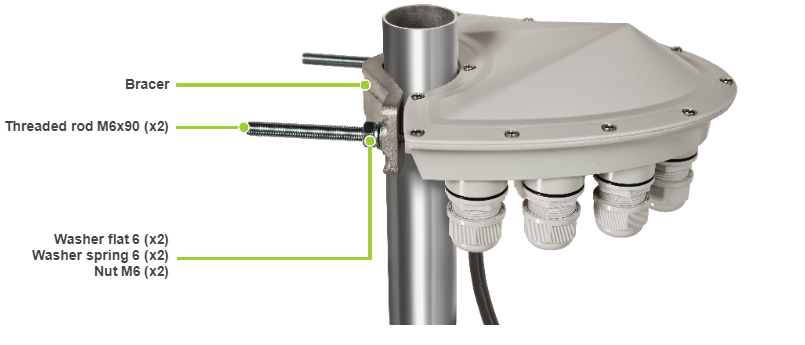
MONT-KIT-85QR is supplied with all models by default. It allows to make reliable and easy installation of the unit with two-axis adjustment. Mount it to the device from the left or right side, depending on the pole positioning. Assemble the Mounting kit according to the scheme below. The nut must be tightened until the spring washer clicks, without over-tightening.

<figure><img src="https://2734851754-files.gitbook.io/~/files/v0/b/gitbook-x-prod.appspot.com/o/spaces%2FnG7V17JtC1mMJOmveKc6%2Fuploads%2FtLdAF2w4LBepcgpSWxtA%2Fimage.png?alt=media&amp;token=c2ef82ac-0b1f-44fa-83a7-4afc4feba38d" alt=""><figcaption></figcaption></figure>

**Step 1**: attach the Lever (Part 1) to the Holder (Part 2)&#x20;using positions 4, 5, 6.

**Step 2**: attach the finished mount to the device using&#x20;positions 4, 5, 6.

**Step 3**: attach the device and mount to the pole using&#x20;bracket and positions 7, 8, 9.

<table><thead><tr><th width="172">Item</th><th width="383">Description</th><th>Qty</th></tr></thead><tbody><tr><td>1</td><td>Lever (Part 1)</td><td>1</td></tr><tr><td>2</td><td>Holder (Part 2)</td><td>1</td></tr><tr><td>3</td><td>Bracket</td><td>1</td></tr><tr><td>4</td><td>Screw M6x12</td><td>5</td></tr><tr><td>5</td><td>Spring washer 6</td><td>5</td></tr><tr><td>6</td><td>Washer 6</td><td>5</td></tr><tr><td>7</td><td>Screw M8x80</td><td>2</td></tr><tr><td>8</td><td>Spring washer 8</td><td>2</td></tr><tr><td>9</td><td>Washer 8</td><td>2</td></tr></tbody></table>

## Cable Gland Assembly⁣⁣⁣⁣⁣⁣⁣

### Cable Gland Assembly for RJ-45 connector <a href="#cableglandassembly-cableglandassemblyforrj-45connector" id="cableglandassembly-cableglandassemblyforrj-45connector"></a>

Required components are listed below.

1. Unshielded RJ-45 connector.
2. Shielded RJ-45 connector.
3. FTP Cat5e cable.
4. Cable gland:
   * Cable gland nut.
   * Split sealing grommet (with inner diameter 7 mm).
   * Cable gland threaded coupling.
5. Crimping tool for RJ-45 connector.

{% hint style="warning" %}
NOTE

The outside diameter value of the FTP Cat5e cable should not exceed 7 mm.

Cable gland can be assembled on pre-crimped cable.
{% endhint %}

#### Assemble procedure  <a href="#cableglandassembly-assembleprocedureassembleprocedure" id="cableglandassembly-assembleprocedureassembleprocedure"></a>

In order to ensure that the device case remains sealed under any environmental conditions follow the assemble procedure:

* **Step 1**: Crimp the standard RJ-45 connector onto the cable using crimping tool. Pin-out scheme: T568B wiring standard.

{% hint style="danger" %}
CAUTION

Make sure that the RJ-45 connector is well-crimped. A loose connector can damage the device. Please note that such damage is not covered by the warranty.

Do not use the shielded RJ-45 connector on this end of the cable as it should be attached on the power supply unit end.
{% endhint %}

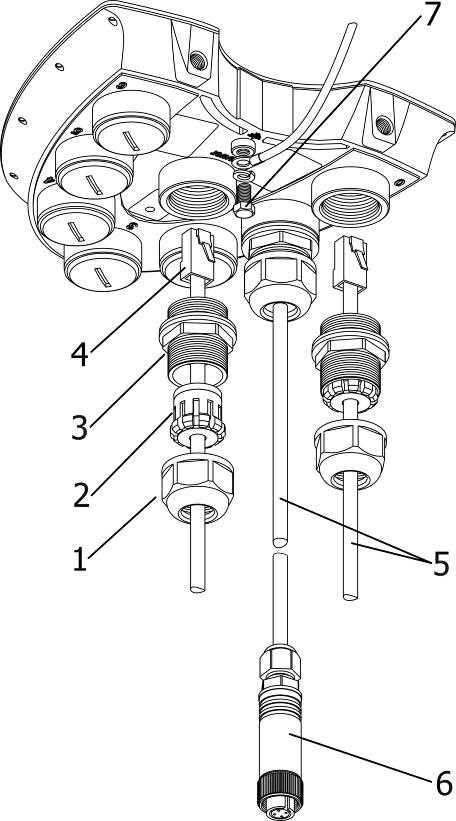
* **Step 2**: Assemble cable gland nut, the split sealing grommet and the cable gland threaded coupling onto the pre-terminated cable as shown on the figure below.
* **Step 3**: Insert the split sealing grommet into the cable gland threaded coupling.
* **Step 4**: Insert the RJ-45 connector into the device socket until you hear a click.
* **Step 5**: Screw the cable gland threaded coupling into the port and tighten it. Do not apply excessive force.
* **Step 6**: Tighten the cable gland nut (4). Do not apply excessive force.

### Cable Gland Assembly for Optical Cable <a href="#cableglandassembly-cableglandassemblyforopticalcable" id="cableglandassembly-cableglandassemblyforopticalcable"></a>

Required components are listed below.

1. Optical cable.
2. Optical connector.
3. SFP module.
4. Cable gland:
   * Cable gland nut.
   * Split sealing grommet (with inner diameter 3.2 mm).
   * Cable gland threaded coupling.

#### Assemble procedure <a href="#cableglandassembly-assembleprocedure" id="cableglandassembly-assembleprocedure"></a>

* **Step 1**: Put the cable gland nut, the split sealing grommet and cable gland threaded coupling onto the optical cable as shown on the figure below.
* **Step 2**: Insert the split sealing grommet into the cable gland threaded coupling.
* **Step 3**: Set the SFP module into the socket until you hear a click.
* **Step 4**: Insert the optical connector into the SFP module.
* **Step 5**: Screw the cable gland threaded coupling into the port and tighten it.
* **Step 6**: Tighten the cable gland nut. Do not apply excessive force.

{% hint style="warning" %}
NOTE

In order to disassemble SFP, please disconnect the optical cable, pull the clip of the SFP module and withdraw the SFP module from the slot.

SFP module is not included into the packing list. Is possible to use an SFP (Small Form-factor Pluggable) transceiver of any manufacturer that meets the MSA (MultiSource Agreement) standard.
{% endhint %}

## Mounting⁣⁣⁣⁣⁣⁣⁣⁣

### Pre-installation <a href="#mounting-pre-installation" id="mounting-pre-installation"></a>

**Reqiered tools**

* Screwdriwer set.
* Pliers / pipe wrench.
* Wrench set.

**Additional equipment**

* GPS receiver.
* High magnification binoculars.

{% hint style="danger" %}
CAUTION

Before mounting the equipment in an outdoor environment, please make sure that:&#x20;

* You acknowledge the regulations imposed by the Regulatory Authority for Communications in your country for the radio spectrum to be used.
* You chose known locations for the installation of the links; although Astrawireless devices can also operate in Near-LoS or Non-LoS conditions, to achieve the best performance, it's highly recommended to install the link in locations where Clear-Line-of-Site and clear channels are available.
* You performed link planning using the planning tool to determine the link path profiles, radio equipment placement requirements, etc.
* You met requirements described in the section "Planning considerations" - > "Wireless device placement".
  {% endhint %}

### Installation Procedure <a href="#mounting-installationprocedure" id="mounting-installationprocedure"></a>

1a. In case of device with removable parabolic antenna, to mount the reflector to Quasar, proceed as follows:

* Match the antenna reflector with the cover of the outdor unit to coincide the cut parts of the antenna and the slots of the enclosure to prevent rotation of the antenna during operation;
* Install the sealing metal ring of the feeder on top of the antenna reflector, screw the feeder into the hole to press the reflector to the device enclosure;
* Tighten the feeder with a 45 mm wrench included in  &#x20;the device kit with a force of 700-800 Nm.

1b. In case of device with external antenna, to mount and connect an external antenna to Quasar, proceed as follows:

* Mount the antenna(s) according to manufacturer’s instructions;<br>

<figure><img src="https://2734851754-files.gitbook.io/~/files/v0/b/gitbook-x-prod.appspot.com/o/spaces%2FnG7V17JtC1mMJOmveKc6%2Fuploads%2Ft4s7Xlc03S7BXm79cnlN%2Fimage.png?alt=media&amp;token=bbf4e6ab-6e54-491b-9cb7-c4856e583c92" alt=""><figcaption></figcaption></figure>

* Screw the waveguide adapter onto the device enclosure  &#x20;and tighten it without applying excessive force;
* Rotate the waveguide to ensure that the indicators on the cover are in the required position.
  * V positioned vertically – transmission is performed using vertical and horizontal polarizations.
  * X positioned vertically – dual-slant polarisation (±45°) is used for transmission.
* Tighten the fasteners.
* Connect the AUX-WCA V and H N-type interfaces to the antenna(s) with RF coaxial cables (CAB-RF-1M-LL or similar) and with appropriate connectors. Use cables not longer than 3 m (9.8ft). Tighten the N-type connectors to a torque setting of 1.7 Nm (1.3 lb ft);
* Form drip loops near the cable ends at the ODU’s side so that water doesn’t creep towards the ODU connectors;
* Weatherproof the N-type connectors (when antenna alignment is complete) using PVC tape and self-amalgamating rubber tape;
* Weatherproof the antenna connectors in the same way (unless the antenna manufacturer specifies a different method);
* Fix the antenna cables to the supporting structure using site approved methods. Ensure that no undue strain is placed on the ODU or antenna connectors. Ensure that the cables do not flap in the wind, as flapping cables are prone to damage and induce unwanted vibrations in the supporting structure.

{% hint style="danger" %}
CAUTION

In order to prevent device damage make sure that antenna is connected to both N-type connectors with serviceable RF cables before switching on.
{% endhint %}

Install ODU connector facing down using the mounting kit. Do not tighten the fasteners to the end until the alignment is completed.

2. Connect the Cat5e FTP cable with the cable gland to ODU.
3. Perform ODU grounding.
4. Lay the Cat5e FTP cable from ODU to the power supply.
5. Connect the Cat5e FTP cable with a shielded connector covered by a cap to the "OUT" port of the power supply, having previously touched the power supply connector case with FTP cable connector case.&#x20;
6. Perform the power supply grounding.
7. Connect the laptop using Cat5e FTP cable to the power supply "IN" port.
8. Connect the power cord to the power supply and then to the power circuit.

{% hint style="danger" %}
CAUTION

The power supply must not operate near a direct heat source, near water or in an environment with high humidity. The cables must be connected in such a way to prevent water flow to the power supply connectors.

Use mains supply cords that adhere to safety regulations of the country where the equipment is getting deployed.
{% endhint %}

Make sure a small loop (at least 10 cable diameters) is provided before the Cat5e FTP cable enter into the building.

<figure><img src="https://2734851754-files.gitbook.io/~/files/v0/b/gitbook-x-prod.appspot.com/o/spaces%2FnG7V17JtC1mMJOmveKc6%2Fuploads%2FPgL5rO4jH6ohXTtzZWgx%2Fimage.png?alt=media&amp;token=ebf3f3e8-566d-4e9d-a62e-4784c095909f" alt=""><figcaption></figcaption></figure>

{% hint style="danger" %}
CAUTION

Please note that the pressure equalization system in Astrawireless devices is performed via gas exchange through a cable gland and Ethernet cable jacket with a dry room where the power supply is installed. In order to avoid ODU failure due to moisture entering the device, for example, during the pressure drop during the rain, the cable gland assembly requirements should be met and there are should be no cracks in the Ethernet cable jacket.

In addition, you should avoid the Ethernet cable bending near the ODU and pinching with clamps, that can bring to the pressure equalization system fault between the internal volume of the sealed ODU and the external environment during a sudden air temperature change. This may lead to the leakage and device failures.
{% endhint %}

#### Powering via DC IN port

For powering the device via "DC IN" port terminate a cable with the power connector. Power connector scheme is below.

<figure><img src="https://2734851754-files.gitbook.io/~/files/v0/b/gitbook-x-prod.appspot.com/o/spaces%2FnG7V17JtC1mMJOmveKc6%2Fuploads%2FGqS596mZHKAE00QuhTDe%2Fimage.png?alt=media&amp;token=ea43f0e3-349c-44e4-bfe7-b7ca4f3939ce" alt=""><figcaption></figcaption></figure>

The first DC-in port is supplied with a power source with a voltage ranging from ±12 to ±56 V, while the second contact is connected to zero.

Follow requirements:

1. Press on the catchers (1) when the cable is terminated;
2. Use the round cable with diameter from 5mm to 6mm with conductor cross-section from 0.5mm to 2.5mm;
3. FTP Cat5e cable may be used.

## Grounding and lightning protection⁣⁣⁣⁣⁣⁣⁣⁣

This section describes factors to be considered when planning the proposed link end sites, including grounding, lightning protection and equipment location for the wireless device, power supply, AUX-ODU-LPU-L unit (if installed).

{% hint style="danger" %}
CAUTION

Electro-magnetic discharge (lightning) damage is not covered under warranty. The recommendations in this document, when followed correctly, give the user the best protection from the harmful effects of EMD. However 100% protection is neither implied nor possible.
{% endhint %}

### Grounding and lightning protection recommendations <a href="#groundingandlightningprotection-groundingandlightningprotectionrecommendations" id="groundingandlightningprotection-groundingandlightningprotectionrecommendations"></a>

* The wireless device should be placed on the pole at a height that is at least 1 meter below the top of the pole. In this case, there is a significant probability that the lightning strikes the pole and not the wireless device. The pole should be properly grounded: connected to the building lightning protection circuit according to your local regulations.
* &#x20;All equipment must be connected at stabilized and surge protected power sources which must be properly grounded.
* The end of the FTP service cable that is connected to the power supply should be assembled with a shielded RJ-45 connector. The other end of the FTP service cable (connected to the wireless device) should be assembled with unshielded (standard) RJ-45 connector.
* The power supply is grounded via a three-conductor power cord and a grounded socket.
* AUX-ODU-LPU-L and wireless device grounding is performed using grounding bolt.
* Antenna pole and wireless device should be connected to the common ground ring. Grounding cables should be no less than 10AWG thick and must use corrosion-resistant connectors. Grounding bolt is included in the supply list, M6x10 for BS devices, M5x10 for ST devices.

### Requirements to the lightning protection unit AUX-ODU-LPU-L location <a href="#groundingandlightningprotection-requirementstothelightningprotectionunitaux-odu-lpu-llocation" id="groundingandlightningprotection-requirementstothelightningprotectionunitaux-odu-lpu-llocation"></a>

AUX-ODU-LPU-L is an optional accessory which may be used to serve as a line protection unit for the ODU and for the indoor network equipment connected to the Ethernet port of the IDU. AUX-ODU-LPU-L should be properly assembled, mounted and grounded.

General recommendations for installations of lightning protection units:

* Install the lightning protection unit on both ends of the cable to protect both the outdoor and the indoor unit. The purpose of the LPU at the top is to protect the ODU from a surge of lightning strike which can hit the long FTP cable run along the height of the pole or on the roof of the building. The purpose of the LPU at the bottom is to protect the IDU and customer equipment.
* Use the lightning protection unit to protect all circuits for signal transmission and power supply (video, audio, management signals, Ethernet, etc.)
* Regularly (especially before the periods with high thunderstorm activity) check the integrity of lightning protection units, grounding elements and bonding conductors.
* The ports of the AUX-ODU-LPU-L device are symmetrical, i.e. the correspondence of ports position to the external unit and the power supply does not matter.

Make sure to install the two LPU devices as shown in the scheme below.

<figure><img src="https://2734851754-files.gitbook.io/~/files/v0/b/gitbook-x-prod.appspot.com/o/spaces%2FnG7V17JtC1mMJOmveKc6%2Fuploads%2FBdXlIvh8MKvzOizIE75m%2Fimage.png?alt=media&amp;token=6843869d-0cf1-4621-9975-e5a228bd6f74" alt=""><figcaption></figcaption></figure>

{% hint style="danger" %}
CAUTION

Please note grounding cables should not be connected to the mast. All devices must use separate grounding cable that should be connected to the grounding circuit. The best scenario is when grounding cables are lined parallel to the Ethernet cable.
{% endhint %}

#### AUX-ODU-LPU-L Mounting <a href="#groundingandlightningprotection-aux-odu-lpu-lmounting" id="groundingandlightningprotection-aux-odu-lpu-lmounting"></a>

&#x20;AUX-ODU-LPU-L is installed on a mast, using clamp. Attach the grounding cable (min cross-section 2.5 mm2) to the case, using grounding bolt. An M6x10 grounding bolt is included in the supply list.

<figure><img src="https://2734851754-files.gitbook.io/~/files/v0/b/gitbook-x-prod.appspot.com/o/spaces%2FnG7V17JtC1mMJOmveKc6%2Fuploads%2FPFzdg6QpIwco60HfHOzH%2Fimage.png?alt=media&amp;token=3bc6805d-00e4-48dc-9ddc-bfe36cc8678a" alt=""><figcaption></figcaption></figure>

During AUX-ODU-LPU-L mounting it is necessary to provide a small loop of the FTP cable that should be below the cable gland. This ensures that water is not constantly channeled towards the connector. It will also serve as a cable compensation for the cable linear expansion as the temperature difference result.

<figure><img src="https://2734851754-files.gitbook.io/~/files/v0/b/gitbook-x-prod.appspot.com/o/spaces%2FnG7V17JtC1mMJOmveKc6%2Fuploads%2FvJRrDYqGS6ITh7a4CsVD%2Fimage.png?alt=media&amp;token=b9fd136d-4e03-4910-9d0b-187f0e16b280" alt=""><figcaption></figcaption></figure>

{% hint style="danger" %}
CAUTION

Missing or bad grounding may leave the unit vulnerable to lightning damage.
{% endhint %}

#### AUX-ODU-LPU-L Cable Ggland Assembly <a href="#groundingandlightningprotection-aux-odu-lpu-lcablegglandassembly" id="groundingandlightningprotection-aux-odu-lpu-lcablegglandassembly"></a>

In order to ensure that the cable gland remains sealed under any environmental conditions, please, follow the assembly sequence according to the procedure below:

* **Step 1**: Insert the sealing insert into the clamping claw.
* **Step 2**: Assemble the cable gland by putting the thread-lock sealing nut, clamping claw with sealing insert and body onto the cable as shown on the figure.
* **Step 3**: Insert the clamping claw with sealing insert into the body as shown on the figure.
* **Step 4**: Crimp the standard RJ-45 connector onto the cable using crimping tool. Pin-out scheme: T568B wiring standards.

{% hint style="danger" %}
CAUTION

Make sure that the RJ-45 connector is well-crimped. A loose connector can damage the device. Please note that such damage is not covered by the warranty.&#x20;
{% endhint %}

* **Step 5**: Insert the RJ-45 connector into the corresponding socket until you hear a click.
* **Step 6**: Screw the cable gland body into the port and tighten it. Do not apply excessive force.
* **Step 7**: Tighten the thread-lock sealing nut. Do not apply excessive force.

<figure><img src="https://2734851754-files.gitbook.io/~/files/v0/b/gitbook-x-prod.appspot.com/o/spaces%2FnG7V17JtC1mMJOmveKc6%2Fuploads%2Ftey3Me4oJisFbSjrOBcy%2Fimage.png?alt=media&amp;token=574854eb-6b0f-4d6f-83bc-a1231530496c" alt=""><figcaption></figcaption></figure>

## Antenna Alignment⁣⁣⁣⁣⁣

### General recommendations <a href="#antennaalignment-generalrecommendations" id="antennaalignment-generalrecommendations"></a>

* It is recommended to have two teams prepared for alignment procedure, each team with at least two members: one should take the signal readings and communicate with the remote end, the other should manipulate the antenna.
* To align the device horizontally, release the M6 screws on the lever. To align the device vertically, release the M8 screws on the holder. Tighten the screws once alignment is complete.

<figure><img src="https://2734851754-files.gitbook.io/~/files/v0/b/gitbook-x-prod.appspot.com/o/spaces%2FnG7V17JtC1mMJOmveKc6%2Fuploads%2FES84MMpO9a9FJlqaxtbG%2Fqsr%20for%20doc4.png?alt=media&amp;token=a2d461d1-8130-436a-bdad-5b6613f781e4" alt="" width="563"><figcaption></figcaption></figure>

* For rough alignment use the azimuth, elevation angle and suspension height from planner tool report.
* For more accurate alignment, use the alignment tool built into the device web interface.
* After the initial alignment, the device at the remote side must be fixed. Firstly, the alignment is performed for one device, then for another.

### Alignment tool <a href="#antennaalignment-alignmenttool" id="antennaalignment-alignmenttool"></a>

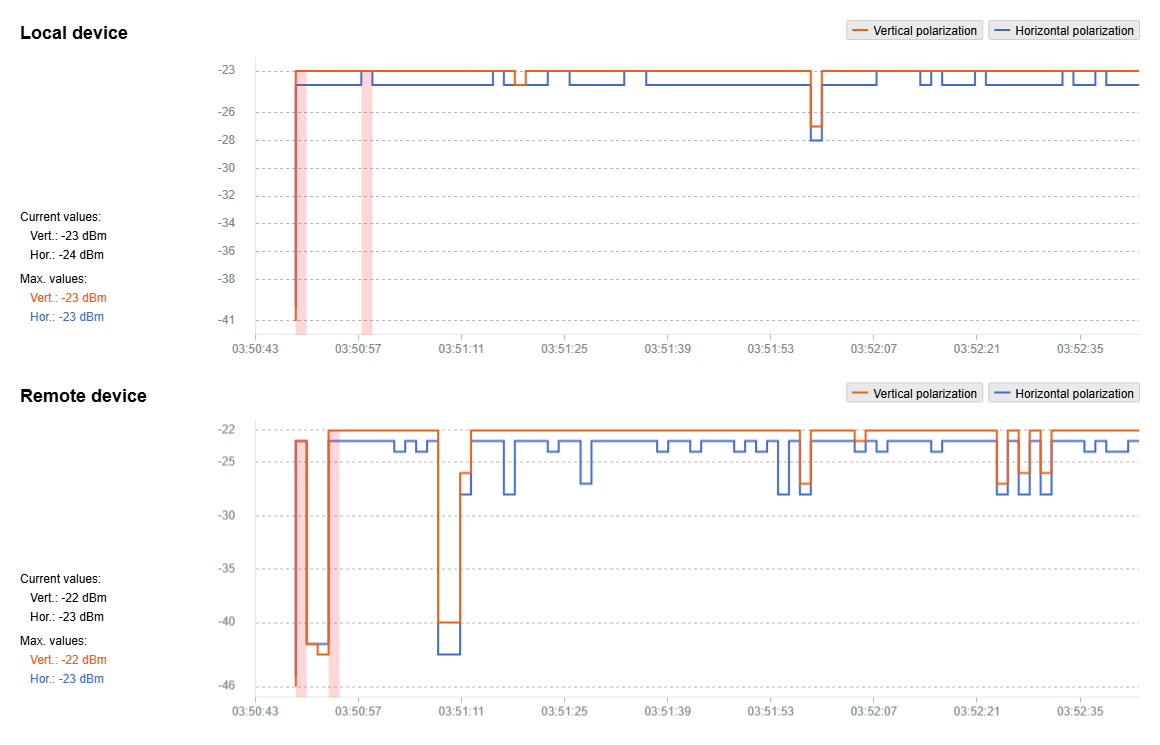
Use the Alignment tool to point and optimize the antenna in the direction of maximum link signal. The built-in graphical antenna alignment tool displays the signal levels for both devices and both polarizations, this makes an alignment process fast and accurate.

To achieve the best performance, RSSI level current values should be -60 ... -40 dBm.

<figure><img src="https://2734851754-files.gitbook.io/~/files/v0/b/gitbook-x-prod.appspot.com/o/spaces%2FnG7V17JtC1mMJOmveKc6%2Fuploads%2FgL6H8YMD98jFko6Ue79W%2F172.png?alt=media&amp;token=6e981d23-e264-4502-b511-517d065425f1" alt=""><figcaption></figcaption></figure>


# Operation & Administration⁣⁣⁣⁣⁣

To make changes in the device configuration click the "Changes" button in the upper right corner of the web interface.

<figure><img src="https://2734851754-files.gitbook.io/~/files/v0/b/gitbook-x-prod.appspot.com/o/spaces%2FnG7V17JtC1mMJOmveKc6%2Fuploads%2F37eG3Xy8kCwNMGq4lZUX%2F173.png?alt=media&amp;token=e2e1422c-05c5-4cb1-9553-80de7792eae4" alt=""><figcaption></figcaption></figure>

The "Applying global changes" window contains a table of parameters whose values have been changed by the user. If you want to undo one change, click the "Roll back" button near the entry. If you need to undo all changes, use the "Roll back all" button at the bottom of the window. Changes will be saved to the device configuration by clicking the "Apply" button.

<figure><img src="https://2734851754-files.gitbook.io/~/files/v0/b/gitbook-x-prod.appspot.com/o/spaces%2FnG7V17JtC1mMJOmveKc6%2Fuploads%2FKxPu7O3dVOaBbIjXcOlm%2F174.png?alt=media&amp;token=08cbeeb9-4b39-490b-bad9-e9ae5c5b444f" alt=""><figcaption></figcaption></figure>

To apply the configuration safely, use the "Try" button. In this case, the previous configuration will be restored after 180 seconds automatically if changes will not be confirmed or test period extended by the administrator.

<figure><img src="https://2734851754-files.gitbook.io/~/files/v0/b/gitbook-x-prod.appspot.com/o/spaces%2FnG7V17JtC1mMJOmveKc6%2Fuploads%2FS4RyewUuuuLSGhCUPPSX%2Fimage.png?alt=media&amp;token=2749b72c-3148-4a9e-ad07-7e4c673b88c1" alt=""><figcaption></figcaption></figure>


# Web GUI access⁣⁣⁣⁣

Web User Graphical Interface (**Web GUI**) - is the basic way to configure and operate a wireless unit.

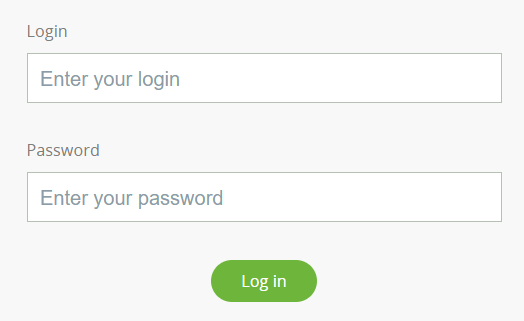
**Operation system** starts automatically when you power on the unit, Web GUI is enabled by default. In order to access the unit via Web browser, type an IP address in the address bar. Default IP address is 10.10.10.1 with mask 255.255.255.0.

{% hint style="warning" %}
NOTE

By default any username and any password can be used to login Web GUI.

It's strongly recommended to set permanent username and password after the first log in. In order to do this go to the "General settings" section.
{% endhint %}

<figure><img src="https://2734851754-files.gitbook.io/~/files/v0/b/gitbook-x-prod.appspot.com/o/spaces%2FnG7V17JtC1mMJOmveKc6%2Fuploads%2FTwDOiyCwZiFhLyV1ROYN%2Fimage.png?alt=media&amp;token=e4bd9390-656f-4b19-b783-b44fcd51f1b2" alt=""><figcaption></figcaption></figure>


# Dashboard⁣⁣⁣⁣

This section is intended to provide the main information about the wireless unit operation.&#x20;

The Dashboard displays a read-only summary of the current link status information, local and remote device signal strength, capacity , current values of the basic configuration settings and Ethernet network status.

### Device status <a href="#id-dashboard-devicestatus" id="id-dashboard-devicestatus"></a>

<figure><img src="https://2734851754-files.gitbook.io/~/files/v0/b/gitbook-x-prod.appspot.com/o/spaces%2FnG7V17JtC1mMJOmveKc6%2Fuploads%2FjJ5RlcMpMTPcQGftga4i%2F175.png?alt=media&amp;token=f6bd59f2-a3a7-462c-81cc-74079d679a39" alt=""><figcaption></figcaption></figure>

<table><thead><tr><th width="237">Parameter</th><th>Description</th></tr></thead><tbody><tr><td><strong>CPU load</strong></td><td>Displays the load percentage of the CPU.</td></tr><tr><td><strong>RAM usage</strong></td><td>Displays the usage percentage of the random-access memory.</td></tr><tr><td><strong>Device uptime</strong></td><td>The device operating time since the last reboot.</td></tr><tr><td><strong>Firmware version</strong></td><td>The firmware version uploaded to the device.</td></tr></tbody></table>

### Wired interface <a href="#id-dashboard-wiredinterface" id="id-dashboard-wiredinterface"></a>

In the "Wired interface status" tab, the wired interfaces status can be monitored, as well as duplex mode and physical interface MAC-address.&#x20;

Current interface load is displayed at the charts for both directions.

The wired interface statistic is available on the right side.

<figure><img src="https://2734851754-files.gitbook.io/~/files/v0/b/gitbook-x-prod.appspot.com/o/spaces%2FnG7V17JtC1mMJOmveKc6%2Fuploads%2FT1xYloVC6zyaNiEp50K0%2Fimage.png?alt=media&amp;token=e93753c5-098f-498c-ac45-258872650154" alt=""><figcaption></figcaption></figure>

<table><thead><tr><th width="236">Parameter</th><th>Description</th></tr></thead><tbody><tr><td><strong>CRC errors (FCS)</strong></td><td>Packets dropped due to checksum mismatch. The possible reasons for the error counter increasement are described in the "Troubleshooting⁣⁣⁣" article.</td></tr><tr><td><strong>Oversize packets</strong></td><td>Packets larger than 9600 bytes.</td></tr><tr><td><strong>Undresize packets (runt)</strong></td><td>Packets less than 64 bytes in size.</td></tr></tbody></table>

### Wireless link status <a href="#id-dashboard-wirelesslinkstatus" id="id-dashboard-wirelesslinkstatus"></a>

The left part of the section contains basic information about link status.

<figure><img src="https://2734851754-files.gitbook.io/~/files/v0/b/gitbook-x-prod.appspot.com/o/spaces%2FnG7V17JtC1mMJOmveKc6%2Fuploads%2Fikl5ub4gKvVjGmrCPuIr%2Fimage.png?alt=media&amp;token=822fbf98-f746-4933-bfdc-2e1e1112a8e8" alt=""><figcaption></figcaption></figure>

<table><thead><tr><th width="236">Parameter</th><th>Description</th></tr></thead><tbody><tr><td><strong>Radio interface status</strong></td><td>Administrative interface status set in the "Switch" section.</td></tr><tr><td><strong>Link status</strong></td><td>Wireless connection state.</td></tr><tr><td><strong>Device role</strong></td><td>Master or Slave.</td></tr><tr><td><strong>Link ID</strong></td><td>Wireless link can be established only with devices which have the same link ID.</td></tr><tr><td><strong>Link uptime</strong></td><td>The link operating time since the last outage.</td></tr><tr><td><strong>Remote device</strong></td><td>Device name set at the remote side.</td></tr><tr><td><strong>Center frequency</strong></td><td>The downlink and uplink center frequency value set in the "Radio" section manually or by the automatic frequency selection mechanism.</td></tr><tr><td><strong>Channel width</strong></td><td>The channel width value set in the "Radio" settings.</td></tr></tbody></table>

The right part contains real-time parameters values for local and remote device.

<figure><img src="https://2734851754-files.gitbook.io/~/files/v0/b/gitbook-x-prod.appspot.com/o/spaces%2FnG7V17JtC1mMJOmveKc6%2Fuploads%2FKAv5t8QKz7bVIXwAR8v2%2Fimage.png?alt=media&amp;token=c794dc9c-d483-44ff-9ed7-ef44a80fbb7a" alt=""><figcaption></figcaption></figure>

TX parameters:

* **Tx power, dBm** - transmit output power level for local and remote device. Automatic or manual if "Automatic transmit power control" is turned off.
* **MCS** - selected modulation coding scheme. Automatic or manual if "Automatic modulation control" is turned off.
* **Bitrate, Mbps** - available bitrate at transmitter of local and remote device for selected MCS.
* **Load, Mbps** - output traffic load on the radio of the local and remote devices.
* **Frames** - amount of frames transmitted since the first link was established.
* **ARQ, %** - number of frames that were retransmitted

RX parameters display values for both polarization:

* **RSSI, dBm** - the received signal level. Available values:
  * **-90...-80 dBm** - close to the receiver sensitivity level, only the lowest modulations are available.&#x20;
  * **-80...-60 dBm** - average input range.
  * **-60...-40 dBm** - the recommended range for achieving best performance.
  * **>-40 dBm** - input signal level is too high.
* **EVM, dBm** - Error vector magnitude is an indicator of the measured input signal quality, telling how far are the received constellation symbols compared to the ideal symbols of the constellation. The parameter value must be as high as possible in absolute value. The recommended level should be less than -21 dB.

#### Link statistic

The link statistics window can be displayed by clicking "Statistics" button.

The "Link Availability" section displays the following information:

* The overall wireless link availability since the last device reboot, the number of wireless outages when the connection was unavailable.
* Availability statistics for each modulation, for downlink and uplink streams.

<figure><img src="https://2734851754-files.gitbook.io/~/files/v0/b/gitbook-x-prod.appspot.com/o/spaces%2FnG7V17JtC1mMJOmveKc6%2Fuploads%2FsbrmvEhnIwMlJgn6TGhl%2Fqsr%20dsb%20avail%20stat.jpg?alt=media&amp;token=d6d44c1c-e556-445b-86d7-ca67523fbf25" alt=""><figcaption></figcaption></figure>

The "MCS Usage" section displays amount of packets being transmitted on each modulation (bitrate) for downlink and uplink streams since the last reboot.

<figure><img src="https://2734851754-files.gitbook.io/~/files/v0/b/gitbook-x-prod.appspot.com/o/spaces%2FnG7V17JtC1mMJOmveKc6%2Fuploads%2FlQP49ji5IHa7pwbQzSQW%2Fqsr%20dsb%20mcs%20stat.jpg?alt=media&amp;token=bc357760-139c-45d4-9255-05f8d5df97b0" alt=""><figcaption></figcaption></figure>

### Wired link status PRF

This section contains information about Pseudo Radio Interface status.

The top part describes prf-interface name, id and role, and the physical parent interface MAC-address. The bottom part describes parameters of joined interfaces (listed on the right side) and link uptime.

<figure><img src="https://2734851754-files.gitbook.io/~/files/v0/b/gitbook-x-prod.appspot.com/o/spaces%2FnG7V17JtC1mMJOmveKc6%2Fuploads%2F0bWHrJ30UySIUS0pHIuf%2Fimage.png?alt=media&amp;token=0d68cac7-f249-4217-8c80-18cfa70fa940" alt=""><figcaption></figcaption></figure>


# General settings⁣⁣⁣⁣⁣

The "General" section allows to configure basic system parameters, described in the table below.

### Device <a href="#generalsettings-unit" id="generalsettings-unit"></a>

These parameters are used for identification and link authorization.

<figure><img src="https://2734851754-files.gitbook.io/~/files/v0/b/gitbook-x-prod.appspot.com/o/spaces%2FnG7V17JtC1mMJOmveKc6%2Fuploads%2FVU0AjkLMY8GjXu8EfTwW%2Fimage.png?alt=media&amp;token=cf2ee5da-c126-40a5-a333-14785b042b05" alt=""><figcaption></figcaption></figure>

<table><thead><tr><th width="171">Parameter</th><th>Description</th></tr></thead><tbody><tr><td><strong>Device Name</strong></td><td>The arbitrary wireless unit name which will be used by network administrators for unit identification. It will be shown in Web GUI side panel.</td></tr></tbody></table>

### SNTP <a href="#generalsettings-sntp" id="generalsettings-sntp"></a>

Starts the SNTP time synchronization service. For proper operation, specify the SNTP server time zone and the IP address first. By default, the SNTP service is disabled.

<figure><img src="https://2734851754-files.gitbook.io/~/files/v0/b/gitbook-x-prod.appspot.com/o/spaces%2FnG7V17JtC1mMJOmveKc6%2Fuploads%2FRKo1TNIvgeabYsyfCh3B%2Fimage.png?alt=media&amp;token=ae03315f-7de6-44e5-876f-3db3b62a6ba8" alt=""><figcaption></figcaption></figure>

<table><thead><tr><th width="167">Parameter</th><th>Description</th></tr></thead><tbody><tr><td><strong>SNTP Server Address</strong></td><td>The SNTP server IP address, the SNTP service will synchronize the time on the device with. The device must have network access to the SNTP server.</td></tr><tr><td><strong>Time Zone</strong></td><td>The time zone at the place of device installation. For example: GMT + 5.</td></tr></tbody></table>

### Syslog <a href="#generalsettings-syslog" id="generalsettings-syslog"></a>

<figure><img src="https://2734851754-files.gitbook.io/~/files/v0/b/gitbook-x-prod.appspot.com/o/spaces%2FnG7V17JtC1mMJOmveKc6%2Fuploads%2FRi6THcOryms3C5vaHBzG%2Fimage.png?alt=media&amp;token=8f834441-6f2d-4f17-aa3f-0e7596788f61" alt=""><figcaption></figcaption></figure>

Allows to transmit syslog data to the server using the "syslog" protocol. Specify the syslog server address where data should be transmitted.

### LED indicators

The power and wired status LED indicators are located in the glass plugs of the cable glands for the ETH, SFP and SYNC ports and are switched on by default. To make the device less visible, the LEDs can be switched off.

<figure><img src="https://2734851754-files.gitbook.io/~/files/v0/b/gitbook-x-prod.appspot.com/o/spaces%2FnG7V17JtC1mMJOmveKc6%2Fuploads%2Fi6exi2qlh0vU7tqRjZh1%2Fimage.png?alt=media&amp;token=587ab6b5-4207-44b9-9940-4fd2a14c48a2" alt=""><figcaption></figcaption></figure>


# Security settings⁣⁣⁣⁣

The "Security settings" section allows to configure device access and security settings.

### Administrator access <a href="#securitysettings-administratoraccess" id="securitysettings-administratoraccess"></a>

Here you may change system administrator account login and password, to change the identification data, click the "Change admin password" button. We strongly recommend you to set a login and password after the first login to the device.

<figure><img src="https://2734851754-files.gitbook.io/~/files/v0/b/gitbook-x-prod.appspot.com/o/spaces%2FnG7V17JtC1mMJOmveKc6%2Fuploads%2FPlJzBJ3AwuwYcZb3dYUq%2Fimage.png?alt=media&amp;token=3609f8ab-6ceb-49d5-a166-7456e85b43f4" alt=""><figcaption></figcaption></figure>

### Radius AAA <a href="#securitysettings-radiusaaa" id="securitysettings-radiusaaa"></a>

Here you may configure a device access control using a remote RADIUS server.

<figure><img src="https://2734851754-files.gitbook.io/~/files/v0/b/gitbook-x-prod.appspot.com/o/spaces%2FnG7V17JtC1mMJOmveKc6%2Fuploads%2FzqH4buCQ5pj4L2wgb20a%2Fimage.png?alt=media&amp;token=ec0c2db4-afc1-4aa7-88c3-736a992290fd" alt=""><figcaption></figcaption></figure>

<table><thead><tr><th width="198">Parameter</th><th>Description</th></tr></thead><tbody><tr><td><strong>Address</strong></td><td>Set the RADIUS server IP address.</td></tr><tr><td><strong>Port</strong></td><td>Set the RADIUS server port.</td></tr><tr><td><strong>Password</strong></td><td>Set the server password.</td></tr></tbody></table>

### Command line interface <a href="#securitysettings-commandlineinterface" id="securitysettings-commandlineinterface"></a>

Allows to enable / disable remote device control by the command line using Telnet and SSH protocols.

SSH (Secure Shell) protocol provides secure remote control to network devices. Its functionality is similar to the Telnet protocol, but, unlike Telnet, SSH encodes all protocol messages, including transmitted passwords. By default, only access via Telnet is enabled.

<figure><img src="https://2734851754-files.gitbook.io/~/files/v0/b/gitbook-x-prod.appspot.com/o/spaces%2FnG7V17JtC1mMJOmveKc6%2Fuploads%2FSND2aI0UFzhrYGp2b3Bq%2Fimage.png?alt=media&amp;token=d8ebde44-4948-422d-bae1-399b8481ed83" alt=""><figcaption></figcaption></figure>

### Network access whitelist <a href="#securitysettings-networkaccess" id="securitysettings-networkaccess"></a>

This section is used to create a list of subnets from which access to the device will be allowed.

<figure><img src="https://2734851754-files.gitbook.io/~/files/v0/b/gitbook-x-prod.appspot.com/o/spaces%2FnG7V17JtC1mMJOmveKc6%2Fuploads%2FR0WXGBvvtrh1wM5XIrAG%2Fimage.png?alt=media&amp;token=a89d9c7e-fb15-442f-874d-3159eb727455" alt=""><figcaption></figcaption></figure>


# Radio Settings

## Link Settings

<table><thead><tr><th width="159">Parameter</th><th>Description</th></tr></thead><tbody><tr><td><strong>Link ID</strong></td><td>Wireless link identificator used to avoid connecting a unit to a wrong peer if there are several co-located units using the same center frequency. Specify different ID values for different links. Both ends of the same link must have the same ID.</td></tr><tr><td><strong>Center frequency</strong></td><td><p>Set the radio interface frequency (in MHz).</p><p>Must be the same at both ends of the link.</p></td></tr><tr><td><strong>Channel Width</strong></td><td><p>Set the bandwidth of the radio interface in MHz.</p><p>Must be the same at both ends of the link.</p></td></tr></tbody></table>

<figure><img src="https://2734851754-files.gitbook.io/~/files/v0/b/gitbook-x-prod.appspot.com/o/spaces%2FnG7V17JtC1mMJOmveKc6%2Fuploads%2FQk0yx3c96KM4vf8Dekbm%2F178.png?alt=media&amp;token=21f0757f-4ac1-446d-a746-cf3ec1cab033" alt=""><figcaption></figcaption></figure>

## Power Settings

EIRP value is displayed in the right part of the section and represents the total system power calculated as: Tx Power + Antenna gain + Cable loss (should be specified in the fields below).

<table><thead><tr><th width="159">Parameter</th><th>Description</th></tr></thead><tbody><tr><td><strong>Power limit</strong></td><td>Set the output power of the radio interface in dBm. Available values 0...27 dBm.</td></tr><tr><td><strong>Cable loss</strong></td><td>In case of external antenna usage, energy fading on cables should be set in accordance to the cable datasheet, in dB.</td></tr><tr><td><strong>Antenna gain</strong></td><td>In case of external antenna usage, it's gain should be set manually in dBi.</td></tr><tr><td><strong>Automatic transmission power control (ATPC)</strong></td><td>ATPC enables the transmitter output power of the remote device to be controlled automatically based on the target RSSI value. If the actual RSSI level is lower, the unit increases the remote unit's transmitter output power, and vice versa. ATPC cannot set a value that exceeds the 'Power limit' value.<br>We highly recommend keeping it turned on at all times.</td></tr><tr><td><strong>Target RSSI</strong></td><td>RSSI value in dBm will be used by ATPC of remote device as target. <br>Optimal values -60...-40 dBm.</td></tr></tbody></table>

<figure><img src="https://2734851754-files.gitbook.io/~/files/v0/b/gitbook-x-prod.appspot.com/o/spaces%2FnG7V17JtC1mMJOmveKc6%2Fuploads%2FBb6pJTP8asnTDCBjkE6Q%2F179.png?alt=media&amp;token=b5afccb8-6274-41e0-a25d-0af77690a94d" alt=""><figcaption></figcaption></figure>

## Modulation Settings

<table><thead><tr><th width="253">Parameter</th><th>Description</th></tr></thead><tbody><tr><td><strong>Automatic modulation control (AMC)</strong></td><td><p>Modulation control algorithm selects the most appropriate modulation-coding scheme at each direction in order to maximize the link performance. </p><p>By default, it is turned on (it is strongly recommended to remains “on”).</p></td></tr><tr><td><strong>Modulation limit</strong></td><td><p>Set the maximum operating modulation scheme of the radio interface.</p><p>Acts as a top limit for the modulation if the Autobitrate mechanism is turned on.</p></td></tr></tbody></table>

<figure><img src="https://2734851754-files.gitbook.io/~/files/v0/b/gitbook-x-prod.appspot.com/o/spaces%2FnG7V17JtC1mMJOmveKc6%2Fuploads%2FjN7ybPSOpKkVID7DuzZG%2Fimage.png?alt=media&amp;token=c702cb79-6234-4d54-8a01-df8d8a0b6068" alt=""><figcaption></figcaption></figure>

## Frequency Grid

The frequency grid allows to limit the scan range in case the center frequency is automatically selected. Also Instant DFS will use these restrictions when monitoring the noise situation. Narrow grid of available frequencies speeds up scanning and link establishing process. Manual center frequency selection will also be limited to the values indicated in the grid. The frequency adjustment step is 1 MHz.

<figure><img src="https://2734851754-files.gitbook.io/~/files/v0/b/gitbook-x-prod.appspot.com/o/spaces%2FnG7V17JtC1mMJOmveKc6%2Fuploads%2Fu0uCR22lyZ5so7D1IFf6%2F180.png?alt=media&amp;token=ec79e664-53c5-4331-b0af-0dee7b29b688" alt=""><figcaption></figcaption></figure>


# Switch settings

## Network interface

In the "Network Settings" section, there are displayed all physical and logical network interfaces that are already configured. The physical interfaces (eth0 and rf0) are set by default and they cannot be removed. For these two interfaces, you are allowed to change the parameters only.

Following layer 2 and 3 logical interfaces can be created with certain parameters by clicking "Add interface" button:

* "**VLAN**" can be assigned to a physical interface or to a virtual interface sviX. It is used for the creation of the logical network topology regardless of the physical topology of this network. VLAN allows creating groups of interfaces which have a common set of requirements. It contributes to reducing the multicast traffic in the network, as every VLAN is a separate multicast domain. VLAN usage increases the network security and manageability;
* "**SVI**", Switch Virtual Interface is an L3 interface that can be assigned to a switching group for getting access to the unit management via this switching group. This interface becomes part of this switching group and can participate in the exchange of information with other group members so that any packets received by the group (according to its rules), or addressed to the sviX directly, or copies of multicast/broadcast packets, will be received by the unit through the "*sviX"*. This interface allows getting the remote access to the unit management. It is also used for the Management VLAN configuration;
* "**PRF**" - Pseudo Radio Interface can be attached to the Ethernet interface in order to allow it to work as a radio interface using the MINT protocol, so that the node can find its neighbors and establish the links with them through this interface. The interface encapsulates MINT-frames into the Ethernet-frames and allows connecting the units of the MINT network using wired interfaces. Also, this interface can be joined with other MINT-interfaces;
* "***LAG***" can be assign to two physical interfaces in order to use them as one logical interface for total throughput increasing and system reliability improving. The total throughput of the logical channel represents the sum of the capabilities of associated physical interfaces. In case of failure of any physical channel included in the logical channel, the system will continue to operate, using the rest operable physical channels. Interface allows creating high speed links (between the unit and the network switch, for example) by means of aggregation of the two available Ethernet-interfaces of the unit;

Active interfaces are marked with black color, disabled interfaces are displayed with pale overlay, each network interface can be enabled/disabled with check box below it's name. To apply changes to a specific interface, click the tick sign or cross sign to roll back changes.

<figure><img src="https://2734851754-files.gitbook.io/~/files/v0/b/gitbook-x-prod.appspot.com/o/spaces%2FnG7V17JtC1mMJOmveKc6%2Fuploads%2F58Jct1A09BlC8PDdTyTP%2Fimage.png?alt=media&amp;token=b114ed7b-27c7-4cb0-871e-cf493fe0ee37" alt=""><figcaption></figcaption></figure>

Following parameters can be configured for each interface:

#### Ethernet (ethX)

* **X** - interface number is set by default and can not be changed.
* **IP address** - IP-address and network mask can be set manually or be obtained automatically via DHCP. The IP address(es) of the "*ethX"* interface is accessible via Ethernet LAN segment only (it won't be accessible via the "*rfX"*  interface from other neighbor unit).
* **Description** - set the arbitrary interface description (up to 72 characters).
* **Mode** - set the interface mode (for example: 1000Base-TX-fullduplex):
  * The default value is “*Auto*” (recommended)
  * Optical SFP modules may not work properly in auto-negotiation mode with some devices. In case of troubles with data transmission via the SFP port, it is recommended to set a fixed speed and duplex mode (for example, 1000BaseTX-fullduplex-manual).
  * Make sure the same duplex mode is set on both devices.

<figure><img src="https://2734851754-files.gitbook.io/~/files/v0/b/gitbook-x-prod.appspot.com/o/spaces%2FnG7V17JtC1mMJOmveKc6%2Fuploads%2FA6YxKw0s5T73XN8K8Z2l%2Fimage.png?alt=media&amp;token=9d662c77-39b8-445e-bb81-468f54554709" alt=""><figcaption></figcaption></figure>

#### Radio interface (rfX)

* **X** - interface number is set by default and can not be changed.
* **IP address** - IP-address and network mask can be set manually or be obtained automatically via DHCP.&#x20;
* **Description** - set the arbitrary interface description (up to 72 characters).

<figure><img src="https://2734851754-files.gitbook.io/~/files/v0/b/gitbook-x-prod.appspot.com/o/spaces%2FnG7V17JtC1mMJOmveKc6%2Fuploads%2FLJquNg2saUhZdsIn6d6s%2Fimage.png?alt=media&amp;token=716ca5a1-82dd-482a-a30f-f7e0c357851f" alt=""><figcaption></figcaption></figure>

#### Pseudo Radio Interface (prfX)

* **X** - interface number is determined by the numerical order for this interface type at the time of creation.
* **IP address** - IP-address and network mask can be set manually or be obtained automatically via DHCP.&#x20;
* **Description** - set the arbitrary interface description (up to 72 characters).
* **Parent** - set the parent interface to be transmitted the encapsulated packets (assign the PRF interface to the physical Ethernet interface).
* **Channel** - set the channel number (from 0 to 3) on which the frames are sent and received by the parent interface. Both PRF interfaces (of the two units in the link) must have the same channel assigned in order to establish the wireless link.

<figure><img src="https://2734851754-files.gitbook.io/~/files/v0/b/gitbook-x-prod.appspot.com/o/spaces%2FnG7V17JtC1mMJOmveKc6%2Fuploads%2Fa9LXV8Lt8UxtOJwzHhuR%2Fimage.png?alt=media&amp;token=93962b19-081d-4437-ac24-7add11c86a0c" alt=""><figcaption></figcaption></figure>

#### VLAN interface (vlanX)

* **X** - interface number is set automatically equal to VLAN ID.
* **IP address** - IP-address and network mask can be set manually or be obtained automatically via DHCP.&#x20;
* **Description** - set the arbitrary interface description (up to 72 characters).
* **Parent** - set the parent interface to be transmitted the encapsulated packets.
* **VLAN-id** - configure the VLAN tag (802.1q) for the current interface (from 1 to 4094).

<figure><img src="https://2734851754-files.gitbook.io/~/files/v0/b/gitbook-x-prod.appspot.com/o/spaces%2FnG7V17JtC1mMJOmveKc6%2Fuploads%2FgukE6hLQoSEh2rFcS43T%2Fimage.png?alt=media&amp;token=e991c8aa-2de4-437b-a08a-232f0ecbb74e" alt=""><figcaption></figcaption></figure>

#### Switch Virtual Interface (sviX)

* **X** - interface number is set automatically equal to swich group assigned.
* **IP address** - IP-address and network mask can be set manually or be obtained automatically via DHCP. This IP-address is used for the management of the unit via interfaces added to binded switch group.
* **Description** - set the arbitrary interface description (up to 72 characters).
* **Switch group** - set the Switch group number which this interface is assigned to (bind the SVI interface to a switch group).

<figure><img src="https://2734851754-files.gitbook.io/~/files/v0/b/gitbook-x-prod.appspot.com/o/spaces%2FnG7V17JtC1mMJOmveKc6%2Fuploads%2FwQcBlrgH85l04c6Iut2Z%2Fimage.png?alt=media&amp;token=3393a694-40f5-4a9b-9609-d8750589b4eb" alt=""><figcaption></figcaption></figure>

#### Link aggregation interface (lagX)

* **X** - interface number is determined by the numerical order for this interface type at the time of creation.
* **IP address** - IP-address and network mask can be set manually or be obtained automatically via DHCP.&#x20;
* **Description** - set the arbitrary interface description (up to 72 characters).
* **Mode** - set standard or fast operational mode, the fast mode can only be used, if MINT based device is on the other side of connection.
* **Interfaces** - set the parent interfaces to be aggregated.

<figure><img src="https://2734851754-files.gitbook.io/~/files/v0/b/gitbook-x-prod.appspot.com/o/spaces%2FnG7V17JtC1mMJOmveKc6%2Fuploads%2FwHD9yqCmXhn7LcxZwXxz%2Fimage.png?alt=media&amp;token=ede80b27-4118-4098-9566-84aadd68fe51" alt=""><figcaption></figcaption></figure>

#### Default gateway

Default gateway field allows to set an IP-address of nearest router.

## Switch groups

### Switch configuration <a href="#macswitch-switchconfiguration" id="macswitch-switchconfiguration"></a>

The Switch configuration is based on a set of rules for the switching groups:

* An unique numeric identifier (1-4999) for each group
* Two or more local network interfaces (*ethX, rfX, vlanX, etc*) and a set of rules (filters) which allow placing different types of traffic into different switching groups
* Each node can have several switching groups. The same interfaces or group of interfaces can be used in several groups simultaneously
* Switching groups are activated on different nodes of the MINT network. The nodes that have the same switching group identifier in their configurations represent a "switching zone"
* "Switching zone" exists only within the MINT network segment.

### Switch groups <a href="#macswitch-switchinggroups" id="macswitch-switchinggroups"></a>

The MINT network can be viewed as one virtual distributed layer-3 switch, where border nodes act as external ports of the virtual switch. The virtual switch task is to transport frames from one external port to another. It is important to understand that switching groups should be created only on the nodes where frames enter from or leave to the "outside" network ("outside" relative to MINT). On the repeater nodes (in mesh topology) there is no need to create switching groups.

### Management connection to the unit <a href="#macswitch-managementconnectiontotheunit" id="macswitch-managementconnectiontotheunit"></a>

For the management purposes, you can create a dedicated Switch Group for all units in the MINT network, attached to the Switch Virtual Interface (SVI). Assign the IP addresses directly on the SVI interface for native management. All packets sent via SVI interface will be distributed only within the assigned switch group.

The universal way to configure Management VLAN via dedicated switch group is presented in the figure below.

You have to assign the Management IP addresses to "*sviM"* interface which is the management interface of Group M and includes "*vlanX"* (with parent interface "*eth0"*) and "*rf0"* interface:

<figure><img src="https://2734851754-files.gitbook.io/~/files/v0/b/gitbook-x-prod.appspot.com/o/spaces%2FnG7V17JtC1mMJOmveKc6%2Fuploads%2F15h8M0JonzjZIDlogbUK%2Fimage.png?alt=media&amp;token=d0edaab7-ebae-45d3-a128-f996a2e96194" alt=""><figcaption></figcaption></figure>

### Switch Group parameters <a href="#macswitch-macswitchgroupparameters" id="macswitch-macswitchgroupparameters"></a>

<figure><img src="https://2734851754-files.gitbook.io/~/files/v0/b/gitbook-x-prod.appspot.com/o/spaces%2FnG7V17JtC1mMJOmveKc6%2Fuploads%2Fy7NVFjme9NZ6Zfb4BenA%2Fimage.png?alt=media&amp;token=643da7c0-5165-4e6c-9101-13339f9b51b3" alt=""><figcaption></figcaption></figure>

«Enable» - this checkbox enables/disables global switch operation.

<table><thead><tr><th width="177">Parameter</th><th>Description</th></tr></thead><tbody><tr><td><strong>Group #</strong></td><td><p>Displays the Switch Group number.</p><p>Assign the switch group identifier (must be unique within the MINT network segment).</p></td></tr><tr><td><strong>VLAN-id list</strong></td><td>Set the VLAN ID list to be passed via current switch group.</td></tr><tr><td><strong>Description</strong></td><td>Type a description sentence for the current switch group.</td></tr><tr><td><strong>Interfaces</strong></td><td><p>Add Ethernet or/and Radio as Switch Group interface(s)  via the «<strong>+</strong>» button.</p><p>"<em>Select"</em>: pass (selected by default), strip or tag for VLAN tag modification for each added interface.</p><p>The Interfaces section provides the means to control the VLAN tag processing mode, as each local interface supports three different scenarios:</p><ul><li>"<em>Pass"</em> - transparent mode, traffic remains unchanged.</li><li>"<em>Strip"</em> - all tags are stripped.</li><li>"<em>Tag"</em> - all packets are tagged with the specified VLAN tag.</li></ul><p>Another option in this field is to remove one or both added interfaces.</p></td></tr><tr><td><strong>Repeater</strong></td><td><p>Enable/disable repeater support.</p><p>The unit acts as a simple switch, relaying packets to all ports, except the source port.</p></td></tr><tr><td><strong>Action</strong></td><td><p>Set the default action to permit or deny.</p><p>If there are no switching rules, or if a packet does not match any of them, the default action for the given group will be performed.</p></td></tr></tbody></table>


# MINT Settings

The "MINT settings" section is intended for the MINT protocol configuration. You can find a description of the MIINT technology in the [article](https://wiki.astrawireless.net/astra-wireless-documentation/white-papers/mint-technology).

"Interfaces list" section allows to configure MINT (radio and pseudo-radio) interfaces parameters. Radio interface is created by default and can not be deleted. To perform settings of the previously created pseudo-radio interface click "Add interface" button and select the desired interface.

<figure><img src="https://2734851754-files.gitbook.io/~/files/v0/b/gitbook-x-prod.appspot.com/o/spaces%2FnG7V17JtC1mMJOmveKc6%2Fuploads%2FCMBXaDLxthFIWbQvOWP5%2Fimage.png?alt=media&amp;token=e07a3823-9e8b-4fc3-ad74-5dfdfdf481ad" alt=""><figcaption></figcaption></figure>

Following parameters are available to configure:

<table><thead><tr><th width="165">Parameter</th><th>Description</th></tr></thead><tbody><tr><td><strong>MINT on</strong></td><td>Enable / disable MINT protocol on the interface.</td></tr><tr><td><strong>Node name</strong></td><td>Interface name will be displayed in neighbour's list of the MINT network.</td></tr><tr><td><strong>Role</strong></td><td>MINT interface role. <br>In Slave role interface can only set the connection with one Master interface. <br>In Master role interface can set the connections with one or more (for prf) interfaces with roles Master and Slave.</td></tr><tr><td><strong>Key</strong></td><td>MINT interfaces should authorize each other before link establishment. Access key must be up to 64 characters long, without spaces and must be the same at both ends of the link.</td></tr></tbody></table>

## Failover Settings

Activate the failover function on this interface. For more information about this function proceed to the article [Link ⁣⁣⁣aggregation, balancing and redundancy](https://wiki.astrawireless.net/astra-wireless-documentation/white-papers/link-aggregation-balancing-and-redundancy).

Configuring redundancy using the failover function involves creating a PRF connection with the remote device. This connection is used to monitor the availability of the remote device's radio interface MAC address. This MAC address should be specified in the corresponding field.

<figure><img src="https://2734851754-files.gitbook.io/~/files/v0/b/gitbook-x-prod.appspot.com/o/spaces%2FnG7V17JtC1mMJOmveKc6%2Fuploads%2FgIHFux3oh7GBocBPcyx3%2Fimage.png?alt=media&amp;token=12e0ec36-c593-49c4-9840-cc829e0a1d1f" alt=""><figcaption></figcaption></figure>

## Joins list

In the "Join" subsection, you can link two or more radio or pseudo-RF interfaces within one to create a single MINT domain. Each interface can act as an independent MINT network node. After joining, they start acting as one.&#x20;

The "Join" subsection is only available for configurations after at least one pseudo-RF interface has been created in the 'Switch Settings' section.

To join the interfaces, simply add them by clicking the plus sign and confirming with the tick icon.

<figure><img src="https://2734851754-files.gitbook.io/~/files/v0/b/gitbook-x-prod.appspot.com/o/spaces%2FnG7V17JtC1mMJOmveKc6%2Fuploads%2FVcTj8dJqiUE6dwXHaVoo%2Fimage.png?alt=media&amp;token=567ea269-dd24-4047-b9c7-d089023d1817" alt=""><figcaption></figcaption></figure>


# SNMP settings

SNMP allows the administrator to gather information about key device parameters and wireless links, including information about changes. The use of any monitoring system helps to timely receive information about the network infrastructure state using Astra devices. Currently, the devices family supports SNMP protocol versions v1 v2c and v3.

The SNMP Protocol has two branches, the agent and the management stations:

* The agent sends data to the management station. Monitoring system - provides data gathering from all agents in the network.
* The monitoring system receives and processes events.
* The information is passed through requests and replies with the use of the MIB.
* The management station or monitoring system is responsible for decoding the SNMP packets and providing an interface to the administrator.

#### General settings <a href="#snmpsettings-generalsettings" id="snmpsettings-generalsettings"></a>

This section allow to enable/disable SNMP protocol support.

<figure><img src="https://2734851754-files.gitbook.io/~/files/v0/b/gitbook-x-prod.appspot.com/o/spaces%2FnG7V17JtC1mMJOmveKc6%2Fuploads%2FLirOwdrzgA3JCR4YM1d0%2Fimage.png?alt=media&amp;token=9a1a291d-4c7d-49b1-832a-8e9ba50035e0" alt=""><figcaption></figcaption></figure>

<table><thead><tr><th width="189">Parameter</th><th>Description</th></tr></thead><tbody><tr><td><strong>Location</strong></td><td>The geographical location where the unit is installed, used as a reference information about the physical device’s location.</td></tr><tr><td><strong>Enabled</strong></td><td>Enable/disable the SNMP service in the device.</td></tr><tr><td><strong>Contact person</strong></td><td>A reference information about the device owner.</td></tr></tbody></table>

#### **SNMP v1/v2c** <a href="#snmpsettings-snmpv1-v2c" id="snmpsettings-snmpv1-v2c"></a>

<figure><img src="https://2734851754-files.gitbook.io/~/files/v0/b/gitbook-x-prod.appspot.com/o/spaces%2FnG7V17JtC1mMJOmveKc6%2Fuploads%2Fr57EaHLdcgGydfrgR4yP%2Fimage.png?alt=media&amp;token=c5eabd01-410d-4970-a80c-a909f90c2b4f" alt=""><figcaption></figcaption></figure>

<table><thead><tr><th width="188">Parameter</th><th>Description</th></tr></thead><tbody><tr><td><strong>Enabled</strong><br></td><td>Enable/disable the SNMP v.1 and v.2c support. The first version of the SNMP protocol lacks security, that hinders its use for network management, so SNMP v.1 and v.2c operates in read-only mode. Enabled by default.</td></tr><tr><td><strong>Community</strong></td><td>Set the community name for read-only mode of SNMP v.1 and v.2c, by default: "<em>public</em>". The community name passes along with the data packet in clear text.</td></tr></tbody></table>

#### SNMP v3 <a href="#snmpsettings-snmpv3" id="snmpsettings-snmpv3"></a>

Due to the security level of SNMP v.3 is higher than of SNMP v.1 and v.2c, it allows not only the data collection but also to manage devices. Detailed information about the devices management via the monitoring system is available in the corresponding article.

<figure><img src="https://2734851754-files.gitbook.io/~/files/v0/b/gitbook-x-prod.appspot.com/o/spaces%2FnG7V17JtC1mMJOmveKc6%2Fuploads%2F6WrUOfe44CPfEisc0IKb%2Fimage.png?alt=media&amp;token=291ca516-c59b-4485-b48a-f1f4fad874ae" alt=""><figcaption></figcaption></figure>

To add an SNMP v3 user, click the corresponding button and fill in the following fields:

<table><thead><tr><th width="184">Parameter</th><th>Description</th></tr></thead><tbody><tr><td><strong>Login</strong><br></td><td>SNMP v3 user name.</td></tr><tr><td><strong>Password</strong><br></td><td>SNMP v3 password.</td></tr><tr><td><strong>Security</strong><br></td><td><p>Security level:</p><ul><li>"<strong>No auth / No privacy</strong>" – the lowest security level without authentication and privacy, only Username needs to be set. This level of protection does not allow management via the monitoring system.</li><li>"<strong>Auth / No privacy</strong>" – middle level with authentication but without privacy, Username and Password are required.</li><li>"<strong>Auth / Privacy</strong>" – highest level with authentication and privacy, Username, Password, Privacy Password and Privacy Protocol should be set.</li></ul></td></tr><tr><td><strong>Readonly</strong></td><td>Enable/disable the read-only mode, readonly is set by defaut.</td></tr><tr><td><strong>Admin</strong></td><td>Enable/disable the full access to all parameters, for example, the ability to reboot the device. By default an access is limited.</td></tr><tr><td><strong>Security key</strong></td><td>Set the privacy password, it is necessary when privacy is enabled for the required security level.</td></tr><tr><td><strong>Security standard</strong></td><td>Data encryption standard DES or AES 128</td></tr></tbody></table>

#### SNMP traps <a href="#snmpsettings-snmptraps" id="snmpsettings-snmptraps"></a>

The devices polling cycle of the monitoring system is 5 minutes. To speed up the process of detecting incidents on devices, SNMP traps can be send each time an incident occurs, regardless of the polling process.

<figure><img src="https://2734851754-files.gitbook.io/~/files/v0/b/gitbook-x-prod.appspot.com/o/spaces%2FnG7V17JtC1mMJOmveKc6%2Fuploads%2F7y3i4GhmlaRcGF4llLrF%2Fimage.png?alt=media&amp;token=1e12e5ed-8230-4471-83de-67e49ead39a8" alt=""><figcaption></figcaption></figure>

<table><thead><tr><th width="206">Parameter</th><th>Description</th></tr></thead><tbody><tr><td><strong>Enable SNMP traps</strong></td><td>Enable/disable SNMP traps sending.</td></tr><tr><td><strong>Source IP address</strong><br></td><td>Set the IP address of the device which sends traps</td></tr></tbody></table>

To create a new record, click the "+**SNMP traps receiver**" button.

Fill in the following parameters:

<table><thead><tr><th width="204">Parameter</th><th>Description</th></tr></thead><tbody><tr><td><strong>Destination address</strong><br></td><td>Set the monitoring system server IP address.</td></tr><tr><td><strong>Port</strong></td><td>Set the monitoring system UDP port.</td></tr><tr><td><strong>SNMP traps</strong></td><td>The traps type to send.</td></tr></tbody></table>


# Services


# Graphs

The Graphs tool allows to trace the device parameters represented in the diagrams. Available modes: realtime tracking, displaying data for hour, day, week or month. Choose mode in the drop-down list located in the lower left corner of the "Graphs" section. By default, the system displays the daily data log.

To display a diagram of the certain device interface or parameter values, activate this parameter at the right side of the page. There are two display modes available: a list, where all graphs are arranged sequentially one below the other, and tiles with two graphs in a row.

<figure><img src="https://2734851754-files.gitbook.io/~/files/v0/b/gitbook-x-prod.appspot.com/o/spaces%2FnG7V17JtC1mMJOmveKc6%2Fuploads%2FoJc46VQ312HwlkmQIFNB%2Fimage.png?alt=media&amp;token=b00efa9f-7a8f-43a3-b41b-d229621039fa" alt=""><figcaption></figcaption></figure>

<table><thead><tr><th width="198">Parameter</th><th>Description</th></tr></thead><tbody><tr><td><strong>Load</strong></td><td>Used throughput of the wireless / wired link, in Mbps.</td></tr><tr><td><strong>RSSI</strong></td><td><p></p><p>The RSSI indicator displays the received signal level for each channel (uplink and downlink). Available values:</p><ul><li><strong>-90...-80 dBm</strong> - close to the receiver sensitivity level, only the lowest modulations are available. </li><li><strong>-80...-60 dBm</strong> - average input range.</li><li><strong>-60...-40 dBm</strong> - the recommended range for achieving best performance.</li><li><strong>>-40 dBm</strong> - input signal level is too high.</li></ul></td></tr><tr><td><strong>EVM</strong></td><td>Error vector magnitude - indicator of the measured input signal quality, telling how far are the received constellation symbols compared to the ideal symbols of the constellation. The parameter value must be as high as possible in absolute value. The recommended level should be less than -21 dB.</td></tr><tr><td><strong>MCS index</strong></td><td>Modulation and coding scheme selected for transmission.</td></tr><tr><td><strong>TX power</strong></td><td>Output power changed manually or by ATPC mechanism.</td></tr></tbody></table>

To display the precise parameter values at a certain point of time, hover the cursor over the graph at this place.


# Maintenance

This section is used for firmware updates, operations with licenses and configuration. Allows to view extended information about the device, to reboot the device, reset factory settings, show system log and download diagnostic card in the bottom part of the screen.

The "Search device" button can be used to find the device among others on the pole. This will make the LED indicators flash.

The diagnostic card is necessary tool which helps to detect and solve an issue faster and more effective in situation then helps of Astrawireless technical support team is required.

<figure><img src="https://2734851754-files.gitbook.io/~/files/v0/b/gitbook-x-prod.appspot.com/o/spaces%2FnG7V17JtC1mMJOmveKc6%2Fuploads%2FyoPx7yW1FFd7rVK8bPVT%2Fimage.png?alt=media&amp;token=4a30e3f8-3383-4358-ab18-0090c77c08fd" alt=""><figcaption></figcaption></figure>

### **Device information** <a href="#maintenance-deviceinformation" id="maintenance-deviceinformation"></a>

The following information is displayed on information panel:

* Part number.
* Device serial number.
* Hardware platform version.
* Time since last reboot.
* Last reboot reason, following values are possible:
  * Software fault - firmware needs to be updated.
  * Unexpected restart - power-on reset.
  * Manual restart.
  * Manual delayed restart.
  * Firmware upgrade.
  * SNMP managed restart.
  * Test firmware loaded.
  * Watchdog - hardware failure.
  * Panic - critical firmware error.

<figure><img src="https://2734851754-files.gitbook.io/~/files/v0/b/gitbook-x-prod.appspot.com/o/spaces%2FnG7V17JtC1mMJOmveKc6%2Fuploads%2FYHwe6dlc5KtI7MscoHWb%2Fimage.png?alt=media&amp;token=931d952d-5e87-45a7-bada-273843bd6ff7" alt=""><figcaption></figcaption></figure>

### Firmware

T

here are two options to upgrade firmware on the device:

* Manually - new firmware should be downloaded from official FTP server <https://ftp.astrawireless.net/pub/Firmware>. Click on "Upload firmware" button and choose a firmware file. Or you can drag and drop a file from your file manager into the dotted area.
* Automatically - the device may offer you new firmware version automatically or after clicking "Check for updates" button. Click on "Update", after that your web browser will try to download the latest firmware version and upload it to the unit. Firmware will be applied after unit reboot.

<figure><img src="https://2734851754-files.gitbook.io/~/files/v0/b/gitbook-x-prod.appspot.com/o/spaces%2FnG7V17JtC1mMJOmveKc6%2Fuploads%2FDtpUKRLUOkLeosWhMd1A%2Fimage.png?alt=media&amp;token=fb30e351-f758-4037-ae56-e9ed00d9b329" alt=""><figcaption></figcaption></figure>

### Configuration

The device allows to upload, download and view current configuration in text form. To view the configuration, click the "Show configuration" button, the file will open in new window. To download the configuration, click the "Save configuration" button, the configuration can be loaded by clicking the "Upload configuration" button, or you can drag and drop a file from your file manager into the dotted area.

<figure><img src="https://2734851754-files.gitbook.io/~/files/v0/b/gitbook-x-prod.appspot.com/o/spaces%2FnG7V17JtC1mMJOmveKc6%2Fuploads%2FETCYPhn8FBamJBq5muao%2F183.png?alt=media&amp;token=136fdb95-ac80-4ff8-80a4-4111ac8ef90c" alt=""><figcaption></figcaption></figure>

To upload and apply the configuration file that has been modified, please follow these steps:

* Change the "check\_sum \<VALUE>" command to "check\_sum off" in the configuration file.
* Upload the configuration file to the device.
* Refresh the web page by pressing F5.
* To apply the settings, click "Changes" in the upper right corner and click "Apply" in the window that opens.

### **License** <a href="#maintenance-license" id="maintenance-license"></a>

License contains information about allowed frequencies, channel width and power limit. This section allows to view the current license and upload a new one. To upload a license on device, click the "Upload license" button drag and drop a file from your file manager into the dotted area.

<figure><img src="https://2734851754-files.gitbook.io/~/files/v0/b/gitbook-x-prod.appspot.com/o/spaces%2FnG7V17JtC1mMJOmveKc6%2Fuploads%2FZ5kO0uB2n7DWfeeXxLH6%2F184.png?alt=media&amp;token=bf15a8d5-dfc7-4949-975e-b9938bc4a55f" alt=""><figcaption></figcaption></figure>


# Alignment

The graphical antenna alignment tool allows to visualize the signal characteristics on both sides of the link in order to make the antenna alignment process more accurate and easier. It helps to find the best antenna position via comparing the actual received signal level with the calculated reference value. The accuracy of the antenna alignment at the neighbor device is very important for the link quality.&#x20;

Antenna alignment tool operates online and does not break the wireless connection, but switch the devices to the alignment mode, which set MCS0, the maximum Tx power value and disable the ATPC mechanism.

<figure><img src="https://2734851754-files.gitbook.io/~/files/v0/b/gitbook-x-prod.appspot.com/o/spaces%2FnG7V17JtC1mMJOmveKc6%2Fuploads%2FaefqGzC0Gm1LcleCTDdI%2F186.png?alt=media&amp;token=19bc0ee5-3904-44a7-95b2-b1983e1f4897" alt=""><figcaption></figcaption></figure>

Click the "Start alignment" button to begin.

Each side of the link (local and remote) has two similar test indicator sets, corresponding to each antenna polarization. This allows controlling the alignment process for each antenna polarization for the local and for the remote device simultaneously.

<figure><img src="https://2734851754-files.gitbook.io/~/files/v0/b/gitbook-x-prod.appspot.com/o/spaces%2FnG7V17JtC1mMJOmveKc6%2Fuploads%2FHJU1Dx3JQXcvBLrCIwgX%2Falignment_Quasar_Master_126_6_23_2025_2_35_21%20PM.png?alt=media&amp;token=d0d5ee38-c2b1-4331-9632-ca5d832c9de9" alt=""><figcaption></figcaption></figure>

On the left edge of the graph there is a RSSI scale, below is a time scale (exact, if a connection to the SNTP server is performed or the time from the device being turned on). Red squares indicates break of the connection. Optimal RSSI values ​​for operation at the highest modulations are -60...-40 dBm.

Click the "Stop alignment" button to finish a test. To download picture of current alignment state click the "Save as PNG" button.

<figure><img src="https://2734851754-files.gitbook.io/~/files/v0/b/gitbook-x-prod.appspot.com/o/spaces%2FnG7V17JtC1mMJOmveKc6%2Fuploads%2F8ZyWcJINPxpps3t79Cxe%2F187.png?alt=media&amp;token=5447c604-5d76-4c0b-aa7d-89c2668106c0" alt=""><figcaption></figcaption></figure>


# Spectrum analyzer

In the "Spectrum Analyzer" menu, you can perform a deep analysis of the radio emissions in the environment where the unit is placed. The unit scans the radio spectrum on all available frequencies. In order to obtain the information as accurate as possible, the scanning process may take a while.

<figure><img src="https://2734851754-files.gitbook.io/~/files/v0/b/gitbook-x-prod.appspot.com/o/spaces%2FnG7V17JtC1mMJOmveKc6%2Fuploads%2FHe9XAdhShaCA6R6w6pOc%2Fimage.png?alt=media&amp;token=4232af8e-81ec-4530-9a25-4e1db48a7c8c" alt=""><figcaption></figcaption></figure>

The following parameters are available in order to operate the Spectrum Analyzer:

<table><thead><tr><th width="228">Parameter</th><th>Description</th></tr></thead><tbody><tr><td><strong>Start Frequency</strong></td><td>Set the first frequency for scanning (in MHz).</td></tr><tr><td><strong>End Frequency</strong></td><td>Set the last frequency for scanning (in MHz).</td></tr><tr><td><strong>Scan step</strong></td><td><p>Set the scanning frequency step (in MHz).</p><p>It is recommended to set 1 MHz “<em>step</em>” value to get more precise scanning results.</p></td></tr><tr><td><strong>Channel width</strong></td><td>Set the bandwidth (in MHz).</td></tr></tbody></table>

Click the "Start Scanning" button to begin. There are two scanning modes: one for the local device only and one for both sides of the link.

<figure><img src="https://2734851754-files.gitbook.io/~/files/v0/b/gitbook-x-prod.appspot.com/o/spaces%2FnG7V17JtC1mMJOmveKc6%2Fuploads%2F8B8e3fsfL1xkORbiKnWV%2Fimage.png?alt=media&amp;token=24bf062e-c78c-4fb4-8e9d-93c7e3d5f8ed" alt=""><figcaption></figcaption></figure>

You may stop scanning by clicking on appropriate button.

<figure><img src="https://2734851754-files.gitbook.io/~/files/v0/b/gitbook-x-prod.appspot.com/o/spaces%2FnG7V17JtC1mMJOmveKc6%2Fuploads%2FuIiotpJaBGY8ay0d7K4j%2Fimage.png?alt=media&amp;token=e8f5e34e-e76f-49b2-a1b0-a5839b1bd635" alt=""><figcaption></figcaption></figure>

By clicking the "Last Snapsho&#x74;**"** button, you get the final scanning results. The most common usage of this feature is when you perform a spectrum scan at the remote unit on the other side of the wireless link. To download picture of last scanning result click the "Save as PNG" button.

<figure><img src="https://2734851754-files.gitbook.io/~/files/v0/b/gitbook-x-prod.appspot.com/o/spaces%2FnG7V17JtC1mMJOmveKc6%2Fuploads%2FDCtf1bVjo8OY7WcooJbP%2F189.png?alt=media&amp;token=cdcc9294-40bc-4bc8-8567-dbe9302eacb6" alt=""><figcaption></figcaption></figure>


# Speed test

The "Speed test" tool performs link throughput tests for the configured channel width and on the current frequency, without radio link interruption. The "Speed test" tool displays the values of the full channel throughput which is available under the current settings, for current bitrate, in Mbps ang packets per second.

<figure><img src="https://2734851754-files.gitbook.io/~/files/v0/b/gitbook-x-prod.appspot.com/o/spaces%2FnG7V17JtC1mMJOmveKc6%2Fuploads%2FmPQqHp2Jglv4cgKKZwMU%2F190.png?alt=media&amp;token=5da9ab98-5127-4014-b1c9-34eb54f5be06" alt=""><figcaption></figcaption></figure>

By clicking the "Start Tests"/"Stop Tests" buttons at the bottom of the page, you can start/stop the performance tests.&#x20;

* "Test duration" parameter - allows setting the duration (in seconds) of the test.
* "Test direction" parameter - allows choosing between bi-directional and unidirectional performance test.


# RCMD

The "RCMD" page emulates CLI (command line interface) in the Web interface. This allows managing and monitoring the device by using all the commands and functions that are available via standard CLI.

<figure><img src="https://2734851754-files.gitbook.io/~/files/v0/b/gitbook-x-prod.appspot.com/o/spaces%2FnG7V17JtC1mMJOmveKc6%2Fuploads%2FIM9egxttBx2NLcHp24Li%2Fimage.png?alt=media&amp;token=65ef9215-81bd-475a-ab2a-2007d93f58a5" alt=""><figcaption></figcaption></figure>

In the "Command Line" menu, the commands are only executed, but not saved into the configuration. To execute the command and save it in the device configuration, use the "config save" command.

The principles and commands of the operating system are described in [AstraFleX user manual](https://wiki.astrawireless.net/astra-wireless-documentation/technical-documentation/astraflex-technical-user-manual).


# Astrawireless Quanta⁣ Technical User Manual

**Astrawireless Quanta** is the  devices family used for deployment of wireless Point-to-Point links in 4, 5 and 6 GHz frequency ranges, with a maximal performance of up to 650 Mbps.

**Astrawireless Quanta** families devices are based on the Octopus SDR technology which allows to extend functionality of the device at the physical, channel and upper levels by updating the system software. Thus, the main subsystems capabilities can be determined by the software without the need to dismount or replace the device.

## About This Manual

This manual provides detailed technical information for the **Astrawireless Quanta** families devices, including system specifications, installation, commissioning, maintenance and troubleshooting.

The document is intended to be used by qualified RF engineers/technicians and IT professionals. Qualified personnel should have skills and experience with:

* Outdoor/indoor radio equipment installation
* Outdoor wireless networks
* TCP/IP networking protocols
* Safety procedures and instructions for installing antenna equipment
* Professional manipulation with electrical equipment and accessories
* Safety procedures and instructions for working at height.

## Important Notice

### Legal Rights <a href="#astraquanta-technicalusermanual-legalrights" id="astraquanta-technicalusermanual-legalrights"></a>

© Copyright 2026 ⁣Astrawireless. All rights reserved.

The information contained in this document is originated by, proprietary, confidential and owned by Astrawireless. No part of this document should be disclosed, reproduced or distributed without the express written permission of Astra Wireless Technology LLC-FZ.

Astra Wireless Technology LLC-FZ reserves the right to change the information contained in this document without prior notice. No part of this document may be considered as a part of any contract or warranty.

### Statement of Conditions <a href="#astraquanta-technicalusermanual-statementofconditions" id="astraquanta-technicalusermanual-statementofconditions"></a>

Astra Wireless Technology LLC-FZ shall not be liable for errors contained herein or for incidental or consequential damages in connection with the furnishing, performance or use of this manual or equipment supplied with it.

### Disclaimer <a href="#astraquanta-technicalusermanual-disclaimer" id="astraquanta-technicalusermanual-disclaimer"></a>

The software is sold on an "AS IS" basis. Astrawireless, its affiliates or its licensors make no warranties, whatsoever, whether express or implied, with respect to the software and the accompanying documentation. Astrawireless specifically disclaims all implied warranties of merchantability and fitness for a particular purpose and non-infringement with respect to the software. Units of product (including all the software) delivered to purchaser hereunder are not fault\_ tolerant and are not designed, manufactured or intended for use or resale in applications where the failure, malfunction or inaccuracy of products carries a risk of death or bodily injury or severe physical or environmental damage (“high risk activities”). High risk activities may include, but are not limited to, use as part of on-line control systems in hazardous environments requiring fail-safe performance, such as in the operation of nuclear facilities, aircraft navigation or communication systems, air traffic control, life support machines, weapons systems or other applications representing a similar degree of potential hazard. Astrawireless specifically disclaims any express or implied warranty of fitness for high risk activities.

### Indication of the countries <a href="#astraquanta-technicalusermanual-indicationofthecountries" id="astraquanta-technicalusermanual-indicationofthecountries"></a>

Astrawireless equipment has no geographical limitations for selling and can be supplied to any country of the world.

### Limitation of Liability <a href="#astraquanta-technicalusermanual-limitationofliability" id="astraquanta-technicalusermanual-limitationofliability"></a>

Astrawireless shall not be liable to the purchaser or to any third party, for any loss of profits, loss of use, interruption of business or for any indirect, special, incidental, punitive or consequential damages of any kind, whether arising under breach of contract, tort (including negligence), strict liability or otherwise and whether based on this agreement or otherwise, even if advised of the possibility of such damages.

To the extent permitted by applicable law, in no event shall the liability for damages hereunder of Astrawireless or its employees or agents exceed the purchase price paid for the product by purchaser, nor shall the aggregate liability for damages to all parties regarding any product exceed the purchase price paid for that product by that party (except in the case of a breach of a party’s confidentiality obligations).

### Disposal instructions

<figure><img src="https://2734851754-files.gitbook.io/~/files/v0/b/gitbook-x-prod.appspot.com/o/spaces%2FnG7V17JtC1mMJOmveKc6%2Fuploads%2FAcV7f6ASCOxwv0heq9Rf%2Fimage.png?alt=media&amp;token=44164e1d-605d-4e80-af20-b7865dd1a410" alt="" width="56"><figcaption></figcaption></figure>

This symbol means that this product is subject to Waste of electrical and electronic equipment (WEEE) regulations. Do not dispose of your product with other regular/household waste. Instead, hand over your waste equipment to a designated collection point for recycling.<br>


# Introduction⁣⁣⁣⁣⁣⁣⁣

## Document structure <a href="#introduction-documentstructure" id="introduction-documentstructure"></a>

This document consists of the following chapters:

* [Introduction](/astra-wireless-documentation/technical-documentation/astrawireless-quanta-technical-user-manual/introduction)⁣⁣⁣⁣⁣⁣⁣ - presents the information about this document’s purpose and structure.
* [Planning considerations](/astra-wireless-documentation/technical-documentation/astrawireless-quanta-technical-user-manual/planning-considerations) - describes the principles of wireless system planning.
* [Installation](/astra-wireless-documentation/technical-documentation/astrawireless-quanta-technical-user-manual/installation)⁣⁣⁣⁣⁣⁣⁣ - describes the steps to be taken when installing the equipment at the installation sites and installation site requirements.
* [Operation & Administration](/astra-wireless-documentation/technical-documentation/astrawireless-quanta-technical-user-manual/operation-and-administration) - presents the functionalities of the web interface, a simple and efficient way to monitor the device status, configure and maintain the equipment.
* [Troubleshooting](/astra-wireless-documentation/technical-documentation/astrawireless-quanta-technical-user-manual/troubleshooting) - describes the actions to be taken during occured problems investigation.

## Document marks <a href="#introduction-documentmarks" id="introduction-documentmarks"></a>

{% hint style="danger" %}
CAUTION

All caution warnings are marked with a special warning sign. One should pay a great deal of attention to what is written in the Caution section.
{% endhint %}

{% hint style="warning" %}
NOTE

All notes are marked with a special note sign. Notes usually contain useful comments or hints to the described section of the document.&#x20;
{% endhint %}


# Key Features⁣⁣⁣⁣⁣

**Astrawireless Quanta** is a wireless point-to-point solution with an impressive maximal performance of up to 650 Mbps, a packet perfomance is up to 1 200 000 pps. **Quantas** are based on the newest Astrawireless proprietary Octopus SDR hardware platform.

**Quanta 4** operates in frequency range from 4000 MHz to 5000 MH&#x7A;**, Quanta 5** operates in frequency range from 4900 MHz to 6000 MHz, **Quanta 6** - from 6000 MHz to 6425 MHz. The solution supports the wide range of channel width between 3.5 MHz and 56 MHz. SC-FDE radio technology is used for data transmission.

### Radio

* Extended set of modulation coding schemes – **Astrawireless Quanta** supports 14 modulation-coding schemes. In periodic interference conditions, the performance will stay on the highest level.
* Automatic Modulation Control (AMC) – modulation control algorithm selects the most appropriate modulation-coding scheme at each polarization and each end of the link in order to maximize the link performance.
* Hybrid-FDD (split-frequency mode) – separate allocation of downlink and uplink channels to utilize the least congested frequency channel at each end of the link.
* Automatic Repeat Request (ARQ) – a technology which enables packet re-transmission in case of previous unsuccessful delivery, allows to achieve reliable connectivity even in highly congested spectrum.
* Instant DFS (except for Quanta 6 family) – a set of algorithms operating on top of the mandatory DFS/Radar detection/LBT, providing background spectrum scanning and zero-downtime channel reselection in case of congestion or radar detection. For uplink and downlink traffic, different frequencies can be selected to achieve optimum performance.
* Automatic Transmit Power Control (ATPC) – a technology which allows to limit the overall power system mode, which takes into account the antenna gain and losses in the RF cable.

### Networking

* VLAN support is an important tool which is used to isolate and filter traffic flows.
* STP support allows to avoid network loops.
* Due to QoS support, traffic prioritization is available in accordance with the 802.1p (8 queues), ensures that the most important data arrives with priority.
* One of the network mechanisms to optimize bandwidth by reducing the share of overhead for service headers are Jumbo frames with size up to 9038 bytes.

### Distance

**Astrawireless Quanta** devices have a link budget of up to 178 dB for models with 25 dBi antenna and from 125 dB for models with external antennas that allows to achieve reliable connectivity at a distance more than 200 km in clear line-of-sight conditions, as well as provides sufficient margin for near- and non-LOS deployments at shorter distances. Transmit power at the highest modulations is also one of the key performance metrics, allowing devices to achieve the highest performance over long distances and in noisy spectrum. **Quanta** transmit power at QAM256 is up to 24 dBm.

### Environment

* Operating temperature range -40 ... +60 ºС, in an extended temperature range: -55 ... +60 ºС.
* Dust and water protection in compliance with IP66/IP67.
* Wind load up to 160 kph - operation, 200 kph - survival.

### Power

The device has following electrical parameters:

* Consumption is up to 15 W.
* Power options: 90-240 VAC\~ @ 50/60 Hz, ±43..56 VDC.
* 802.3at support or proprietary passive PoE.
* AC/DC injector IDU-CPE-G(24W) is included to the packing list.


# Hardware Platform⁣⁣⁣⁣⁣

### Octopus SDR

SDR platform has been designed based on a Software-Defined Radio technology aimed at increasing link performance several-fold. Astrawireless Quanta addressing challenges such as limited spectrum availability, growing interference challenges and demands for yet more capacity. Due to Octopus SDR platform Quanta allow to bring new PHY, MAC and upper layer features via a firmware upgrade even for the units operating in the field.

### Wireless device

An integrated wireless device contains the radio and networking electronics. Implemented in a robust all-weather metal enclosure, this equipment can be used to create point-to-point wireless links at distances in excess of 200 km (depending on country regulations, antenna types, interference, terrain, climate zones, etc.). There are several possible version of Quanta solution enclosures:

#### Quanta 4

* with removable antenna 26 dBi;
* with two N-type ports for an external antenna.

#### Quanta 5

* with removable antenna 29 dBi;
* with integrated antenna 28 dBi;
* with removable antenna 26 dBi;
* with integrated antenna 25 dBi;
* with integrated antenna 23 dBi;
* with two N-type ports for an external antenna.

#### Quanta 6

* with integrated antenna 28 dBi;
* with integrated antenna 25 dBi;
* with two N-type ports for an external antenna.

<figure><img src="https://2734851754-files.gitbook.io/~/files/v0/b/gitbook-x-prod.appspot.com/o/spaces%2FnG7V17JtC1mMJOmveKc6%2Fuploads%2FYjFTxVcaPnIbrv0lW7UT%2Fimage.png?alt=media&amp;token=de91de82-e1aa-416b-b7ac-5a24e2a08ae8" alt=""><figcaption></figcaption></figure>

<figure><img src="https://2734851754-files.gitbook.io/~/files/v0/b/gitbook-x-prod.appspot.com/o/spaces%2FnG7V17JtC1mMJOmveKc6%2Fuploads%2FJYZNnP7CxDJUZMj9XCiD%2Fimage.png?alt=media&amp;token=097c0ce5-084e-4b3b-9b5a-aa57993a4e09" alt=""><figcaption></figcaption></figure>

<figure><img src="https://2734851754-files.gitbook.io/~/files/v0/b/gitbook-x-prod.appspot.com/o/spaces%2FnG7V17JtC1mMJOmveKc6%2Fuploads%2FDJpsXnUZyhhpgJaowMpj%2Fimage.png?alt=media&amp;token=34e94073-594e-487a-a10c-1b36b3175366" alt=""><figcaption></figcaption></figure>

#### Grounding bolt&#x20;

For grounding the ODU to the supporting structure.

#### **Interfaces**

<table><thead><tr><th width="194">Interface</th><th>Description</th></tr></thead><tbody><tr><td>Gigabit Ethernet</td><td>RJ45 socket for connecting to power supply and data transmission. The network connection to the wireless device is made via a 1000BaseT (Gigabit) Ethernet connection. Power is provided to the device over the 1000BaseT Ethernet connection using a standard IEEE 802.3at passive PoE power supply.</td></tr><tr><td>SFP</td><td>External optical Gigabit port for plugging of the optical SFP transceiver module.</td></tr></tbody></table>

{% hint style="warning" %}
NOTE

Only one port can be used for data transmission at a time. Please note, the SFP port has priority in case both ports are enabled.
{% endhint %}

#### LED Panel

The "POWER" indicator has three possible colors:

* Red light - the device is connected to the electricity mains,
* Yellow light - a wired connection with a speed of 10/100 Mbps
* Green light - a wired connection with a speed of 1000 Mbps.&#x20;

Other indicators are used to perform coarse antenna alignment. The more indicators are on, the better wireless connection is established. The blinking indicator means an intermediate state. The maximum value on the scale is the target RSSI level calculated by the device. The RSSI level for intermediate indicators is calculated based on the maximum.

<figure><img src="https://2734851754-files.gitbook.io/~/files/v0/b/gitbook-x-prod.appspot.com/o/spaces%2FnG7V17JtC1mMJOmveKc6%2Fuploads%2FyeUdiSWnxUny5YsN3BGJ%2Fimage.png?alt=media&amp;token=5f5c3e6c-537c-4cd3-9b78-635fce353105" alt=""><figcaption></figcaption></figure>

### Part number description

**Astrawireless Quanta** part number has the following structure:

<figure><img src="https://2734851754-files.gitbook.io/~/files/v0/b/gitbook-x-prod.appspot.com/o/spaces%2FnG7V17JtC1mMJOmveKc6%2Fuploads%2F2dJOPFQd35UhJLLBS2g2%2Fimage.png?alt=media&amp;token=f8f3d6e3-461b-464e-97f3-43d5c9e61071" alt=""><figcaption></figcaption></figure>

Structure items are described below:

<table><thead><tr><th width="105">Item</th><th>Description</th></tr></thead><tbody><tr><td>1</td><td><p>Product family name:</p><ul><li><strong>Q</strong> - Quanta.</li></ul></td></tr><tr><td>2</td><td><p>Frequency range:</p><ul><li><strong>4</strong> - device in the range of 4 GHz.</li><li><strong>5</strong> - device in the range of 5 GHz.</li><li><strong>6</strong> - device in the range of 6 GHz.</li></ul></td></tr><tr><td>3</td><td><p>Antenna gain:</p><ul><li><strong>23</strong> - integrated antenna with 23 dBi gain, Combo port GigabitEthernet/SFP;</li><li><strong>25</strong> - integrated antenna with 25 dBi gain, Combo port GigabitEthernet/SFP;</li><li><strong>26</strong> - removable antenna with 26 dBi gain, Combo port GigabitEthernet/SFP;</li><li><strong>28</strong> - integrated antenna with 28 dBi gain, Combo port GigabitEthernet/SFP;</li><li><strong>29</strong> - removable antenna with 29 dBi gain, Combo port GigabitEthernet/SFP;</li><li><strong>E</strong> - devices for an external antenna connection, Combo port GigabitEthernet/SFP.</li></ul></td></tr><tr><td>4</td><td><p>Additional options:</p><ul><li><strong>t</strong> - extended temperature range: -55 ... +60 ºС.</li></ul></td></tr></tbody></table>


# Power Supply⁣⁣⁣⁣⁣⁣

### Indoor AC/DC injector IDU-CPE-G(24W) <a href="#powersupply-indoorac-dcinjectoridu-cpe-g-24w" id="powersupply-indoorac-dcinjectoridu-cpe-g-24w"></a>

<figure><img src="https://2734851754-files.gitbook.io/~/files/v0/b/gitbook-x-prod.appspot.com/o/spaces%2FnG7V17JtC1mMJOmveKc6%2Fuploads%2FK82hacuCmJTneNa4ZdoF%2Fimage.png?alt=media&amp;token=ace4c1a7-7c91-4cc7-830c-5e756cee59b7" alt=""><figcaption></figcaption></figure>

IDU-CPE-G(24W) is an indoor Gigabit PoE injector which supports 100-240 V input range from the AC mains. IDU-CPE-G(24W) feeds 48 VDC power to the device by injecting it to the CAT5 Ethernet cable.

<table><thead><tr><th width="196">Parameter</th><th>Description</th></tr></thead><tbody><tr><td><strong>Compatible models</strong></td><td>Quanta and Evolution (except E5-BSQ), AUX-ODU-SYNC</td></tr><tr><td><strong>Size and weight</strong></td><td>97x53.5x33.5 mm, 0.133 kg</td></tr><tr><td><strong>Connectors and Interfaces</strong></td><td><ul><li>"LAN" - Ethernet input (Data only)</li><li>"POE" - Ethernet output (Data+VDC), PASSIVE PoE</li><li>"PWR" - AC Input</li></ul></td></tr><tr><td><strong>Supported Ethernet Modes</strong></td><td>10/100/1000 Mbps</td></tr><tr><td><strong>Standards</strong></td><td><ul><li>IEEE 802.3 10Base-T                                                                          </li><li>IEEE 802.3U 100Base-TX                                                                        </li><li>IEEE 802.3ab 1000Base-T      </li></ul></td></tr><tr><td><strong>Input Power Requirements</strong></td><td><ul><li>AC Input Voltage: 100 ... 240 VAC</li><li>AC Input Current: 0.75 A</li><li>AC Frequency: 50 to 60 Hz</li></ul></td></tr><tr><td><strong>Consumption</strong></td><td>28 W</td></tr><tr><td><strong>Operating temperature range</strong></td><td>-10 °С ... +40 °С</td></tr><tr><td><strong>Operating humidity</strong></td><td>Maximum 95 %, Non-condensing</td></tr><tr><td><strong>Storage temperature</strong></td><td>-40 °С ... +70 °С</td></tr><tr><td><strong>Output Power Voltage</strong></td><td>48 VDC, 0.5 A</td></tr><tr><td><strong>Safety</strong></td><td>UL cUL, CE, GS, CCC, FCC, S-MARK, PSE, C-tick, KC(48V0.5A) BIS（24V1A</td></tr></tbody></table>

#### **Ethernet Connectors Pin-out**

| Pin | LAN | POE       |
| --- | --- | --------- |
| 1   | A+  | A+        |
| 2   | A-  | A-        |
| 3   | B+  | B+        |
| 4   | C+  | C+        |
| 5   | C-  | +VDC/ C-  |
| 6   | B-  | B-        |
| 7   | D+  | -VDC / D+ |
| 8   | D-  | -VDC / D- |

### Indoor DC/DC injector for all Astrawireless' units with integrated lightning protection IDU-LA-G(V.01) <a href="#powersupply-indoordc-dcinjectorforallastrawirelessunitswithintegratedlightningprotectionidu-la-g-v.0" id="powersupply-indoordc-dcinjectorforallastrawirelessunitswithintegratedlightningprotectionidu-la-g-v.0"></a>

IDU-LA-G(V.01) is an indoor DC/DC injector. It greatly reduces complexity of the deployment in the cases where DC source is available thus reducing both capital expenditures and total cost of ownership.

IDU-LA-G(V.01) may be used for the following purposes:

* To serve as a line protection unit for indoor network equipment connected to the second Ethernet port on ODU.
* To connect third-party DC power sources to ODU (for example, to power the unit from solar power or wind power sources).

#### **Technical parameters**

<table><thead><tr><th width="311">Parameter</th><th>Description</th></tr></thead><tbody><tr><td>Compatible models</td><td>Quanta, Evolution</td></tr><tr><td>Output Voltage</td><td>The same as input</td></tr><tr><td>Supported Ethernet Modes</td><td>10/100/1000 Mbps (Gigabit Ethernet pass-through)</td></tr><tr><td>Pin assignment and polarity</td><td>1/2 (+), 3/6 (-), 4/5 (+), 7/8 (-)</td></tr><tr><td>Size and Weight</td><td>115×65×40 mm, 0.15 kg</td></tr><tr><td>Operating temperature range</td><td>From 0°С to +40°С</td></tr></tbody></table>

{% hint style="danger" %}
CAUTION

Exposing unit to the unsupported voltage will result in irreparable damage to the unit! Always observe power requirements!
{% endhint %}

#### **Connectors description**

<figure><img src="https://2734851754-files.gitbook.io/~/files/v0/b/gitbook-x-prod.appspot.com/o/spaces%2FnG7V17JtC1mMJOmveKc6%2Fuploads%2Fg17RiyMUls2OJjMUAsLG%2Fimage.png?alt=media&amp;token=57b4654a-945e-41a6-b14d-35c33665bcc8" alt=""><figcaption></figcaption></figure>

#### **Mounting holes sizes**

<figure><img src="https://2734851754-files.gitbook.io/~/files/v0/b/gitbook-x-prod.appspot.com/o/spaces%2FnG7V17JtC1mMJOmveKc6%2Fuploads%2F6kXKcU1LmcH1y7IPmmR9%2Fimage.png?alt=media&amp;token=57495618-bb0c-4d6e-a3aa-9e36b9c63eb2" alt="" width="334"><figcaption></figcaption></figure>

#### IDU-LA-G(V.01) Packing List <a href="#powersupply-idu-la-g-v.01-packinglist" id="powersupply-idu-la-g-v.01-packinglist"></a>

<figure><img src="https://2734851754-files.gitbook.io/~/files/v0/b/gitbook-x-prod.appspot.com/o/spaces%2FnG7V17JtC1mMJOmveKc6%2Fuploads%2F6xJ7duNs6F3OW49HzXAD%2Fimage.png?alt=media&amp;token=5f9ec6f1-c794-4c5f-a179-02da43e70e01" alt=""><figcaption></figcaption></figure>

#### **Cable assembly**

<figure><img src="https://2734851754-files.gitbook.io/~/files/v0/b/gitbook-x-prod.appspot.com/o/spaces%2FnG7V17JtC1mMJOmveKc6%2Fuploads%2Fh5Kivn1R2wGjZr1ZRJLj%2Fimage.png?alt=media&amp;token=3c85298d-b3cd-4117-bafb-ada53396466b" alt=""><figcaption></figcaption></figure>

### Lightning Protection Unit with Injector AUX-ODU-INJ-G <a href="#powersupply-lightningprotectionunitwithinjectoraux-odu-inj-g" id="powersupply-lightningprotectionunitwithinjectoraux-odu-inj-g"></a>

<div data-full-width="false"><figure><img src="https://2734851754-files.gitbook.io/~/files/v0/b/gitbook-x-prod.appspot.com/o/spaces%2FnG7V17JtC1mMJOmveKc6%2Fuploads%2FFnTZfjKZkINd7XWPCVTE%2Fimage.png?alt=media&amp;token=2f9a5740-cfe4-46b2-94d3-25c9ea197001" alt="" width="375"><figcaption></figcaption></figure></div>

Optional indoor/outdoor DC injector with built-in lightning protection. It greatly reduces complexity of the deployment in the cases where DC source is available on the rooftop eliminating the need of weather-sealed cabinets. AUX-ODU-INJ-G is compatible with all Astrawireless devices.

<table><thead><tr><th width="278">Parameter</th><th>Description</th></tr></thead><tbody><tr><td><strong>Size and Weight</strong></td><td>34x94x121 mm, 0.28 kg</td></tr><tr><td><strong>Connectors and Interfaces</strong></td><td><ul><li>ETH IN - Ethernet input</li><li>ETH OUT - Ethernet output (data+VDC, protected leg)</li><li>PWR - DC Input</li><li>GND - Ground clamp</li></ul></td></tr><tr><td><strong>Supported Ethernet Modes</strong></td><td>10/100/1000 Mbps (Gigabit Ethernet pass-through)</td></tr><tr><td><strong>Water and Dust Protection</strong></td><td>IP66 and IP67</td></tr><tr><td><strong>Operating temperature range</strong></td><td>-55 °C ... +60 ºC</td></tr><tr><td><strong>DC Range</strong></td><td>±43...±56 VDC </td></tr><tr><td><strong>Lightning Protection</strong></td><td><p>In compliance with:</p><ul><li>GR-1089</li><li>IEC 61000-4-2 (ESD) 15kV (air), 8kV (contact)</li><li>IEC 61000-4-4 (EFT) 40A (tp = 5/50ns)</li><li>IEC 61000-4-5 (Lightning) L5, 95A (tp = 8/20us)</li><li>ETSI ETS 300 386</li></ul></td></tr></tbody></table>

#### **Ethernet Connectors Pin-out**

| Pin | LAN          | POE                 |
| --- | ------------ | ------------------- |
| 1   | Data pair A+ | Data pair A+        |
| 2   | Data pair A- | Data pair A-        |
| 3   | Data pair B+ | Data pair B+        |
| 4   | Data pair C- | +VDC + Data pair C- |
| 5   | Data pair C+ | +VDC + Data pair C+ |
| 6   | Data pair B- | Data pair B-        |
| 7   | Data pair D+ | -VDC + Data pair D+ |
| 8   | Data pair D- | -VDC + Data pair D- |

{% hint style="danger" %}
CAUTION

Using inappropriate DC source will damage the ODU, which will be not covered by warranty
{% endhint %}

#### Packing List <a href="#powersupply-packinglist" id="powersupply-packinglist"></a>

<figure><img src="https://2734851754-files.gitbook.io/~/files/v0/b/gitbook-x-prod.appspot.com/o/spaces%2FnG7V17JtC1mMJOmveKc6%2Fuploads%2F3o0SX943TmCGYk3l2QC5%2Fimage.png?alt=media&amp;token=abdedbcd-ee06-4757-ac90-cad435421dd7" alt=""><figcaption></figcaption></figure>

AUX-ODU-INJ-G is supplied with a worm clamp TORRO 40-60/9 C7 W4 DIN 3017 - 2 pcs. The clamp is made of stainless steel A4, width 9 mm, allows the installation on a mast with a diameter of 35 to 60 mm. In case of mast diameter more than 60 mm, a similar clamps (up to a 230 mm diameter) with a width of up to 12-13 mm can be used.


# Lightning⁣ ⁣protection unit⁣⁣⁣⁣⁣

### AUX-ODU-LPU-L <a href="#lightning-protectionunit-aux-odu-lpu-l" id="lightning-protectionunit-aux-odu-lpu-l"></a>

<figure><img src="https://2734851754-files.gitbook.io/~/files/v0/b/gitbook-x-prod.appspot.com/o/spaces%2FnG7V17JtC1mMJOmveKc6%2Fuploads%2FXRLSqANsMAdmX0dXhNqk%2Fimage.png?alt=media&amp;token=a9f954e0-6ff3-443a-892b-84696ef51a60" alt=""><figcaption></figcaption></figure>

AUX-ODU-LPU-L is a bidirectional external outdoor lightning protection unit for Astrawireless systems designed to withstand the toughest conditions and protect the outdoor unit or the 3rd party networking equipment installed indoors from sudden power surges induced by lightning strikes. Despite the fact every Astrawireless device has a built-in lightning prote

ction. AUX-ODU-LPU-L, thanks to its superior GR-1089-grade protection, greatly reduces the risk of damage for the systems operating in harsh environments or difficult-to-reach locations. AUX-ODU-LPU-L is compatible with all Astrawireless devices.

{% hint style="warning" %}
NOTE

The device is not supplied by default and must be ordered separately.
{% endhint %}

<table><thead><tr><th width="273">Parameter</th><th>Description</th></tr></thead><tbody><tr><td><strong>Size and Weight</strong></td><td>45x92x55.5 mm, 0.13 kg</td></tr><tr><td><strong>Connectors and Interfaces</strong></td><td><ul><li>2 x Ethernet ports</li><li>Ground clamp</li></ul></td></tr><tr><td><strong>Supported Ethernet Modes</strong></td><td>10/100/1000 Mbps (Gigabit Ethernet pass-through)</td></tr><tr><td><strong>Water and Dust Protection</strong></td><td>IP66 and IP67</td></tr><tr><td><strong>Operating temperature range</strong></td><td>-55 °C ... +60 ºC</td></tr><tr><td><strong>Opening voltage of the arrester</strong></td><td>150 V</td></tr><tr><td><strong>Lightning Protection</strong></td><td><p>In compliance with:</p><ul><li>GR-1089</li><li>IEC 61000-4-2 (ESD) 15kV (air), 8kV (contact)</li><li>IEC 61000-4-4 (EFT) 40A (tp = 5/50ns)</li><li>IEC 61000-4-5 (Lightning) L5, 95A (tp = 8/20us)</li><li>ETSI ETS 300 386</li></ul></td></tr></tbody></table>

#### **Ethernet Pin-out**

| Pin | Data pair |
| --- | --------- |
| 1   | A+        |
| 2   | A-        |
| 3   | B+        |
| 4   | C-        |
| 5   | C+        |
| 6   | B-        |
| 7   | D+        |
| 8   | D-        |

#### Packing list <a href="#lightning-protectionunit-packinglist" id="lightning-protectionunit-packinglist"></a>

<figure><img src="https://2734851754-files.gitbook.io/~/files/v0/b/gitbook-x-prod.appspot.com/o/spaces%2FnG7V17JtC1mMJOmveKc6%2Fuploads%2Fli3iSGZcWXKW6Mi0ym5r%2Fimage.png?alt=media&amp;token=0245a043-da5e-4016-8da3-0d88edfa766f" alt=""><figcaption></figcaption></figure>

AUX-ODU-LPU-L is supplied with a worm clamp TORRO 40-60/9 C7 W4 DIN 3017. The clamp is made of stainless steel A4, width 9 mm, allows the installation on a mast with a diameter of 35 to 60 mm. In case of mast diameter more than 60 mm, a similar clamp (up to a 230 mm diameter) with a width of up to 12-13 mm can be used.


# Packing list⁣⁣⁣⁣⁣⁣⁣

This section describes the components that are supplied by default with the Astrawireless Quanta models. Before the installation, please make sure you have all necessary parts and accessories.

* Outdoor unit (ODU).
* Power supply.
* Cable gland (x2).
* Shielded RJ-45 connector.
* Unshielded RJ-45 connector.
* Mounting kit - universal assembling kit for mounting the ODU on standard pole, wall or thick pipe (vertical/horizontal).
* Power cord - the model depends on the region, according to the Purchase Order.


# Planning considerations⁣⁣⁣⁣⁣⁣⁣

During link planning, such factors as distance, obstacles and the link margin should be taken into account. We strongly recommend to use a [planner tool](https://planner.astrawireless.net/) for link planning.

## Range and obstacles <a href="#planningconsiderations-rangeandobstacles" id="planningconsiderations-rangeandobstacles"></a>

Make sure that line of sight is provided when planning the antennas' placement for a point-to-point link in order to achieve maximum range and performance between two antennas. Perform a survey to identify all the obstructions (such as trees or buildings) in the path and to assess the risk of interference.

The radio beam is an electromagnetic wave and it is not as thin as a laser beam, for example. The main energy in a radio beam is concentrated along the straight line between the two antennas, inside an area with the shape of an ellipsoid (or a rugby ball). This area is called the 1st Fresnel zone and its exact form and size depend upon the frequency and the signal propagation path length.

If most of the 1st Fresnel zone is obstructed, a major part of the radio wave’s electromagnetic energy is lost, which leads to a severe signal quality degradation and as a result to a decreased coverage range or performance.

Below is an incomplete list of possible obstructions along the signal propagation path:

* Neighboring buildings.
* Trees.
* Bridges.
* Power lines.

To obtain the best results, it is necessary to perform a precise analysis of the signal propagation path and possible obstructions that may obstruct the 1st Fresnel zone.

<figure><img src="https://2734851754-files.gitbook.io/~/files/v0/b/gitbook-x-prod.appspot.com/o/spaces%2FnG7V17JtC1mMJOmveKc6%2Fuploads%2F3kFuYq20AYm8wTmF8nwr%2Fimage.png?alt=media&amp;token=1e95c208-3d58-4c38-a0f2-5c70dc1ea676" alt=""><figcaption></figcaption></figure>

## Antenna Installation <a href="#planningconsiderations-antennainstallation" id="planningconsiderations-antennainstallation"></a>

General recommendations for antenna installation:

* Try to keep the LOS clear of obstructions. In case of installations over vegetation and forest, make sure the direct LOS stays above the trees; in urban environments - above the tallest buildings along the radio path.
* The influence of trees can be variable, depending on the season (ice, dew, leaves). Keep in mind that, during spring and summer, leaves can absorb high levels of radio energy. Therefore, when installing during the cold season, over forests and trees without leaves, try to achieve a higher fade margin.
* Install the devices at a distance of at least 100-150 meters from power lines having a voltage higher than 35 kV.
* Before installation, make sure the devices are located outside the area of water streams and splashes formation, which can affect the enclosure for a long time.
* Install antennas as far as possible from other antennas (the recommended distance is at least 2 meters between edges of the antennas).
* Reflecting surfaces should be considered (buildings with reflective windows, water surfaces or wet grounds). These can be useful in NLOS situations, if there is no direct clear path between the 2 antennas, so the radio signal needs to be reflected by a surface. However, reflections can also decrease the signal quality when encountered along a clear LOS link, because of fading caused by multipath propagation.
* When installing antennas over the water, tune the height bracket within a 1-3 meters range variation, because it can yield significant signal level variations due to multipath fading.

<figure><img src="https://2734851754-files.gitbook.io/~/files/v0/b/gitbook-x-prod.appspot.com/o/spaces%2FnG7V17JtC1mMJOmveKc6%2Fuploads%2Frb48Y1e4uwOz03teP3td%2Fimage.png?alt=media&amp;token=22b12225-1810-4827-ae55-45b0a537f9c7" alt=""><figcaption></figcaption></figure>

## Important notice

{% hint style="warning" %}
NOTE

<img src="https://2734851754-files.gitbook.io/~/files/v0/b/gitbook-x-prod.appspot.com/o/spaces%2FnG7V17JtC1mMJOmveKc6%2Fuploads%2FPprKo03q2w3lWQx0qakP%2Fimage.png?alt=media&amp;token=e65e8bc3-c5e9-4704-928e-25f298a38bda" alt="" data-size="line">Changes or modifications not expressly approved by the party responsible for compliance could void the user’s authority to operate the equipment.

This equipment has been tested and found to comply with the limits for a Class B digital device, pursuant to part 15 of the FCC Rules. These limits are designed to provide reasonable protection against harmful interference in a residential installation. This equipment generates, uses and can radiate radio frequency energy and, if not installed and used in accordance with the instructions, may cause harmful interference to radio communications. However, there is no guarantee that interference will not occur in a particular installation. If this equipment does cause harmful interference to radio or television reception, which can be determined by turning the equipment off and on, the user is encouraged to try to correct the interference by one or more of the following measures:

* Reorient or relocate the receiving antenna.
* Increase the separation between the equipment and receiver.
* Connect the equipment into an outlet on a circuit different from that to which the receiver is connected.
* Consult the dealer or an experienced radio/TV technician for help.
  {% endhint %}

{% hint style="warning" %}

NOTE

<img src="https://2734851754-files.gitbook.io/~/files/v0/b/gitbook-x-prod.appspot.com/o/spaces%2FnG7V17JtC1mMJOmveKc6%2Fuploads%2FUrZuTNtcMdm0ROdgVpGp%2Fimage.png?alt=media&amp;token=324682f2-114b-40cc-9884-e3f0e9b02033" alt="" data-size="line"> <img src="https://2734851754-files.gitbook.io/~/files/v0/b/gitbook-x-prod.appspot.com/o/spaces%2FnG7V17JtC1mMJOmveKc6%2Fuploads%2FOGHffNfvxGryAdW26Agb%2Fimage.png?alt=media&amp;token=586d0711-ff5a-40b6-b879-c0deff24a29a" alt="" data-size="line">On the territory of the European Union, following applies:

* the band 5150–5350 MHz is only for indoor use to reduce the potential for harmful interference to co-channel mobile satellite systems and other services. Further, EU regulations enforce EIRP limit in that band of 200mW (23dBm), output power and antenna gain (in case of devices with detachable antenna) shall be chosen accordingly;
* in the band 5470-5725 MHz, choice of the transmit power and antenna gain (in case of devices with detachable antenna) shall be such that the equipment still complies with the EIRP limit and EIRP density limit. EIRP limit in that band is 1W (30dBm), EIRP density limit is 50mW/MHz (17dBm/MHz);
* in the band 5725-5875 MHz, choice of the transmit power and antenna gain (in case of devices with detachable antenna) shall be such that the equipment still complies with the EIRP density limit. EIRP density limit in that band is 200mW/MHz (23dBm/MHz).
  {% endhint %}

{% hint style="warning" %}

NOTE

This device contains licence-exempt transmitter(s)/receiver(s) that comply with Innovation, Science and Economic Development Canada’s licence-exempt RSS(s). Operation is subject to the following two conditions:

* This device may not cause interference.
* This device must accept any interference, including interference that may cause undesired operation of the device.

This Class B digital apparatus complies with Canadian ICES-003.

Following also applies to this radio equipment:

* the band 5150–5250 MHz is only for indoor use to reduce the potential for harmful interference to co-channel mobile satellite systems;
* for devices with detachable antenna, the maximum antenna gain permitted for devices in the bands 5250-5350 MHz and 5470-5725 MHz shall be such that the equipment still complies with the e.i.r.p. limit;
* for devices with detachable antenna, the maximum antenna gain permitted for devices in the band 5725-5850 MHz shall be such that the equipment still complies with the e.i.r.p. limits as appropriate; and
* where applicable, antenna type(s), antenna models(s), and worst-case tilt angle(s) necessary to remain compliant with the e.i.r.p. elevation mask requirement set forth in section 6.2.2.3 of the RSS-247 shall be clearly indicated.\
  High-power radars are allocated as primary users (i.e. priority users) of the bands 5250-5350 MHz and 5650-5850 MHz and these radars could cause interference and/or damage LE-LAN devices.
  {% endhint %}

{% hint style="warning" %}

REMARQUE

Cet appareil contient des émetteurs / récepteurs exemptés de licence conformes à la (aux) source(s) RSS de Innovation, Sciences et Développement économique Canada. Le fonctionnement est soumis aux deux conditions suivantes:

* Cet appareil ne doit pas causer d'interférences.
* Cet appareil doit accepter toutes les interférences, y compris celles susceptibles de provoquer un fonctionnement indésirable de l'appareil.

Cet appareil numérique de la classe B est conforme à la norme NMB-003 du Canada.

Ce qui suit s’applique également à cet équipement radio:

* la bande 5150–5250 MHz est uniquement destinée à une utilisation en intérieur afin de réduire le risque de brouillage préjudiciable des systèmes de télécommunication par satellite mobiles dans le même canal;
* pour les dispositifs avec une antenna détachable, le gain d'antenne maximal autorisé pour les dispositifs des bandes 5250-5350 MHz et 5470-5725 MHz doit être tel que l'équipement soit toujours conforme à la norme e.i.r.p. limite;
* pour les dispositifs avec une antenna détachable, le gain d'antenne maximal autorisé pour les dispositifs de la bande 5725-5850 MHz doit être tel que l'équipement soit toujours conforme à la norme e.i.r.p. limites, le cas échéant; et
* le cas échéant, type (s) d’antenne, modèle (s) d’antenne et angle (s) d’inclinaison dans le cas le plus défavorable nécessaire pour rester conforme à la norme e.i.r.p. L’exigence de masque d’altitude énoncée à la section 6.2.2.3 du CNR-247 doit être clairement indiquée.\
  Les radars à haute puissance sont attribués en tant qu'utilisateurs principaux (utilisateurs prioritaires) des bandes 5250-5350 MHz et 5650-5850 MHz, et ces radars peuvent provoquer des interférences et / ou endommager les dispositifs LE-LAN.
  {% endhint %}

{% hint style="warning" %}
NOTE

Este equipamento não tem direito à proteção contra interferência prejudicial e não pode causar interferência em sistemas devidamente autorizados. Para maiores informações, consulte o site da ANATEL
{% endhint %}


# Link pre-configuration in the lab⁣⁣⁣⁣⁣

Usually, before going into the field, it is recommended to pre-configure in the lab the Astrawireless units to verify the link establishment. Therefore, let's take the units to be used for this course out of the package and place them on the table.

{% hint style="warning" %}
NOTE

A minimum set of requirements must be met during devices pre-configuration in the lab:

* Make sure the devices are not directed at each other in order to prevent radio modules damage.
* A minimum transmit output power must be set.
* In case of two devices with external antennas, it is recommended to connect them in the link directly, with RF cables and RF attenuators with attenuation of at least 40 dB for each polarization (installation\deinstallation of the RF attenuators and RF cables should only be performed when the devices are switched off).
* Grids shoud be the same on both Master and Slave units.
  {% endhint %}

#### **Step 1: Connection scheme**  <a href="#linkpreconfigurationinthelab-step1-connectionscheme" id="linkpreconfigurationinthelab-step1-connectionscheme"></a>

The equipment list required for the lab configuration:

1. Outdoor units - 2 pcs.
2. Power supply - 2 pcs.
3. Power cord - 2 pcs.
4. Ethernet cables - 4 pcs.
5. Laptop with Ethernet port available.

We will perform the settings mentioned below for each unit of the link and check if wireless link was established correctly.

Use the following instruction to assemble a test scheme:<br>

1. Connect Gigabit Ethernet port at the ODU to the power supply port labeled as "OUT".
2. Connect Ethernet port at the laptop to the power supply port labeled as "IN".
3. Connect the power cord to power supply and plug it to AC mains.

<figure><img src="https://2734851754-files.gitbook.io/~/files/v0/b/gitbook-x-prod.appspot.com/o/spaces%2FnG7V17JtC1mMJOmveKc6%2Fuploads%2FrQjTcj2NXibOISoPS3XS%2Fimage.png?alt=media&amp;token=7e9cd6ba-7f03-4c85-98c4-8f9e2cca9426" alt=""><figcaption></figcaption></figure>

#### **Step 2: Access to the device** <a href="#linkpreconfigurationinthelab-step2-accesstothedevice" id="linkpreconfigurationinthelab-step2-accesstothedevice"></a>

Let's access each unit to the default IP address 10.10.10.1 with mask 255.255.255.0 via a web browser. Before, make sure the Ethernet port of the Laptop has an IP address assigned from the same subnetwork as the one for the unit (e.g., set 10.10.10.10 with mask 255.255.255.0).

{% hint style="warning" %}
NOTE

We assume that each unit used in this setup has not been configured before and runs with the factory settings.
{% endhint %}

Use any letters or numbers for the initial authentication on each unit, for example:

* Login: login.
* Password: password.

{% hint style="warning" %}
NOTE

We strongly recommend to change your login and password after the first login.
{% endhint %}

After the first login, let's configure a distinctive name for each unit and set a custom login and password. Go to the "Settings" → "General" section and configure:

* Device Name (e.g., Master/Slave).

Go to the "Settings" → "Security" section and configure:

* Login (e.g., admin).
* Password (e.g., admin).

{% hint style="warning" %}
NOTE

At the next login, type "admin" for the Login and Password (if these are the credentials set before) to access the unit in the privileged mode.
{% endhint %}

#### **Step 3: Firmware upgrade** <a href="#linkpreconfigurationinthelab-step3-firmwareupgrade" id="linkpreconfigurationinthelab-step3-firmwareupgrade"></a>

Let's upgrade each unit to the latest stable firmware version. In case the laptop has an access to the Internet, a new software version will be detected automatically, update on both devices.

Otherwise, the manual firmware upgrade process should be performed:

* Download latest release from the ftp server <https://ftp.astrawireless.net/pub/Firmware>.<br>
* In the "Maintenance" section click the "Select file" button and set the path to the downloaded file, or drug it to the specified area.<br>
* File will be uploaded to the device. Changes will take force after reboot.

<figure><img src="https://2734851754-files.gitbook.io/~/files/v0/b/gitbook-x-prod.appspot.com/o/spaces%2FnG7V17JtC1mMJOmveKc6%2Fuploads%2FvnrD7GDua86uOXgWbQZ8%2Fimage.png?alt=media&amp;token=a3ccf328-ef5b-4afa-b953-b07e0461c324" alt="" width="563"><figcaption></figcaption></figure>

#### **Step 4: Radio parameters configuration** <a href="#linkpreconfigurationinthelab-step4-radioparametersconfiguration" id="linkpreconfigurationinthelab-step4-radioparametersconfiguration"></a>

Let's configure the minimum needed radio parameters to establish the link.<br>

At the unit named Master at step #2 above, go to the "Settings" → "Radio" section and set this unit with:

* Unit role: one device should be Master, another one -  Slave.
* Link ID and Access key parameters, must be the same on both sides of the link.
* Downlink center frequency use values selected at the Link Planning stage.
* Uplink center frequency: only for the Slave device.
* Power limit: set the minimum value in the range, as currently, we are in the lab, and we don't need high output power.
* Channel width: use value selected at the Link Planning stage.
* Frame length: same on both devices.

The rest of parameters remain with the default values.

<figure><img src="https://2734851754-files.gitbook.io/~/files/v0/b/gitbook-x-prod.appspot.com/o/spaces%2FnG7V17JtC1mMJOmveKc6%2Fuploads%2FosvG1mNJbIHMUDxHTsn8%2Fimage.png?alt=media&amp;token=8ebb9b22-b443-4a42-b93e-02caa894d8ed" alt=""><figcaption></figcaption></figure>

#### **Step 5: Check the wireless link status** <a href="#linkpreconfigurationinthelab-step5-checkthewirelesslinkstatus" id="linkpreconfigurationinthelab-step5-checkthewirelesslinkstatus"></a>

Let's apply all settings described above for each unit and go to the "Dashboard" section and check if the device status has changed to "Connected".

<figure><img src="https://2734851754-files.gitbook.io/~/files/v0/b/gitbook-x-prod.appspot.com/o/spaces%2FnG7V17JtC1mMJOmveKc6%2Fuploads%2FBPMl9ZnFuSipE35VJlzd%2Fimage.png?alt=media&amp;token=d4cde0ed-b8a3-4de6-bec0-c3459e0752cd" alt=""><figcaption></figcaption></figure>


# Installation

## Mounting kit⁣⁣⁣⁣⁣s

### MONT-KIT-85 Mounting kit⁣⁣⁣⁣⁣⁣

MONT-KIT-85 is supplied by default with models Q4-E, Q5-26, Q5-25, Q5-23, Q5-E, Q6-25, Q6-E, MONT-KIT-85S with models Q4-26, Q5-28, Q6-28, Q5-29. It allows to make reliable and easy installation of the unit with two-axis adjustment. Assemble the Mounting kit according to the scheme below. The nut must be tightened until the spring washer clicks, without over-tightening.

<figure><img src="https://2734851754-files.gitbook.io/~/files/v0/b/gitbook-x-prod.appspot.com/o/spaces%2FnG7V17JtC1mMJOmveKc6%2Fuploads%2FuzhkY9o43ZqZxYEEecBl%2Fimage.png?alt=media&amp;token=fd7aacd1-a369-4f60-829c-9a074a7b3ca9" alt=""><figcaption></figcaption></figure>

Mounting is carried out on a pole with a diameter 30-85 mm. There are also possible options for mounting on a wall or pole with a diameter more than 85 mm.

<figure><img src="https://2734851754-files.gitbook.io/~/files/v0/b/gitbook-x-prod.appspot.com/o/spaces%2FnG7V17JtC1mMJOmveKc6%2Fuploads%2FQKti9JgFonRCHwqB1qb3%2Fimage.png?alt=media&amp;token=42abeb7d-8f2b-46d9-9b65-cf0aa895a2e8" alt=""><figcaption></figcaption></figure>

{% hint style="warning" %}
NOTE

Clamps and other optional fasteners are not included in the Mounting kit MONT-KIT-85.
{% endhint %}

### MONT-KIT-85P Mounting kit⁣⁣⁣⁣⁣⁣

High precision mounting kit MONT-KIT-85P allows to make reliable and easy installation and enables extremely accurate adjustment on azimuth and elevation for optimal wireless link performance. Compatible for Astra Quanta and Astra Evolution, families units. Especially suitable for installing high-gain antenna models that have a narrow beam.

<figure><img src="https://2734851754-files.gitbook.io/~/files/v0/b/gitbook-x-prod.appspot.com/o/spaces%2FnG7V17JtC1mMJOmveKc6%2Fuploads%2F0PpyLKUSjb2LtkrYiOKZ%2Fimage.png?alt=media&amp;token=b2bf23f6-867c-42ea-b7a2-f7b84b8c5f04" alt=""><figcaption></figcaption></figure>

#### Assemble Procedure <a href="#montkit85pmountingkit-assembleprocedure" id="montkit85pmountingkit-assembleprocedure"></a>

**Step 1:** Insert and tighten the Assembled kit on the back side of the device using bolts M6x14, washers flat 6 and washers spring 6.

**Step 2:** Tighten the Assembled kit and Bracer to the pole using bolt M8, washer flat 8 and washer spring 8.

* Bolt M8x50 - used for installation on a pole with Ø 30 ... Ø 55 mm.
* Bolt M8x80 - used for installation on a pole with Ø 55 ... Ø 85 mm.

**Step 3:** Perform required antenna alignment using adjustment knobs and then tighten nuts M8.

{% hint style="warning" %}
NOTE

M8 nuts are pre-tightened at the manufacturing facility in a position that allows the device to be adjusted using the adjustment knobs and ensures that the wireless device does not shift during the final nuts tighten.

If further adjustment is required, weaken the nuts M8 on about 15 degrees. Do not adjust the knobs without weaken the nuts first.
{% endhint %}

<figure><img src="https://2734851754-files.gitbook.io/~/files/v0/b/gitbook-x-prod.appspot.com/o/spaces%2FnG7V17JtC1mMJOmveKc6%2Fuploads%2F3pSQasDlrYReQx44Gdo2%2Fimage.png?alt=media&amp;token=e2ef088f-c976-4750-9709-ed921dfcc0ed" alt=""><figcaption></figcaption></figure>

Mounting is carried out on a pole with a diameter 30 ... 85 mm. There are also possible options for mounting on a wall or pole with a diameter more than 85 mm.

<figure><img src="https://2734851754-files.gitbook.io/~/files/v0/b/gitbook-x-prod.appspot.com/o/spaces%2FnG7V17JtC1mMJOmveKc6%2Fuploads%2F8AGYiZfhomvB7gkGnboF%2Fimage.png?alt=media&amp;token=d8ded01a-9f5a-4170-b1a6-1d193bfcae7c" alt=""><figcaption></figcaption></figure>

{% hint style="warning" %}
NOTE

Clamps and other optional fasteners are not included in the mounting kit MONT-KIT-85P.
{% endhint %}

## Cable Gland Assembly⁣⁣⁣⁣⁣

### Cable Gland Assembly for RJ-45 connector <a href="#cableglandassembly-cableglandassemblyforrj-45connector" id="cableglandassembly-cableglandassemblyforrj-45connector"></a>

{% hint style="warning" %}
NOTE

The outside diameter value of the FTP Cat5e cable should not exceed 7 mm.
{% endhint %}

#### Assemble procedure <a href="#cableglandassembly-assembleprocedureassembleprocedure" id="cableglandassembly-assembleprocedureassembleprocedure"></a>

Required components are listed below.

1. Unshielded RJ-45 connector.
2. Shielded RJ-45 connector.
3. FTP Cat5e cable.
4. Cable gland:
   * Cable gland nut.
   * Split sealing grommet (with inner diameter 7 mm).
   * Cable gland threaded coupling.
5. Crimping tool for RJ-45 connector.

In order to ensure that the device case remains sealed under any environmental conditions follow the assemble procedure:

* **Step 1**: Assemble cable gland nut, the split sealing grommet and the cable gland threaded coupling onto the cable.
* **Step 2**: Crimp the standard RJ-45 connector onto the cable using crimping tool. Pin-out scheme: T568B wiring standard.

{% hint style="warning" %}
NOTE

Do not use the shielded RJ-45 connector on this end of the cable as it should be attached on the power supply unit end.
{% endhint %}

{% hint style="danger" %}
CAUTION

Make sure that the RJ-45 connector is well-crimped. A loose connector can damage the device. Please note that such damage is not covered by the warranty.
{% endhint %}

* **Step 3**: Insert the split sealing grommet into the cable gland threaded coupling.
* **Step 4**: Insert the RJ-45 connector into the device socket until you hear a click.
* **Step 5**: Screw the cable gland threaded coupling into the port and tighten it. Do not apply excessive force.
* **Step 6**: Tighten the cable gland nut (4). Do not apply excessive force.

### Cable Gland Assembly for Optical Cable <a href="#cableglandassembly-cableglandassemblyforopticalcable" id="cableglandassembly-cableglandassemblyforopticalcable"></a>

Required components are listed below.

1. Optical cable.
2. Optical connector.
3. SFP module.
4. Cable gland:
   * Cable gland nut.
   * Split sealing grommet (with inner diameter 3.2 mm).
   * Cable gland threaded coupling.

#### Assemble procedure <a href="#cableglandassembly-assembleprocedure" id="cableglandassembly-assembleprocedure"></a>

* **Step 1**: Put the cable gland nut, the split sealing grommet and cable gland threaded coupling onto the optical cable as shown on the figure below.
* **Step 2**: Insert the split sealing grommet into the cable gland threaded coupling.
* **Step 3**: Set the SFP module into the socket until you hear a click.
* **Step 4**: Insert the optical connector into the SFP module.
* **Step 5**: Screw the cable gland threaded coupling into the port and tighten it.
* **Step 6**: Tighten the cable gland nut. Do not apply excessive force.

{% hint style="warning" %}
NOTE

In order to disassemble SFP, please disconnect the optical cable, pull the clip of the SFP module and withdraw the SFP module from the slot.

SFP module is not included into the packing list.
{% endhint %}

## Mounting⁣⁣⁣⁣⁣

Pre-installation

**Reqiered tools**

* Screwdriwer set.
* Pliers / pipe wrench.
* Wrench set.

**Additional equipment**

* GPS receiver.
* High magnification binoculars.

{% hint style="danger" %}
CAUTION

Before mounting the equipment in an outdoor environment, please make sure that:&#x20;

* You acknowledge the regulations imposed by the Regulatory Authority for Communications in your country for the radio spectrum to be used.
* You chose known locations for the installation of the links; although Astra Wireless devices can also operate in Near-LoS or Non-LoS conditions, to achieve the best performance, it's highly recommended to install the link in locations where Clear-Line-of-Site and clear channels are available.
* You performed link planning using the planning tool to determine the link path profiles, radio equipment placement requirements, etc.
* You met requirements described in the section "Planning considerations" - > "Wireless device placement".
  {% endhint %}

### Installation Procedure <a href="#mounting-installationprocedure" id="mounting-installationprocedure"></a>

* In case of device with removable parabolic antenna, to mount the reflector to Quanta, proceed as follows:
  * Match the antenna reflector with the cover of the outdor unit to coincide the cut parts of the antenna and the slots of the enclosure to prevent rotation of the antenna during operation.
  * Install the sealing metal ring of the feeder on top of the antenna reflector, screw the feeder into the hole to press the reflector to the device enclosure.
  * Tighten the feeder with a 45 mm wrench with a force of 700-800 Nm.
* In case of device with external antenna, to mount and connect an external antenna to Quanta, proceed as follows:
  * Mount the antenna according to manufacturer’s instructions;
  * Connect the ODU V and H N-type interfaces to the antenna with RF coaxial cables and with appropriate connectors. Use cables not longer than 1 m (3.3ft). Tighten the N-type connectors to a torque setting of 1.7 Nm (1.3 lb ft);
  * Form drip loops near the cable ends at the ODU’s side so that water doesn’t creep towards the ODU connectors;
  * Weatherproof the N-type connectors (when antenna alignment is complete) using PVC tape and self-amalgamating rubber tape;
  * Weatherproof the antenna connectors in the same way (unless the antenna manufacturer specifies a different method);
  * Fix the antenna cables to the supporting structure using site approved methods. Ensure that no undue strain is placed on the ODU or antenna connectors. Ensure that the cables do not flap in the wind, as flapping cables are prone to damage and induce unwanted vibrations in the supporting structure.

{% hint style="danger" %}
CAUTION

In order to prevent device damage make sure that antenna is connected to both N-type connectors with serviceable RF cables before switching on.
{% endhint %}

* Install ODU connector facing down using the mounting kit. Do not tighten the fasteners to the end until the alignment is completed.
* Connect the Cat5e FTP cable with the cable gland to ODU.
* Perform ODU grounding.
* Lay the Cat5e FTP cable from ODU to the power supply.
* Connect the Cat5e FTP cable with a shielded connector covered by a cap to the "OUT" port of the power supply, having previously touched the power supply connector case with FTP cable connector case.&#x20;

{% hint style="danger" %}
CAUTION

The power supply must not operate near a direct heat source, near water or in an environment with high humidity. The cables must be connected in such a way to prevent water flow to the power supply connectors.
{% endhint %}

* Perform the power supply grounding.
* Connect the laptop using Cat5e FTP cable to the power supply "IN" port.
* Connect the power cord to the power supply and then to the power circuit.

{% hint style="danger" %}
CAUTION

Use mains supply cords that adhere to safety regulations of the country where the equipment is getting deployed.
{% endhint %}

Make sure a small loop (at least 10 cable diameters) is provided before the Cat5e FTP cable enter into the building.

<figure><img src="https://2734851754-files.gitbook.io/~/files/v0/b/gitbook-x-prod.appspot.com/o/spaces%2FnG7V17JtC1mMJOmveKc6%2Fuploads%2FlKHZLxS8PDL7bld8D7nV%2Fimage.png?alt=media&amp;token=a343b39a-fce9-49e9-bfbe-b726ec2f73c4" alt=""><figcaption></figcaption></figure>

{% hint style="danger" %}
CAUTION

This equipment is a source of electromagnetic energy and exposes public and personnel to RF electromagnetic emission. Guaranteed safe distance to human body during operation is 20cm (7.9in) and greater.

<img src="https://2734851754-files.gitbook.io/~/files/v0/b/gitbook-x-prod.appspot.com/o/spaces%2FnG7V17JtC1mMJOmveKc6%2Fuploads%2FH7P3KAsRbnKNPOQrIDMd%2Fimage.png?alt=media&amp;token=d86c8eda-2c05-4003-8f4a-bc9956ef9ba6" alt="" data-size="original">

Surface of device may become hot during operation, contact may cause burn. Allow to cool before handling.
{% endhint %}

{% hint style="danger" %}
Please note that the pressure equalization system in Astra Wireless devices is performed via gas exchange through a cable gland and Ethernet cable jacket with a dry room where the power supply is installed. In order to avoid ODU failure due to moisture entering the device, for example, during the pressure drop during the rain, the cable gland assembly requirements should be met and there are should be no cracks in the Ethernet cable jacket.

In addition, you should avoid the Ethernet cable bending near the ODU and pinching with clamps, that can bring to the pressure equalization system fault between the internal volume of the sealed ODU and the external environment during a sudden air temperature change. This may lead to the leakage and device failures.
{% endhint %}

## Grounding and lightning protection⁣⁣⁣⁣⁣

This section describes factors to be considered when planning the proposed link end sites, including grounding, lightning protection and equipment location for the wireless device, power supply, AUX-ODU-LPU-L and AUX-ODU-LPU-G unit (if installed).

{% hint style="danger" %}
CAUTION

Electro-magnetic discharge (lightning) damage is not covered under warranty. The recommendations in this document, when followed correctly, give the user the best protection from the harmful effects of EMD. However 100% protection is neither implied nor possible.
{% endhint %}

### Grounding and lightning protection recommendations <a href="#groundingandlightningprotection-groundingandlightningprotectionrecommendations" id="groundingandlightningprotection-groundingandlightningprotectionrecommendations"></a>

* The wireless device should be placed on the pole at a height that is at least 1 meter below the top of the pole. In this case, there is a significant probability that the lightning strikes the pole and not the wireless device. The pole should be properly grounded: connected to the building lightning protection circuit according to your local regulations.
* &#x20;All equipment must be connected at stabilized and surge protected power sources which must be properly grounded.
* The end of the FTP service cable that is connected to the power supply should be assembled with a shielded RJ-45 connector. The other end of the FTP service cable connected to the wireless device should be assembled with unshielded (standard) RJ-45 connector.
* The power supply is grounded via a three-conductor power cord and a grounded socket.
* AUX-ODU-LPU-G and AUX-ODU-LPU-L grounding is performed using grounding bolt.
* Antenna pole and wireless device should be connected to the common ground ring. Grounding cables should be no less than 10AWG thick and must use corrosion-resistant connectors. An M5x10 grounding bolt is included in the supply list.
* Special attention should be paid if the external antenna used is not DC-shorted. In this case, an additional lightning arrestor should be used between the antenna and ODU.

### Requirements to the lightning protection unit AUX-ODU-LPU-L location <a href="#groundingandlightningprotection-requirementstothelightningprotectionunitaux-odu-lpu-llocation" id="groundingandlightningprotection-requirementstothelightningprotectionunitaux-odu-lpu-llocation"></a>

AUX-ODU-LPU-L is an optional accessory which may be used to serve as a line protection unit for the ODU and for the indoor network equipment connected to the Ethernet port of the IDU. AUX-ODU-LPU-L should be properly assembled, mounted and grounded.

General recommendations for installations of lightning protection units:

* Install the lightning protection unit on both ends of the cable to protect both the outdoor and the indoor unit. The purpose of the LPU at the top is to protect the ODU from a surge of lightning strike which can hit the long FTP cable run along the height of the pole or on the roof of the building. The purpose of the LPU at the bottom is to protect the IDU and customer equipment.
* Use the lightning protection unit to protect all circuits for signal transmission and power supply (video, audio, management signals, Ethernet, etc.)
* Regularly (especially before the periods with high thunderstorm activity) check the integrity of lightning protection units, grounding elements and bonding conductors.
* The ports of the AUX-ODU-LPU-L device are symmetrical, i.e. the correspondence of ports position to the external unit and the power supply does not matter.

Make sure to install the two LPU devices as shown in the scheme below.

<figure><img src="https://2734851754-files.gitbook.io/~/files/v0/b/gitbook-x-prod.appspot.com/o/spaces%2FnG7V17JtC1mMJOmveKc6%2Fuploads%2FXLHIMEkBaMvcGVopy89p%2Fimage.png?alt=media&amp;token=d3983a62-5d77-43b7-a8f5-d04dbeea7a76" alt=""><figcaption></figcaption></figure>

{% hint style="danger" %}
CAUTION

Please note grounding cables should not be connected to the mast. All devices must use separate grounding cable that should be connected to the grounding circuit. The best scenario is when grounding cables are lined parallel to the Ethernet cable.
{% endhint %}

#### AUX-ODU-LPU-L Mounting <a href="#groundingandlightningprotection-aux-odu-lpu-lmounting" id="groundingandlightningprotection-aux-odu-lpu-lmounting"></a>

&#x20;AUX-ODU-LPU-L is installed on a mast, using clamp. Attach the grounding cable (min cross-section 2.5 mm2) to the case, using grounding bolt. An M6x10 grounding bolt is included in the supply list.

<figure><img src="https://2734851754-files.gitbook.io/~/files/v0/b/gitbook-x-prod.appspot.com/o/spaces%2FnG7V17JtC1mMJOmveKc6%2Fuploads%2FfT0kivPRpCOJTBNpf8Sv%2Fimage.png?alt=media&amp;token=39acef3c-ed18-4e4c-8f00-0b15dea9503b" alt=""><figcaption></figcaption></figure>

During AUX-ODU-LPU-L mounting it is necessary to provide a small loop of the FTP cable that should be below the cable gland. This ensures that water is not constantly channeled towards the connector. It will also serve as a cable compensation for the cable linear expansion as the temperature difference result.

<figure><img src="https://2734851754-files.gitbook.io/~/files/v0/b/gitbook-x-prod.appspot.com/o/spaces%2FnG7V17JtC1mMJOmveKc6%2Fuploads%2F4xp10B0c06EeuuW7WvJX%2Fimage.png?alt=media&amp;token=b093f79c-de81-44ee-a246-f1c2d453f29c" alt=""><figcaption></figcaption></figure>

{% hint style="danger" %}
CAUTION

Missing or bad grounding may leave the unit vulnerable to lightning damage.
{% endhint %}

#### AUX-ODU-LPU-L Cable Gland Assembly <a href="#groundingandlightningprotection-aux-odu-lpu-lcablegglandassembly" id="groundingandlightningprotection-aux-odu-lpu-lcablegglandassembly"></a>

In order to ensure that the cable gland remains sealed under any environmental conditions, please, follow the assembly sequence according to the procedure below:

* **Step 1**: Insert the sealing insert into the clamping claw.
* **Step 2**: Assemble the cable gland by putting the thread-lock sealing nut, clamping claw with sealing insert and body onto the cable as shown on the figure.
* **Step 3**: Insert the clamping claw with sealing insert into the body as shown on the figure.
* **Step 4**: Crimp the standard RJ-45 connector onto the cable using crimping tool. Pin-out scheme: T568B wiring standards.

{% hint style="danger" %}
CAUTION

Make sure that the RJ-45 connector is well-crimped. A loose connector can damage the device. Please note that such damage is not covered by the warranty.&#x20;
{% endhint %}

* **Step 5**: Insert the RJ-45 connector into the corresponding socket until you hear a click.
* **Step 6**: Screw the cable gland body into the port and tighten it. Do not apply excessive force.
* **Step 7**: Tighten the thread-lock sealing nut. Do not apply excessive force.

<figure><img src="https://2734851754-files.gitbook.io/~/files/v0/b/gitbook-x-prod.appspot.com/o/spaces%2FnG7V17JtC1mMJOmveKc6%2Fuploads%2FNatoz25f4xlOdfqBYu8D%2Fimage.png?alt=media&amp;token=131de58e-7a45-44ba-aea4-b623e54ad12f" alt=""><figcaption></figcaption></figure>

## Antenna Alignment⁣⁣⁣⁣⁣

### General recommendations <a href="#antennaalignment-generalrecommendations" id="antennaalignment-generalrecommendations"></a>

* It is recommended to have two teams prepared for alignment procedure, each team with at least two members: one should take the signal readings and communicate with the remote end, the other should manipulate the antenna.
* For rough alignment use the azimuth, elevation angle and suspension height from planner tool report.

{% hint style="warning" %}
NOTE

For devices with an integrated antenna 18 dBi, the mounting kit allows alignment only in the horizontal plane.
{% endhint %}

* On the device case there is a scale indicating the received signal level. The more often indicator flashes, the better quality of the connection. Blinking indicator shows an intermediate state, the more often indicator is blinking, the higher the connection level.
* For more accurate alignment, use the alignment tool built into the device web interface.
* After the initial alignment, the device at the remote side must be fixed. Firstly, the alignment is performed for one device, then for another.

<figure><img src="https://2734851754-files.gitbook.io/~/files/v0/b/gitbook-x-prod.appspot.com/o/spaces%2FnG7V17JtC1mMJOmveKc6%2Fuploads%2Ful3trE7QiZqCoS0dE4Tt%2Fimage.png?alt=media&amp;token=5c1deb5d-d346-4d80-b6a6-60b73b1bca9e" alt=""><figcaption></figcaption></figure>

### Alignment tool <a href="#antennaalignment-alignmenttool" id="antennaalignment-alignmenttool"></a>

Use the Alignment tool to point and optimize the antenna in the direction of maximum link signal. The built-in graphical antenna alignment tool displays the signal levels for both devices and both polarizations, this makes an alignment process fast and accurate.

A green marker indicates the current signal level. To achieve the best performance, this marker should be as close as possible to the pale green area values, which displays the maximum calculated value possible for this link. A gray marker indicates the maximum value that was reached on this channel.

<figure><img src="https://2734851754-files.gitbook.io/~/files/v0/b/gitbook-x-prod.appspot.com/o/spaces%2FnG7V17JtC1mMJOmveKc6%2Fuploads%2F2MtbpVTk2NZ1Si0TUwHt%2Fimage.png?alt=media&amp;token=fc8df3c5-e4a7-48a2-b571-c9282f72daac" alt=""><figcaption></figcaption></figure>


# Operation & Administration⁣⁣⁣⁣⁣

To make changes in the device configuration click the "Changes" button in the upper right corner of the web interface.

<figure><img src="https://2734851754-files.gitbook.io/~/files/v0/b/gitbook-x-prod.appspot.com/o/spaces%2FnG7V17JtC1mMJOmveKc6%2Fuploads%2FcPblTWgtLkhxLerUcAlG%2Fimage.png?alt=media&amp;token=3dbf96e5-c9fc-46d1-a416-0609536c8b69" alt=""><figcaption></figcaption></figure>

The "Applying global changes" window contains a table of parameters whose values have been changed by the user. If you want to undo one change, click the "Roll back" button near the entry. If you need to undo all changes, use the "Roll back" button at the bottom of the window. Changes will be saved to the device configuration by clicking the "Apply" button.

<figure><img src="https://2734851754-files.gitbook.io/~/files/v0/b/gitbook-x-prod.appspot.com/o/spaces%2FnG7V17JtC1mMJOmveKc6%2Fuploads%2F1LtfaFAXTpWYioGNn4qA%2Fimage.png?alt=media&amp;token=0389f8f2-efe3-4eb0-bae5-1a6c91ec9d20" alt=""><figcaption></figcaption></figure>

To apply the configuration safely, use the "Try" button. In this case, the previous configuration will be restored after 180 seconds automatically if changes will not be confirmed or test period extended by the administrator.


# Web GUI access⁣⁣⁣⁣

{% hint style="warning" %}
NOTE

Сonnecting third-party equipment via Ethernet (switches, PCs), make sure the PoE, Energy Efficient Ethernet and Green Ethernet functions are disabled on the network interfaces connected to Astra Wireless devices.
{% endhint %}

Web User Graphical Interface (**Web GUI**) - is the basic way to configure and operate a wireless unit.

**Operation system** starts automatically when you power on the unit, Web GUI is enabled by default. In order to access the unit via Web browser, type an IP address in the address bar.

{% hint style="warning" %}
NOTE

By default any username and any password can be used to login Web GUI.

It's strongly recommended to set permanent username and password after the first log in. In order to do this go to the "General settings" section.
{% endhint %}

<figure><img src="https://2734851754-files.gitbook.io/~/files/v0/b/gitbook-x-prod.appspot.com/o/spaces%2FnG7V17JtC1mMJOmveKc6%2Fuploads%2FfLsVAp8nvmE4EytC2BwX%2Fimage.png?alt=media&amp;token=7d51c9cc-1c6d-4da7-9c41-29c4d824e6b6" alt="" width="393"><figcaption></figcaption></figure>


# Dashboard⁣⁣⁣⁣

This section is intended to provide the main information about the wireless unit operation.&#x20;

The Dashboard displays a read-only summary of the current link status information, local and remote device signal strength, capacity for downlink and uplink, current values of the basic configuration settings and Ethernet network status.

### Device status <a href="#id-dashboard-devicestatus" id="id-dashboard-devicestatus"></a>

<figure><img src="https://2734851754-files.gitbook.io/~/files/v0/b/gitbook-x-prod.appspot.com/o/spaces%2FnG7V17JtC1mMJOmveKc6%2Fuploads%2Ftpho6ZzuovPBjawkmnQP%2Fimage.png?alt=media&amp;token=2960d8bf-db19-4dbf-9bf1-803aba091edf" alt="" width="334"><figcaption></figcaption></figure>

<table><thead><tr><th width="237">Parameter</th><th>Description</th></tr></thead><tbody><tr><td><strong>Type</strong></td><td>The device type: Master or Slave.</td></tr><tr><td><strong>Status</strong></td><td>Wireless connection state.</td></tr><tr><td><strong>Device uptime</strong></td><td>The device operating time since the last reboot.</td></tr><tr><td><strong>Firmware version</strong></td><td>The firmware version uploaded to the device.</td></tr></tbody></table>

### Wired interface <a href="#id-dashboard-wiredinterface" id="id-dashboard-wiredinterface"></a>

In the "Wired interface" tab, the Ethernet interface status can be monitored, as well as media type, duplex mode and traffic load for reception and transmission. The wired interface statistic is available on the right side, it can be reset by the "Clear counters" button.

<figure><img src="https://2734851754-files.gitbook.io/~/files/v0/b/gitbook-x-prod.appspot.com/o/spaces%2FnG7V17JtC1mMJOmveKc6%2Fuploads%2FrCTLIASUHHeIQgzWIf7x%2Fimage.png?alt=media&amp;token=05e3df78-871d-46a8-8638-e90dbbd778dc" alt="" width="563"><figcaption></figcaption></figure>

<table><thead><tr><th width="236">Parameter</th><th>Description</th></tr></thead><tbody><tr><td><strong>Runt packets</strong></td><td>Packets less than 64 bytes in size.</td></tr><tr><td><strong>Oversize packets</strong></td><td>Packets larger than 9038 bytes.</td></tr><tr><td><strong>FCS errors</strong></td><td>Packets dropped due to checksum mismatch. The possible reasons for the error counter increasement are described in the "Troubleshooting⁣⁣⁣" article.</td></tr><tr><td><strong>Port overflow errors</strong></td><td>Packets dropped due to port buffer overflow.</td></tr></tbody></table>

### Wireless link status <a href="#id-dashboard-wirelesslinkstatus" id="id-dashboard-wirelesslinkstatus"></a>

The “Radio” tab displays the current settings of the wireless connection, as well as the link load in the uplink and downlink directions.

<figure><img src="https://2734851754-files.gitbook.io/~/files/v0/b/gitbook-x-prod.appspot.com/o/spaces%2FnG7V17JtC1mMJOmveKc6%2Fuploads%2FztuyT4TMFzT22qyki7A2%2Fimage.png?alt=media&amp;token=572f06ad-3120-4963-808d-160bd07ce07f" alt="" width="563"><figcaption></figcaption></figure>

<table><thead><tr><th width="236">Parameter</th><th>Description</th></tr></thead><tbody><tr><td><strong>Link ID</strong></td><td>Wireless link can be established only with devices which have the same link ID.</td></tr><tr><td><strong>Distance</strong></td><td>The estimated link length.</td></tr><tr><td><strong>Link uptime</strong></td><td>The link operating time since the last outage.</td></tr><tr><td><strong>Remote unit</strong></td><td>The remote device name.</td></tr><tr><td><strong>Center frequency</strong></td><td>The downlink and uplink center frequency value set in the "Radio" section manually or by the automatic frequency selection mechanism.</td></tr><tr><td><strong>Channel width</strong></td><td>The channel width value set in the "Radio".</td></tr><tr><td><strong>Instant DFS</strong></td><td>Instant DFS option state (only for Quanta 5 family devices).</td></tr><tr><td><strong>Traffic</strong></td><td>The wireless link capacity and utilization in the uplink and downlink directions.</td></tr><tr><td><strong>Frame size</strong></td><td>The frame size value set in the "Radio".</td></tr><tr><td><strong>DL / UL ratio</strong></td><td>The ratio of the downlink traffic to uplink, set in the "Radio" section manually or by a mechanism for automatically determining the optimal ratio.</td></tr><tr><td><strong>Tx power</strong></td><td>The transmitter power value on the local device determined by the automatic power control mechanism for each polarization. If the automatic transmit power control tool is disabled, the value set manually by the user will be displayed.</td></tr><tr><td><strong>Remote X power</strong></td><td>The transmitter power value on the remote device determined by the automatic power control mechanism for each polarization. If the automatic transmit power control tool is disabled, the value set manually by the user will be displayed.</td></tr></tbody></table>

#### Availability statistics <a href="#id-dashboard-availabilitystatistics" id="id-dashboard-availabilitystatistics"></a>

The link availability statistics window displays the following information:

* The overall wireless link availability since the last device reboot, the number of wireless outages when the connection was unavailable.
* Availability statistics for each modulation, for both polarization for downlink and uplink streams.

<figure><img src="https://2734851754-files.gitbook.io/~/files/v0/b/gitbook-x-prod.appspot.com/o/spaces%2FnG7V17JtC1mMJOmveKc6%2Fuploads%2FrW3OyWiBYjVQrOoBGdAk%2Fimage.png?alt=media&amp;token=a11e8ae8-7b84-4529-b832-b9c233cd6192" alt="" width="563"><figcaption></figcaption></figure>

### Modulation code scheme <a href="#id-dashboard-modulationcodescheme" id="id-dashboard-modulationcodescheme"></a>

Modulation and coding schemes are selected independently for each channel (uplink and downlink) for both polarizations. Current modulation for each channel is displayed in the MCS subsection.

<figure><img src="https://2734851754-files.gitbook.io/~/files/v0/b/gitbook-x-prod.appspot.com/o/spaces%2FnG7V17JtC1mMJOmveKc6%2Fuploads%2F7ZMhdI4oGNp0SedS6FIS%2Fimage.png?alt=media&amp;token=238ad440-3abd-433c-9c87-956beb770d1e" alt="" width="449"><figcaption></figcaption></figure>

### Received signal strength indicator <a href="#id-dashboard-receivedsignalstrengthindicator" id="id-dashboard-receivedsignalstrengthindicator"></a>

The RSSI indicator displays the received signal level for each channel (uplink and downlink) and both polarizations. Available values:

* **-90...-80 dBm** - close to the receiver sensitivity level, only the lowest modulations are available.&#x20;
* **-80...-60 dBm** - average input range.
* **-60...-40 dBm** - the recommended range for achieving best performance.
* **>-40 dBm** - input signal level is too high.

<figure><img src="https://2734851754-files.gitbook.io/~/files/v0/b/gitbook-x-prod.appspot.com/o/spaces%2FnG7V17JtC1mMJOmveKc6%2Fuploads%2FmrmVIUHL8kvVNFfl2mAt%2Fimage.png?alt=media&amp;token=0f24c104-4063-46fd-8cfe-aa29c6a341ab" alt="" width="422"><figcaption></figcaption></figure>

### EVM <a href="#id-dashboard-evm" id="id-dashboard-evm"></a>

Error vector magnitude - indicator of the measured input signal quality, telling how far are the received constellation symbols compared to the ideal symbols of the constellation. The parameter value must be as high as possible in absolute value.&#x20;

The recommended level should be less than -21 dB.

<figure><img src="https://2734851754-files.gitbook.io/~/files/v0/b/gitbook-x-prod.appspot.com/o/spaces%2FnG7V17JtC1mMJOmveKc6%2Fuploads%2FPwJCoapslvGs9Xi6j4B2%2Fimage.png?alt=media&amp;token=946c0732-fbc2-45a6-85d1-5c420818259a" alt="" width="421"><figcaption></figcaption></figure>

### Retries and Frame loss <a href="#id-dashboard-retriesandframeloss" id="id-dashboard-retriesandframeloss"></a>

Retried and lost packets need also to be tracked. Retries should tend to zero, link with the retries value more than 5% should not be allowed to operation.

<figure><img src="https://2734851754-files.gitbook.io/~/files/v0/b/gitbook-x-prod.appspot.com/o/spaces%2FnG7V17JtC1mMJOmveKc6%2Fuploads%2Fz4Yr97ALxfYdT8tgUgPo%2Fimage.png?alt=media&amp;token=b4276c44-caf1-43b4-95b0-4cd2e62e0bfe" alt="" width="458"><figcaption></figcaption></figure>

{% hint style="warning" %}
NOTE

Downlink - the direction from Master to Slave, Uplink - the direction from Slave to Master. These directions are correct for the whole link and do not depend on the roles of the devices.
{% endhint %}


# General settings⁣⁣⁣⁣⁣

The "General settings" section allows to configure basic system parameters, described in the table below.

### Unit <a href="#generalsettings-unit" id="generalsettings-unit"></a>

These parameters are used for identification and link authorization.

<table><thead><tr><th width="171">Parameter</th><th>Description</th></tr></thead><tbody><tr><td><strong>Device Name</strong></td><td>The arbitrary wireless unit name which will be used by network administrators for unit identification. It will be shown in Web GUI side panel.</td></tr></tbody></table>

<figure><img src="https://2734851754-files.gitbook.io/~/files/v0/b/gitbook-x-prod.appspot.com/o/spaces%2FnG7V17JtC1mMJOmveKc6%2Fuploads%2FAmalm5as0wtd1jbSt91v%2Fimage.png?alt=media&amp;token=01a8ef24-fdda-4c8c-8f95-39adb7255939" alt="" width="368"><figcaption></figcaption></figure>

### SNTP <a href="#generalsettings-sntp" id="generalsettings-sntp"></a>

Starts the SNTP time synchronization service. For proper operation, specify the SNTP server time zone and the IP address first. By default, the SNTP service is disabled.

<table><thead><tr><th width="167">Parameter</th><th>Description</th></tr></thead><tbody><tr><td><strong>SNTP Server Address</strong></td><td>The SNTP server IP address, the SNTP service will synchronize the time on the device with. The device must have network access to the SNTP server.</td></tr><tr><td><strong>Time Zone</strong></td><td>The time zone at the place of device installation. For example: GMT + 5.</td></tr></tbody></table>

<figure><img src="https://2734851754-files.gitbook.io/~/files/v0/b/gitbook-x-prod.appspot.com/o/spaces%2FnG7V17JtC1mMJOmveKc6%2Fuploads%2FDqDgoSgzDzOUddndQmGH%2Fimage.png?alt=media&amp;token=961e2bd0-5871-463a-8976-c1109d4dd40a" alt="" width="445"><figcaption></figcaption></figure>

### Syslog <a href="#generalsettings-syslog" id="generalsettings-syslog"></a>

Allows to transmit syslog data to the server using the "syslog" protocol. Specify the syslog server address where data should be transmitted.

<figure><img src="https://2734851754-files.gitbook.io/~/files/v0/b/gitbook-x-prod.appspot.com/o/spaces%2FnG7V17JtC1mMJOmveKc6%2Fuploads%2FBYTTf4T5R8TBujCYsF5r%2Fimage.png?alt=media&amp;token=2c280045-8115-4fee-83cf-4c0146fbea5d" alt="" width="436"><figcaption></figcaption></figure>


# Security settings⁣⁣⁣⁣

The "Security settings" section allows to configure device access and security settings.

### Administrator access <a href="#securitysettings-administratoraccess" id="securitysettings-administratoraccess"></a>

Here you may change system administrator account login and password, to change the identification data, click the "Change admin password" button. We strongly recommend you to set a login and password after the first login to the device.

<figure><img src="https://2734851754-files.gitbook.io/~/files/v0/b/gitbook-x-prod.appspot.com/o/spaces%2FnG7V17JtC1mMJOmveKc6%2Fuploads%2FVhbigEdJxh1wvsuyvFNf%2Fimage.png?alt=media&amp;token=aa319e86-8a0f-41d5-814b-681ab76971d0" alt="" width="524"><figcaption></figcaption></figure>

### Radius AAA <a href="#securitysettings-radiusaaa" id="securitysettings-radiusaaa"></a>

Here you may configure a device access control using a remote RADIUS server.

<table><thead><tr><th width="198">Parameter</th><th>Description</th></tr></thead><tbody><tr><td><strong>Address</strong></td><td>Set the RADIUS server IP address.</td></tr><tr><td><strong>Port</strong></td><td>Set the RADIUS server port.</td></tr><tr><td><strong>Secret</strong></td><td>Set the server password.</td></tr></tbody></table>

<figure><img src="https://2734851754-files.gitbook.io/~/files/v0/b/gitbook-x-prod.appspot.com/o/spaces%2FnG7V17JtC1mMJOmveKc6%2Fuploads%2Fh8nbh3eJLnSTfs4AeHJX%2Fimage.png?alt=media&amp;token=8568e337-167a-41b3-8d54-d2f665f7e01f" alt="" width="437"><figcaption></figcaption></figure>

### Command line interface <a href="#securitysettings-commandlineinterface" id="securitysettings-commandlineinterface"></a>

Allows to enable / disable remote device control by the command line using Telnet and SSH protocols.

SSH (Secure Shell) protocol provides secure remote control to network devices. Its functionality is similar to the Telnet protocol, but, unlike Telnet, SSH encodes all protocol messages, including transmitted passwords. By default, only access via Telnet is enabled.

<figure><img src="https://2734851754-files.gitbook.io/~/files/v0/b/gitbook-x-prod.appspot.com/o/spaces%2FnG7V17JtC1mMJOmveKc6%2Fuploads%2FH2LfNppSEMrrZKZ4T6TH%2Fimage.png?alt=media&amp;token=f435cc88-547d-4c58-8e0d-e5503ae189df" alt="" width="496"><figcaption></figcaption></figure>

### Network access whitelist <a href="#securitysettings-networkaccess" id="securitysettings-networkaccess"></a>

This section is used to create a list of subnets from which access to the device will be allowed.

<figure><img src="https://2734851754-files.gitbook.io/~/files/v0/b/gitbook-x-prod.appspot.com/o/spaces%2FnG7V17JtC1mMJOmveKc6%2Fuploads%2F5izF2QO3XIwgDepWeyGe%2Fimage.png?alt=media&amp;token=7f962868-8941-4f6b-88b0-f0e10ae67696" alt="" width="491"><figcaption></figcaption></figure>


# Radio settings⁣⁣⁣⁣

The "Radio settings" section allows to configure radio parameters to establish wireless connection.

### Radio frontend <a href="#radiosettings-radiofrontend" id="radiosettings-radiofrontend"></a>

<table><thead><tr><th width="177">Parameter</th><th>Description</th></tr></thead><tbody><tr><td><strong>Unit role</strong></td><td>One units must be set to Master and the other one to Slave.</td></tr><tr><td><strong>Link ID</strong></td><td>Wireless link identificator used to avoid connecting a unit to a wrong peer if there are several co-located units using the same center frequency. Specify different ID values for different links. Both ends of the same link must have the same ID. There are 16 identifier values available from 0 to 15.</td></tr><tr><td><strong>Access key</strong></td><td>Units at both ends of the wireless link should authorize each other before link establishment. Access key must be up to 64 characters long, without spaces and must be the same at both ends of the link.</td></tr><tr><td><strong>Dynamic frequency selection</strong></td><td><p>Following modes are possible to operation:</p><ul><li><strong>Frequency selection off</strong> - the center frequency must be selected manually.</li><li><strong>Mandatory DFS and radar detction</strong> - the least noisy frequency will be selected in accordance with the set frequency grid. The device will block the frequency in case it detects a radar.</li><li><strong>Instant DFS</strong> - the least noisy frequency will be selected in accordance with the set frequency grid. The device will change frequency in case the strong interference appears.</li><li><strong>Instant DFS and radar detction</strong> - the least noisy frequency will be selected in accordance with the set frequency grid. The device will change frequency in case the strong interference appears and block the frequency in case it detects a radar.</li></ul><p>Note:</p><p>The radar detection mode is only available with "ETSI" regulatory domain. Instant DFS and radar detection are only available for the Quanta 5 family devices.</p><p></p><p>For detailed description of the listed modes proceed to the Instant DFS article.</p></td></tr><tr><td><strong>Regulatory domain</strong></td><td><p>Regulatory domain automatically limits the wireless device operation which is may be needed to meet the local law requirements. Each regulatory domain may limits the following parameters:</p><ul><li>Range of available center frequencies</li><li>Requirement of use LBT (Listen Before Talk) technique.</li><li>Maximum EIRP (Equivalent Isotropically Radiated Power) value.</li><li>Requirement of use radar detection technique.</li></ul></td></tr><tr><td><strong>Fixed center frequency</strong></td><td><p>Available only on the Slave unit.</p><ul><li>Enabled - center frequency must be set manually on wich the Slave unit will operate.</li><li>Disabled - center frequenct will be selected automatically based on frequency channel grids.</li></ul></td></tr><tr><td><strong>Downlink/Uplink center frequencies</strong></td><td><p>Allows to manually set the center frequency. The Quanta 5 family devices allow independent frequencies configuration for uplink and downlink streams. When same frequencies are used on both streams, transmission will be carried out in time division duplex (TDD) mode, when different frequencies are assigned for uplink and downlink traffic, the transmission mode will change to hybrid frequency division duplex (H-FDD). The uplink frequency can be configured only on the master.</p><p></p><p>Note:</p><p>Downlink - the direction from Master to Slave, Uplink - the direction from Slave to Master. These directions are correct for the whole link and do not depend on the roles of the devices.</p></td></tr><tr><td><strong>Power limit</strong></td><td><p>This parameter limits the transmitter power, there are two modes:</p><ul><li>Transmitter output power - limits the power of transmitter to the set value.</li><li>EIRP - limits the total system power calculated as: Tx Power + Antenna gain + Cable loss (an antenna gain and cable losses should be specified in the fields below).</li></ul></td></tr></tbody></table>

<figure><img src="https://2734851754-files.gitbook.io/~/files/v0/b/gitbook-x-prod.appspot.com/o/spaces%2FnG7V17JtC1mMJOmveKc6%2Fuploads%2F1GJIxww5NhUd924Y61Kd%2Fimage.png?alt=media&amp;token=91b3d515-115f-44e4-be4e-7f2c07b9679e" alt="" width="563"><figcaption></figcaption></figure>

### Air frame <a href="#radiosettings-airframe" id="radiosettings-airframe"></a>

<table><thead><tr><th width="218">Parameter</th><th>Description</th></tr></thead><tbody><tr><td><strong>Channel width</strong></td><td>Channel width, shoud be the same on both Master and Slave units. Available values: 3.5, 5, 7, 10, 14, 15, 20, 28, 30, 40, 50, 56 MHz.</td></tr><tr><td><strong>Frame length</strong></td><td><p>Frame period affects the following wireless link metrics:</p><ul><li>The greater frame period the more payload will be transmitted in one frame. Greater values increase latency.</li><li>The lower frame period the less payload will be transmitted in one frame. Lower values decrease latency.</li></ul><p>Please note that frame period value is strongly depends on interference conditions. If larger frames will be dropped the larger payload is lost and system performance is decreased significantly. If smaller frames will be dropped the smaller payload is lost. Available values: 1, 2, 5, 10 ms.</p></td></tr><tr><td><strong>Downlink /Uplink ratio</strong></td><td><p>In automatic mode, the ratio changes dynamically in accordance with the transmitted traffic. Manual mode allows to set a fixed value. Available values depend from:</p><ul><li>Channel width.</li><li>Frame length.</li></ul></td></tr></tbody></table>

<figure><img src="https://2734851754-files.gitbook.io/~/files/v0/b/gitbook-x-prod.appspot.com/o/spaces%2FnG7V17JtC1mMJOmveKc6%2Fuploads%2FG5jyDtW8vKYXT2nsgqyC%2Fimage.png?alt=media&amp;token=070f66fd-cc3d-4d0e-b4cd-5205125271fc" alt="" width="563"><figcaption></figcaption></figure>

### Automatic modulation and transmit power control <a href="#radiosettings-automaticmodulationandtransmitpowercontrol" id="radiosettings-automaticmodulationandtransmitpowercontrol"></a>

<table><thead><tr><th width="196">Parameter</th><th>Description</th></tr></thead><tbody><tr><td><strong>AMC strategy</strong></td><td><p>There are following AMC strategies available:</p><ul><li>Normal - represents a balance between the error rate and throughput values.</li><li>Conservative - assumes using higher CINR thresholds in order to minimize the error rate.</li><li>Agressive - lowers the thresholds in order to use higher modulation levels and thus increase the throughput but also increase the error rate.</li><li>Extreme - lowers the CINR threshold below the Aggressive strategy values in order to maximize selected modulation and throughput.</li></ul></td></tr><tr><td><strong>Automatic transmit power control</strong></td><td><p>ATPC allows to control transmitter output power automatically based on target RSSI value. If actual RSSI level is lower then unit increases transmitter output power of the remote unit and vice versa. ATPC could not set value that may exceed the "Power limit" value.</p><ul><li>The Master unit manages the transmit power of Slave unit.</li><li>The Slave unit manages the transmit power of Master unit.</li></ul></td></tr><tr><td><strong>Target RSSI</strong></td><td>RSSI value which will be used by ATPC as target.</td></tr></tbody></table>

<figure><img src="https://2734851754-files.gitbook.io/~/files/v0/b/gitbook-x-prod.appspot.com/o/spaces%2FnG7V17JtC1mMJOmveKc6%2Fuploads%2FDcLGQjaLF1WraETjGi3c%2Fimage.png?alt=media&amp;token=87ab8d79-5b51-4268-90f7-d66e3bc9d619" alt="" width="560"><figcaption></figcaption></figure>

### Frequency channel grids <a href="#radiosettings-frequencychannelgrids" id="radiosettings-frequencychannelgrids"></a>

The frequency grid allows to limit the scan range in case the center frequency is automatically selected. Also Instant DFS will use these restrictions when monitoring the noise situation. Narrow grid of available frequencies speeds up scanning and link establishing process. Manual center frequency selection will also be limited to the values indicated in the grid.

{% hint style="warning" %}
NOTE

Please note grids shoud be the same on both Master and Slave units.
{% endhint %}

<figure><img src="https://2734851754-files.gitbook.io/~/files/v0/b/gitbook-x-prod.appspot.com/o/spaces%2FnG7V17JtC1mMJOmveKc6%2Fuploads%2FUwF4lyiFOtvREzcMMItF%2Fimage.png?alt=media&amp;token=5381e9d2-abca-4a06-886c-49ae3e92f7ab" alt="" width="563"><figcaption></figcaption></figure>


# Network settings⁣⁣⁣⁣⁣

This section allows to assign an IP address or several addresses to the wired interface, the default gateway value can also be specified.

<figure><img src="https://2734851754-files.gitbook.io/~/files/v0/b/gitbook-x-prod.appspot.com/o/spaces%2FnG7V17JtC1mMJOmveKc6%2Fuploads%2FzM1yjVMgqF4C9948MZP7%2Fimage.png?alt=media&amp;token=a5250da6-8acf-46c0-9fa1-ff6554bc9a14" alt="" width="446"><figcaption></figcaption></figure>

Click the "Add IP address" button to add a new address. There are two ways to assign an IP address:

* Automatically - the IP address will be obtained automatically from the DHCP server.
* Manual - the IP address and netmask are specified manually.

The VLAN tag value can also be set in this section, the VLAN ID value should be in range from 1 to 4096.


# Switch Settings

### Network ports <a href="#switchsettings-networkports" id="switchsettings-networkports"></a>

Each family device has 3 ports:

* ge0 - combo port, depends on physical connection type can be Gigabit Ethernet 1000BASE-T or SFP Port 1000BASE-X (to specify the connection type see "Wired interface" section on the Dashboard);
* radio - internal radio interface;
* mgmt - internal interface for device management.

<figure><img src="https://2734851754-files.gitbook.io/~/files/v0/b/gitbook-x-prod.appspot.com/o/spaces%2FnG7V17JtC1mMJOmveKc6%2Fuploads%2FwkqOw5xUR1rAgi5SvYex%2Fimage.png?alt=media&amp;token=fb048cef-881e-4368-a1ae-ba9e7af7cb57" alt=""><figcaption></figcaption></figure>

Only ge0 interface is available to configure. The following parameters can be changed:

* **Status:** enabled/disabled.
* **Duplex:** duplex mode, "auto" is by default.
* **Description:** arbitrary text description.

<figure><img src="https://2734851754-files.gitbook.io/~/files/v0/b/gitbook-x-prod.appspot.com/o/spaces%2FnG7V17JtC1mMJOmveKc6%2Fuploads%2FXVws5u3oCDhGf4KEt80D%2Fimage.png?alt=media&amp;token=7dc60ddf-1e30-4928-a7b1-14eddbd7b217" alt="" width="289"><figcaption></figcaption></figure>

### QoS <a href="#switchsettings-qos" id="switchsettings-qos"></a>

Enable/disable prioritization strategy. Unit will recognize the 802.1p tags in Ethernet frame headers. Based on these tags priorities will be autlomatically assigned to the frames when they are sent over the radio interface. After transmission over radio interface frames with tags are sent to Ethernet. Priorities may be adjusted manually if a VLAN based switching is enabled.

### VLAN based switching <a href="#switchsettings-vlanbasedswitching" id="switchsettings-vlanbasedswitching"></a>

VLAN based switching allows to create list of allowed VLANs and their handling on the unit switch plane. If VLAN based switching is enabled but no VLANs are added, device ports will allow untagged traffic only. Each entry of list establishes the relationship between VLAN ID and ports VLAN modes. "VLAN 1" is created by default and could not be deleted, it's enough to set all interfaces to "off" mode to disable it.

<figure><img src="https://2734851754-files.gitbook.io/~/files/v0/b/gitbook-x-prod.appspot.com/o/spaces%2FnG7V17JtC1mMJOmveKc6%2Fuploads%2FnPFmdPP37cf7LQYBonw1%2Fimage.png?alt=media&amp;token=9f8630be-1bf2-4b0a-9c56-8e8fd8b21a8a" alt="" width="458"><figcaption></figcaption></figure>

<table data-header-hidden><thead><tr><th width="187"></th><th></th></tr></thead><tbody><tr><td>VLAN ID</td><td><p>VLAN tag in range from 1 to 4095. May be set in a few ways, examples:</p><ul><li>12</li><li>10-20</li><li>100,200,300</li><li>23,24,25,50-100</li></ul></td></tr><tr><td>Description</td><td>Arbitrary text description.</td></tr><tr><td>Priority</td><td>Allows to set the priority of a specific VLAN according to 802.1p ranging from 0 to 7, where 0 - the lowest priority level, 7 - the highest, the QoS support function must be enabled.</td></tr><tr><td>Port mode</td><td><p>VLAN mode should be set for each of network ports. Mode determines the way which VLAN tagged network packets will be handled by switch. There are three ports modes:</p><ul><li>Off - denies all traffic of a specified VLAN. If none of the modes is selected, the port will be marked as "Off".</li><li>Access - operates as access port, allows only untagged traffic.</li><li>Tagged - operates as trunk port, allows tagged traffic of a specific VLAN to pass through this port</li><li>Untagged - operates as trunk port, allows untagged traffic of a specific VLAN to pass through this port.</li></ul></td></tr></tbody></table>

<figure><img src="https://2734851754-files.gitbook.io/~/files/v0/b/gitbook-x-prod.appspot.com/o/spaces%2FnG7V17JtC1mMJOmveKc6%2Fuploads%2FPjRVT9eXyZbrGq0hvWZ9%2Fimage.png?alt=media&amp;token=31fcb2e6-0fb7-40b4-a9f1-aaa333b756cf" alt="" width="295"><figcaption></figcaption></figure>

#### Connectivity matrix <a href="#switchsettings-connectivitymatrix" id="switchsettings-connectivitymatrix"></a>

Allows to configure the traffic transfer between the network ports of the device. Configuration is performed visually using switches. The green switch indicates allowed connections, the red one - denied.

Traffic flow between ports is performed in accordance with VLAN modes set, if the VLAN based switching is enabled.

<figure><img src="https://2734851754-files.gitbook.io/~/files/v0/b/gitbook-x-prod.appspot.com/o/spaces%2FnG7V17JtC1mMJOmveKc6%2Fuploads%2FgItPQsxgI7lYiv31zYHC%2Fimage.png?alt=media&amp;token=578e0a10-c942-4aee-8b43-ade5ecde1bb2" alt="" width="305"><figcaption></figcaption></figure>


# SNMP settings⁣⁣⁣⁣

SNMP allows the administrator to gather information about key device parameters and wireless links, including information about changes. The use of any monitoring system helps to timely receive information about the network infrastructure state using Astra devices. Currently, the devices family supports SNMP protocol versions v1 v2c and v3.

The SNMP Protocol has two branches, the agent and the management stations:

* The agent sends data to the management station. Monitoring system - provides data gathering from all agents in the network.
* The monitoring system receives and processes events.
* The information is passed through requests and replies with the use of the MIB.
* The management station or monitoring system is responsible for decoding the SNMP packets and providing an interface to the administrator.

#### General settings <a href="#snmpsettings-generalsettings" id="snmpsettings-generalsettings"></a>

This section allow to enable/disable SNMP protocol support.

<figure><img src="https://2734851754-files.gitbook.io/~/files/v0/b/gitbook-x-prod.appspot.com/o/spaces%2FnG7V17JtC1mMJOmveKc6%2Fuploads%2FxNZ5CRnyn2MBcuoDDlSD%2Fimage.png?alt=media&amp;token=d8d14d4b-2003-4078-8158-cb59273a6cec" alt="" width="418"><figcaption></figcaption></figure>

<table><thead><tr><th width="189">Parameter</th><th>Description</th></tr></thead><tbody><tr><td><strong>Location</strong></td><td>The geographical location where the unit is installed, used as a reference information about the physical device’s location.</td></tr><tr><td><strong>Enabled</strong></td><td>Enable/disable the SNMP service in the device.</td></tr><tr><td><strong>Contact person</strong></td><td>A reference information about the device owner.</td></tr></tbody></table>

#### **SNMP v1/v2c** <a href="#snmpsettings-snmpv1-v2c" id="snmpsettings-snmpv1-v2c"></a>

<figure><img src="https://2734851754-files.gitbook.io/~/files/v0/b/gitbook-x-prod.appspot.com/o/spaces%2FnG7V17JtC1mMJOmveKc6%2Fuploads%2FHLL4JKxxiisw4f4BAVdZ%2Fimage.png?alt=media&amp;token=eac2dbc4-06f2-4893-be54-0de77c8e0ce6" alt="" width="418"><figcaption></figcaption></figure>

<table><thead><tr><th width="188">Parameter</th><th>Description</th></tr></thead><tbody><tr><td><strong>Enabled</strong><br></td><td>Enable/disable the SNMP v.1 and v.2c support. The first version of the SNMP protocol lacks security, that hinders its use for network management, so SNMP v.1 and v.2c operates in read-only mode. Enabled by default.</td></tr><tr><td><strong>Community</strong></td><td>Set the community name for read-only mode of SNMP v.1 and v.2c, by default: "<em>public</em>". The community name passes along with the data packet in clear text.</td></tr></tbody></table>

#### SNMP v3 <a href="#snmpsettings-snmpv3" id="snmpsettings-snmpv3"></a>

Due to the security level of SNMP v.3 is higher than of SNMP v.1 and v.2c, it allows not only the data collection but also to manage devices. Detailed information about the devices management via the monitoring system is available in the corresponding article.

<figure><img src="https://2734851754-files.gitbook.io/~/files/v0/b/gitbook-x-prod.appspot.com/o/spaces%2FnG7V17JtC1mMJOmveKc6%2Fuploads%2FjTQhmHBHXrZQFpcWHlOT%2Fimage.png?alt=media&amp;token=cad85258-a1c8-4cf5-b1c4-7d5ad7d1ffb5" alt="" width="527"><figcaption></figcaption></figure>

To add an SNMP v3 user, click the corresponding button and fill in the following fields:

<table><thead><tr><th width="184">Parameter</th><th>Description</th></tr></thead><tbody><tr><td><strong>User name</strong><br></td><td>SNMP v3 user name.</td></tr><tr><td><strong>Password</strong><br></td><td>SNMP v3 password.</td></tr><tr><td><strong>Security</strong><br></td><td><p>Security level:</p><ul><li>"<strong>No auth / No privacy</strong>" – the lowest security level without authentication and privacy, only Username needs to be set. This level of protection does not allow management via the monitoring system.</li><li>"<strong>Auth / No privacy</strong>" – middle level with authentication but without privacy, Username and Password are required.</li><li>"<strong>Auth / Privacy</strong>" – highest level with authentication and privacy, Username, Password, Privacy Password and Privacy Protocol should be set.</li></ul></td></tr><tr><td><strong>Readonly</strong></td><td>Enable/disable the read-only mode, readonly is set by defaut.</td></tr><tr><td><strong>Admin</strong></td><td>Enable/disable the full access to all parameters, for example, the ability to reboot the device. By default an access is limited.</td></tr><tr><td><strong>Privacy password</strong></td><td>Set the privacy password, it is necessary when privacy is enabled for the required security level.</td></tr></tbody></table>

<figure><img src="https://2734851754-files.gitbook.io/~/files/v0/b/gitbook-x-prod.appspot.com/o/spaces%2FnG7V17JtC1mMJOmveKc6%2Fuploads%2F1SJhzv5yoOXl7sFBwzE0%2Fimage.png?alt=media&amp;token=9f256c9a-e3a6-42f8-b02e-93e6614d790f" alt="" width="458"><figcaption></figcaption></figure>

#### SNMP traps <a href="#snmpsettings-snmptraps" id="snmpsettings-snmptraps"></a>

The devices polling cycle of the monitoring system is 5 minutes. To speed up the process of detecting incidents on devices, SNMP traps can be send each time an incident occurs, regardless of the polling process.

<figure><img src="https://2734851754-files.gitbook.io/~/files/v0/b/gitbook-x-prod.appspot.com/o/spaces%2FnG7V17JtC1mMJOmveKc6%2Fuploads%2FMJTthaKoDeakrPwI6HKk%2Fimage.png?alt=media&amp;token=305876c0-d67b-463b-9064-5a618ba98d82" alt="" width="553"><figcaption></figcaption></figure>

<table><thead><tr><th width="206">Parameter</th><th>Description</th></tr></thead><tbody><tr><td><strong>Enable SNMP traps</strong></td><td>Enable/disable SNMP traps sending.</td></tr><tr><td><strong>Source IP address</strong><br></td><td>Set the IP address of the device which sends traps</td></tr></tbody></table>

To create a new record, click the "**Add SNMP Trap**" button.

<figure><img src="https://2734851754-files.gitbook.io/~/files/v0/b/gitbook-x-prod.appspot.com/o/spaces%2FnG7V17JtC1mMJOmveKc6%2Fuploads%2F4WfcjBcMrCENR8M8wa95%2Fimage.png?alt=media&amp;token=610506ae-3c84-42e8-b5db-4526963c6386" alt="" width="371"><figcaption></figcaption></figure>

In the new window select the traps type to send and fill in the following parameters:

<table><thead><tr><th width="204">Parameter</th><th>Description</th></tr></thead><tbody><tr><td><strong>Destination address</strong><br></td><td>Set the monitoring system server IP address.</td></tr><tr><td><strong>Port</strong></td><td>Set the monitoring system UDP port.</td></tr></tbody></table>


# Spectrum Analyzer⁣⁣⁣⁣⁣

In the "Spectrum Analyzer" menu, you can perform a deep analysis of the radio emissions in the environment where the unit is placed. The unit scans the radio spectrum on all available frequencies. In order to obtain the information as accurate as possible, the scanning process may take a while.

<figure><img src="https://2734851754-files.gitbook.io/~/files/v0/b/gitbook-x-prod.appspot.com/o/spaces%2FnG7V17JtC1mMJOmveKc6%2Fuploads%2FMpoqmGVSwx1S9bLdFlmW%2Fimage.png?alt=media&amp;token=e518be83-535d-411d-a6c5-a52ccde0062a" alt="" width="563"><figcaption></figcaption></figure>

The following parameters are available in order to operate the Spectrum Analyzer:

<table><thead><tr><th width="196">Parameter</th><th>Description</th></tr></thead><tbody><tr><td><strong>Start Frequency</strong></td><td>Set the first frequency for scanning (in MHz).</td></tr><tr><td><strong>Stop Frequency</strong></td><td>Set the last frequency for scanning (in MHz).</td></tr><tr><td><strong>Scan step</strong></td><td><p>Set the scanning frequency step (in MHz).</p><p>It is recommended to set 1 MHz “<em>step</em>” value to get more precise scanning results.</p></td></tr><tr><td><strong>Channel width</strong></td><td>Set the bandwidth (in MHz).</td></tr><tr><td><strong>Scan Duration</strong></td><td><p>Set the time period for the scanning process (in seconds).</p><p>After the end of this time period, scanning is stopped and the radio interface will be back to its normal mode operation.</p></td></tr><tr><td><strong>Estimated scan time</strong></td><td>Estimated scan duration.</td></tr></tbody></table>

Click on "Start scanning" button to start scanning. You may stop scanning by clicking on appropriate button.

By clicking the "Last Snapsho&#x74;**"** button, you get the final scanning results. The most common usage of this feature is when you perform a spectrum scan at the remote unit on the other side of the wireless link. When running a spectrum scan at such a unit (accessible via the RF interface), connection to this unit will be lost for a scan time. "*Last Snapshot*" option allows viewing scan results when the connection gets up again.


# Antenna Alignment Tool⁣⁣⁣⁣⁣

The graphical antenna alignment tool allows to visualize the signal characteristics on both sides of the link in order to make the antenna alignment process more accurate and easier. It helps to find the best antenna position via comparing the actual received signal level with the calculated reference value. The accuracy of the antenna alignment at the neighbor device is very important for the link quality. Antenna alignment tool operates online and does not break the wireless connection.

Each side of the link (local and remote) has two similar test indicator sets, corresponding to each antenna polarization. This allows controlling the alignment process for each antenna polarization for the local and for the remote device simultaneously.

The main idea is to achieve the actual signal level (green square) is closer to the reference value (pale green area). Grey square shows maximal achieved value on each channel.

<figure><img src="https://2734851754-files.gitbook.io/~/files/v0/b/gitbook-x-prod.appspot.com/o/spaces%2FnG7V17JtC1mMJOmveKc6%2Fuploads%2FeSJnN3itho6LLG2vBnDu%2Fimage.png?alt=media&amp;token=593b58f2-6419-4ede-871d-b919f61fae56" alt="" width="563"><figcaption></figcaption></figure>


# Maintenance⁣⁣⁣

This section is available in the "Service" tab, is used for firmware updates, operations with licenses and configuration. Allows to view extended information about the device, reboot and reset to factory settings.

<figure><img src="https://2734851754-files.gitbook.io/~/files/v0/b/gitbook-x-prod.appspot.com/o/spaces%2FnG7V17JtC1mMJOmveKc6%2Fuploads%2FOvJNEzwmqmQPvgXanTZj%2Fimage.png?alt=media&amp;token=5e706bc9-e5fb-4dce-b6be-ea24888deac8" alt=""><figcaption></figcaption></figure>

### **Device information** <a href="#maintenance-deviceinformation" id="maintenance-deviceinformation"></a>

The following information is displayed on information panel:

* Firmware version and build date.
* Device serial number.
* Device part number.
* Hardware platform version.
* Time since last reboot.
* Last reboot reason, following values are possible:
  * Software fault.
  * Unexpected restart.
  * Manual restart.
  * Manual delayed restart.
  * Firmware upgrade.
  * SNMP managed restart.
  * Test firmware loaded.
  * Watchdog.
  * Panic.
* System log.

<figure><img src="https://2734851754-files.gitbook.io/~/files/v0/b/gitbook-x-prod.appspot.com/o/spaces%2FnG7V17JtC1mMJOmveKc6%2Fuploads%2FlcMyKdYoRCB1JQf5qxbf%2Fimage.png?alt=media&amp;token=8fe8f1ec-4288-48d5-8fdb-47ac2a478cf0" alt=""><figcaption></figcaption></figure>

### **License** <a href="#maintenance-license" id="maintenance-license"></a>

License contains information about allowed frequencies, channel width and power limit. This section allows to view the current license and upload a new one. To upload a license on device, click the "Upload license" button drag and drop a file from your file manager into the dotted area.

<figure><img src="https://2734851754-files.gitbook.io/~/files/v0/b/gitbook-x-prod.appspot.com/o/spaces%2FnG7V17JtC1mMJOmveKc6%2Fuploads%2FKMkGudISqAWt571UuXvm%2Fimage.png?alt=media&amp;token=bb1dacba-3f53-4d53-8557-6ee5e1ce1909" alt=""><figcaption></figcaption></figure>

### **Firmware** <a href="#maintenance-firmware" id="maintenance-firmware"></a>

There are two options to upgrade firmware on the device:

* Manually - new firmware should be downloaded from official FTP server <https://ftp.astrawireless.net/pub/Firmware>. Click on "Upload firmware" button and choose a firmware file. Or you can drag and drop a file from your file manager into the dotted area.
* Automatically - the device may offer you new firmware version automatically or after clicking "check for update" button. Click on "Update", after that your web browser will try to download the latest firmware version and upload it to the unit. Firmware will be applied after unit reboot.

<figure><img src="https://2734851754-files.gitbook.io/~/files/v0/b/gitbook-x-prod.appspot.com/o/spaces%2FnG7V17JtC1mMJOmveKc6%2Fuploads%2FNshnrq1qbn3Og9o6p8N2%2Fimage.png?alt=media&amp;token=cb238b4b-41cc-4360-b21c-b78b57c20a6d" alt=""><figcaption></figcaption></figure>

### **Configuration** <a href="#maintenance-configuration" id="maintenance-configuration"></a>

The device allows to upload, download and view current configuration in text form. To view the configuration, click the "Show current configuration" button, the file will open in new window. To download the configuration, click the "Download current configuration" button, the configuration can be loaded by clicking the "Upload configuration" button, or you can drag and drop a file from your file manager into the dotted area.

<figure><img src="https://2734851754-files.gitbook.io/~/files/v0/b/gitbook-x-prod.appspot.com/o/spaces%2FnG7V17JtC1mMJOmveKc6%2Fuploads%2FgM39Bgw94zc1oAUyB9ZI%2Fimage.png?alt=media&amp;token=3f0389d4-b800-4e41-96fb-1f65af07e96c" alt=""><figcaption></figcaption></figure>

To upload and apply the configuration file that has been modified, please follow these steps:

* Change the "check\_sum \<VALUE>" command to "check\_sum off" in the configuration file.
* Upload the configuration file to the device.
* Refresh the web page by pressing F5.
* To apply the settings, click "Changes" in the upper right corner and click "Apply" in the window that opens.

### **Diagnostic card** <a href="#maintenance-diagnosticcard" id="maintenance-diagnosticcard"></a>

In situation then helps of Astra Wireless technical support team is required, the diagnostic card is necessary tool which helps to detect and solve an issue faster and more effective. Click on "Download" button to create diagnostic card.

<figure><img src="https://2734851754-files.gitbook.io/~/files/v0/b/gitbook-x-prod.appspot.com/o/spaces%2FnG7V17JtC1mMJOmveKc6%2Fuploads%2FfguSKuXZHM7uLUOROeBR%2Fimage.png?alt=media&amp;token=20ada7ca-7866-42e4-a63c-a439708e78be" alt=""><figcaption></figcaption></figure>


# Instant DFS⁣⁣⁣⁣

This section allows to monitor the Instant DFS tool operation in real time. To display the data in this section, the frequency selection must be set to "Instant DFS" or "Instant DFS and radar detection" mode. To enable the required mode, go to the "Radio" section.

<figure><img src="https://2734851754-files.gitbook.io/~/files/v0/b/gitbook-x-prod.appspot.com/o/spaces%2FnG7V17JtC1mMJOmveKc6%2Fuploads%2Fhidvfh4gJ7uFC4iemvET%2Fimage.png?alt=media&amp;token=6f036770-a850-4b68-be96-b6aedac485a6" alt=""><figcaption></figcaption></figure>

At the top of the section there is information about the status of each band participating in the scan in accordance with the frequency grid. The upper stripe displays the band status discovered by the radar detection tool. The columns show the signal levels detected by the Instant DFS tool. There is the RSSI scale displaying the level of the detected signal in this band at the left side. Band statuses are described in the legend at the bottom of the section.

<figure><img src="https://2734851754-files.gitbook.io/~/files/v0/b/gitbook-x-prod.appspot.com/o/spaces%2FnG7V17JtC1mMJOmveKc6%2Fuploads%2FI45ORxl6ze5qw8CcDbr6%2Fimage.png?alt=media&amp;token=39536799-cd8c-43c2-83f4-9b29704e99ac" alt=""><figcaption></figcaption></figure>

Scanning is performed in two directions:

* Uplink - scans the spectrum state on the Master side.
* Downlink - scans the spectrum state on the Slave side.

Enabling the "Instant DFS" mode on one device automatically starts the scanning process at the remote end of the link.

<figure><img src="https://2734851754-files.gitbook.io/~/files/v0/b/gitbook-x-prod.appspot.com/o/spaces%2FnG7V17JtC1mMJOmveKc6%2Fuploads%2FTvjDGQXPEu83P9TwT6N7%2Fimage.png?alt=media&amp;token=e773017d-5972-458a-a1d4-7ab8fca47295" alt=""><figcaption></figcaption></figure>

Detailed information about the band status can be obtained by clicking on the corresponding column.

<figure><img src="https://2734851754-files.gitbook.io/~/files/v0/b/gitbook-x-prod.appspot.com/o/spaces%2FnG7V17JtC1mMJOmveKc6%2Fuploads%2F2hIP7KA9CzN9MM9AkOxi%2Fimage.png?alt=media&amp;token=2a3361b6-55ba-4514-851b-30944cdf06ac" alt=""><figcaption></figcaption></figure>

Use sliders on the scale at the bottom of the section to zoom in or zoom out the layout.

<figure><img src="https://2734851754-files.gitbook.io/~/files/v0/b/gitbook-x-prod.appspot.com/o/spaces%2FnG7V17JtC1mMJOmveKc6%2Fuploads%2FyNRXWpecKJxycozoUr3G%2Fimage.png?alt=media&amp;token=7288cf42-4029-4271-8aa4-c29fed7c9355" alt=""><figcaption></figcaption></figure>

#### Dynamic Frequency Selection operation principles <a href="#instantdfs-dynamicfrequencyselectionoperationprinciples" id="instantdfs-dynamicfrequencyselectionoperationprinciples"></a>

Several dynamic frequency selection modes are available for the Quanta 5 family devices. Please note, the time taken for the initial scan is the same for all modes and depends on the number of frequency channels allowed by the frequency grid. In addition to the described algorithms, an operation frequency can be changed because of the EVM threshold outreaching.

**Instant DFS**

In the Instant DSF mode the optimal frequency is selected only by analyzing RSSI values. The algorithm of the Instant DSF mode is following:

1. Initial scan of the allowed frequency channels.
2. Selection of the frequency with the lowest RSSI.
3. Establishing a wireless link.
4. Background scan of frequency channels to update information. The less noised frequency channel checking is performed with an interval of 600 seconds.
5. In case a channel with an RSSI indicator ≤ 3 dBm lower than the operational channel values is detected, the device switches to a more clear channel.
6. Go to point 4.

In this mode, radars are not detected and processed.

**Mandatory DFS and radar detection**

In the Mandatory DFS and radar detection mode, both RSSI statistics and the statistics of the radar sequences presence are taken into account when selecting an operating frequency. This mode has the following algorithm:

1. Initial scan of the allowed frequency channels.
2. Selection of the frequency with the lowest RSSI value.
3. Carrying out the on-channel CAC procedure by the Master: the selected frequency is monitored for the presence of radar sequences for a specified time.
4. In case a radar is detected, the device moves to the next frequency with the best RSSI, the on-channel CAC check starts over.
5. The Master device detection by the Slave.
6. Carrying out the on-channel CAC procedure by the Slave.
7. Establishing a wireless link.
8. Background scan of frequency channels to update information. The operation frequency can be changed in case a radar is detected at the operating frequency or when the EVM threshold is outreached.

If the Slave hasn't been connected within five minutes, after selecting the optimal frequency, the Master rescan the spectrum with the on-channel CAC procedure and re-selecting frequency.

In case the radar is detected on the frequency channel, this channel is blocked and cannot be selected as an operational for 1800 seconds. By default, the on-channel CAC test time for the 5600-5650 frequency range is 600 seconds, for other frequency channels - 60 seconds.

**Instant DFS and radar detection**

In the Instant DFS and radar detection mode, both RSSI statistics and the statistics of the radar sequences presence are taken into account when selecting an operating frequency. This mode differs from the Mandatory DFS and radar detection by the background tool for checking the radar sequences presence on frequency channels that are not currently used as an operatinal, this tool is named off-channel CAC.

1. Initial scan of the allowed frequency channels.
2. Selection of the frequency with the lowest RSSI.
3. Carrying out the on-channel CAC procedure by the Master: the selected frequency is monitored for the presence of radar sequences for a specified time.
4. In case a radar is detected, the device moves to the next frequency with the best RSSI, the on-channel CAC check starts over.
5. The Master device detection by the Slave.
6. Carrying out the on-channel CAC procedure by the Slave.
7. Establishing a wireless link.
8. Background scan of frequency channels to update information about an RSSI values as well as checking by off-channel CAC.
9. Frequencies been checked by the off-channel CAC mechanism are marked as available. If it is necessary to change the frequency, the channel availability is analyzed first, the RSSI level is analyzed after. The operation frequency can be changed in case a radar is detected at the operating frequency, if the EVM threshold is outreached or a channel with an RSSI indicator ≤ 3 dBm lower than the operational channel values is detected.

In case the radar is detected on the frequency channel, this channel is blocked and cannot be selected as an operational for 1800 seconds.

**EVM Threshold**

The algorithm for changing the operating frequency when the EVM parameter threshold value is outreached has been applied in all three of the above modes in the same way. The operating frequency is changed in case the EVM signal quality indicator passes the threshold value and remains low for a set time interval, by default 20 seconds. When the EVM value falls below the threshold and subsequently increases within the set time, the countdown starts over.


# Graphs⁣⁣⁣⁣

The Graphs tool allows to trace the device parameters represented in the diagrams. Available modes: realtime tracking, displaying data for hour, day, week or month. Choose mode in the drop-down list located in the lower right corner of the "Graphs" section. By default, the system displays the daily data log.

Scaling can be performed for all active diagrams using the timeline at the bottom of the page.

To display a diagram of the certain device parameter values, activate this parameter at the top of the page. There are two display modes available: a list, where all graphs are arranged sequentially one below the other, and tiles with two graphs in a row.

<figure><img src="https://2734851754-files.gitbook.io/~/files/v0/b/gitbook-x-prod.appspot.com/o/spaces%2FnG7V17JtC1mMJOmveKc6%2Fuploads%2FlbXDkDaiuvBv16ygwr70%2Fimage.png?alt=media&amp;token=72f02a34-33d9-43a4-8cb2-dd8a4bee4826" alt=""><figcaption></figcaption></figure>

<table><thead><tr><th width="198">Parameter</th><th>Description</th></tr></thead><tbody><tr><td><strong>ARQ</strong></td><td>An indicator of the resent packets number.</td></tr><tr><td><strong>Capacity</strong></td><td>Available throughput of the wireless link, in Mbps.</td></tr><tr><td><strong>EVM</strong></td><td>Error vector magnitude - indicator of the measured input signal quality, telling how far are the received constellation symbols compared to the ideal symbols of the constellation. The parameter value must be as high as possible in absolute value. The recommended level should be less than -21 dB.</td></tr><tr><td><strong>Frame loss</strong></td><td>An indicator of the packets lost during transmission.</td></tr><tr><td><strong>Load</strong></td><td>Used throughput of the wireless link, in Mbps.</td></tr><tr><td><strong>MCS index</strong></td><td>Modulation and coding scheme selected for transmission.</td></tr><tr><td><strong>RSSI</strong></td><td><p>The RSSI indicator displays the received signal level for each channel (uplink and downlink). Available values:</p><ul><li><strong>-90...-80 dBm</strong> - close to the receiver sensitivity level, only the lowest modulations are available. </li><li><strong>-80...-60 dBm</strong> - average input range.</li><li><strong>-60...-40 dBm</strong> - the recommended range for achieving best performance.</li><li><strong>>-40 dBm</strong> - input signal level is too high.</li></ul></td></tr></tbody></table>

To display the precise parameter values at a certain point of time, hover the cursor over the graph at this place.


# Troubleshooting⁣⁣⁣⁣⁣⁣⁣⁣⁣

This lesson describes basic troubleshooting actions to be taken in case a problem occurs to the wireless link.

### 1.No access to the local unit <a href="#troubleshooting-1.noaccesstothelocalunit" id="troubleshooting-1.noaccesstothelocalunit"></a>

<figure><img src="https://2734851754-files.gitbook.io/~/files/v0/b/gitbook-x-prod.appspot.com/o/spaces%2FnG7V17JtC1mMJOmveKc6%2Fuploads%2FatZ3CWqgtshS3jLfZcEz%2Fimage.png?alt=media&amp;token=2c61a0d1-8b9e-4fda-9df7-29f45b40d3fd" alt=""><figcaption></figcaption></figure>

#### **Checking the network infrastructure** <a href="#troubleshooting-checkingthenetworkinfrastructure" id="troubleshooting-checkingthenetworkinfrastructure"></a>

Make sure there is connectivity between the control center and the device installation point. If the access is missing only to the Astra device, further verification must be performed at the installation site.

#### **LED indication** <a href="#troubleshooting-ledindication" id="troubleshooting-ledindication"></a>

Check the power supply to the device. The "POWER" indicator has three possible colors:

* Red light - the device is connected to the electricity mains,
* Yellow light - a wired connection with a speed of 10/100 Mbps
* Green light - a wired connection with a speed of 1000 Mbps.&#x20;

Other indicators are used to perform coarse antenna alignment. The more indicators are on, the better wireless connection is established. The blinking indicator means an intermediate state.

If there is no power, it is necessary to check the power supply, connectors, the Ethernet cables integrity.

<figure><img src="https://2734851754-files.gitbook.io/~/files/v0/b/gitbook-x-prod.appspot.com/o/spaces%2FnG7V17JtC1mMJOmveKc6%2Fuploads%2FdqaCK9kvPerBtXrENG5a%2Fimage.png?alt=media&amp;token=dfeb864d-fb8d-41c8-9bcc-ce0bc84137a4" alt=""><figcaption></figcaption></figure>

#### Access to the unit recovery <a href="#troubleshooting-accesstotheunitrecovery" id="troubleshooting-accesstotheunitrecovery"></a>

If the power indicator is on and there is connection via the Ethernet interface, connect to the device directly as it is shown in the scheme below. Make sure that the IP address of the PC is in the same subnet as the IP address of the device. You can restore the IP address and reset the device to the factory settings using the ERConsole utility.

<figure><img src="https://2734851754-files.gitbook.io/~/files/v0/b/gitbook-x-prod.appspot.com/o/spaces%2FnG7V17JtC1mMJOmveKc6%2Fuploads%2FJS3sBLsnN8QINmkvAPdp%2Fimage.png?alt=media&amp;token=211a1bba-fdd6-4eb9-83f7-eab906e9c505" alt=""><figcaption></figcaption></figure>

Before starting the access restoring procedure, it is recommended to install the following software:

* ERConsole :<https://ftp.astrawireless.net/pub/Utils/EmergenceRepairConsole/>.

Turn off any anti-virus or firewall running on your computer. If no device can be discovered by ERConsole, turn on the firewall, and add an UDP connection port 10009 as an exception .

Use a simple unmanaged switch as intermediary device between your PC and the wireless unit. It is essential to reboot the Astra unit each time in order to activate the Emergency Repair Protocol on the unit, therefore the switch would prevent your PC Ethernet interface from flapping up and down. Using Cisco Catalyst switches for unit recovery is not recommended due to a known issue port mode negotiation delay.

IP address should be configured on the PC for the ERConsole utility work.

{% hint style="warning" %}
NOTE

ERConsole and Astra Wireless units exchange information only during the bootup process, therefore each time you need to read the units IP-address, to add a new IP-address or to restore to the default configuration, the Astra Wireless unit should be rebooted.
{% endhint %}

1. Run the ERConsole application downloaded from our FTP.
2. Connect a network Ethernet cables between the Astra Wireless unit, unmanaged switch and your PC, as shown in the figure above.
3. Turn off the Astra Wireless unit by removing ethernet cable from power supply unit and then turn it on in a few seconds.
4. Wait for 30 seconds and the ERConsole screen should receive update from the unit as shown in the figure below. The Serial number, number of device reset cycles ("*Sequence*" field),  IP-address, network mask and MAC-adress will be displayed on the screen.

<figure><img src="https://2734851754-files.gitbook.io/~/files/v0/b/gitbook-x-prod.appspot.com/o/spaces%2FnG7V17JtC1mMJOmveKc6%2Fuploads%2FldhPS8b1jbQ1zseOiXqY%2Fimage.png?alt=media&amp;token=fb4366d6-22fe-4087-8648-e5b9021923c0" alt=""><figcaption></figcaption></figure>

5. If an IP-address is assigned to the unit, configure on your laptop an IP-address belonging to the same network and connect to the unit. If there is no IP-address displayed (0.0.0.0), proceed with the next step.

{% hint style="warning" %}
NOTE

If the management of the unit is lost due to unknown user name or password it can be restored using factory password. Put an serial number of device in the "User name" field and factory password in the "Password" field. User's PC and Astra unit should belong to the same subnet.
{% endhint %}

6. Obtain the Factory Password. In order to do this, please contact the distributor which the device was purchased from. The request must include the device serial number and the value of "Sequence" field (if it's non-zero).

{% hint style="warning" %}
NOTE

In case of purchasing the unit directly in Astra Wireless, you may send a request to the Astra Wireless Technical support. Please be ready to provide a purchasing confirmation.
{% endhint %}

7. Click the «**+**» button in the ERConsole application near the required device and a new window will appear.
8. In the new task window enter the Factory Password obtained at the previous step in the "Factory password" field, then click «Add». The password must be entered the same format as it has been got it from the distributor or support (with the gaps).

<figure><img src="https://2734851754-files.gitbook.io/~/files/v0/b/gitbook-x-prod.appspot.com/o/spaces%2FnG7V17JtC1mMJOmveKc6%2Fuploads%2FbIjqkNdGRpEGBD4mOxvl%2Fimage.png?alt=media&amp;token=c7105cc8-81c1-4955-b3a0-3fa758fc5d36" alt=""><figcaption></figcaption></figure>

9. Turn off and on the unit and then wait for about 30 seconds until the "Complete" sign will uppear.
10. The unit will start in special emergency mode with the IP-address 10.10.10.1 and mask 255.255.255.0.
11. Login to the unit and use "Restore Factory Settings" button on the "Maintenance" page.
12. Set new login and password, then save the configuration and restart the unit.

#### Checking the wired interface state <a href="#troubleshooting-checkingthewiredinterfacestate" id="troubleshooting-checkingthewiredinterfacestate"></a>

If you were able to access the device by connecting directly, try to determine the possible reason for the unavailability through the network. Pay attention to the wired interface statistics.

<figure><img src="https://2734851754-files.gitbook.io/~/files/v0/b/gitbook-x-prod.appspot.com/o/spaces%2FnG7V17JtC1mMJOmveKc6%2Fuploads%2F5DUXZSbRS3fYQS3WGDSb%2Fimage.png?alt=media&amp;token=0b876daa-4c0b-435c-873a-2fd1dd8870b0" alt=""><figcaption></figcaption></figure>

In the "Wired interface" section, you can monitor the wired interface status and its traffic load for reception and transmission. The wired interface statistics is on the right side and can be reset by clicking the "Clear counters" button. Pay attention to the FCS errors number which indicate a violation of data integrity during transmission over the wired segment. Also, the problem can be caused by a queue (port) overflow or inappropriate frame size (runt and oversize).

{% hint style="warning" %}
NOTE

The FCS errors counter can increase due to the following reasons:

* The device connection is performed using inappropriate cable. We strongly recommend to use FTP Cat5e cable with outside diameter not exceed 7 mm.
* A shielded RJ-45 connector is used from the outdoor unit side. Make sure RJ-45 connectors are installed in the correct order. The shielded connector must be installed on the power supply side, the standard RJ-45 must be installed on the wireless device end.
* The device is grounded incorrectly, make sure the device installation complies with the recommendations specified in the "Grounding ⁣and⁣⁣ Lightning⁣ Protection⁣" article.
  {% endhint %}

Pay attention to the duplex mode on the network devices connected to the wireless bridge. The duplex mode can be changed in the "Switch" - "Network Ports" section. We recommend setting the autonegotiation mode provided by the Ethernet standard. The problem can occur while connecting two devices with different duplex settings. For example, if one device has the autonegotiation mode, and the other - fixed full duplex mode.

<figure><img src="https://2734851754-files.gitbook.io/~/files/v0/b/gitbook-x-prod.appspot.com/o/spaces%2FnG7V17JtC1mMJOmveKc6%2Fuploads%2FnaQA6H2EH2A5lP9lCmo2%2Fimage.png?alt=media&amp;token=302bcd87-8039-4ca4-ae09-c1cd769b5990" alt=""><figcaption></figcaption></figure>

### 2. Wireless link is not established <a href="#troubleshooting-2.wirelesslinkisnotestablished" id="troubleshooting-2.wirelesslinkisnotestablished"></a>

<figure><img src="https://2734851754-files.gitbook.io/~/files/v0/b/gitbook-x-prod.appspot.com/o/spaces%2FnG7V17JtC1mMJOmveKc6%2Fuploads%2FBIInBbO78f9lsMNnZDk6%2Fimage.png?alt=media&amp;token=19e2dc53-d041-4e11-9fc5-cc112051f22a" alt=""><figcaption></figcaption></figure>

**Pre-configuration in the lab**

Before installing the devices on site, we recommend to configure the basic parameters in the lab and to make sure that the link is establishing. Step-by-step instructions for a wireless link configuration are given in the [Link pre-configuration](/astra-wireless-documentation/technical-documentation/astrawireless-quanta-technical-user-manual/link-pre-configuration-in-the-lab) in the lab⁣⁣⁣⁣⁣ article.

{% hint style="warning" %}
NOTE

During the configuration of the devices in a lab, take into account the following requirements:

* Make sure that the devices are not directed at each other in order to prevent the damage of the radio modules. It is recommended to place the devices at a distance from each other, with the antennas directed to the floor.
* The minimum transmit output power must be set on the devices.
* In case of using two devices with "E" index, it is recommended to connect them directly using RF cables and RF attenuators with an attenuation of at least 40 dB for each polarization (the installation\deinstallation of the RF attenuators and of the RF cables should only be performed when the devices are switched off).
* The failure or damage of the device's radio module in case of disregarding these requirements is not covered by warranty.
  {% endhint %}

**Checking the radio parameters**

If the wireless link is not establishing in lab conditions, make sure that the radio parameters are set to the values determined during the planning stage. To establish a wireless link, one device must be configured as Master, the second (or all subscribers of the base station in the point-to-multipoint topology) as Slave. The following parameters must be identical on both devices:

* Channel Width.
* Frequency.
* Frame length.
* Access key.

<figure><img src="https://2734851754-files.gitbook.io/~/files/v0/b/gitbook-x-prod.appspot.com/o/spaces%2FnG7V17JtC1mMJOmveKc6%2Fuploads%2FgHpqlIY8uN8UxDvb5CEU%2Fimage.png?alt=media&amp;token=ebc37eb1-17e4-448e-a824-30e3b204a4a2" alt=""><figcaption></figcaption></figure>

#### **Checking the firmware version** <a href="#troubleshooting-checkingthefirmwareversion" id="troubleshooting-checkingthefirmwareversion"></a>

In the "Maintenance" section, make sure that the same firmware version is installed on both devices. The latest software versions can be downloaded from the official FTP server.

<figure><img src="https://2734851754-files.gitbook.io/~/files/v0/b/gitbook-x-prod.appspot.com/o/spaces%2FnG7V17JtC1mMJOmveKc6%2Fuploads%2FKVJe5k7mwu9UQFoKER6l%2Fimage.png?alt=media&amp;token=ae1aa253-ceff-498e-8534-eafe78ba2e4b" alt=""><figcaption></figcaption></figure>

#### Checking the installation requirements <a href="#troubleshooting-checkingtheinstallationrequirements" id="troubleshooting-checkingtheinstallationrequirements"></a>

Check if the suspension height, azimuth and elevation of the antenna match with the values obtained from planner tool. Make sure that the obstacles on the path profile are not higher than those specified during the planning phase.

<figure><img src="https://2734851754-files.gitbook.io/~/files/v0/b/gitbook-x-prod.appspot.com/o/spaces%2FnG7V17JtC1mMJOmveKc6%2Fuploads%2F1AAVgVLgnaDYwBmqr7Ti%2Fimage.png?alt=media&amp;token=f1d927c0-79a7-44d3-aa1e-148718a9c910" alt=""><figcaption></figcaption></figure>

#### **Interference detection** <a href="#troubleshooting-interferencedetection" id="troubleshooting-interferencedetection"></a>

Using the built-in Spectrum Analyzer tool, scan the air on both sides of the link to make sure there is no interference that could corrupt the signal on the device's operating frequency and on the adjacent frequencies. To get accurate information about the frequency, hover the mouse cursor over it. The pop-up window below provides information about frequency, maximum signal level, average signal level. The indicators show the signal level in dBm. For operation at the highest modulations, the RSSI parameter value should be in the range of -60 ...- 40 dBm. To get the spectrum scanning results on the remote device, use the "Last snapshot" button.

<figure><img src="https://2734851754-files.gitbook.io/~/files/v0/b/gitbook-x-prod.appspot.com/o/spaces%2FnG7V17JtC1mMJOmveKc6%2Fuploads%2FySZLzjgSGh5ySeZXcbZJ%2Fimage.png?alt=media&amp;token=948d0c1f-c8d8-4eb0-8f20-fa1264f11673" alt=""><figcaption></figcaption></figure>

### 3. The wireless link is established, but there is no access to the remote device <a href="#troubleshooting-3.thewirelesslinkisestablished-butthereisnoaccesstotheremotedevice" id="troubleshooting-3.thewirelesslinkisestablished-butthereisnoaccesstotheremotedevice"></a>

#### Checking the switch settings on the local device <a href="#troubleshooting-checkingtheswitchsettingsonthelocaldevice" id="troubleshooting-checkingtheswitchsettingsonthelocaldevice"></a>

In the "Switch" section of the web interface, make sure the VLAN-based switching settings are configured in accordance with the network architecture. Make sure the connectivity between the "ge0" and "radio" interfaces is enabled.

<figure><img src="https://2734851754-files.gitbook.io/~/files/v0/b/gitbook-x-prod.appspot.com/o/spaces%2FnG7V17JtC1mMJOmveKc6%2Fuploads%2F0c86emDD5A2kv3CeuJaU%2Fimage.png?alt=media&amp;token=5c094230-2728-4a5a-8a76-a3b6fe01d834" alt=""><figcaption></figcaption></figure>

#### Checking the switch settings on the remote device <a href="#troubleshooting-checkingtheswitchsettingsontheremotedevice" id="troubleshooting-checkingtheswitchsettingsontheremotedevice"></a>

Further diagnostics should be performed at the device installation site. Try to access the device directly using the ERConsole utility.

When accessing the web interface, in the "Switch" section, make sure the VLAN-based switching settings are configured in accordance with the network architecture. Make sure the connectivity between the "ge0", "radio" and "mgmt" interfaces is enabled in a connectivity matrix.

In the "Network" section, make sure the correct VLAN ID is assigned to the management IP address and the default gateway is configured in accordance with network architecture.

<figure><img src="https://2734851754-files.gitbook.io/~/files/v0/b/gitbook-x-prod.appspot.com/o/spaces%2FnG7V17JtC1mMJOmveKc6%2Fuploads%2F5ceWUcPoyA0R5mHbaH7K%2Fimage.png?alt=media&amp;token=2ff3aff8-a230-450b-8dfc-73597f118e02" alt=""><figcaption></figcaption></figure>

### 4. The wireless link throughput is lower than expected <a href="#troubleshooting-4.thewirelesslinkthroughputislowerthanexpected" id="troubleshooting-4.thewirelesslinkthroughputislowerthanexpected"></a>

#### The wireless link indicators <a href="#troubleshooting-thewirelesslinkindicators" id="troubleshooting-thewirelesslinkindicators"></a>

Go to the web interface of both devices, check the new firmware version availability. Update the firmware if available.

Check the EVM and RSSI parameters values in the dashboard section:

* If the value of the RSSI parameter remains high while the CINR value decreases, it may indicate high interference levels near one of the devices. Use the "Spectrum analyzer" utility built into the web interface to determine the interference level on the current channel and select a new frequency channel.
* The deterioration of both the RSSI and the CINR parameters can indicate a misalignment of the devices. Check the antennas alignment, the RF cables condition and the obstacles in the first Fresnel zone.

Proceed to the "Radio" section and check the following settings:

* The frame length value, if it is too small try to increase it;
* Power limit, increase the value, make sure Automatic Transmit Power Control is enabled, target RSSI value matches expected values.

Perform an antenna alignment using the built-in utility, especially in case the RSSI and EVM values are low.

<figure><img src="https://2734851754-files.gitbook.io/~/files/v0/b/gitbook-x-prod.appspot.com/o/spaces%2FnG7V17JtC1mMJOmveKc6%2Fuploads%2Fk6lks7BeV9SU6snCLNcZ%2Fimage.png?alt=media&amp;token=34283f0c-5412-4457-8fc7-7c508cb6a14a" alt=""><figcaption></figcaption></figure>

#### Availability statistics <a href="#troubleshooting-availabilitystatistics" id="troubleshooting-availabilitystatistics"></a>

To analyze the wireless link availability time, proceed to the corresponding statistics in the "Dashboard" - "Availability statistics" of web interface. The opened window displays the link operation statistics for each modulation.

<figure><img src="https://2734851754-files.gitbook.io/~/files/v0/b/gitbook-x-prod.appspot.com/o/spaces%2FnG7V17JtC1mMJOmveKc6%2Fuploads%2FJ1ZVSK5KxAciZb0vpRYG%2Fimage.png?alt=media&amp;token=70bb1134-417e-496b-b5f9-e6b6a1304510" alt=""><figcaption></figcaption></figure>

### 5. Common errors in configuration <a href="#troubleshooting-5.commonerrorsinconfiguration" id="troubleshooting-5.commonerrorsinconfiguration"></a>

#### Automatic transmit power control <a href="#troubleshooting-automatictransmitpowercontrol" id="troubleshooting-automatictransmitpowercontrol"></a>

&#x20;Enable the automatic transmit power control (ATPC) in order to increase the operational life of the devices. Set the "Target RSSI" parameter to values from -40 to -60 dBm.

<figure><img src="https://2734851754-files.gitbook.io/~/files/v0/b/gitbook-x-prod.appspot.com/o/spaces%2FnG7V17JtC1mMJOmveKc6%2Fuploads%2FoTF3amvTVmwNP9AZTI2W%2Fimage.png?alt=media&amp;token=1678daaa-fa1b-4758-ae92-007874a92f5b" alt=""><figcaption></figcaption></figure>

#### Frame length <a href="#troubleshooting-framelength" id="troubleshooting-framelength"></a>

Make sure the selected frame size ensures the best performance for your wireless system. A short frame will transmit less payload than a long one, however it ensures a smaller delay.


# Astrawireless Evolution Technical User Manual

**Astrawireless Evolution** product family was designed thanks to a combination of innovative technology, high reliability and the advanced functionality of the field‑proven family devices. **Evolution** wireless solutions are ideal for deployment in Point‑to‑Point and Point‑to‑Multipoint network topologies, especially to ensure seamless connection of nomadic and mobile units to central office.\
The new base station provides a sector capacity of up to 800 Mbps, enabling wireless operators of all sizes to not only deploy new infrastructures but also to extend the capacity of their existing networks. **Evolution** devices have full backward compatibility with previous generation wireless systems.

## About This Manual <a href="#evolutione5-e6technicalusermanual-aboutthismanual" id="evolutione5-e6technicalusermanual-aboutthismanual"></a>

This manual provides detailed technical information for the **Astrawireless** **Evolution** family devices, including system specifications, installation, commissioning, maintenance and troubleshooting.

The document is intended to be used by qualified RF engineers/technicians and IT professionals. Qualified personnel should have skills and experience with:

* Outdoor/indoor radio equipment installation
* Outdoor wireless networks
* TCP/IP networking protocols
* Safety procedures and instructions for installing antenna equipment
* Professional manipulation with electrical equipment and accessories
* Safety procedures and instructions for working at height.

## Important Notice

### Legal Rights <a href="#astraquanta-technicalusermanual-legalrights" id="astraquanta-technicalusermanual-legalrights"></a>

© Copyright 2026 ⁣Astrawireless. All rights reserved.

The information contained in this document is originated by, proprietary, confidential and owned by Astrawireless. No part of this document should be disclosed, reproduced or distributed without the express written permission of Astra Wireless Technology LLC-FZ.

Astra Wireless Technology LLC-FZ reserves the right to change the information contained in this document without prior notice. No part of this document may be considered as a part of any contract or warranty.

### Statement of Conditions <a href="#astraquanta-technicalusermanual-statementofconditions" id="astraquanta-technicalusermanual-statementofconditions"></a>

Astra Wireless Technology LLC-FZ shall not be liable for errors contained herein or for incidental or consequential damages in connection with the furnishing, performance or use of this manual or equipment supplied with it.

### Disclaimer <a href="#astraquanta-technicalusermanual-disclaimer" id="astraquanta-technicalusermanual-disclaimer"></a>

The software is sold on an "AS IS" basis. Astrawireless, its affiliates or its licensors make no warranties, whatsoever, whether express or implied, with respect to the software and the accompanying documentation. Astrawireless specifically disclaims all implied warranties of merchantability and fitness for a particular purpose and non-infringement with respect to the software. Units of product (including all the software) delivered to purchaser hereunder are not fault\_ tolerant and are not designed, manufactured or intended for use or resale in applications where the failure, malfunction or inaccuracy of products carries a risk of death or bodily injury or severe physical or environmental damage (“high risk activities”). High risk activities may include, but are not limited to, use as part of on-line control systems in hazardous environments requiring fail-safe performance, such as in the operation of nuclear facilities, aircraft navigation or communication systems, air traffic control, life support machines, weapons systems or other applications representing a similar degree of potential hazard. Astrawireless specifically disclaims any express or implied warranty of fitness for high risk activities.

### Indication of the countries <a href="#astraquanta-technicalusermanual-indicationofthecountries" id="astraquanta-technicalusermanual-indicationofthecountries"></a>

Astrawireless equipment has no geographical limitations for selling and can be supplied to any country of the world.

### Limitation of Liability <a href="#astraquanta-technicalusermanual-limitationofliability" id="astraquanta-technicalusermanual-limitationofliability"></a>

Astrawireless shall not be liable to the purchaser or to any third party, for any loss of profits, loss of use, interruption of business or for any indirect, special, incidental, punitive or consequential damages of any kind, whether arising under breach of contract, tort (including negligence), strict liability or otherwise and whether based on this agreement or otherwise, even if advised of the possibility of such damages.

To the extent permitted by applicable law, in no event shall the liability for damages hereunder of Astrawireless or its employees or agents exceed the purchase price paid for the product by purchaser, nor shall the aggregate liability for damages to all parties regarding any product exceed the purchase price paid for that product by that party (except in the case of a breach of a party’s confidentiality obligations).

### Disposal instructions

<figure><img src="https://2734851754-files.gitbook.io/~/files/v0/b/gitbook-x-prod.appspot.com/o/spaces%2FnG7V17JtC1mMJOmveKc6%2Fuploads%2FAcV7f6ASCOxwv0heq9Rf%2Fimage.png?alt=media&amp;token=44164e1d-605d-4e80-af20-b7865dd1a410" alt="" width="56"><figcaption></figcaption></figure>

This symbol means that this product is subject to Waste of electrical and electronic equipment (WEEE) regulations. Do not dispose of your product with other regular/household waste. Instead, hand over your waste equipment to a designated collection point for recycling.

### Compliance Information <a href="#evolutione5-e6technicalusermanual-complianceinformation" id="evolutione5-e6technicalusermanual-complianceinformation"></a>

This equipment has been tested and found to comply with the limits for a [Class B digital device](https://www.law.cornell.edu/definitions/index.php?width=840\&height=800\&iframe=true\&def_id=cccf00e7a4dc5e6289fe4d5da8d952d7\&term_occur=999\&term_src=Title:47:Chapter:I:Subchapter:A:Part:15:Subpart:B:15.105), pursuant to part 15 of the FCC Rules. These limits are designed to provide reasonable protection against [harmful interference](https://www.law.cornell.edu/definitions/index.php?width=840\&height=800\&iframe=true\&def_id=5d78fa6c752a5326f26a026c51cd5136\&term_occur=999\&term_src=Title:47:Chapter:I:Subchapter:A:Part:15:Subpart:B:15.105) in a residential installation. This equipment generates, uses and can radiate [radio frequency energy](https://www.law.cornell.edu/definitions/index.php?width=840\&height=800\&iframe=true\&def_id=c3872b7fd20c05e83d69f0a8b42cd86e\&term_occur=999\&term_src=Title:47:Chapter:I:Subchapter:A:Part:15:Subpart:B:15.105) and, if not installed and used in accordance with the instructions, may cause [harmful interference](https://www.law.cornell.edu/definitions/index.php?width=840\&height=800\&iframe=true\&def_id=5d78fa6c752a5326f26a026c51cd5136\&term_occur=999\&term_src=Title:47:Chapter:I:Subchapter:A:Part:15:Subpart:B:15.105) to radio communications.

However, there is no guarantee that interference will not occur in a particular installation. If this equipment does cause [harmful interference](https://www.law.cornell.edu/definitions/index.php?width=840\&height=800\&iframe=true\&def_id=5d78fa6c752a5326f26a026c51cd5136\&term_occur=999\&term_src=Title:47:Chapter:I:Subchapter:A:Part:15:Subpart:B:15.105) to radio or television reception, which can be determined by turning the equipment off and on, the user is encouraged to try to correct the interference by one or more of the following measures:

* Reorient or relocate the receiving antenna.
* Increase the separation between the equipment and receiver.
* Connect the equipment into an outlet on a circuit different from that to which the receiver is connected.
* Consult the dealer or an experienced radio/TV technician for help.

In accordance FCC 15.21, changes or modifications not expressly approved by the party responsible for compliance could void the user's authority to operate the equipment.

**FCC Radiation Exposure Statement**

This equipment complies with FCC radiation exposure limits set for an uncontrolled environment. This equipment should be installed and operated with minimum distance 20 cm between the radiator\&human body. This transmitter must not be co-located or operating in conjunction with any other antenna or transmitter.

{% hint style="warning" %}
NOTE

<img src="https://2734851754-files.gitbook.io/~/files/v0/b/gitbook-x-prod.appspot.com/o/spaces%2FnG7V17JtC1mMJOmveKc6%2Fuploads%2FUrZuTNtcMdm0ROdgVpGp%2Fimage.png?alt=media&amp;token=324682f2-114b-40cc-9884-e3f0e9b02033" alt="" data-size="line"> <img src="https://2734851754-files.gitbook.io/~/files/v0/b/gitbook-x-prod.appspot.com/o/spaces%2FnG7V17JtC1mMJOmveKc6%2Fuploads%2FOGHffNfvxGryAdW26Agb%2Fimage.png?alt=media&amp;token=586d0711-ff5a-40b6-b879-c0deff24a29a" alt="" data-size="line">On the territory of the European Union, following applies:

* the equipment is intended for outdoor use only;
* in the band 5470-5725 MHz, choice of the transmit power and antenna gain (in case of devices with detachable antenna) shall be such that the equipment still complies with the EIRP limit and EIRP density limit. EIRP limit in that band is 1W (30dBm), EIRP density limit is 50mW/MHz (17dBm/MHz);
* In the band 5725-5875 MHz, choice of the transmit power and antenna gain (in case of devices with detachable antenna) shall be such that the equipment still complies with the  EIRP limit and  EIRP density limit. EIRP limit in that band is 4W (36 dBm), EIRP density limit in that band is 200mW/MHz (23dBm/MHz).
  {% endhint %}


# Introduction⁣⁣⁣⁣⁣⁣

## Document structure <a href="#introduction-documentstructure" id="introduction-documentstructure"></a>

This document consists of the following chapters:

* [Introduction⁣⁣](/astra-wireless-documentation/technical-documentation/astrawireless-evolution-technical-user-manual/introduction) - presents the information about this document’s purpose and structure.
* Planning considerations - describes the principles of wireless system planning.
* Installation⁣ - describes the steps to be taken when installing the equipment at the installation sites and installation site requirements.
* Operation & Administration - presents the functionalities of the web interface, a simple and efficient way to monitor the device status, configure and maintain the equipment.
* Troubleshooting - describes the actions to be taken during occured problems investigation.

## Document marks <a href="#introduction-documentmarks" id="introduction-documentmarks"></a>

{% hint style="danger" %}
CAUTION

All caution warnings are marked with a special warning sign. One should pay a great deal of attention to what is written in the Caution section.
{% endhint %}

{% hint style="warning" %}
NOTE

All notes are marked with a special note sign. Notes usually contain useful comments or hints to the described section of the document.&#x20;
{% endhint %}


# Key Features⁣⁣⁣⁣⁣⁣⁣

Astrawireless Evolution is a wireless point-to-point and point-to-multipoint solution with an impressive maximal performance of up to 800 Mbps. It operates in 5 and 6 GHz frequency ranges: from 4900 to 6425 MHz and supports the channel width 20, 40, 80 MHz.

**Base Stations can be used with:**

* a dual polarization integrated antenna with an antenna gain 16 dBi and 21 dBi (beamforming);
* an external antenna connected to two N-type ports using low-loss RF cables.

**Subscriber terminals and PTP devices can be used with:**

* a dual polarization integrated antenna with an antenna gain 18 dBi, 23 dBi, 25 dBi, 26 dBi, 28 dBi and 29 dBi;
* an external antenna connected to two N-type ports using low-loss RF cables.

and operates in LOS and non-LOS conditions. OFDM radio technology is used for data transmission.

### Radio <a href="#keyfeatures-radio" id="keyfeatures-radio"></a>

* **Automatic Modulation Control (AMC)** – modulation control algorithm selects the most appropriate modulation-coding scheme in order to maximize the link performance.
* **Automatic Repeat Request (ARQ)** – a technology which enables packet re-transmission in case of previous unsuccessful delivery, allows to achieve reliable connectivity even in highly congested spectrum.
* **Automatic Transmit Power Control (ATPC)** – a technology which allows to extend the life of devices and optimize energy consumption.
* **Automatic range detection** - the guard interval optimal for the actual distance is automatically determined.

### Networking <a href="#keyfeatures-networking" id="keyfeatures-networking"></a>

* MAC/IP filtering.
* RIPv2 / OSPFv2 /static routing.
* Tunneling (Ethernet‑over‑IP, IP‑over‑IP).
* L2/L3 Firewall.
* NAT (multipool, H.323‑aware).
* DHCP client/server/relay.
* Stacked VLAN support (Q-in-Q) avoids the limitation in the number of available VLANs (4096), which can be useful for large networks. In addition, Q-in-Q allows you to organize L2 channels within a limited VLAN list, which is widely used in provider networks and on leased communication channels.

### Quality of Service <a href="#keyfeatures-qualityofservice" id="keyfeatures-qualityofservice"></a>

* 17 priority queues.
* IEEE 802.1p support.
* IP TOS / DiffServ support.
* Full voice support.
* Traffic limiting (absolute, relative, mixed).
* Traffic redirection.

### Environment <a href="#keyfeatures-environment" id="keyfeatures-environment"></a>

* Operating temperature range -40 ... +60 ºС, in an extended temperature range: -55 ... +60 ºС.
* Dust and water protection in compliance with IP66/IP67.
* Wind load up to 160 kph - operation, 200 kph - survival.

### Power <a href="#keyfeatures-power" id="keyfeatures-power"></a>

The device has following electrical parameters:

* Consumption is up to 20 W for base station sectors ( 30W for E5-BSQ) and up to 15 W for subscriber terminals.
* Power options: 90-240 VAC\~ @ 50/60 Hz, ±43..56 VDC.
* 802.3at support or proprietary passive PoE.
* AC/DC injector:
  * IDU-CPE-G(56W) is included to the packing list of E5-BSQ model.
  * IDU-CPE-G(24W) is included to the packing list of all other models.


# Hardware Platform⁣⁣⁣⁣⁣⁣⁣⁣

### Wireless device <a href="#hardwareplatform-wirelessdevice" id="hardwareplatform-wirelessdevice"></a>

The wireless device contains both the radio and networking electronics. Implemented in a robust all-weather metal enclosure, this equipment can be used to create point-to-point and point-to-multipoint wireless links at long distances. The wireless device is supplied in the following configurations:

#### **Base Station Sectors** <a href="#hardwareplatform-basestationsectors" id="hardwareplatform-basestationsectors"></a>

* with integrated antenna 16 dBi (E5-BSI, E6-BSI, E5-BSIL, E6-BSIL);
* with integrated antenna 18 dBi (E5-BS18L, E6-BS18L);
* with integrated beamforming antenna 21 dBi (E5-BSQ);
* with two N-type ports for an external antenna (E5-BSE, E6-BSE).

Appearance for all BS models except for E5-BSIL, E6-BSIL, E5-BS18L, E6-BS18L:

<figure><img src="https://2734851754-files.gitbook.io/~/files/v0/b/gitbook-x-prod.appspot.com/o/spaces%2FnG7V17JtC1mMJOmveKc6%2Fuploads%2FH0ujBo2YOMLZOeCEvzWy%2Fimage.png?alt=media&amp;token=38c36438-fabf-4825-b885-67d12ce69bb4" alt=""><figcaption></figcaption></figure>

**Base Station Sectors Interfaces**

Base station sectors have ports:

* 1x Gigabit Ethernet port (10/100/1000 Base‑T), RJ‑45 connector: Data + Power.
* 1x SFP port: Data.
* 1x SYNC port for AUX‑ODU‑SYNC connection.

<table><thead><tr><th width="208">Interface</th><th>Description</th></tr></thead><tbody><tr><td>Gigabit Ethernet</td><td>RJ-45 socket for connecting to power supply and data transmission. The network connection to the wireless device is made via a 1000Base-T (Gigabit) Ethernet connection. Power is provided to the device over the 1000Base-T Ethernet connection using a standard IEEE 802.3at passive PoE power supply.</td></tr><tr><td>SFP</td><td>External optical Gigabit port for plugging of the optical SFP transceiver module.</td></tr><tr><td>SYNC</td><td>RJ-45 socket for connecting to synchronization unit AUX‑ODU‑SYNC.</td></tr></tbody></table>

{% hint style="warning" %}
NOTE

Power and wired statuses indication is performed via glassy plug of the cable gland.
{% endhint %}

<table><thead><tr><th width="139.33333333333331">State</th><th width="169">Status</th><th>Description</th></tr></thead><tbody><tr><td>Flash</td><td>Initialization</td><td>The LEDs on both ports light up with white on second. Then LEDs check is performed: red, blue, green are lightened up sequentially.</td></tr><tr><td>Flash</td><td>Loading</td><td>Only for Gigabit Ethernet port: at the beginning green is lightened a few seconds, on the second loading stage switches to blue.</td></tr><tr><td>ON/Blue</td><td>Power</td><td>Only for Gigabit Ethernet port.</td></tr><tr><td>ON/Green</td><td>Speed 1000 Mbps</td><td><br></td></tr><tr><td>ON/Green</td><td>ERConsole stage</td><td>Port with the established link lights up with green, the second port remains blue.</td></tr><tr><td>ON/Red</td><td>Speed 10 Mbps</td><td>Only for Gigabit Ethernet port.</td></tr><tr><td>ON/Yellow</td><td>Speed 100 Mbps</td><td>Only for Gigabit Ethernet port.</td></tr></tbody></table>

<figure><img src="https://2734851754-files.gitbook.io/~/files/v0/b/gitbook-x-prod.appspot.com/o/spaces%2FnG7V17JtC1mMJOmveKc6%2Fuploads%2FeRICYgo0d9s5wSTscrKe%2Fimage.png?alt=media&amp;token=517852a4-24ac-4530-a283-59f333cb04f0" alt=""><figcaption></figcaption></figure>

#### **Subscriber Terminals, BSL and point-to-point devices**

* with integrated antenna 18 dBi;
* with integrated antenna 23 dBi;
* with integrated antenna 25 dBi;
* with removable antenna 26 dBi;
* with integrated antenna 28 dBi;
* with removable antenna 29 dBi;
* with two N-type ports for an external antenna.

<figure><img src="https://2734851754-files.gitbook.io/~/files/v0/b/gitbook-x-prod.appspot.com/o/spaces%2FnG7V17JtC1mMJOmveKc6%2Fuploads%2FI9yjvKxyMOtTzjad5C7J%2Fimage.png?alt=media&amp;token=7e7975d9-ee63-41dd-9a73-b153dc3ff246" alt=""><figcaption></figcaption></figure>

<figure><img src="https://2734851754-files.gitbook.io/~/files/v0/b/gitbook-x-prod.appspot.com/o/spaces%2FnG7V17JtC1mMJOmveKc6%2Fuploads%2FqFEH2j6vgTivAIdSXhjt%2Fimage.png?alt=media&amp;token=86cf4796-36a1-48c7-94c3-a561a4ef2ab7" alt=""><figcaption></figcaption></figure>

**Subscriber Terminals BSL and PTP devices Interfaces**

RJ-45 socket for connecting to power supply and network via the PoE power supply. The network connection to the ODU is made via a 1000Base-T (Gigabit) Ethernet connection. Power is provided to the ODU over the 1000Base-T Ethernet connection using a standard IEEE 802.3at passive PoE power supply.

**LED Panel**

PWR - power indicators will light red when the device is connected to a power source, yellow when 10/100 Mbps wired connection appears and green when 1000 Mbps wired connection appears.&#x20;

Other indicators are used to perform coarse antenna alignment. Seven LEDs are used to indicate the signal level. The displayed value is the SNR level for both reception and transmission (the minimum value is displayed). The SNR range for each indicator is shown in the table below.

| SNR, dB | LED indicator | Color          |
| ------- | ------------- | -------------- |
| 10–15   | 0             | Red            |
| 16–21   | 1             | Red            |
| 22–27   | 2             | Green          |
| 28–33   | 3             | Green          |
| 34–39   | 4             | Green          |
| 40–45   | 5             | Green          |
| 46–50+  | 6             | Red (overload) |

The more indicators are on, the better wireless connection is established. The blinking indicator means an intermediate state. The more often the indicator blinks the higher level connection is established.

<figure><img src="https://2734851754-files.gitbook.io/~/files/v0/b/gitbook-x-prod.appspot.com/o/spaces%2FnG7V17JtC1mMJOmveKc6%2Fuploads%2FdQCMvAR2DZGiqbbUngZJ%2Fimage.png?alt=media&amp;token=dc45cbde-312b-4646-8316-511f30af565c" alt=""><figcaption></figcaption></figure>

#### Terminal units <a href="#hardwareplatform-partnumberdescription" id="hardwareplatform-partnumberdescription"></a>

Terminal units equipped with four N-type connectors, are available in the following variations:

* E5-TU - with one 5 GHz radio module
* E6-TU - with one 6 GHz radio module
* E5/6-TU - with two 5+6 GHz radio modules
* E5/5-TU - with two 5+5 GHz radio modules

<figure><img src="https://2734851754-files.gitbook.io/~/files/v0/b/gitbook-x-prod.appspot.com/o/spaces%2FnG7V17JtC1mMJOmveKc6%2Fuploads%2FwYuEvuIyPHjci3cItFV2%2Fimage.png?alt=media&amp;token=b6de4951-5583-4df1-9490-4df448cfbe14" alt=""><figcaption></figcaption></figure>

The following options are available to power the device:

\- via Eth0:

* 90-240 VAC \~ @ 50/60 Hz ±43..56 VDC
* Passive PoE or 802.3at&#x20;

\- via AUX DC-IN: ±12V..56V

**Terminal unit Interfaces**

Terminal unit have ports:

* 1x Gigabit Ethernet port (10/100/1000 Base‑T), RJ‑45 connector: Data + Power.
* 1x Gigabit Ethernet port (10/100/1000 Base‑T), RJ‑45 connector: Data, PoE out.
* 1x SFP port: Data.
* 1x DC-in port for direct power supply ±12V..56V.

{% hint style="warning" %}
NOTE

Power and wired statuses indication is performed via glassy plug of the cable gland.
{% endhint %}

<table><thead><tr><th width="139.33333333333331">State</th><th width="169">Status</th><th>Description</th></tr></thead><tbody><tr><td>Flash</td><td>Initialization</td><td>The LEDs on all ports light up with white on second. Then LEDs check is performed: red, blue, green are lightened up sequentially.</td></tr><tr><td>Flash</td><td>Loading</td><td>Only for Gigabit Ethernet port: at the beginning green is lightened a few seconds, on the second loading stage switches to blue.</td></tr><tr><td>ON/Blue</td><td>Power</td><td>Only for Gigabit Ethernet GE0 port.</td></tr><tr><td>ON/Green</td><td>Speed 1000 Mbps</td><td><br></td></tr><tr><td>ON/Green</td><td>ERConsole stage</td><td>Port with the established link lights up with green, the other ports remains blue.</td></tr><tr><td>ON/Red</td><td>Speed 10 Mbps</td><td>Only for Gigabit Ethernet port.</td></tr><tr><td>ON/Yellow</td><td>Speed 100 Mbps</td><td>Only for Gigabit Ethernet port.</td></tr></tbody></table>

### Part number description <a href="#hardwareplatform-partnumberdescription" id="hardwareplatform-partnumberdescription"></a>

**Astrawireless Evolution** part number has the following structure

<figure><img src="https://2734851754-files.gitbook.io/~/files/v0/b/gitbook-x-prod.appspot.com/o/spaces%2FnG7V17JtC1mMJOmveKc6%2Fuploads%2Fnak4C6nDyuhYdqx4DdJT%2Fimage.png?alt=media&amp;token=673f2f49-61e3-406c-85bd-a2ba296eddc2" alt=""><figcaption></figcaption></figure>

Structure items are described below:

<table><thead><tr><th width="102">Item</th><th>Description</th></tr></thead><tbody><tr><td>1</td><td><p>Product family name:</p><ul><li><strong>E</strong> - Evolution family.</li></ul></td></tr><tr><td>2</td><td><p>Frequency range:</p><ul><li><strong>5</strong> - device in the range of 5 GHz.</li><li><p><strong>6</strong></p><ul><li>base station sector or terminal unit in the range of 6 GHz .</li><li>subscriber terminal or BSL in the ranges of 5 and 6 GHz.</li></ul></li></ul></td></tr><tr><td>3</td><td><ul><li><strong>BS</strong> - base station sector.</li><li><strong>ST</strong> - subscriber terminal or PTP device.</li><li><strong>TU</strong> - terminal unit device.</li></ul></td></tr><tr><td>4</td><td><p>Antenna gain.</p><p>Base Station Sectors:</p><ul><li><strong>I</strong> - integrated antenna with 16 dBi gain;<br></li><li><strong>Q</strong> - integrated antenna with 21 dBi gain;</li><li><strong>E</strong> - devices for an external antenna connection.</li></ul><p>Subscriber Terminals and PTP devices:</p><ul><li><strong>18</strong> - integrated antenna with 18 dBi gain;<br></li><li><strong>23</strong> - integrated antenna with 23 dBi gain;</li><li><strong>25</strong> - integrated antenna with 25 dBi gain;</li><li><strong>28</strong> - integrated antenna with 28 dBi gain;</li><li><strong>E</strong> - devices for an external antenna connection.</li></ul></td></tr><tr><td>5</td><td><p>Additional options:</p><ul><li><strong>t</strong> - extended temperature range: -55 ... +60 ºС.</li><li><strong>c</strong> - subscriber terminal for PtMP topology (cannot be a "master").</li><li><strong>d</strong> - device modified for AstraDRIVE system.</li><li><strong>L</strong> - base station on H26 platform with 5 subscriber limitation.</li><li><strong>hp</strong> - high power ST with output power 27 dBm and 780 Mbps max performance.</li></ul></td></tr></tbody></table>


# Power supply⁣⁣⁣⁣⁣⁣⁣

### Indoor AC/DC injector IDU-CPE-G(24W) <a href="#powersupply-indoorac-dcinjectoridu-cpe-g-24w" id="powersupply-indoorac-dcinjectoridu-cpe-g-24w"></a>

<figure><img src="https://2734851754-files.gitbook.io/~/files/v0/b/gitbook-x-prod.appspot.com/o/spaces%2FnG7V17JtC1mMJOmveKc6%2Fuploads%2FK82hacuCmJTneNa4ZdoF%2Fimage.png?alt=media&amp;token=ace4c1a7-7c91-4cc7-830c-5e756cee59b7" alt=""><figcaption></figcaption></figure>

IDU-CPE-G(24W) is an indoor Gigabit PoE injector which supports 100-240 V input range from the AC mains. IDU-CPE-G(24W) feeds 48 VDC power to the device by injecting it to the CAT5 Ethernet cable.

<table><thead><tr><th width="196">Parameter</th><th>Description</th></tr></thead><tbody><tr><td><strong>Compatible models</strong></td><td>Astrawireless Quanta and Astrawireless Evolution (except E5-BSQ), AUX-ODU-SYNC</td></tr><tr><td><strong>Size and weight</strong></td><td>97x53.5x33.5 mm, 0.133 kg</td></tr><tr><td><strong>Connectors and Interfaces</strong></td><td><ul><li>"LAN" - Ethernet input (Data only)</li><li>"POE" - Ethernet output (Data+VDC), PASSIVE PoE</li><li>"PWR" - AC Input</li></ul></td></tr><tr><td><strong>Supported Ethernet Modes</strong></td><td>10/100/1000 Mbps</td></tr><tr><td><strong>Standards</strong></td><td><ul><li>IEEE 802.3 10Base-T                                                                          </li><li>IEEE 802.3U 100Base-TX                                                                        </li><li>IEEE 802.3ab 1000Base-T      </li></ul></td></tr><tr><td><strong>Input Power Requirements</strong></td><td><ul><li>AC Input Voltage: 100 ... 240 VAC</li><li>AC Input Current: 0.75 A</li><li>AC Frequency: 50 to 60 Hz</li></ul></td></tr><tr><td><strong>Consumption</strong></td><td>28 W</td></tr><tr><td><strong>Operating temperature range</strong></td><td>-10 °С ... +40 °С</td></tr><tr><td><strong>Operating humidity</strong></td><td>Maximum 95 %, Non-condensing</td></tr><tr><td><strong>Storage temperature</strong></td><td>-40 °С ... +70 °С</td></tr><tr><td><strong>Output Power Voltage</strong></td><td>48 VDC, 0.5 A</td></tr><tr><td><strong>Safety</strong></td><td>UL cUL, CE, GS, CCC, FCC, S-MARK, PSE, C-tick, KC(48V0.5A) BIS（24V1A</td></tr></tbody></table>

#### **Ethernet Connectors Pin-out**

| Pin | LAN | POE       |
| --- | --- | --------- |
| 1   | A+  | A+        |
| 2   | A-  | A-        |
| 3   | B+  | B+        |
| 4   | C+  | C+        |
| 5   | C-  | +VDC/ C-  |
| 6   | B-  | B-        |
| 7   | D+  | -VDC / D+ |
| 8   | D-  | -VDC / D- |

### Indoor AC/DC injector IDU-CPE-G(56W) <a href="#powersupply-indoorac-dcinjectoridu-cpe-g-56w" id="powersupply-indoorac-dcinjectoridu-cpe-g-56w"></a>

<figure><img src="https://2734851754-files.gitbook.io/~/files/v0/b/gitbook-x-prod.appspot.com/o/spaces%2FnG7V17JtC1mMJOmveKc6%2Fuploads%2FW1oapmTJ2r3tsPPDqLQi%2Fimage.png?alt=media&amp;token=601c4b25-8197-4653-80a6-2f64e2af9238" alt=""><figcaption></figcaption></figure>

IDU-CPE-G(56W) is an indoor AC/DC PoE injector with built-in lightning protection. PoE injector is powered by an AC supply in the 100-240 V range.

<table><thead><tr><th width="247">Parameter</th><th>Description</th></tr></thead><tbody><tr><td><strong>Compatible models</strong></td><td>Astrawireless Quanta, Astrawireless Evolution</td></tr><tr><td><strong>Connectors and Interfaces</strong></td><td><ul><li>"LAN" - Ethernet input (Data only)</li><li>"POE" - Ethernet output (Data+VDC), PASSIVE PoE</li><li>"PWR" - AC Input</li></ul></td></tr><tr><td><strong>Consumption</strong></td><td><ul><li>60 W over 4-pairs (Guaranteed)</li></ul></td></tr><tr><td><strong>EMC</strong></td><td><p>Meet:</p><ul><li>FCC Part 15, Class B</li></ul></td></tr><tr><td><strong>Input Voltage</strong></td><td><ul><li>100 ... 240 V</li></ul></td></tr><tr><td><strong>Lightning Protection</strong></td><td><p>In compliance with:</p><ul><li>IEC 61000-4-2 (ESD) 15kV (air), 8kV (contact)</li><li>IEC 61000-4-4 (EFT) 40A (tp = 5/50ns)</li><li>IEC 61000-4-5 (Lightning) L5, 95A (tp = 8/20us)</li></ul></td></tr><tr><td><strong>Operating temperature range</strong></td><td><ul><li>0 °С ... +40 °С</li></ul></td></tr><tr><td><strong>Output Voltage &#x26; Current</strong></td><td><ul><li>+56 V, 1 A</li></ul></td></tr><tr><td><strong>Pin Assignment and Polarity</strong><br></td><td><ul><li>1/2 (+) and 3/6 (-)</li><li>4/5 (+) and 7/8 (-)</li></ul></td></tr><tr><td><strong>Size</strong></td><td>137.5x62.5x33 mm </td></tr><tr><td><strong>Supported Ethernet Modes</strong></td><td><ul><li>10/100/1000Mbps (Gigabit Ethernet pass-through)</li></ul></td></tr><tr><td><strong>Weight</strong></td><td>0.24 kg</td></tr></tbody></table>

### Indoor DC/DC injector with integrated lightning protection IDU-LA-G(V.01) <a href="#powersupply-indoordc-dcinjectorforallastrawirelessunitswithintegratedlightningprotectionidu-la-g-v.0" id="powersupply-indoordc-dcinjectorforallastrawirelessunitswithintegratedlightningprotectionidu-la-g-v.0"></a>

IDU-LA-G(V.01) is an indoor DC/DC injector. It greatly reduces complexity of the deployment in the cases where DC source is available thus reducing both capital expenditures and total cost of ownership.

IDU-LA-G(V.01) may be used for the following purposes:

* To serve as a line protection unit for indoor network equipment connected to the second Ethernet port on ODU.
* To connect third-party DC power sources to ODU (for example, to power the unit from solar power or wind power sources).

#### **Technical parameters**

<table><thead><tr><th width="311">Parameter</th><th>Description</th></tr></thead><tbody><tr><td>Compatible models</td><td>Astrawireless Quanta, Astrawireless Evolution</td></tr><tr><td>Output Voltage</td><td>The same as input</td></tr><tr><td>Supported Ethernet Modes</td><td>10/100/1000 Mbps (Gigabit Ethernet pass-through)</td></tr><tr><td>Pin assignment and polarity</td><td>1/2 (+), 3/6 (-), 4/5 (+), 7/8 (-)</td></tr><tr><td>Size and Weight</td><td>115×65×40 mm, 0.15 kg</td></tr><tr><td>Operating temperature range</td><td>From 0°С to +40°С</td></tr></tbody></table>

{% hint style="danger" %}
CAUTION

Exposing unit to the unsupported voltage will result in irreparable damage to the unit! Always observe power requirements!
{% endhint %}

#### **Connectors description**

<figure><img src="https://2734851754-files.gitbook.io/~/files/v0/b/gitbook-x-prod.appspot.com/o/spaces%2FnG7V17JtC1mMJOmveKc6%2Fuploads%2Fg17RiyMUls2OJjMUAsLG%2Fimage.png?alt=media&amp;token=57b4654a-945e-41a6-b14d-35c33665bcc8" alt=""><figcaption></figcaption></figure>

#### **Mounting holes sizes**

<figure><img src="https://2734851754-files.gitbook.io/~/files/v0/b/gitbook-x-prod.appspot.com/o/spaces%2FnG7V17JtC1mMJOmveKc6%2Fuploads%2F6kXKcU1LmcH1y7IPmmR9%2Fimage.png?alt=media&amp;token=57495618-bb0c-4d6e-a3aa-9e36b9c63eb2" alt="" width="334"><figcaption></figcaption></figure>

#### IDU-LA-G(V.01) Packing List <a href="#powersupply-idu-la-g-v.01-packinglist" id="powersupply-idu-la-g-v.01-packinglist"></a>

<figure><img src="https://2734851754-files.gitbook.io/~/files/v0/b/gitbook-x-prod.appspot.com/o/spaces%2FnG7V17JtC1mMJOmveKc6%2Fuploads%2F6xJ7duNs6F3OW49HzXAD%2Fimage.png?alt=media&amp;token=5f9ec6f1-c794-4c5f-a179-02da43e70e01" alt=""><figcaption></figcaption></figure>

#### **Cable assembly**

<figure><img src="https://2734851754-files.gitbook.io/~/files/v0/b/gitbook-x-prod.appspot.com/o/spaces%2FnG7V17JtC1mMJOmveKc6%2Fuploads%2Fh5Kivn1R2wGjZr1ZRJLj%2Fimage.png?alt=media&amp;token=3c85298d-b3cd-4117-bafb-ada53396466b" alt=""><figcaption></figcaption></figure>

### Lightning Protection Unit with Injector AUX-ODU-INJ-G <a href="#powersupply-lightningprotectionunitwithinjectoraux-odu-inj-g" id="powersupply-lightningprotectionunitwithinjectoraux-odu-inj-g"></a>

<div data-full-width="false"><figure><img src="https://2734851754-files.gitbook.io/~/files/v0/b/gitbook-x-prod.appspot.com/o/spaces%2FnG7V17JtC1mMJOmveKc6%2Fuploads%2FFnTZfjKZkINd7XWPCVTE%2Fimage.png?alt=media&amp;token=2f9a5740-cfe4-46b2-94d3-25c9ea197001" alt="" width="375"><figcaption></figcaption></figure></div>

Optional indoor/outdoor DC injector with built-in lightning protection. It greatly reduces complexity of the deployment in the cases where DC source is available on the rooftop eliminating the need of weather-sealed cabinets. AUX-ODU-INJ-G is compatible with all Astrawireless devices with Gigabit Ethernet port.

<table><thead><tr><th width="278">Parameter</th><th>Description</th></tr></thead><tbody><tr><td><strong>Size and Weight</strong></td><td>34x94x121 mm, 0.28 kg</td></tr><tr><td><strong>Connectors and Interfaces</strong></td><td><ul><li>ETH IN - Ethernet input</li><li>ETH OUT - Ethernet output (data+VDC, protected leg)</li><li>PWR - DC Input</li><li>GND - Ground clamp</li></ul></td></tr><tr><td><strong>Supported Ethernet Modes</strong></td><td>10/100/1000 Mbps (Gigabit Ethernet pass-through)</td></tr><tr><td><strong>Water and Dust Protection</strong></td><td>IP66 and IP67</td></tr><tr><td><strong>Operating temperature range</strong></td><td>-55 °C ... +60 ºC</td></tr><tr><td><strong>DC Range</strong></td><td>±43...±56 VDC </td></tr><tr><td><strong>Lightning Protection</strong></td><td><p>In compliance with:</p><ul><li>GR-1089</li><li>IEC 61000-4-2 (ESD) 15kV (air), 8kV (contact)</li><li>IEC 61000-4-4 (EFT) 40A (tp = 5/50ns)</li><li>IEC 61000-4-5 (Lightning) L5, 95A (tp = 8/20us)</li><li>ETSI ETS 300 386</li></ul></td></tr></tbody></table>

{% hint style="danger" %}
CAUTION

Using inappropriate DC source will damage the ODU, which will be not covered by warranty
{% endhint %}

#### **Ethernet Connectors Pin-out**

| Pin | LAN          | POE                 |
| --- | ------------ | ------------------- |
| 1   | Data pair A+ | Data pair A+        |
| 2   | Data pair A- | Data pair A-        |
| 3   | Data pair B+ | Data pair B+        |
| 4   | Data pair C- | +VDC + Data pair C- |
| 5   | Data pair C+ | +VDC + Data pair C+ |
| 6   | Data pair B- | Data pair B-        |
| 7   | Data pair D+ | -VDC + Data pair D+ |
| 8   | Data pair D- | -VDC + Data pair D- |

#### Packing List <a href="#powersupply-packinglist" id="powersupply-packinglist"></a>

<figure><img src="https://2734851754-files.gitbook.io/~/files/v0/b/gitbook-x-prod.appspot.com/o/spaces%2FnG7V17JtC1mMJOmveKc6%2Fuploads%2F3o0SX943TmCGYk3l2QC5%2Fimage.png?alt=media&amp;token=abdedbcd-ee06-4757-ac90-cad435421dd7" alt=""><figcaption></figcaption></figure>

AUX-ODU-INJ-G is supplied with a worm clamp TORRO 40-60/9 C7 W4 DIN 3017 - 2 pcs. The clamp is made of stainless steel A4, width 9 mm, allows the installation on a mast with a diameter of 35 to 60 mm. In case of mast diameter more than 60 mm, a similar clamps (up to a 230 mm diameter) with a width of up to 12-13 mm can be used.


# Lightning protection unit⁣⁣⁣⁣⁣⁣⁣⁣⁣⁣⁣

### AUX-ODU-LPU-L <a href="#lightning-protectionunit-aux-odu-lpu-l" id="lightning-protectionunit-aux-odu-lpu-l"></a>

<figure><img src="https://2734851754-files.gitbook.io/~/files/v0/b/gitbook-x-prod.appspot.com/o/spaces%2FnG7V17JtC1mMJOmveKc6%2Fuploads%2FXRLSqANsMAdmX0dXhNqk%2Fimage.png?alt=media&amp;token=a9f954e0-6ff3-443a-892b-84696ef51a60" alt=""><figcaption></figcaption></figure>

AUX-ODU-LPU-L is a bidirectional external outdoor lightning protection unit for Astrawireless systems designed to withstand the toughest conditions and protect the outdoor unit or the 3rd party networking equipment installed indoors from sudden power surges induced by lightning strikes. Despite the fact every Astrawireless device has a built-in lightning protection.&#x20;

AUX-ODU-LPU-L, thanks to its superior GR-1089-grade protection, greatly reduces the risk of damage for the systems operating in harsh environments or difficult-to-reach locations. AUX-ODU-LPU-L is compatible with all Astrawireless devices.

{% hint style="warning" %}
NOTE

The device is not supplied by default and must be ordered separately.
{% endhint %}

<table><thead><tr><th width="273">Parameter</th><th>Description</th></tr></thead><tbody><tr><td><strong>Size and Weight</strong></td><td>45x92x55.5 mm, 0.13 kg</td></tr><tr><td><strong>Connectors and Interfaces</strong></td><td><ul><li>2 x Ethernet ports</li><li>Ground clamp</li></ul></td></tr><tr><td><strong>Supported Ethernet Modes</strong></td><td>10/100/1000 Mbps (Gigabit Ethernet pass-through)</td></tr><tr><td><strong>Water and Dust Protection</strong></td><td>IP66 and IP67</td></tr><tr><td><strong>Operating temperature range</strong></td><td>-55 °C ... +60 ºC</td></tr><tr><td><strong>Opening voltage of the arrester</strong></td><td>150 V</td></tr><tr><td><strong>Lightning Protection</strong></td><td><p>In compliance with:</p><ul><li>GR-1089</li><li>IEC 61000-4-2 (ESD) 15kV (air), 8kV (contact)</li><li>IEC 61000-4-4 (EFT) 40A (tp = 5/50ns)</li><li>IEC 61000-4-5 (Lightning) L5, 95A (tp = 8/20us)</li><li>ETSI ETS 300 386</li></ul></td></tr></tbody></table>

#### **Ethernet Pin-out**

| Pin | Data pair |
| --- | --------- |
| 1   | A+        |
| 2   | A-        |
| 3   | B+        |
| 4   | C-        |
| 5   | C+        |
| 6   | B-        |
| 7   | D+        |
| 8   | D-        |

#### Packing list <a href="#lightning-protectionunit-packinglist" id="lightning-protectionunit-packinglist"></a>

<figure><img src="https://2734851754-files.gitbook.io/~/files/v0/b/gitbook-x-prod.appspot.com/o/spaces%2FnG7V17JtC1mMJOmveKc6%2Fuploads%2Fli3iSGZcWXKW6Mi0ym5r%2Fimage.png?alt=media&amp;token=0245a043-da5e-4016-8da3-0d88edfa766f" alt=""><figcaption></figcaption></figure>

AUX-ODU-LPU-L is supplied with a worm clamp TORRO 40-60/9 C7 W4 DIN 3017. The clamp is made of stainless steel A4, width 9 mm, allows the installation on a mast with a diameter of 35 to 60 mm. In case of mast diameter more than 60 mm, a similar clamp (up to a 230 mm diameter) with a width of up to 12-13 mm can be used.


# Synchronization unit⁣⁣⁣⁣⁣⁣⁣

<figure><img src="https://2734851754-files.gitbook.io/~/files/v0/b/gitbook-x-prod.appspot.com/o/spaces%2FnG7V17JtC1mMJOmveKc6%2Fuploads%2Fp9R7lYIKbgBVlgpou4RY%2Fimage.png?alt=media&amp;token=4f3b86a9-fb7e-48a1-a07b-63ae9e30c4db" alt=""><figcaption></figcaption></figure>

**AUX-ODU-SYNC** is a TDD synchronization hub, which has been designed to provide a timing reference to Base Stations sectors of Evolution family devices. In combination with proprietary TDMA-based wireless architecture, AUX-ODU-SYNC completes the solution, providing TDD synchronization to its systems, both legacy and newly deployed.

TDD synchronization eliminates self-interference between multiple co-located units and enables frequency re-use within the same site. Astrawireless’s implementation supports not only intra-, but inter-site synchronization too, thanks to the fact that the timing reference is GNSS-based.

<table><thead><tr><th width="227">Parameter</th><th>Description</th></tr></thead><tbody><tr><td><strong>Compatible models</strong></td><td>Evolution BS: E5-BSI, E5-BSQ, E5-BSE, E6-BSI, E6-BSE</td></tr><tr><td><strong>Compatible power supplies</strong></td><td><ul><li>IDU-BS-G(56W)</li><li>IDU-CPE-G(24W)</li><li>AUX-ODU-INJ-G</li><li>IDU-LA-G(V.01)</li></ul></td></tr><tr><td><strong>Consumption, W</strong></td><td>up to 4</td></tr><tr><td><strong>GNSS antenna</strong></td><td>Embedded, active</td></tr><tr><td><strong>GNSS receiver</strong></td><td>Embedded, GPS/GLONASS</td></tr><tr><td><strong>Indicators</strong></td><td><p>Indicators is located near the power port of AUX-ODU-SYNC:</p><ul><li>POWER - power.</li><li>SYNC - TDD synchronization.</li></ul></td></tr><tr><td><strong>Input voltage, VDC</strong></td><td>±19..±56</td></tr><tr><td><strong>Interfaces and connectors</strong></td><td><ul><li>Port 0-6: sync outs (7 RJ-45 connectors to connect to ODU with special cable CAB-SYNC-E)</li><li>Power: DC input (1 RJ-45 connector)</li></ul></td></tr><tr><td><strong>PoE type</strong></td><td>Passive PoE (4,5,7,8 Ethernet pins used)</td></tr><tr><td><strong>Size and Weight</strong></td><td>180х170х75mm, 0.65kg</td></tr><tr><td><strong>Temperature range</strong></td><td><ul><li>ODU: -40…+60°С</li><li>IDU: 0...+40°С</li></ul></td></tr><tr><td><strong>Water and Dust protection</strong></td><td>IP66 and IP67</td></tr></tbody></table>

### AUX-ODU-SYNC Mounting <a href="#synchronizationunit-aux-odu-syncmounting" id="synchronizationunit-aux-odu-syncmounting"></a>

AUX-ODU-SYNC can be installed on a pole, using fasteners from the delivery package:

1. Screw the threaded rod to the unit case.
2. Tighten the device and the bracer on the pole and fix them by the threaded rod using the nuts and washers as shown at the picture
3. Attach the grounding cable to the unit case using the grounding bolt.

<figure><img src="https://2734851754-files.gitbook.io/~/files/v0/b/gitbook-x-prod.appspot.com/o/spaces%2FnG7V17JtC1mMJOmveKc6%2Fuploads%2FwU6EcIePRKsoAhU1GXUL%2Fimage.png?alt=media&amp;token=6ae9befe-3255-4010-aeed-f26ffa4d92ae" alt=""><figcaption></figcaption></figure>

{% hint style="danger" %}
CAUTION

Missing or bad grounding may leave the unit vulnerable to lightning damage.
{% endhint %}

### AUX-ODU-SYNC Cable gland Assembling <a href="#synchronizationunit-aux-odu-synccableglandassembling" id="synchronizationunit-aux-odu-synccableglandassembling"></a>

In order to ensure that the cable gland remains sealed under any environmental conditions, please, follow the assembly sequence according to the procedure below:

1. Put the cable gland nut (1), the split sealing grommet (2) and the cable gland threaded coupling (3) onto the cable
2. Crimp the connector onto the cable using the crimping tool:
   1. For connection to the port Power terminate the FTP Cat.5e cable with the unshielded RJ-45 connector (4) according to the EIA/TIA-568B. Do not use the shielded RJ-45 connector on this end of the cable as it should be attached on the IDU end (to provide grounding circuit)
   2. For connection to the ports 0-6 use the ready-assembled specialized CAB-SYNC-E (5) cables
3. Insert the connector of the pre-terminated cable into the corresponding socket until you hear a click
4. Screw the cable gland threaded coupling (3) into the port and tighten it. Do not apply excessive force
5. Tighten the sealing grommet (2) by the cable gland nut (1). Do not apply excessive force.

{% hint style="danger" %}
CAUTION

Make sure that the connector is well-crimped. A loose connector can damage the device. Please note that such damage is not covered by the warranty.&#x20;
{% endhint %}

<figure><img src="https://2734851754-files.gitbook.io/~/files/v0/b/gitbook-x-prod.appspot.com/o/spaces%2FnG7V17JtC1mMJOmveKc6%2Fuploads%2Fk4Ws2tPNf0NKQ3mrBAK4%2Fimage.png?alt=media&amp;token=81d28dec-c85c-4651-9bae-5c0ecc7b9c14" alt="" width="228"><figcaption></figcaption></figure>

{% hint style="danger" %}
CAUTION

Please note that the pressure equalization system in Astrawireless devices is performed via gas exchange through a cable gland and Ethernet cable jacket with a dry room where the power supply is installed. In order to avoid AUX-ODU-SYNC failure due to moisture entering the device, for example, during the pressure drop during the rain, the cable gland assembly requirements should be met and there are should be no cracks in the Ethernet cable jacket.

In addition, you should avoid the Ethernet cable bending near the AUX-ODU-SYNC and pinching with clamps, that can bring to the pressure equalization system fault between the internal volume of the sealed AUX-ODU-SYNC and the external environment during a sudden air temperature change. This may lead to the leakage and device failures.
{% endhint %}

### AUX-ODU-SYNC Connection to ODU <a href="#synchronizationunit-aux-odu-syncconnectiontoodu" id="synchronizationunit-aux-odu-syncconnectiontoodu"></a>

To connect AUX-ODU-SYNC to the units use the ready-assembled specialized CAB-SYNC-E cables which must be ordered additionally. Information about CAB-SYNC-E cables is available at Astrawireless web site in the "Accessories" section.

To connect AUX-ODU-SYNC to ODU insert the RJ-45 connector with cable gland of the CAB-SYNC-E into the corresponding socket of the ODU until you hear a click. Perform the device port insulation with a cable gland as instructed above.

<figure><img src="https://2734851754-files.gitbook.io/~/files/v0/b/gitbook-x-prod.appspot.com/o/spaces%2FnG7V17JtC1mMJOmveKc6%2Fuploads%2F3BPOZZWfWWwfjgse4LTM%2Fimage.png?alt=media&amp;token=5741bf04-f942-4159-8537-62bc20b12aa8" alt=""><figcaption></figcaption></figure>


# ⁣⁣⁣Packing List

Before the installation, please make sure you have all necessary parts and accessories.

#### Evolution BS packing list <a href="#id-packinglist-evolutionbspackinglist" id="id-packinglist-evolutionbspackinglist"></a>

* Outdoor unit (ODU).
* Power supply.
* Cable gland (x3).
* Shielded RJ-45 connector.
* Unshielded RJ-45 connector.
* Mounting kit - universal assembling kit for mounting the ODU on standard pole, wall or thick pipe (vertical/horizontal).
* Power cord - the model depends on the region, according to the Purchase Order.

#### Evolution STE packing list (except devices with 18 dBi antenna gain) <a href="#id-packinglist-evolutionstepackinglist-exceptdeviceswith18dbiantennagain" id="id-packinglist-evolutionstepackinglist-exceptdeviceswith18dbiantennagain"></a>

* Outdoor unit (ODU).
* Power supply.
* Cable gland.
* Shielded RJ-45 connector.
* Unshielded RJ-45 connector.
* Mounting kit - universal assembling kit for mounting the ODU on standard pole, wall or thick pipe (vertical/horizontal).
* Power cord - the model depends on the region, according to the Purchase Order.

#### E5-ST18, E6-ST18 packing list <a href="#id-packinglist-e5-st18-e6-st18packinglist" id="id-packinglist-e5-st18-e6-st18packinglist"></a>

* Outdoor unit (ODU).
* Power supply.
* Cable gland.
* Shielded RJ-45 connector.
* Unshielded RJ-45 connector.
* Power cord - the model depends on the region, according to the Purchase Order.
* Nut M6 DIN 934 A4 (x2).
* Washer 6 flat (x2).
* Washer 6 spring (x2).
* Threaded rod M6x90 (x2).
* Bracer.

#### Terminal unit packing list <a href="#id-packinglist-e5-st18-e6-st18packinglist" id="id-packinglist-e5-st18-e6-st18packinglist"></a>

* Outdoor unit (ODU).
* Power supply.
* Cable gland (x4).
* Shielded RJ-45 connector.
* Unshielded RJ-45 connector (x2).
* Power cord - the model depends on the region, according to the Purchase Order.
* Nut M6 DIN 934 A4 (x2).
* Washer 6 flat (x2).
* Washer 6 spring (x2).
* Threaded rod M6x90 (x2).
* Bracer.
* Basement.


# Planning considerations⁣⁣⁣⁣⁣⁣⁣⁣⁣

During link planning, such factors as distance, obstacles and the link margin should be taken into account. We strongly recommend to use a [planner tool](https://planner.astrawireless.net/) for link planning.

### Range and obstacles <a href="#planningconsiderations-rangeandobstacles" id="planningconsiderations-rangeandobstacles"></a>

Make sure that line of sight is provided when planning the antennas' placement for a point-to-point link in order to achieve maximum range and performance between two antennas. Perform a survey to identify all the obstructions (such as trees or buildings) in the path and to assess the risk of interference.

The radio beam is an electromagnetic wave and it is not as thin as a laser beam, for example. The main energy in a radio beam is concentrated along the straight line between the two antennas, inside an area with the shape of an ellipsoid (or a rugby ball). This area is called the 1st Fresnel zone and its exact form and size depend upon the frequency and the signal propagation path length.

If most of the 1st Fresnel zone is obstructed, a major part of the radio wave’s electromagnetic energy is lost, which leads to a severe signal quality degradation and as a result to a decreased coverage range or performance.

Below is an incomplete list of possible obstructions along the signal propagation path:

* Neighboring buildings.
* Trees.
* Bridges.
* Power lines.

To obtain the best results, it is necessary to perform a precise analysis of the signal propagation path and possible obstructions that may obstruct the 1st Fresnel zone.

<figure><img src="https://2734851754-files.gitbook.io/~/files/v0/b/gitbook-x-prod.appspot.com/o/spaces%2FnG7V17JtC1mMJOmveKc6%2Fuploads%2FDrY2mBikKxaQDpCNPV9s%2Fimage.png?alt=media&amp;token=5d8fff67-f9c8-4464-9a2d-7bca1e951ba3" alt=""><figcaption></figcaption></figure>

### Antenna Installation <a href="#planningconsiderations-antennainstallation" id="planningconsiderations-antennainstallation"></a>

General recommendations for antenna installation:

* Try to keep the LOS clear of obstructions. In case of installations over vegetation and forest, make sure the direct LOS stays above the trees; in urban environments - above the tallest buildings along the radio path.
* The influence of trees can be variable, depending on the season (ice, dew, leaves). Keep in mind that, during spring and summer, leaves can absorb high levels of radio energy. Therefore, when installing during the cold season, over forests and trees without leaves, try to achieve a higher fade margin.
* Install the devices at a distance of at least 100-150 meters from power lines having a voltage higher than 35 kV.
* Before installation, make sure the devices are located outside the area of water streams and splashes formation, which can affect the enclosure for a long time.
* Install antennas as far as possible from other antennas (the recommended distance is at least 2 meters between edges of the antennas).
* Reflecting surfaces should be considered (buildings with reflective windows, water surfaces or wet grounds). These can be useful in NLOS situations, if there is no direct clear path between the 2 antennas, so the radio signal needs to be reflected by a surface. However, reflections can also decrease the signal quality when encountered along a clear LOS link, because of fading caused by multipath propagation.
* When installing antennas over the water, tune the height bracket within a 1-3 meters range variation, because it can yield significant signal level variations due to multipath fading.

<figure><img src="https://2734851754-files.gitbook.io/~/files/v0/b/gitbook-x-prod.appspot.com/o/spaces%2FnG7V17JtC1mMJOmveKc6%2Fuploads%2FdyVPpubsm1MhOgJkqIKF%2Fimage.png?alt=media&amp;token=26bd182f-06aa-4ffb-b29b-2e8c2d42422d" alt=""><figcaption></figcaption></figure>

### Spectral aggregation <a href="#planningconsiderations-spectralaggregation" id="planningconsiderations-spectralaggregation"></a>

It is recommended to place base station sectors above the subscriber terminals as high as possible to provide proper antenna tilt in vertical direction and to minimize self-interference. The optimal antenna tilt is defined by the vertical beam width of the sectoral antenna and by the required sector coverage. It must cover all the area, where you plan to deploy the subscriber terminals.

Spectral aggregation should be taken into account when planning composite backhauling links, when installing devices in close proximity to each other on the same pole or in order to implement redundancy and link aggregation. For more information, proceed with the "[Link aggregation, balancing and redundancy](/astra-wireless-documentation/white-papers/link-aggregation-balancing-and-redundancy)" article. The devices located close to each other can cause mutual interference. Do not ignore the spectral aggregation rules, otherwise it can lead to a degradation of the wireless links.

The document will provide recommendations on distance and frequency separation for scenarios with and without an external synchronization hub. An external clock source allows you to synchronize the time (the beginning of each second) on multiple devices, up to 7 devices, with an accuracy of less than a microsecond so that all connected devices can turn on the transmitters at the same time. This completely eliminates the mutual influence of neighboring sectors, when one transmitting device with its powerful signal prevents the neighboring device from receiving weak signals from its terminals. Wireless devices synchronization using AUX-ODU-SYNC makes it possible to reuse the frequency within the same base station, that is, different sectors of the same base station can operate on the same frequency channels. When using synchronization, a four-sector base station can operate on only two frequency channels, significantly increasing the real spectral efficiency of the system.

Mutual interference occurs not only between sectors and subscriber terminals of one multi-sector base station, but also between different base stations when they are densely located in a limited frequency range. Synchronization of base stations prevents mutual interference of such base stations and subscriber terminals that working with them.

Recommendations for istance and frequency separation for a four-sector ABAB base station are given below.

#### Without synchronization <a href="#planningconsiderations-withoutsynchronization" id="planningconsiderations-withoutsynchronization"></a>

* Distance separation (vertical or horizontal) must be at least two meters between the edges of the antennas.
* Reduce the transmission power.

#### With synchronization <a href="#planningconsiderations-withsynchronization" id="planningconsiderations-withsynchronization"></a>

4 collocated base stations mounted back-to-back. The recommended guard interval between the end/boundary frequencies of the occupied bands of the neighboring sectors 5 MHz.

<figure><img src="https://2734851754-files.gitbook.io/~/files/v0/b/gitbook-x-prod.appspot.com/o/spaces%2FnG7V17JtC1mMJOmveKc6%2Fuploads%2FBoc2uqkTdNH9j8ysfTXT%2Fimage.png?alt=media&amp;token=ad4e7f06-42fc-4c4f-b03b-678c65eef7c4" alt=""><figcaption></figcaption></figure>

### Synchronization settings <a href="#planningconsiderations-synchronizationsettings" id="planningconsiderations-synchronizationsettings"></a>

To perform synchronization using an external hub, each base station sector must be connected to an AUX-ODU-SYNC.

The following conditions should be met:

* Frame size and DL/UL ratio should be equal on all sync-end units.
* The automatic downlink ratio selection is not allowed.

{% hint style="warning" %}
NOTE

The AUX-ODU-SYNC antenna is not included in the standard packing list.
{% endhint %}

#### Configuration via web interface <a href="#planningconsiderations-configurationviawebinterface" id="planningconsiderations-configurationviawebinterface"></a>

To enable synchronization via web interface:

* Go to the section "Basic Sttings" → "Link Settings" → "rf6.0".
* Check the box "Use AUX-ODU-SYNC" and click "Apply". Synchronization status and the number of visible satellites is displayed in the "Device Status" -> "Link Statistics" section.

<figure><img src="https://2734851754-files.gitbook.io/~/files/v0/b/gitbook-x-prod.appspot.com/o/spaces%2FnG7V17JtC1mMJOmveKc6%2Fuploads%2FY3PR35Abugbtrc3eIKjT%2Fimage.png?alt=media&amp;token=dee2024f-eef3-45d3-89ce-02339f9cc169" alt=""><figcaption></figcaption></figure>

Additionally in order to determine the device coordinates GNSS position can be enabled.

* Go to the section "Basic Settings" -> "System Settings".
* Check the box "Enable GNSS Receiver" and click "Apply" button.

<figure><img src="https://2734851754-files.gitbook.io/~/files/v0/b/gitbook-x-prod.appspot.com/o/spaces%2FnG7V17JtC1mMJOmveKc6%2Fuploads%2FcG9DWLu1MMgqpIWYVBPf%2Fimage.png?alt=media&amp;token=a20ee606-7e78-4353-aa93-4ce6dd38b36e" alt=""><figcaption></figcaption></figure>

Click "Open map" to view the device location. The map is updated in real time that allows to monitor the movement of the device mounted on the mobile object.

#### Configuration via CLI <a href="#planningconsiderations-configurationviacli" id="planningconsiderations-configurationviacli"></a>

Enable synchronization:

```
// tsync enable
```

The synchronization mode information:

```
// tsync
```

The following parameters will be displayed:

<table><thead><tr><th width="246">Parameter</th><th>Description</th></tr></thead><tbody><tr><td><strong>Total GPS time</strong></td><td>Total time of GPS operation</td></tr><tr><td><strong>Total nonvalid time</strong></td><td>Total time during which the information about coordinates was unavailable</td></tr><tr><td><strong>Number of losses</strong></td><td>Quantity of cases when the information about coordinates had become unavailable</td></tr><tr><td><strong>Now coordinates are valid last ...</strong></td><td>Time of GPS operation since last coordinates discovering</td></tr><tr><td><strong>Sattelites histogram</strong></td><td>Histogram of visible satellites quantity</td></tr><tr><td><strong>SATmin</strong></td><td>Minimum of visible satellites (since the last time you cleared the statistic)</td></tr><tr><td><strong>SATmax</strong></td><td>Maximum of visible satellites (since the last time you cleared the statistic)</td></tr></tbody></table>

## Important notice

{% hint style="warning" %}
NOTE

<img src="https://2734851754-files.gitbook.io/~/files/v0/b/gitbook-x-prod.appspot.com/o/spaces%2FnG7V17JtC1mMJOmveKc6%2Fuploads%2FPprKo03q2w3lWQx0qakP%2Fimage.png?alt=media&amp;token=e65e8bc3-c5e9-4704-928e-25f298a38bda" alt="" data-size="line">Changes or modifications not expressly approved by the party responsible for compliance could void the user’s authority to operate the equipment.

This equipment has been tested and found to comply with the limits for a Class B digital device, pursuant to part 15 of the FCC Rules. These limits are designed to provide reasonable protection against harmful interference in a residential installation. This equipment generates, uses and can radiate radio frequency energy and, if not installed and used in accordance with the instructions, may cause harmful interference to radio communications. However, there is no guarantee that interference will not occur in a particular installation. If this equipment does cause harmful interference to radio or television reception, which can be determined by turning the equipment off and on, the user is encouraged to try to correct the interference by one or more of the following measures:

* Reorient or relocate the receiving antenna.
* Increase the separation between the equipment and receiver.
* Connect the equipment into an outlet on a circuit different from that to which the receiver is connected.
* Consult the dealer or an experienced radio/TV technician for help.
  {% endhint %}

{% hint style="warning" %}

NOTE

<img src="https://2734851754-files.gitbook.io/~/files/v0/b/gitbook-x-prod.appspot.com/o/spaces%2FnG7V17JtC1mMJOmveKc6%2Fuploads%2FUrZuTNtcMdm0ROdgVpGp%2Fimage.png?alt=media&amp;token=324682f2-114b-40cc-9884-e3f0e9b02033" alt="" data-size="line"> <img src="https://2734851754-files.gitbook.io/~/files/v0/b/gitbook-x-prod.appspot.com/o/spaces%2FnG7V17JtC1mMJOmveKc6%2Fuploads%2FOGHffNfvxGryAdW26Agb%2Fimage.png?alt=media&amp;token=586d0711-ff5a-40b6-b879-c0deff24a29a" alt="" data-size="line">On the territory of the European Union, following applies:

* the band 5150–5350 MHz is only for indoor use to reduce the potential for harmful interference to co-channel mobile satellite systems and other services. Further, EU regulations enforce EIRP limit in that band of 200mW (23dBm), output power and antenna gain (in case of devices with detachable antenna) shall be chosen accordingly;
* in the band 5470-5725 MHz, choice of the transmit power and antenna gain (in case of devices with detachable antenna) shall be such that the equipment still complies with the EIRP limit and EIRP density limit. EIRP limit in that band is 1W (30dBm), EIRP density limit is 50mW/MHz (17dBm/MHz);
* in the band 5725-5875 MHz, choice of the transmit power and antenna gain (in case of devices with detachable antenna) shall be such that the equipment still complies with the EIRP density limit. EIRP density limit in that band is 200mW/MHz (23dBm/MHz).
  {% endhint %}

{% hint style="warning" %}

NOTE

This device contains licence-exempt transmitter(s)/receiver(s) that comply with Innovation, Science and Economic Development Canada’s licence-exempt RSS(s). Operation is subject to the following two conditions:

* This device may not cause interference.
* This device must accept any interference, including interference that may cause undesired operation of the device.

This Class B digital apparatus complies with Canadian ICES-003.

Following also applies to this radio equipment:

* the band 5150–5250 MHz is only for indoor use to reduce the potential for harmful interference to co-channel mobile satellite systems;
* for devices with detachable antenna, the maximum antenna gain permitted for devices in the bands 5250-5350 MHz and 5470-5725 MHz shall be such that the equipment still complies with the e.i.r.p. limit;
* for devices with detachable antenna, the maximum antenna gain permitted for devices in the band 5725-5850 MHz shall be such that the equipment still complies with the e.i.r.p. limits as appropriate; and
* where applicable, antenna type(s), antenna models(s), and worst-case tilt angle(s) necessary to remain compliant with the e.i.r.p. elevation mask requirement set forth in section 6.2.2.3 of the RSS-247 shall be clearly indicated.\
  High-power radars are allocated as primary users (i.e. priority users) of the bands 5250-5350 MHz and 5650-5850 MHz and these radars could cause interference and/or damage LE-LAN devices.
  {% endhint %}

{% hint style="warning" %}

REMARQUE

Cet appareil contient des émetteurs / récepteurs exemptés de licence conformes à la (aux) source(s) RSS de Innovation, Sciences et Développement économique Canada. Le fonctionnement est soumis aux deux conditions suivantes:

* Cet appareil ne doit pas causer d'interférences.
* Cet appareil doit accepter toutes les interférences, y compris celles susceptibles de provoquer un fonctionnement indésirable de l'appareil.

Cet appareil numérique de la classe B est conforme à la norme NMB-003 du Canada.

Ce qui suit s’applique également à cet équipement radio:

* la bande 5150–5250 MHz est uniquement destinée à une utilisation en intérieur afin de réduire le risque de brouillage préjudiciable des systèmes de télécommunication par satellite mobiles dans le même canal;
* pour les dispositifs avec une antenna détachable, le gain d'antenne maximal autorisé pour les dispositifs des bandes 5250-5350 MHz et 5470-5725 MHz doit être tel que l'équipement soit toujours conforme à la norme e.i.r.p. limite;
* pour les dispositifs avec une antenna détachable, le gain d'antenne maximal autorisé pour les dispositifs de la bande 5725-5850 MHz doit être tel que l'équipement soit toujours conforme à la norme e.i.r.p. limites, le cas échéant; et
* le cas échéant, type (s) d’antenne, modèle (s) d’antenne et angle (s) d’inclinaison dans le cas le plus défavorable nécessaire pour rester conforme à la norme e.i.r.p. L’exigence de masque d’altitude énoncée à la section 6.2.2.3 du CNR-247 doit être clairement indiquée.\
  Les radars à haute puissance sont attribués en tant qu'utilisateurs principaux (utilisateurs prioritaires) des bandes 5250-5350 MHz et 5650-5850 MHz, et ces radars peuvent provoquer des interférences et / ou endommager les dispositifs LE-LAN.
  {% endhint %}

{% hint style="warning" %}
Este equipamento não tem direito à proteção contra interferência prejudicial e não pode causar interferência em sistemas devidamente autorizados. Para maiores informações, consulte o site da ANATEL
{% endhint %}


# Link Pre-configuration in the lab⁣⁣⁣⁣⁣⁣⁣⁣⁣

Usually, before going into the field, it is recommended to pre-configure in the lab the Astrawireless units to verify the link establishment. Take the units out of the package and place them on the table.

{% hint style="warning" %}
NOTE

A minimum set of requirements must be met during devices pre-configuration in the lab:

* Make sure that devices are positioned in such a way so that they are not directed right at each other to prevent device damage.
* In case of connectorized model configuration, it is recommended to connect the two devices in the link directly, with RF cables and RF attenuators with attenuation of at least 40 dB for each polarization (installation\deinstallation of the RF attenuators and RF cables should only be performed when the devices are switched off).
* In case an external antenna or the other unit in the link is connected to only one N-type connector do not switch on the unit.
  {% endhint %}

**Step 1: Scheme connection assembling**

The equipment list required for the lab configuration:

1. Outdoor units - 2 pcs.
2. Power supply - 2 pcs.
3. Power cord - 2 pcs.
4. Ethernet cables - 4 pcs.
5. Laptop with Ethernet port available.

We will perform the settings mentioned below for each unit and check if the wireless link was established correctly.

Use the following instruction to assemble a test scheme:

1. Connect Gigabit Ethernet port at the ODU to the power supply port labeled as "OUT".
2. Connect Ethernet port at the laptop to the power supply port labeled as "IN".
3. Connect the power cord to power supply and plug it to AC mains.

<figure><img src="https://2734851754-files.gitbook.io/~/files/v0/b/gitbook-x-prod.appspot.com/o/spaces%2FnG7V17JtC1mMJOmveKc6%2Fuploads%2Fh9jLb75EKojpJLXFJ9vf%2Fimage.png?alt=media&amp;token=74fc1e72-5210-4014-8d63-8179d78c5532" alt=""><figcaption></figcaption></figure>

**Step 2: Access to the device**

Let's access each unit to the default IP address 10.10.10.1 with mask 255.255.255.0 via a web browser. Before, make sure the Ethernet port of the Laptop has an IP address assigned from the same subnetwork as the one for the unit (e.g., set 10.10.10.10 with mask 255.255.255.0).

{% hint style="warning" %}
NOTE

We assume that each unit used in this setup has not been configured before and runs with the factory settings.
{% endhint %}

Use any letters or numbers for the initial authentication on each unit, for example:

* Login: login.
* Password: password.

{% hint style="warning" %}
NOTE

We strongly recommend to change your login and password after the first login.
{% endhint %}

After the first login, let's configure a distinctive name for each unit and set a custom login and password. Go to the Basic Settings section, then to System Settings and configure::

* Device Name (e.g., Master/Slave).
* User Name (e.g., admin).
* Password (e.g., admin).

<figure><img src="https://2734851754-files.gitbook.io/~/files/v0/b/gitbook-x-prod.appspot.com/o/spaces%2FnG7V17JtC1mMJOmveKc6%2Fuploads%2F5ATD8a38P9GtrrkVrReN%2Fimage.png?alt=media&amp;token=32999bf6-9c01-41d4-b82f-3faf4a49a9c9" alt=""><figcaption></figcaption></figure>

{% hint style="warning" %}
NOTE

At the next login set up login and password to access the unit in the privileged mode.
{% endhint %}

**Step 3: Management IP change**

Let's change the management IP of each unit. Go to the "Basic Settings" section, then to Network Settings and change the default IP address of the ‘svi’ interface which is a logical interface used for remote management access in MINT switching mode (MINT switching mode is enabled by default).

Network settings for Master:

<figure><img src="https://2734851754-files.gitbook.io/~/files/v0/b/gitbook-x-prod.appspot.com/o/spaces%2FnG7V17JtC1mMJOmveKc6%2Fuploads%2FTd4ZoHmtsPHvRPvoHSwA%2Fimage.png?alt=media&amp;token=60229faf-8855-4376-843a-5bc40ff6ce73" alt=""><figcaption></figcaption></figure>

Network settings for Slave:

<figure><img src="https://2734851754-files.gitbook.io/~/files/v0/b/gitbook-x-prod.appspot.com/o/spaces%2FnG7V17JtC1mMJOmveKc6%2Fuploads%2FmXxOV5yYk337z9q2xmWM%2Fimage.png?alt=media&amp;token=b6e6a015-d1f2-463a-b76c-3733ccc60e24" alt=""><figcaption></figcaption></figure>

**Step 4: Firmware upgrade**

Let's upgrade each unit to the latest stable firmware version. Go to the Maintenance section and click on the "Check Latest Release" button. In case a new software version is available, click on the "Upgrade Firmware" to initiate the firmware upgrade process. Before, make sure the laptop which is connected to the unit has an Internet connection, too. Otherwise, the manual firmware upgrade process should be performed from <https://ftp.astrawireless.net/pub/Firmware>.

<figure><img src="https://2734851754-files.gitbook.io/~/files/v0/b/gitbook-x-prod.appspot.com/o/spaces%2FnG7V17JtC1mMJOmveKc6%2Fuploads%2F130JXhIjVhOCpvNiUr1e%2Fimage.png?alt=media&amp;token=5400ab55-72bb-4216-9174-44391603d320" alt=""><figcaption></figcaption></figure>

**Step 5: Radio parameters configuration**

Let's configure the minimum needed radio parameters to establish the link.

At the unit named Master at step #3 above, go to the "Basic Settings" section, then to "Link Settings" and set this unit with:

* Type: Master.
* Tx Power: e.g., -5 dBm (set the minimum value in the range, as currently, we are in the lab, and we don't need high output power anymore).
* Node Name: e.g., Master (it is the same as the value set at Device Name if this was saved before).
* Channel Width: e.g., 80 MHz.
* Frequency: e.g., 6020 MHz.
* Frame size: e.g., 5 ms.

The rest of parameters remain with the default values.

<figure><img src="https://2734851754-files.gitbook.io/~/files/v0/b/gitbook-x-prod.appspot.com/o/spaces%2FnG7V17JtC1mMJOmveKc6%2Fuploads%2F6zi9s1Ua3XRpEPB8U4S2%2Fimage.png?alt=media&amp;token=261c778c-2f6d-41ea-9721-2fcc6f0a87ba" alt=""><figcaption></figcaption></figure>

At the unit named Slave at step #3 above, go to the Basic Settings section, then to Link Settings and set this unit with:

* Type: Slave.
* Tx Power: e.g., 0 dBm (set the minimum value in the range, as currently, we are in the lab, and we don't need high output power anymore).
* Node Name: e.g., Slave (it is the same as the value set at Device Name if this was saved before).
* Channel Width: e.g., 80 MHz.
* Frequency: e.g., 6020 MHz.

The rest of parameters remain with the default values.

<figure><img src="https://2734851754-files.gitbook.io/~/files/v0/b/gitbook-x-prod.appspot.com/o/spaces%2FnG7V17JtC1mMJOmveKc6%2Fuploads%2F9yK7EYE7EwjsZe9tLXur%2Fimage.png?alt=media&amp;token=6afec009-fc5e-479a-b4e1-2ad802d83ade" alt=""><figcaption></figcaption></figure>

**Step 6: Check the wireless link status**

Let's apply all settings described above for each unit and after login let's go to the Device Status section, and check the link establishment at Link Statistics.

Link Statistics:

<figure><img src="https://2734851754-files.gitbook.io/~/files/v0/b/gitbook-x-prod.appspot.com/o/spaces%2FnG7V17JtC1mMJOmveKc6%2Fuploads%2Fk3Syn4hR6dU9wWA9vsCQ%2Fimage.png?alt=media&amp;token=9076c6fb-9a94-4a39-8272-72312cc451b9" alt=""><figcaption></figcaption></figure>

**Step 7 (optional): Wi-Fi access point configuration**

Configure the Wi-Fi access point. To do this, go to the "Link Settings" - "rf8.0" section and configure the following settings:

In the "Access Point Settings" tab:

* Enable the access point by checking the "Enable AP" box;
* Set a unique SSID;
* Select the desired encryption level;
* Set the network access key;

In the "Main Settings" tab:

* Set the channel width: 20 or 40 MHz;
* Select the frequency channel you plan to use or "Auto" to select the best channel;
* Leave the maximum output power at its default value.

<figure><img src="https://2734851754-files.gitbook.io/~/files/v0/b/gitbook-x-prod.appspot.com/o/spaces%2FnG7V17JtC1mMJOmveKc6%2Fuploads%2FuipDwqBSUjAXeMafrdT7%2Fimage.png?alt=media&amp;token=b735ba81-6981-414d-ae96-dc71ef3bc169" alt=""><figcaption></figcaption></figure>

Allow device management via a Wi-Fi access point. To do this, go to the "MAC Switch" section and include the "wlan0" interface in the switching group intended for management.

<figure><img src="https://2734851754-files.gitbook.io/~/files/v0/b/gitbook-x-prod.appspot.com/o/spaces%2FnG7V17JtC1mMJOmveKc6%2Fuploads%2F5Jz5cXlVXqnX7psR7Yuz%2Fimage.png?alt=media&amp;token=ac594217-5e18-40ab-bfc1-c2f77f0c41f7" alt=""><figcaption></figcaption></figure>

On a Wi-Fi-enabled mobile device, find the network with the SSID set in the previous step. For this network, assign a static IP address from the same network as the Astrawireless device's "svi" interface. Set the router address and other settings as shown in the image below.

<figure><img src="https://2734851754-files.gitbook.io/~/files/v0/b/gitbook-x-prod.appspot.com/o/spaces%2FnG7V17JtC1mMJOmveKc6%2Fuploads%2FdfxM4CiTC64Yft16mQoI%2FScreenshot%20tu.jpg?alt=media&amp;token=15179c9e-8ea2-46b2-a368-aee53216e4d9" alt="" width="375"><figcaption></figcaption></figure>

Check access to the device via Wi-Fi network. In the mobile device's web browser, enter the IP address of the Astrawireless device's "svi" interface.


# Installation⁣⁣⁣⁣⁣

## Mounting kit⁣⁣⁣⁣⁣s

### MONT-KIT-85 Mounting kit⁣⁣⁣⁣⁣⁣

MONT-KIT-85 | MONT-KIT-85S is supplied with all models by default except E5-ST18 and E6-ST18. It allows to make reliable and easy installation of the unit with two-axis adjustment. Assemble the Mounting kit according to the scheme below. The nut must be tightened until the spring washer clicks, without over-tightening.

<figure><img src="https://2734851754-files.gitbook.io/~/files/v0/b/gitbook-x-prod.appspot.com/o/spaces%2FnG7V17JtC1mMJOmveKc6%2Fuploads%2FuzhkY9o43ZqZxYEEecBl%2Fimage.png?alt=media&amp;token=fd7aacd1-a369-4f60-829c-9a074a7b3ca9" alt=""><figcaption></figcaption></figure>

Mounting is carried out on a pole with a diameter 30-85 mm. There are also possible options for mounting on a wall or pole with a diameter more than 85 mm.

<figure><img src="https://2734851754-files.gitbook.io/~/files/v0/b/gitbook-x-prod.appspot.com/o/spaces%2FnG7V17JtC1mMJOmveKc6%2Fuploads%2FQKti9JgFonRCHwqB1qb3%2Fimage.png?alt=media&amp;token=42abeb7d-8f2b-46d9-9b65-cf0aa895a2e8" alt=""><figcaption></figcaption></figure>

{% hint style="warning" %}
NOTE

Clamps and other optional fasteners are not included in the Mounting kit MONT-KIT-85.
{% endhint %}

### MONT-KIT-85QR Mounting kit⁣⁣⁣⁣⁣⁣

For devices with removable parabolic antenna could be used side mountin kit MONT-KIT-85QR. It is specially designed for reliable and easy installation of the parabolic antennas and their two-axis adjustment.&#x20;

### MONT-KIT-85P Mounting kit⁣⁣⁣⁣⁣⁣

High precision mounting kit MONT-KIT-85P allows to make reliable and easy installation and enables extremely accurate adjustment on azimuth and elevation for optimal wireless link performance. Compatible for Astra Quanta and Astra Evolution, families units. Especially suitable for installing high-gain antenna models that have a narrow beam.

<figure><img src="https://2734851754-files.gitbook.io/~/files/v0/b/gitbook-x-prod.appspot.com/o/spaces%2FnG7V17JtC1mMJOmveKc6%2Fuploads%2F0PpyLKUSjb2LtkrYiOKZ%2Fimage.png?alt=media&amp;token=b2bf23f6-867c-42ea-b7a2-f7b84b8c5f04" alt=""><figcaption></figcaption></figure>

#### Assemble Procedure <a href="#montkit85pmountingkit-assembleprocedure" id="montkit85pmountingkit-assembleprocedure"></a>

**Step 1:** Insert and tighten the Assembled kit on the back side of the device using bolts M6x14, washers flat 6 and washers spring 6.

**Step 2:** Tighten the Assembled kit and Bracer to the pole using bolt M8, washer flat 8 and washer spring 8.

* Bolt M8x50 - used for installation on a pole with Ø 30 ... Ø 55 mm.
* Bolt M8x80 - used for installation on a pole with Ø 55 ... Ø 85 mm.

**Step 3:** Perform required antenna alignment using adjustment knobs and then tighten nuts M8.

{% hint style="warning" %}
NOTE

M8 nuts are pre-tightened at the manufacturing facility in a position that allows the device to be adjusted using the adjustment knobs and ensures that the wireless device does not shift during the final nuts tighten.

If further adjustment is required, weaken the nuts M8 on about 15 degrees. Do not adjust the knobs without weaken the nuts first.
{% endhint %}

<figure><img src="https://2734851754-files.gitbook.io/~/files/v0/b/gitbook-x-prod.appspot.com/o/spaces%2FnG7V17JtC1mMJOmveKc6%2Fuploads%2F3pSQasDlrYReQx44Gdo2%2Fimage.png?alt=media&amp;token=e2ef088f-c976-4750-9709-ed921dfcc0ed" alt=""><figcaption></figcaption></figure>

Mounting is carried out on a pole with a diameter 30 ... 85 mm. There are also possible options for mounting on a wall or pole with a diameter more than 85 mm.

<figure><img src="https://2734851754-files.gitbook.io/~/files/v0/b/gitbook-x-prod.appspot.com/o/spaces%2FnG7V17JtC1mMJOmveKc6%2Fuploads%2F8AGYiZfhomvB7gkGnboF%2Fimage.png?alt=media&amp;token=d8ded01a-9f5a-4170-b1a6-1d193bfcae7c" alt=""><figcaption></figcaption></figure>

{% hint style="warning" %}
NOTE

Clamps and other optional fasteners are not included in the mounting kit MONT-KIT-85P.
{% endhint %}

### Mounting kit for E5-ST18/E6-ST18⁣⁣⁣

E5-ST18 and E6-ST18 models installation is performed using bracer and threaded rod M6x90 that is supplied by default. Install the device according to the scheme below. The nut must be tightened until the spring washer clicks, without over-tightening.

Mounting is carried out on a pole with a diameter 30-85 mm.

<figure><img src="https://2734851754-files.gitbook.io/~/files/v0/b/gitbook-x-prod.appspot.com/o/spaces%2FnG7V17JtC1mMJOmveKc6%2Fuploads%2FUkrgp1GJD3Qt3t250gVH%2Fimage.png?alt=media&amp;token=b666ff3e-17ab-4ef5-97b9-bde3b8bd587d" alt=""><figcaption></figcaption></figure>

### Mounting kit for Terminal unit

Terminal units installation is performed using basement, bracer and threaded rod M6x90 that is supplied by default. Install the device according to the scheme below. The nut must be tightened until the spring washer clicks, without over-tightening.

Mounting is carried out on a pole with a diameter 30-85 mm.

<figure><img src="https://2734851754-files.gitbook.io/~/files/v0/b/gitbook-x-prod.appspot.com/o/spaces%2FnG7V17JtC1mMJOmveKc6%2Fuploads%2FBnBbvdt0Ds7nIcrJjmJC%2Fimage.png?alt=media&amp;token=64044069-80e2-42bf-aa26-e1222d9a13e0" alt=""><figcaption></figcaption></figure>

## Cable Gland Assembly⁣⁣⁣⁣⁣⁣⁣

### Cable Gland Assembly for RJ-45 connector <a href="#cableglandassembly-cableglandassemblyforrj-45connector" id="cableglandassembly-cableglandassemblyforrj-45connector"></a>

Required components are listed below.

1. Unshielded RJ-45 connector.
2. Shielded RJ-45 connector.
3. FTP Cat5e cable.
4. Cable gland:
   * Cable gland nut.
   * Split sealing grommet (with inner diameter 7 mm).
   * Cable gland threaded coupling.
5. Crimping tool for RJ-45 connector.

{% hint style="warning" %}
NOTE

The outside diameter value of the FTP Cat5e cable should not exceed 7 mm.

Cable gland can be assembled on pre-crimped cable.
{% endhint %}

#### Assemble procedure  <a href="#cableglandassembly-assembleprocedureassembleprocedure" id="cableglandassembly-assembleprocedureassembleprocedure"></a>

In order to ensure that the device case remains sealed under any environmental conditions follow the assemble procedure:

* **Step 1**: Crimp the standard RJ-45 connector onto the cable using crimping tool. Pin-out scheme: T568B wiring standard.

{% hint style="danger" %}
CAUTION

Make sure that the RJ-45 connector is well-crimped. A loose connector can damage the device. Please note that such damage is not covered by the warranty.

Do not use the shielded RJ-45 connector on this end of the cable as it should be attached on the power supply unit end.
{% endhint %}

* **Step 2**: Assemble cable gland nut, the split sealing grommet and the cable gland threaded coupling onto the pre-terminated cable as shown on the figure below.
* **Step 3**: Insert the split sealing grommet into the cable gland threaded coupling.
* **Step 4**: Insert the RJ-45 connector into the device socket until you hear a click.
* **Step 5**: Screw the cable gland threaded coupling into the port and tighten it. Do not apply excessive force.
* **Step 6**: Tighten the cable gland nut (4). Do not apply excessive force.

### Cable Gland Assembly for Optical Cable <a href="#cableglandassembly-cableglandassemblyforopticalcable" id="cableglandassembly-cableglandassemblyforopticalcable"></a>

Required components are listed below.

1. Optical cable.
2. Optical connector.
3. SFP module.
4. Cable gland:
   * Cable gland nut.
   * Split sealing grommet (with inner diameter 3.2 mm).
   * Cable gland threaded coupling.

#### Assemble procedure <a href="#cableglandassembly-assembleprocedure" id="cableglandassembly-assembleprocedure"></a>

* **Step 1**: Put the cable gland nut, the split sealing grommet and cable gland threaded coupling onto the optical cable as shown on the figure below.
* **Step 2**: Insert the split sealing grommet into the cable gland threaded coupling.
* **Step 3**: Set the SFP module into the socket until you hear a click.
* **Step 4**: Insert the optical connector into the SFP module.
* **Step 5**: Screw the cable gland threaded coupling into the port and tighten it.
* **Step 6**: Tighten the cable gland nut. Do not apply excessive force.

{% hint style="warning" %}
NOTE

In order to disassemble SFP, please disconnect the optical cable, pull the clip of the SFP module and withdraw the SFP module from the slot.

SFP module is not included into the packing list. Is possible to use an SFP (Small Form-factor Pluggable) transceiver of any manufacturer that meets the MSA (MultiSource Agreement) standard.
{% endhint %}

## Mounting⁣⁣⁣⁣⁣⁣⁣⁣

### Pre-installation <a href="#mounting-pre-installation" id="mounting-pre-installation"></a>

**Reqiered tools**

* Screwdriwer set.
* Pliers / pipe wrench.
* Wrench set.

**Additional equipment**

* GPS receiver.
* High magnification binoculars.

{% hint style="danger" %}
CAUTION

Before mounting the equipment in an outdoor environment, please make sure that:&#x20;

* You acknowledge the regulations imposed by the Regulatory Authority for Communications in your country for the radio spectrum to be used.
* You chose known locations for the installation of the links; although Astra Wireless devices can also operate in Near-LoS or Non-LoS conditions, to achieve the best performance, it's highly recommended to install the link in locations where Clear-Line-of-Site and clear channels are available.
* You performed link planning using the planning tool to determine the link path profiles, radio equipment placement requirements, etc.
* You met requirements described in the section "Planning considerations" - > "Wireless device placement".
  {% endhint %}

### Installation Procedure <a href="#mounting-installationprocedure" id="mounting-installationprocedure"></a>

* In case of device with removable parabolic antenna, to mount the reflector to Evolution, proceed as follows:
  * Match the antenna reflector with the cover of the outdor unit to coincide the cut parts of the antenna and the slots of the enclosure to prevent rotation of the antenna during operation.
  * Install the sealing metal ring of the feeder on top of the antenna reflector, screw the feeder into the hole to press the reflector to the device enclosure.
  * Tighten the feeder with a 45 mm wrench with a force of 700-800 Nm.
* In case of device with external antenna, to mount and connect an external antenna to Evolution, proceed as follows:
  * Mount the antenna(s) according to manufacturer’s instructions;
  * Connect the ODU V and H N-type interfaces to the antenna(s) with RF coaxial cables and with appropriate connectors. Use cables not longer than 3 m (9.8ft). Tighten the N-type connectors to a torque setting of 1.7 Nm (1.3 lb ft);
  * Form drip loops near the cable ends at the ODU’s side so that water doesn’t creep towards the ODU connectors;
  * Weatherproof the N-type connectors (when antenna alignment is complete) using PVC tape and self-amalgamating rubber tape;
  * Weatherproof the antenna connectors in the same way (unless the antenna manufacturer specifies a different method);
  * Fix the antenna cables to the supporting structure using site approved methods. Ensure that no undue strain is placed on the ODU or antenna connectors. Ensure that the cables do not flap in the wind, as flapping cables are prone to damage and induce unwanted vibrations in the supporting structure.

{% hint style="danger" %}
CAUTION

In order to prevent device damage make sure that antenna is connected to both N-type connectors with serviceable RF cables before switching on.
{% endhint %}

1. Install ODU connector facing down using the mounting kit. Do not tighten the fasteners to the end until the alignment is completed.
2. Connect the Cat5e FTP cable with the cable gland to ODU.
3. Perform ODU grounding.
4. Lay the Cat5e FTP cable from ODU to the power supply.
5. Connect the Cat5e FTP cable with a shielded connector covered by a cap to the "OUT" port of the power supply, having previously touched the power supply connector case with FTP cable connector case.&#x20;
6. Perform the power supply grounding.
7. Connect the laptop using Cat5e FTP cable to the power supply "IN" port.
8. Connect the power cord to the power supply and then to the power circuit.

{% hint style="danger" %}
CAUTION

The power supply must not operate near a direct heat source, near water or in an environment with high humidity. The cables must be connected in such a way to prevent water flow to the power supply connectors.

Use mains supply cords that adhere to safety regulations of the country where the equipment is getting deployed.
{% endhint %}

Make sure a small loop (at least 10 cable diameters) is provided before the Cat5e FTP cable enter into the building.

<figure><img src="https://2734851754-files.gitbook.io/~/files/v0/b/gitbook-x-prod.appspot.com/o/spaces%2FnG7V17JtC1mMJOmveKc6%2Fuploads%2FDBa1tnEVDBLpjmlHvYyf%2Fimage.png?alt=media&amp;token=5783c12b-c4c6-45f3-9e91-2b177d154a16" alt=""><figcaption></figcaption></figure>

{% hint style="danger" %}
CAUTION

Please note that the pressure equalization system in Astra Wireless devices is performed via gas exchange through a cable gland and Ethernet cable jacket with a dry room where the power supply is installed. In order to avoid ODU failure due to moisture entering the device, for example, during the pressure drop during the rain, the cable gland assembly requirements should be met and there are should be no cracks in the Ethernet cable jacket.

In addition, you should avoid the Ethernet cable bending near the ODU and pinching with clamps, that can bring to the pressure equalization system fault between the internal volume of the sealed ODU and the external environment during a sudden air temperature change. This may lead to the leakage and device failures.
{% endhint %}

#### External antenna information

Any external antenna of the same type and with a maximum gain not greater than those listed below can be used with the Evolution E5-BSE in the countries abiding by the FCC rules.

<table data-header-hidden><thead><tr><th width="131"></th><th></th><th></th><th width="160"></th><th></th></tr></thead><tbody><tr><td>Directivity</td><td>Type</td><td>Manufacturer</td><td>Reference</td><td>Stated Gain</td></tr><tr><td>Sectorized</td><td>Flat-panel, dual orthogonal polarization array</td><td>MTI Wireless Edge Ltd.</td><td>MT-464047/SVH</td><td>16 dBi</td></tr></tbody></table>

If other antenna types than above with Gain +16 dBi or LESS are used with this device these antenna types must be approved by FCC with C2PC application by device manufacturer.

External antenna must be professionally installed pursuant to the section 15.203 of the FCC Rules.

Any external antenna of the same type and with a maximum gain not greater than those listed below can be used with the Evolution E5-STE, E6-STE in the countries abiding by the FCC rules.

<table data-header-hidden><thead><tr><th width="136"></th><th></th><th></th><th></th><th></th></tr></thead><tbody><tr><td>Directivity</td><td>Type</td><td>Manufacturer</td><td>Reference</td><td>Stated Gain</td></tr><tr><td>Sectorized</td><td>Flat-panel, dual orthogonal polarization array</td><td>MARS Antennas &#x26;RF Systems Ltd.</td><td>MA-WC56-DP17</td><td>18 dBi</td></tr></tbody></table>

If other antenna types than above with Gain +18 dBi or LESS are used with this device these antenna types must be approved by FCC with C2PC application by device manufacturer.&#x20;

External antenna must be professionally installed pursuant to the section 15.203 of the FCC Rules.

## Grounding and lightning protection⁣⁣⁣⁣⁣⁣⁣⁣

This section describes factors to be considered when planning the proposed link end sites, including grounding, lightning protection and equipment location for the wireless device, power supply, AUX-ODU-LPU-L and AUX-ODU-LPU-G unit (if installed).

{% hint style="danger" %}
CAUTION

Electro-magnetic discharge (lightning) damage is not covered under warranty. The recommendations in this document, when followed correctly, give the user the best protection from the harmful effects of EMD. However 100% protection is neither implied nor possible.
{% endhint %}

### Grounding and lightning protection recommendations <a href="#groundingandlightningprotection-groundingandlightningprotectionrecommendations" id="groundingandlightningprotection-groundingandlightningprotectionrecommendations"></a>

* The wireless device should be placed on the pole at a height that is at least 1 meter below the top of the pole. In this case, there is a significant probability that the lightning strikes the pole and not the wireless device. The pole should be properly grounded: connected to the building lightning protection circuit according to your local regulations.
* &#x20;All equipment must be connected at stabilized and surge protected power sources which must be properly grounded.
* The end of the FTP service cable that is connected to the power supply should be assembled with a shielded RJ-45 connector. The other end of the FTP service cable (connected to the wireless device) should be assembled with unshielded (standard) RJ-45 connector.
* The power supply is grounded via a three-conductor power cord and a grounded socket.
* AUX-ODU-LPU-L, AUX-ODU-LPU-G and wireless device grounding is performed using grounding bolt.
* Antenna pole and wireless device should be connected to the common ground ring. Grounding cables should be no less than 10AWG thick and must use corrosion-resistant connectors. Grounding bolt is included in the supply list, M6x10 for BS devices, M5x10 for ST devices.

### Requirements to the lightning protection unit AUX-ODU-LPU-L location <a href="#groundingandlightningprotection-requirementstothelightningprotectionunitaux-odu-lpu-llocation" id="groundingandlightningprotection-requirementstothelightningprotectionunitaux-odu-lpu-llocation"></a>

AUX-ODU-LPU-L is an optional accessory which may be used to serve as a line protection unit for the ODU and for the indoor network equipment connected to the Ethernet port of the IDU. AUX-ODU-LPU-L should be properly assembled, mounted and grounded.

General recommendations for installations of lightning protection units:

* Install the lightning protection unit on both ends of the cable to protect both the outdoor and the indoor unit. The purpose of the LPU at the top is to protect the ODU from a surge of lightning strike which can hit the long FTP cable run along the height of the pole or on the roof of the building. The purpose of the LPU at the bottom is to protect the IDU and customer equipment.
* Use the lightning protection unit to protect all circuits for signal transmission and power supply (video, audio, management signals, Ethernet, etc.)
* Regularly (especially before the periods with high thunderstorm activity) check the integrity of lightning protection units, grounding elements and bonding conductors.
* The ports of the AUX-ODU-LPU-L device are symmetrical, i.e. the correspondence of ports position to the external unit and the power supply does not matter.

Make sure to install the two LPU devices as shown in the scheme below.

<figure><img src="https://2734851754-files.gitbook.io/~/files/v0/b/gitbook-x-prod.appspot.com/o/spaces%2FnG7V17JtC1mMJOmveKc6%2Fuploads%2FL4sGBz16MxkMEUAKy99F%2Fimage.png?alt=media&amp;token=615843e3-da52-477c-a311-7bf097ee59c6" alt=""><figcaption></figcaption></figure>

{% hint style="danger" %}
CAUTION

Please note grounding cables should not be connected to the mast. All devices must use separate grounding cable that should be connected to the grounding circuit. The best scenario is when grounding cables are lined parallel to the Ethernet cable.
{% endhint %}

#### AUX-ODU-LPU-L Mounting <a href="#groundingandlightningprotection-aux-odu-lpu-lmounting" id="groundingandlightningprotection-aux-odu-lpu-lmounting"></a>

&#x20;AUX-ODU-LPU-L is installed on a mast, using clamp. Attach the grounding cable (min cross-section 2.5 mm2) to the case, using grounding bolt. An M6x10 grounding bolt is included in the supply list.

<figure><img src="https://2734851754-files.gitbook.io/~/files/v0/b/gitbook-x-prod.appspot.com/o/spaces%2FnG7V17JtC1mMJOmveKc6%2Fuploads%2FIUlnYlDAJQHPLsj25BWg%2Fimage.png?alt=media&amp;token=b4ddfa2c-07d9-4f38-9d60-65803d5a84d4" alt=""><figcaption></figcaption></figure>

During AUX-ODU-LPU-L mounting it is necessary to provide a small loop of the FTP cable that should be below the cable gland. This ensures that water is not constantly channeled towards the connector. It will also serve as a cable compensation for the cable linear expansion as the temperature difference result.

<figure><img src="https://2734851754-files.gitbook.io/~/files/v0/b/gitbook-x-prod.appspot.com/o/spaces%2FnG7V17JtC1mMJOmveKc6%2Fuploads%2FDOJtRR80jgCWfVre7rfa%2Fimage.png?alt=media&amp;token=c4ec44a2-4e4c-4dae-a5d8-2fc01eb01a4d" alt=""><figcaption></figcaption></figure>

{% hint style="danger" %}
CAUTION

Missing or bad grounding may leave the unit vulnerable to lightning damage.
{% endhint %}

#### AUX-ODU-LPU-L Cable Ggland Assembly <a href="#groundingandlightningprotection-aux-odu-lpu-lcablegglandassembly" id="groundingandlightningprotection-aux-odu-lpu-lcablegglandassembly"></a>

In order to ensure that the cable gland remains sealed under any environmental conditions, please, follow the assembly sequence according to the procedure below:

* **Step 1**: Insert the sealing insert into the clamping claw.
* **Step 2**: Assemble the cable gland by putting the thread-lock sealing nut, clamping claw with sealing insert and body onto the cable as shown on the figure.
* **Step 3**: Insert the clamping claw with sealing insert into the body as shown on the figure.
* **Step 4**: Crimp the standard RJ-45 connector onto the cable using crimping tool. Pin-out scheme: T568B wiring standards.

{% hint style="danger" %}
CAUTION

Make sure that the RJ-45 connector is well-crimped. A loose connector can damage the device. Please note that such damage is not covered by the warranty.&#x20;
{% endhint %}

* **Step 5**: Insert the RJ-45 connector into the corresponding socket until you hear a click.
* **Step 6**: Screw the cable gland body into the port and tighten it. Do not apply excessive force.
* **Step 7**: Tighten the thread-lock sealing nut. Do not apply excessive force.

<figure><img src="https://2734851754-files.gitbook.io/~/files/v0/b/gitbook-x-prod.appspot.com/o/spaces%2FnG7V17JtC1mMJOmveKc6%2Fuploads%2FDjyEV2p7wQrC2aYjOokY%2Fimage.png?alt=media&amp;token=1932a826-e1d6-42ed-bafe-1b79eaec7bd4" alt=""><figcaption></figcaption></figure>

## Antenna Alignment⁣⁣⁣⁣⁣⁣⁣

### Rough alignment <a href="#antennaalignment-roughalignment" id="antennaalignment-roughalignment"></a>

Using the azimuth and elevation values computed by the link planning tool roughly position the antenna (in each location) to detect the opposite system signal. Directly before installing the devices we recommend to set up the maximum output power value. If the link cannot be established, try to switch the bitrate to the minimum value and narrowing the channel width. Assess the link establishment and its quality using the LED indicator on the device case. LED indication are detaily described in the [Hardware Platform](/astra-wireless-documentation/technical-documentation/astrawireless-evolution-technical-user-manual/introduction/hardware-platform)⁣⁣⁣⁣⁣⁣⁣⁣ section. For more accurate alignment, use the alignment tool built into the device web interface.

### Precise alignment <a href="#antennaalignment-precisealignment" id="antennaalignment-precisealignment"></a>

It is recommended to have two teams prepared for alignment procedure, each team with at least two installers: one should notisy the signal values and communicate with the remote side, the other should make the adjustments with the device. After the initial approximate alignment (link up), the antenna with the lowest gain should be locked into position.

Both teams should use the Antenna Alignment Tool in the Device Status section of the web GUI.

<figure><img src="https://2734851754-files.gitbook.io/~/files/v0/b/gitbook-x-prod.appspot.com/o/spaces%2FnG7V17JtC1mMJOmveKc6%2Fuploads%2FjtG2Roq1hOfFQLUpsg8O%2Fimage.png?alt=media&amp;token=e7f1d179-f82c-430f-be7a-ff12e9f4580e" alt=""><figcaption></figcaption></figure>

The team at the antenna which has the highest gain will click on the "Start Test" button and start to change the azimuth slowly while watching the signal indicators

* As soon as the best signal has been found (Input Signal stripes must be located in the black area, closer to its center), the antenna must be locked into that position
* The same action will be performed for the elevation, and the antenna must be locked into the final position where both elevation and azimuth provide the best signal, according to the indicators provided by the antenna alignment tool:&#x20;
  * EVM: higher than 21 in absolute value.
  * Signal level to interference and noise: higher than 28 dB.&#x20;
  * Retries: lower than 5 %.

{% hint style="danger" %}
CAUTION

No contact should be made with the antennas during signal reading because the human body can affect the radiation pattern of the antenna and signal readings.
{% endhint %}

**The main parameters displayed in the alignment tool:**

* RSSI - indicates the power level of the received radio signal, optimal parameter value -60 ... -40 dBm.
* CINR - input signal level to noise + interference indicator, >=28 dB.
* Crosstalk - indicates how much vertically and horizontally polarized signals influence each other, >20 dB in absolute value.
* Error Vector Magnitude (EVM) - indicator of the measured input signal quality (it should be as high as possible in absolute value, the recommended level is not less than 21 dB in absolute value. Some old firmware had EVM value positive, but most the firmware has negative value, so for the troubleshooting, evaluate the absolute EVM value).
* Tx bitrate - displays the current bitrate for the remote and local units (measured in Kbps).

<figure><img src="https://2734851754-files.gitbook.io/~/files/v0/b/gitbook-x-prod.appspot.com/o/spaces%2FnG7V17JtC1mMJOmveKc6%2Fuploads%2FdNADMllRHKoPPAUjmNCN%2Fimage.png?alt=media&amp;token=bfb79b18-537b-4b3d-9ffb-3dd24ebe406d" alt=""><figcaption></figcaption></figure>

As soon as the antennas have been precisely alignment, set the "auto" option for Tx power and bitrate at both units and select values in accordance with the EIRP limitations.

Depending on the values for SNR, RSSI, retries and current bitrate, change the following parameters:

* Decrease/increase the Tx power level (keeping the auto option checked) to have the SNR at around 25 dB and the RSSI at around -55 dBm.
* Decrease the bandwidth to lower the noise and to increase the SNR to above 20 dB.

<figure><img src="https://2734851754-files.gitbook.io/~/files/v0/b/gitbook-x-prod.appspot.com/o/spaces%2FnG7V17JtC1mMJOmveKc6%2Fuploads%2FTCM8HhmywktcTp6jA7pw%2Fimage.png?alt=media&amp;token=46a1eb85-00da-4009-ac7b-ff43e30a3050" alt=""><figcaption></figcaption></figure>

**Wireless link statistics**

* Let's check the link parameters. Go to the Device Status section and in the Link Statistics, check the following parameters:
  * Retries Rx/Tx: maximum 5 %.
  * EVM Rx/Tx: not less than 21 dB in absolute value.
  * SNR Rx/Tx: not less than 27 dB.

<figure><img src="https://2734851754-files.gitbook.io/~/files/v0/b/gitbook-x-prod.appspot.com/o/spaces%2FnG7V17JtC1mMJOmveKc6%2Fuploads%2F3vp5mPlq5nDzle8VhQQw%2Fimage.png?alt=media&amp;token=60d26ca6-248f-4e7b-86a8-bdcf5e015425" alt=""><figcaption></figcaption></figure>

If these conditions are met and the maximum bitrate is reached, the wireless connection quality is good. Otherwise, use the diagnostic tools described in the Device Status article.


# Operation & Administration⁣⁣⁣⁣⁣⁣⁣


# Web GUI access⁣⁣⁣⁣⁣⁣

{% hint style="warning" %}
NOTE

Сonnecting third-party equipment via Ethernet (switches, PCs), make sure the PoE, Energy Efficient Ethernet and Green Ethernet functions are disabled on the network interfaces connected to wireless devices.
{% endhint %}

When you power on the unit, operation system starts automatically and Web management is enabled by default so, in order to access the unit via Web browser (start the graphical user interface), type in the address bar the default address: 10.10.10.1/24.

{% hint style="warning" %}
NOTE

The system allows concurrent login sessions via Web interface.
{% endhint %}

On the login page, you can type any username and any password and click Login:

<figure><img src="https://2734851754-files.gitbook.io/~/files/v0/b/gitbook-x-prod.appspot.com/o/spaces%2FnG7V17JtC1mMJOmveKc6%2Fuploads%2Fx2EKHBxB5DOc7Zrng7Ms%2Fimage.png?alt=media&amp;token=859676d6-7b17-4f42-9e4f-ab8cca88d7ba" alt=""><figcaption></figcaption></figure>

{% hint style="warning" %}
NOTE

Please change the credentials you have just inserted with a permanent username and password for it after the first log in. In order to change the credentials proceed to the "Basic Settings" - "System Settings⁣" section.
{% endhint %}

The default language is English. After the authentication step, the language can be changed into Russian, French, Italian or Chinese.

You can access the unit via HTTPS (HTTP with SSL only) using Astrawireless self-signed certificate (from the Maintenance menu⁣ of Web interface). The «HTTPS Connection» link is available in the right side of the login form:

<figure><img src="https://2734851754-files.gitbook.io/~/files/v0/b/gitbook-x-prod.appspot.com/o/spaces%2FnG7V17JtC1mMJOmveKc6%2Fuploads%2F5WFKbXoQV6tChwrwOySS%2Fimage.png?alt=media&amp;token=97714c1d-f38b-4ee0-ad8c-b10810a0bc33" alt=""><figcaption></figcaption></figure>


# Device Status⁣⁣

The "Device Status" page is displayed by default after the authentication step. It displays the main parameters of the unit in real-time.

You can set the "*Auto Refresh*" option to refresh the statistics automatically. Refresh frequency can be set by the "*Auto Refresh Time*" parameter. The minimal possible value is “0” seconds and it updates the information instantly. These options are available in the bottom-left side of the "Device Status" screen:

<figure><img src="https://2734851754-files.gitbook.io/~/files/v0/b/gitbook-x-prod.appspot.com/o/spaces%2FnG7V17JtC1mMJOmveKc6%2Fuploads%2Fa2EXzRKhIMceKnLlUjAH%2Fimage.png?alt=media&amp;token=b8fe04d2-f751-4764-861b-78af2a536e96" alt=""><figcaption></figcaption></figure>

The device statistics can also be refreshed manually by clicking the «**Refresh**» button.

The "Device Status" page has the following sections: &#x20;

* "CPU load" - displays the load percentage of the CPU
* "Memory load":
  * Memory (the data stored in volatile memory are valid only during the current session, until the system reset) displays in real-time the total memory available and the used memory by the running processes
  * Flash memory (non-volatile memory) displays in real-time the total memory available and the used memory by the operation system and configuration files
* "Interface Statistics" - displays the main parameters of all configured interfaces (physical and logical)
* "Wireless Links Statistics" - displays the main parameters of all wireless connections between the device and the neighbor devices
* "Switch Statistics" - displays counters of the frames which have been switched or dropped.

## Interface Statistics <a href="#devicestatus-interfacestatistics" id="devicestatus-interfacestatistics"></a>

The software version is displayed in the right side of Interface Statistics section (for example: TDMAv2.1.26).

In case of connection to the AUX-ODU-SYNC synchronization unit, the number of visible GPS/GLONASS satellites will be displayed as well as the current device synchronization status:

* "*Sync*": the device is in sync. The value in brackets is current value of the offset (in microseconds) between the internal clock of the device and the external timing reference from GPS/GLONASS &#x20;
* "*Wait Sync*": the device is waiting the external timing reference from GPS/GLONASS
* "*Lost Sync"*: the connecting to the AUX-ODU-SYNC was lost
* "*No Sync*": the device is not in sync. The current value of offset between the internal clock and the external timing reference from GPS/GLONASS is beyond the allowed value range (±10 microseconds)

Following parameters are displayed in the "Interface Statistics" section:

<table><thead><tr><th width="150">Parameter</th><th>Description</th></tr></thead><tbody><tr><td><strong>Interface</strong></td><td>Displays all physical and logical set interfaces </td></tr><tr><td><strong>MAC Address</strong></td><td>Displays the MAC address of each interface</td></tr><tr><td><strong>Status</strong></td><td>Displays for each interface whether it is “up and running” or not</td></tr><tr><td><strong>Mode</strong></td><td><ul><li><p>Displays the operation mode of each interface.</p><ul><li><p>Ethernet interface: </p><ul><li>10,100 or 1000 Mbps;</li><li>Half or full duplex mode - red value of this parameter informs that transmission is performed in a half-duplex mode.</li></ul></li><li><p>Radio interface:</p><ul><li>Bitrate;</li><li>Operating frequency - red value of this parameter indicates an absence of data transmission due to the spectrum scanning by the DFS tool;</li><li>Channel width;</li><li>TX Power - red value for this parameter may indicate a problem with the transceiver's hardware.;</li><li>DFS tool state.</li></ul></li><li><p>AP interface:</p><ul><li>Network name (SSID);</li><li>Authorization type;</li><li>The channel the Wi-Fi access point is operating on.</li></ul></li><li><p>SVI:</p><ul><li>Switch group number.</li></ul></li><li><p>PRF interface:</p><ul><li>Parent;</li><li>Channel number;</li><li>Frame size - red value of this parameter means impossibility to set the optimal size due to external limitation (MTU value on the switch port).</li></ul></li><li><p>Vlan interface:</p><ul><li>Parent;</li><li>Vlan ID;</li><li>Selected vlan interface operation standard.</li></ul></li></ul></li></ul></td></tr><tr><td><strong>Packets</strong></td><td>Displays the number of received and transmitted packets for each interface since the unit is operational. The local system packets are counted, too (and not only the ones that are passing through the switching groups - data traffic)</td></tr><tr><td><strong>Errors</strong></td><td>Displays the number of received and transmitted error packets for each interface since the unit is operational</td></tr><tr><td><strong>Load</strong></td><td>Displays the packet flow through each interface in real-time (for the system and the data traffic)</td></tr></tbody></table>

All these counters can be reset by clicking the **«Reset All Counters»** button:

<figure><img src="https://2734851754-files.gitbook.io/~/files/v0/b/gitbook-x-prod.appspot.com/o/spaces%2FnG7V17JtC1mMJOmveKc6%2Fuploads%2FLl8xpANy0Izs4Fnz7uEV%2Fimage.png?alt=media&amp;token=d01f2f92-ac99-4bf2-b722-70da08d6b11d" alt=""><figcaption></figcaption></figure>

{% hint style="danger" %}
CAUTION

Clearing these counters by clicking the «**OK**» button in the pop-up page means losing the history data about the functionality of your unit. Avoid this operation unless you are completely sure you don’t need these data in the future. If you are not sure you want to permanently delete all statistics of the device for previous periods without the possibility to recover, click the «**Cancel**» button.
{% endhint %}

## Links Statistics on rf6.0 <a href="#devicestatus-linksstatisticsonrf6.0" id="devicestatus-linksstatisticsonrf6.0"></a>

This section displays the following information for the radio interface of the unit:

* Node name and ID
* Noise level
* Number of established links
* ATPC status (activated or deactivated)
* Autobitrate status (activated or deactivated)
* Operational mode of the unit (Master/Slave)
* For Master - current TDMA parameters:
  * Time slot duration (in microseconds)
  * Downlink percentage of the time slot
  * Maximum RSSI level (in dBm)
  * Maximum operational distance (in kilometers)
  * RX/TX Capacity

<table><thead><tr><th width="154">Parameter</th><th>Description</th></tr></thead><tbody><tr><td><strong>Status</strong></td><td><ul><li><p>Gives a color indication for the wireless connection quality with the neighbor unit:</p><ul><li>Red:  poor connection</li><li>Yellow: good connection</li><li>Green: excellent connection</li></ul></li><li>Link Uptime. Displays the link uptime</li><li>F – relevance of remote unit firmware (optional). Idicates that the remote unit has the older firmware than the local one</li><li>? – system password of the remote unit (optional). Idicates that the remote unit has not the system password</li><li>E – Ethernet port status on the remote device (optional). Indicates that the remote device Ethernet port is flapping</li></ul></td></tr><tr><td><strong>MAC Address</strong></td><td>Displays the neighbor’s MAC address</td></tr><tr><td><strong>Name</strong> </td><td>Displays the neighbor’s name</td></tr><tr><td><strong>Node ID</strong></td><td>Displays the sequential number of the neighboring node</td></tr><tr><td><strong>Distance</strong></td><td><ul><li>Displays the calculated (theoretical) distance to the neighbor unit (in Km)</li><li>Deflection angle from the main antenna direction towards the subscriber terminal, in the column "Distance" (only for sector base station with "Q" index, which have antanna with beamforming technology support).</li></ul></td></tr><tr><td><strong>Tx Power</strong></td><td>Displays the power level of the Tx and Rx signals of the neighbor unit (in dBm)</td></tr><tr><td><strong>RSSI</strong></td><td>Displays the received signal level in dBm, the optimal value is in the range from -60 to -40. "*" – indicates the difference in the signals power of the vertical and horizontal polarizations</td></tr><tr><td><strong>SNR</strong></td><td>Displays the ratio of the useful signal power to the noise power for the input and output signals at the neighbor unit (in dB). For radio link stable operation, the SNR value must in the range of 12-50 dB, higher modulation are available at values of 27-50 dB</td></tr><tr><td><strong>EVM</strong></td><td>Displays the input signal quality in dB. For stable operation, its absolute value should be as high as possible - not less than 21 dB</td></tr><tr><td><strong>Bitrate</strong></td><td>Displays the set bitrate value for the Tx and Rx signals of the neighbor unit</td></tr><tr><td><strong>Retries</strong></td><td>Displays the percentage of Tx and Rx retries of the neighbor unit</td></tr><tr><td><strong>Errors</strong></td><td>Displays the percentage of Tx and Rx errors of the neighbor unit</td></tr><tr><td><strong>Load</strong></td><td>Displays the number of kbps and packets that are going inbound and outbound the radio interface of the neighbor unit (main data)</td></tr></tbody></table>

By clicking the "**Route Map**" button in the right corner under the Link Statistics table you can get the MINT topology schematic map with the visualization of the active and alternative routes to each node.

<figure><img src="https://2734851754-files.gitbook.io/~/files/v0/b/gitbook-x-prod.appspot.com/o/spaces%2FnG7V17JtC1mMJOmveKc6%2Fuploads%2FczhJF9RLfaC47LmCsvH6%2Fimage.png?alt=media&amp;token=73f965e2-2869-441c-9bc7-b49c7d7a67e4" alt=""><figcaption></figcaption></figure>

Schematic topology map allows you to visually determine the network connectivity and complexity and to track the route switching, including mobile objects.

The radio interfaces of the Masters devices are marked with a rectangle, the Slaves are marked with ellipses. The device name highlighted in red indicates problems in its operation. Connections are represented by arrows pointing the prevailing direction of data transfer. Arrows have the following color differences:

* Blue - wireless connection, thicker the line, the higher a load on the link.
* Yellow - PRF connection.
* Green - join connection between radio and prf interfaces.
* Red - indicates the interruptions of the link.

Dashed lines represent backup routes.

<figure><img src="https://2734851754-files.gitbook.io/~/files/v0/b/gitbook-x-prod.appspot.com/o/spaces%2FnG7V17JtC1mMJOmveKc6%2Fuploads%2FnkLL1C2ksfseAvZoY3ZU%2Fimage.png?alt=media&amp;token=e45402a1-cb79-481b-939d-a6696914cbd3" alt=""><figcaption></figcaption></figure>

For additional information on each node, double click on it to get remote commands (rcmd).

<figure><img src="https://2734851754-files.gitbook.io/~/files/v0/b/gitbook-x-prod.appspot.com/o/spaces%2FnG7V17JtC1mMJOmveKc6%2Fuploads%2F8P2KwVzVEY6uhN3SV7dI%2Fimage.png?alt=media&amp;token=a12e5d0f-baf8-47fc-ae9d-1276ae83d305" alt=""><figcaption></figcaption></figure>

Detailed information about options in this tool is described in the "Command Line" section.

## Links Statistics on rf8.0 <a href="#devicestatus-linksstatisticsonrf6.0" id="devicestatus-linksstatisticsonrf6.0"></a>

This section displays the following information for the Wi-Fi interfaces of the unit:

* Wireless connection uptime;
* MAC address of the connected device;
* Received signal strength (RSSI), dBm;
* RX/TX channel capacity (bitrate);
* Retry rate, %;
* RX/TX channel load, in packets per second.

## Switch Statistics <a href="#devicestatus-switchstatistics" id="devicestatus-switchstatistics"></a>

This section displays the number of detected MAC addresses, unicast, broadcast and flood packets switched within each Switch group and also within kernel system (internal traffic), in real-time (since the last reboot):

<figure><img src="https://2734851754-files.gitbook.io/~/files/v0/b/gitbook-x-prod.appspot.com/o/spaces%2FnG7V17JtC1mMJOmveKc6%2Fuploads%2FT2UWCdyhECigTZtjJelp%2Fimage.png?alt=media&amp;token=c577ca3c-9d4b-4695-b802-cea78e14b35d" alt=""><figcaption></figcaption></figure>

In addition, this section displays in real time statistics on dropped packets from the last configuration update.

<figure><img src="https://2734851754-files.gitbook.io/~/files/v0/b/gitbook-x-prod.appspot.com/o/spaces%2FnG7V17JtC1mMJOmveKc6%2Fuploads%2FOcuA6SuBeNBj9u1KaDoi%2Fimage.png?alt=media&amp;token=67c359b3-df59-4442-9f0e-b635d13ce3a1" alt=""><figcaption></figcaption></figure>

Total forwarded, dropped, ignored and buffer overflow packets are displayed in real-time below the table.

All these counters can be reset by clicking the «**Reset All Counters**» button.

Switch Statistics parameters:

<table><thead><tr><th width="164">Parameter</th><th>Description</th></tr></thead><tbody><tr><td><strong>ID</strong></td><td>The ID of a switch group or Kernel</td></tr><tr><td><strong>MAC Count</strong></td><td>The MAC addresses number involved in data transmission within this switch group</td></tr><tr><td><strong>Unicast</strong></td><td>Sending a packet to a single host (network destination) identified by a unique address</td></tr><tr><td><strong>Broadcast</strong></td><td>Sending a packet to all hosts (network destinations) simultaneously (broadcasting is done by specifying a special broadcast address on packets)</td></tr><tr><td><strong>Flood</strong></td><td>Unicast packets whose MAC address is not in the device's switching table are partially discarded in order to reduce the radio link load. A detailed description is available in the <a href="https://wiki.astrawireless.net/astra-wireless-documentation/technical-documentation/astra-evolution-technical-user-manual/troubleshooting/unicast-flood-detection">Unicast-flood detection⁣⁣⁣⁣</a> article.</td></tr><tr><td><strong>STP</strong></td><td><p>Spanning Tree Protocol - standardized as IEEE 802.1D</p><p>Creates a spanning tree within a network of connected layer-2 bridges (typically Ethernet switches) and disables those links that are not part of the spanning tree, leaving a single active path between any two network nodes</p><p>The value displayed in the Switch Statistics table represents the number of the packets blocked by the Spanning Tree Protocol</p></td></tr><tr><td><strong>Unreachable</strong></td><td>The number of packets discarded by the flood detection mechanism. A detailed description is available in the <a href="https://wiki.astrawireless.net/astra-wireless-documentation/technical-documentation/astra-evolution-technical-user-manual/troubleshooting/unicast-flood-detection">Unicast-flood detection⁣⁣⁣⁣</a> article.</td></tr><tr><td><strong>Firewall</strong></td><td><p>A software or hardware-based network security system that controls the incoming and outgoing network traffic by analyzing the data packets and determining whether they should be allowed through or not, based on applied rules set</p><p>The value displayed in the Switch Statistics table represents the number of the packets dropped by the firewall system in the network</p></td></tr><tr><td><strong>Possible loop</strong></td><td><p>A switching or bridging loop occurs in a network when there is more than one Layer 2 path between two endpoints</p><p>Because a physical topology that contains switching or bridging loops is needed for the redundancy reasons, the solution is to allow physical loops, but create a loop-free logical topology using the spanning tree protocol (STP) on the network switches</p><p>The value displayed in the Switch Statistics table represents the number of the packets dropped because they belong to a possible loop (more than one port declares same packet source)</p></td></tr><tr><td><strong>Discard</strong></td><td>The value displayed in the Switch Statistics table represents the number of the packets dropped by the configuration (for example: "switch group N start [discard]")</td></tr><tr><td><strong>MAC Limit</strong></td><td><p>MAC address-table limit reached (switch maxsources (MAXSOURCES|0) # default 5000)</p><p>The value displayed in the Switch Statistics table represents the number of the packets dropped because the limit of MAC address-table was reached</p></td></tr><tr><td><strong>Reverse</strong></td><td>The value displayed in the Switch Statistics table represents the number of the packets dropped because they have the same source and destination port (the frame came to the unit through one port and according to the switching table it must leave through the same port)</td></tr></tbody></table>

By clicking the «**System Log**» button, you can view the "System Log" section:

<figure><img src="https://2734851754-files.gitbook.io/~/files/v0/b/gitbook-x-prod.appspot.com/o/spaces%2FnG7V17JtC1mMJOmveKc6%2Fuploads%2F0afKmjQ4vGC78495vti6%2Fimage.png?alt=media&amp;token=0ee3d47e-85c3-4e3c-994d-90cc652452f0" alt=""><figcaption></figcaption></figure>

The "System Log" section allows browsing the unit’s system log. It is possible to minimize/enlarge the system log window by clicking the buttons: ![](https://2734851754-files.gitbook.io/~/files/v0/b/gitbook-x-prod.appspot.com/o/spaces%2FnG7V17JtC1mMJOmveKc6%2Fuploads%2FRs7fbcRaymLGAF14Nv2U%2Fimage.png?alt=media\&token=c5831910-c98f-429e-a7c3-ad54c60d9d97)

You can delete all the information saved in the system log by clicking the «**Clear System Log**» button. You can hide the System Log section by clicking the «**Hide System Log**» button.

## Extended Interface Statistics <a href="#devicestatus-extendedinterfacestatistics" id="devicestatus-extendedinterfacestatistics"></a>

The "Extended Interface Statistics" tools gather complete information and enhanced statistics for each interface of the unit. Each interface type has its own set of available tools applicable to it.

In order to access the "Extended Interface Statistics" tools, click on the row of each interface within the "Interface Statistics" section:

<figure><img src="https://2734851754-files.gitbook.io/~/files/v0/b/gitbook-x-prod.appspot.com/o/spaces%2FnG7V17JtC1mMJOmveKc6%2Fuploads%2FdigOLnzScx6WGlcLY61B%2Fimage.png?alt=media&amp;token=e75fa701-e67c-4ee1-b3fa-19d6097e9d0c" alt=""><figcaption></figcaption></figure>

### General Statistics <a href="#devicestatus-generalstatistics" id="devicestatus-generalstatistics"></a>

The "General Statistics" tool displays the information about the interface such as the *interface mode, current status, Rx and Tx statistics,* etc. The actual statistics details depend on the interface type.

For Ethernet interfaces information about current status, operational mode and load statistics is available.

<figure><img src="https://2734851754-files.gitbook.io/~/files/v0/b/gitbook-x-prod.appspot.com/o/spaces%2FnG7V17JtC1mMJOmveKc6%2Fuploads%2Fahd40moWoI6J4qyeJsk4%2Fimage.png?alt=media&amp;token=9e316515-62a4-4875-be44-77e5994210a6" alt=""><figcaption></figcaption></figure>

Rx and Tx statistics parameters:

**Receive statistics**

<table><thead><tr><th width="218">Parameter</th><th>Description</th></tr></thead><tbody><tr><td>Packets</td><td>The total number of received packets</td></tr><tr><td>Bytes</td><td>The sum of lengths of all good Ethernet frames received</td></tr><tr><td>Load (kbps)</td><td>The link load, Kbit/s</td></tr><tr><td>Load (pps)</td><td>The link load, packets per second</td></tr><tr><td>Frame size (bytes)</td><td>The frame size in bytes</td></tr><tr><td>CRC errors</td><td>Total frames received with a CRC error</td></tr><tr><td>Discards</td><td>Number of dropped frames</td></tr><tr><td>Undersize</td><td>Number of received too short packets</td></tr><tr><td>Oversize</td><td>Number of received too long packets</td></tr></tbody></table>

**Transmit statistics**

<table data-header-hidden><thead><tr><th width="221">Parameter</th><th>Description</th></tr></thead><tbody><tr><td>Packets</td><td>The total number of transmitted packets</td></tr><tr><td>Bytes</td><td>The sum of lengths of all good Ethernet frames sent</td></tr><tr><td>Load (kbps)</td><td>The link load, Kbit/s</td></tr><tr><td>Load (pps)</td><td>The link load, packets per second</td></tr><tr><td>Frame size (bytes)</td><td>The frame size in bytes</td></tr><tr><td>Late collisions</td><td>The number of times a collision is detected later than 512 bits-times into the transmission of a frame</td></tr><tr><td>Underrun</td><td>The number of times the transmitter's packet processing rate exceeded the switch capabilities</td></tr><tr><td>Retransmit limit</td><td>Packets dropped due to queue overflow</td></tr></tbody></table>

For the radio interface information about current status, DFS mode and load statistics is available.

<figure><img src="https://2734851754-files.gitbook.io/~/files/v0/b/gitbook-x-prod.appspot.com/o/spaces%2FnG7V17JtC1mMJOmveKc6%2Fuploads%2FsmSOWEMds2e7SwgarEAt%2Fimage.png?alt=media&amp;token=dd27201b-1914-4b53-9823-87f8493b489e" alt=""><figcaption></figcaption></figure>

Rx and Tx statistics parameters:

**Receive statistics**

<table><thead><tr><th width="227">Parameter</th><th>Description</th></tr></thead><tbody><tr><td>Broadcast Rate</td><td>Current Bitrate for broadcast and multicast frames on the BS depends on the speed of the slowest subscriber</td></tr><tr><td>Bytes Received</td><td>Number of received bytes including headers </td></tr><tr><td>Packets Received OK</td><td>Number of correctly received packets </td></tr><tr><td>Multicas frames</td><td>Number of received multicast frames</td></tr><tr><td>Load (kbps)</td><td>The link load, Kbit/s</td></tr><tr><td>Load (pps)</td><td>The link load, packets per second</td></tr><tr><td>Frame size (bytes)</td><td>The frame size in bytes</td></tr><tr><td>RX Medium Load</td><td>Time spent on receivin d g frames (%)</td></tr><tr><td>Total Medium Busy</td><td>The total time medium was busy (both DL and UL) (%)</td></tr><tr><td>Frames dropped</td><td>The number of dropped frames</td></tr><tr><td>Duplicate Received</td><td>The number of duplicate frames received</td></tr><tr><td>Lost frames</td><td>The number of lost frames</td></tr><tr><td>RX collision</td><td>The number of frames damaged in the receiving channel</td></tr><tr><td>CRC Errors</td><td>Total frames received with a CRC error</td></tr><tr><td>Noise Floor</td><td>Input noise level. Measurement cycle –10 seconds </td></tr><tr><td>RX subslots/nodes</td><td>Frame subslots number allocated for received data / number of subscribers</td></tr><tr><td>RX time limit</td><td>Payload for incoming traffic, ms</td></tr><tr><td>Rx Cap (Mbps)</td><td>Throughput limit for UL (Mbps)</td></tr></tbody></table>

**Transmit statistics**

<table><thead><tr><th width="228">Parameter</th><th>Description</th></tr></thead><tbody><tr><td>Voice Mode</td><td>Voice mode ON/OFF value. If turned ON, the mode of voice traffic prioritized processing is turned on </td></tr><tr><td>Bytes Transmitted</td><td>Number of transmitted bytes including headers </td></tr><tr><td>Packets Transmitted OK</td><td>Number of correctly transmitted packets </td></tr><tr><td>Multicas frames</td><td>Number of transmitted multicast frames</td></tr><tr><td>Load (kbps)</td><td>The link load, Kbit/s</td></tr><tr><td>Load (pps)</td><td>The link load, packets per second</td></tr><tr><td>Frame size (bytes)</td><td>The frame size in bytes</td></tr><tr><td>TX Medium Load</td><td>Time spent on transmitting frames (%)</td></tr><tr><td>Frame Time Used</td><td>Average loading of frame (%)</td></tr><tr><td>Frames dropped</td><td>The number of dropped frames</td></tr><tr><td>Too short/long frames</td><td>Number of frames dropped due to length: too short/long</td></tr><tr><td>Aggr Subframe Retries</td><td>Number of packet drops in an aggregate due to protocol excesses</td></tr><tr><td>Aggr Full Retries</td><td>Number of duplicate aggregates transmitted</td></tr><tr><td>Excessive Retries</td><td>Number of packets which were not transmitted with maximal number of retries</td></tr><tr><td>Max aggr frames</td><td>Maximal detected number of packets in an aggregate</td></tr><tr><td>Max aggr bytes</td><td>Maximal detected bytes in an aggregate</td></tr><tr><td>RX time limit</td><td>Payload for transmitted traffic, ms</td></tr><tr><td>Tx Cap (Mbps)</td><td>Throughput limit for DL (Mbps)</td></tr></tbody></table>

For the pseudo-radio interface information about parent interface, MTU value and load statistics is available.

Rx and Tx statistics parameters:

**Receive statistics**

| Parameter           | Description                                                                             |
| ------------------- | --------------------------------------------------------------------------------------- |
| Packets             | Number of correctly received packets                                                    |
| Fragmented          | Number of fragmented packets                                                            |
| Fragments           | Number of fragments                                                                     |
| Load (kbps)         | The link load, Kbit/s                                                                   |
| Load (pps)          | The link load, packets per second                                                       |
| Frame size (bytes)  | The frame size in bytes                                                                 |
| Scattered fragments | Number of frames where one or several fragments were lost, the frame cannot be restored |
| Corrupted packets   | Number of frames with the wrong length or structure                                     |

**Transmit statistics**

| Parameter                   | Description                                                                                                  |
| --------------------------- | ------------------------------------------------------------------------------------------------------------ |
| Packets                     | Number of correctly transmitted packets                                                                      |
| Fragmented                  | Number of fragmented packets                                                                                 |
| Fragments                   | Number of fragments                                                                                          |
| Load (kbps)                 | The link load, Kbit/s                                                                                        |
| Load (pps)                  | The link load, packets per second                                                                            |
| Frame size (bytes)          | The frame size in bytes                                                                                      |
| Double encapsulated packets | Number of frames with double encapsulation                                                                   |
| Out of fragbufs             | Number of errors as a result of frame assembly buffer overflow due to too many fragments (neighbors) sources |

For the SVI interface information about current status, RX and TX staistics is available.

By clicking the «**Close**» button, you return to the "Device Status" page.

By clicking the «**Reset**» button, you clear all counters displayed in the page.

The "*Auto Refresh*" option is active by default and refreshes the statistics automatically. You can disable the auto refresh.

### Modulation Statistics <a href="#devicestatus-modulationstatistics" id="devicestatus-modulationstatistics"></a>

The "Modulation Statistics" tool displays the information about modulation types, such as receive and transmit statistics for different coding scheme.&#x20;

Please note that lower modulation is used for service traffic transmission, therefore, if such traffic prevails in the network, the counter growth for low modulations is normal.

<figure><img src="https://2734851754-files.gitbook.io/~/files/v0/b/gitbook-x-prod.appspot.com/o/spaces%2FnG7V17JtC1mMJOmveKc6%2Fuploads%2FaL9juHXsAvQ64mwhmzhK%2Fimage.png?alt=media&amp;token=afb63c22-f9bc-4d0e-8224-e3dd60e330e6" alt=""><figcaption></figcaption></figure>

By clicking the «**Close**» button, you return to the "Device Status" page.

By clicking the «**Reset**» button, you clear all counters displayed in the page.

The "*Auto Refresh*" option is active by default and refreshes the statistics automatically. You can disable the auto refresh.

### Errors/Drops Statistics/SNR/EVM  <a href="#devicestatus-errors-dropsstatistics-snr-evm" id="devicestatus-errors-dropsstatistics-snr-evm"></a>

The "Errors/Drops Statistics/SNR/EVM" window displays the number of errors, retries and droped packets during transmission for each link. This tool provides information about the SNR level for each polarization of the remote and local devices, as well as rates of lost and late delivery acknowledgments.

In addition, this section displays the estimated throughput per subscriber in Mbps. The lower values show the guaranteed throughput in the worst case scenario when all subscribers are actively transmitting. The upper values display the throughput in the best scenario, when data is transmitted only by the selected subscriber.

<figure><img src="https://2734851754-files.gitbook.io/~/files/v0/b/gitbook-x-prod.appspot.com/o/spaces%2FnG7V17JtC1mMJOmveKc6%2Fuploads%2FejobtPQQt1DeCFEpWOgz%2Fimage.png?alt=media&amp;token=0ad99bc9-a637-4247-b745-75464627fdb5" alt=""><figcaption></figcaption></figure>

The EVM value is measured not at the operation modulation, but at the lowest possible. In case the misoctl option is enabled and VBR is disabled on Slave, the lowest possible modulation uses a single data stream. If misoctl is turned off or VBR is turned on, both channels will be used for transmission, and the EVM parameter values will be displayed for each modulation.

By clicking the «**Close**» button, you return to the "Device Status" page.

By clicking the «**Reset**» button, you clear all counters displayed in the page.

The "*Auto Refresh*" option is active by default and refreshes the statistics automatically. You can disable the auto refresh.

### Radio Scanner <a href="#devicestatus-radioscanner" id="devicestatus-radioscanner"></a>

The "Radio Scanner" tool allows to estimate the efficiency of the radio links utilization, analyzing the radio-frequency environment for the current frequency, under the current channel bandwidth, without the radio link interruption and displays the following statistics:

* Radio parameters of every source in the radio link
* Number of sources, number of packets, including the skipped ones
* Number of pulses, their average level and average number of pulses per second

<figure><img src="https://2734851754-files.gitbook.io/~/files/v0/b/gitbook-x-prod.appspot.com/o/spaces%2FnG7V17JtC1mMJOmveKc6%2Fuploads%2FSi27RQE0yjdltl4mw8zV%2Fimage.png?alt=media&amp;token=e85f4d9b-e291-44ef-870c-13336b0d1dde" alt=""><figcaption></figcaption></figure>

<table><thead><tr><th width="152">Parameter</th><th>Description</th></tr></thead><tbody><tr><td><strong>Count</strong></td><td>Number of the registered frames (packets)</td></tr><tr><td><strong>MAC</strong></td><td>Host MAC address</td></tr><tr><td><strong>Type</strong></td><td>Host type</td></tr><tr><td><strong>Level</strong></td><td><ul><li>First value - signal level relative to the receiver sensitivity at a given modulation (bitrate), in dB</li><li>Second value - absolute input signal level, in dBm</li></ul></td></tr><tr><td><strong>Bitrate</strong></td><td>Current bitrate value</td></tr><tr><td><strong>Length</strong></td><td>Average frame length in bytes</td></tr><tr><td><strong>Name</strong></td><td>Host name</td></tr><tr><td><strong>SID</strong></td><td>Network system identifier</td></tr><tr><td><strong>Freq</strong></td><td>Current center frequency</td></tr><tr><td><strong>Total sources</strong></td><td>Number of sources</td></tr><tr><td><strong>Total packets</strong></td><td>Total number of the registered frames (packets)</td></tr><tr><td><strong>Skipped packets</strong></td><td>Number of skipped (unaccounted) packets due to queue overflow or lack of CPU resources</td></tr><tr><td><strong>CRC errors</strong></td><td>Number of errors in the checksum calculation</td></tr><tr><td><strong>Pulses</strong></td><td><p>Pulses noise counter:</p><ul><li>The first value is the number of electromagnetic energy peaks during the scanner operation. The Pulses counter includes frames for which the modulation and source MAC address could not be recognized.</li><li>The "avg level" value shows an average noise level, the first value is a noise level relative to the receiver sensitivity at a given modulation (dB), the second is an absolute input signal level (dBm).</li><li>The "avg pps" value indicates an average pulses per second number. The value over 50 pps indicates a high noise level.</li></ul></td></tr></tbody></table>

The abbreviations for each node type are also displayed in the interface:

<table><thead><tr><th width="103">Type</th><th>Description</th></tr></thead><tbody><tr><td><strong>N</strong></td><td>Neighbor (connected)</td></tr><tr><td><strong>C</strong></td><td>Candidate (not connected yet)</td></tr><tr><td><strong>n|u</strong></td><td><p>n - known node in the MINT network</p><p>u - node in the same MINT domain connected to another sector</p></td></tr><tr><td><strong>-</strong></td><td>Unknown source</td></tr><tr><td><strong>LA</strong></td><td>Locally defined node (not authenticated)</td></tr><tr><td><strong>LD</strong></td><td>Locally defined node (disabled)</td></tr><tr><td><strong>A</strong></td><td>Not authenticated MINT node</td></tr><tr><td><strong>T</strong></td><td>Master devices (in software version with TDMA technology support)</td></tr></tbody></table>

{% hint style="warning" %}
NOTE

"Frequency" and "Bandwidth" are highlighted in red when the frequency and bandwidth values are already not the same as they were when Radio Scanner was started. This may occur when several profiles at the subscriber terminal link settings are configured. While searching the base station sector the subscriber terminal loops through all available profiles with different settings, highlighting them in red.
{% endhint %}

By clicking the «**Close**» button, you return to the "Device Status" page.

The "*Auto Refresh*" option is active by default and refreshes the statistics automatically. You can disable the auto refresh.

### QoS Statistics <a href="#devicestatus-qosstatistics" id="devicestatus-qosstatistics"></a>

QoS (Quality of Service) characterizes the entire network performance which is defined by the parameters such as: throughput, latency, jitter, error rate, available bandwidth, etc. In order to provide the guaranteed Quality of Service for certain applications, users or data flows, different prioritization methods are used.

The "QoS Statistics" tool displays the statistics of the MINT priority queues for the interface.

Priority is one of the parameters which define in what sequence, different types of data traversing every Evolution device in MINT network are treated. Each channel may be assigned a priority (for example: P01, P02 … P16).

Once assigned, a priority is automatically recognized by every node inside the MINT network. Each priority value corresponds to a device queue. Once in a queue, every packet is scheduled according to the queuing algorithm set on the device. QM manager supports **Weighted Fair Queuing** scheduling algorithms. **Weighted Fair Queuing** uses weights for every queue of an interface and allows different queues to have different service shares, depending on that weight.

Every channel is also characterized by the latency parameter. This parameter determines the maximum time for the packets to stay in the channel. If a packet is waiting in a queue of the channel more than the time specified in the latency parameter, then it is discarded. Latency can be set for each channel in the "Traffic Shaping⁣" section.

| Channal             | Priority |
| ------------------- | -------- |
| BACKGROUND          | 16       |
| REGULAR Best Effort | 15       |
| BUSINESS6           | 14       |
| BUSINESS5           | 13       |
| BUSINESS4           | 12       |
| BUSINESS3           | 11       |
| BUSINESS2           | 10       |
| BUSINESS1           | 9        |
| QOS4                | 8        |
| QOS3                | 7        |
| QOS2                | 6        |
| QOS1                | 5        |
| VIDEO2              | 4        |
| VIDEO               | 3        |
| VOICE               | 2        |
| CONTROL             | 1        |
| NETCRIT             | 0        |

Transparent packet prioritization is an operation fystem feature which allows QM manager to transparently map 802.1p/TOS/DSCP priority to MINT priority for the ease of deployment.

You have to make sure that “*Dot1p Tags*” and/or “*IP ToS*” options are enabled in the "QoS" section.

<table data-full-width="false"><thead><tr><th width="173">MINT Priority</th><th width="193">Traffic Types (802.1p)</th><th width="126">dot1p</th></tr></thead><tbody><tr><td>16 </td><td>Background</td><td>1</td></tr><tr><td>15 </td><td>Best Effort</td><td>0</td></tr><tr><td>9 </td><td>Excellent Effort</td><td>2</td></tr><tr><td>5 </td><td>Critical Applications</td><td>3</td></tr><tr><td>4 </td><td>Video</td><td>4</td></tr><tr><td>2 </td><td>Voice</td><td>5</td></tr><tr><td>1 </td><td>Internetwork Control</td><td>6</td></tr><tr><td>0 </td><td>Network Control</td><td>7</td></tr></tbody></table>

<table data-full-width="false"><thead><tr><th width="155">MINT Priority</th><th width="98">TOS</th><th width="138">DSCP Name</th><th width="166">DS Field Value</th></tr></thead><tbody><tr><td>15 </td><td>0</td><td>CS0</td><td>0</td></tr><tr><td>14 </td><td>1</td><td>CS1, <br>AF11-13</td><td>8, 10</td></tr><tr><td>13 </td><td><br></td><td><br></td><td>12, 14</td></tr><tr><td>12 </td><td>2</td><td>CS2, <br>AF21-23</td><td>16, 18</td></tr><tr><td>11 </td><td><br></td><td><br></td><td>20, 22</td></tr><tr><td>10 </td><td>3</td><td>CS3, <br>AF31-33</td><td>24, 26</td></tr><tr><td>9 </td><td><br></td><td><br></td><td>28, 30</td></tr><tr><td>8 </td><td>4</td><td>CS4, <br>AF41-43</td><td>32</td></tr><tr><td>7 </td><td><br></td><td><br></td><td>34</td></tr><tr><td>6 </td><td><br></td><td><br></td><td>36</td></tr><tr><td>5 </td><td><br></td><td><br></td><td>38</td></tr><tr><td>4 </td><td>5</td><td>CS5, EF</td><td>40, 42</td></tr><tr><td>3 </td><td><br></td><td><br></td><td>44, 46</td></tr><tr><td>2 </td><td>6</td><td>CS6</td><td>48, 50</td></tr><tr><td>1 </td><td><br></td><td><br></td><td>52, 54</td></tr><tr><td>0 </td><td>7</td><td>CS7</td><td>56, 58, <br>60, 62</td></tr></tbody></table>

This section displays the number of inbound packets to each priority queue and the number of dropped packets. Of the 32 priority queues 17 are available for user configuration (from P00 to P16), where 0 is the highest priority. The rest are reserved for the system. Packets with 802.1p priority are distributed to queues with "cosX" values.

<figure><img src="https://2734851754-files.gitbook.io/~/files/v0/b/gitbook-x-prod.appspot.com/o/spaces%2FnG7V17JtC1mMJOmveKc6%2Fuploads%2FiUFSt8TpJq2uzwdrW9x5%2Fimage.png?alt=media&amp;token=af386ea2-311a-498a-b95d-73e233636c20" alt=""><figcaption></figcaption></figure>

By clicking the «**Close**» button, you return to the "Device Status" page.

By clicking the «**Reset**» button, you clear all counters displayed in the page.

The "*Auto Refresh*" option is active by default and refreshes the statistics automatically. You can disable the auto refresh.

### Network Address Table <a href="#devicestatus-networkaddresstable" id="devicestatus-networkaddresstable"></a>

The "Network Address Table" tool shows the network address table for the interface.

<figure><img src="https://2734851754-files.gitbook.io/~/files/v0/b/gitbook-x-prod.appspot.com/o/spaces%2FnG7V17JtC1mMJOmveKc6%2Fuploads%2FqTl2TS1KhP7SW0TRgHhA%2Fimage.png?alt=media&amp;token=d88a3581-b282-42c7-bd69-143674f7b7a9" alt=""><figcaption></figcaption></figure>

By clicking the «**Close**» button, you return to the "Device Status" page.

The "*Auto Refresh*" option is active by default and refreshes the statistics automatically. You can disable the auto refresh.

### LLDP Information <a href="#devicestatus-lldpinformation" id="devicestatus-lldpinformation"></a>

The "LLDP Information" tool allows to get information on the link layer discovery protocol.

<figure><img src="https://2734851754-files.gitbook.io/~/files/v0/b/gitbook-x-prod.appspot.com/o/spaces%2FnG7V17JtC1mMJOmveKc6%2Fuploads%2F2rf6Upi4wquYI2DMfsGx%2Fimage.png?alt=media&amp;token=13cffaa4-f0e2-4740-8c8a-4f3d8f22c463" alt=""><figcaption></figcaption></figure>

By clicking the «**Close**» button, you return to the "Device Status" page.

The "*Auto Refresh*" option is active by default and refreshes the statistics automatically. You can disable the auto refresh.

## Extended Link Diagnostics <a href="#devicestatus-extendedlinkdiagnostics" id="devicestatus-extendedlinkdiagnostics"></a>

Once a wireless connection between the unit and the remote neighbor is established, it is possible to make extended diagnostics and optimization for the wireless link.

In order to access the "Extended Link Diagnostics" tools, click on the row of each wireless link within the "Links Statistics on rf6.0" section:

<figure><img src="https://2734851754-files.gitbook.io/~/files/v0/b/gitbook-x-prod.appspot.com/o/spaces%2FnG7V17JtC1mMJOmveKc6%2Fuploads%2FdfiJJcbyUk4g7HkygBjE%2Fimage.png?alt=media&amp;token=67d33204-046d-47f9-a637-cb51b1d1de29" alt=""><figcaption></figcaption></figure>

Five options are available: "Performance Tests", "Antenna Alignment Tool", "Statistics Graphs", "Remote Commands" and "Link Restart".

### Performance tests <a href="#devicestatus-performancetests" id="devicestatus-performancetests"></a>

The "Performance tests" tool performs link throughput tests for the configured channel bandwidth and on the current frequency, without radio link interruption.

The "Performance tests" tool generates traffic between the devices and displays the channel throughput for the traffic with chosen priority. For the full throughput tests of the channel, you must set the highest priority “0” for the test traffic. In this case, the transmission of any other traffic is stopped for the testing time and the traffic generated by the tool will occupy all the channel.

The "Performance tests" tool displays the values of the full channel throughput which is available under the current settings, for current bitrate.

{% hint style="warning" %}
NOTE

&#x20;All results are given in kilobits per second and retries levels are shown as a red chart.
{% endhint %}

Performance tests contains of 8 tests performed on established bitrate, test can be performed in one direction or bidirectionally.

<figure><img src="https://2734851754-files.gitbook.io/~/files/v0/b/gitbook-x-prod.appspot.com/o/spaces%2FnG7V17JtC1mMJOmveKc6%2Fuploads%2F5RFiAUh7ZIbMDk2urQ6T%2Fimage.png?alt=media&amp;token=b8aa12ea-7934-4c0e-a67e-a308510975b1" alt=""><figcaption></figcaption></figure>

By clicking the «**Run Tests**»/«**Stop Tests**» buttons at the bottom of the page, you can start/stop the performance tests.

By clicking the «**Exit Test**» button, you return to the "Device Status" page.

Each row corresponds to a certain bitrate value and can be selected or deselected for participating in the performance test by marking/unmarking the corresponding check-box on the right side. By marking “*Select all*” check-box, all the bitrates could be selected or deselected at once.

Three more parameters are available for management:&#x20;

* “*Test time*” parameter - allows setting the duration (in seconds) of the test for each bitrate (5s by default).
* “*Bidirectional*” check-box - allows choosing between bi-directional (when checked) and unidirectional (when unchecked) performance test.
* "*Priority (0-16)"* - by default, it is 16, which is lower than the data traffic that has priority 15. You can increase the test priority by setting a lower value.
* "*Packet size*" - allows to set the desired packet size in bytes.
* "*Load limit*" - sets a limit on the data rate at which the test runs, in Mbps.

### Antenna Alignment Tool <a href="#devicestatus-antennaalignmenttool" id="devicestatus-antennaalignmenttool"></a>

The "Antenna Alignment Tool" allows to visualize the signal characteristics on both sides of the link in order to make the antenna alignment process more accurate and easier.

The accuracy of the antenna alignment at the neighbor device is very important for the link quality.

<figure><img src="https://2734851754-files.gitbook.io/~/files/v0/b/gitbook-x-prod.appspot.com/o/spaces%2FnG7V17JtC1mMJOmveKc6%2Fuploads%2FJvWqR6MlaH9U6WebXbfj%2Fimage.png?alt=media&amp;token=cd814660-ba6c-4013-96ea-aa95f87c8a15" alt=""><figcaption></figcaption></figure>

By clicking the «**Start Test**»/«**Stop Test**» buttons at the bottom of the page, you can start/stop the alignment test.

By clicking the «**Clear History**» button, you delete all data stored from the moment you clicked the «**Start Test**» button.

By clicking the «**Exit Test**» button, you return to the "Device Status" page.

Once the test is started, the antenna alignment can be monitored using the graphic and text indicators. The indicators for both local and remote devices are displayed together in the same page which allows viewing the alignment process for both sides of the link.

Each side of the link (local and remote) has two similar test indicator sets, corresponding to each antenna polarization (one for Vertical polarization and another for Horizontal). This allows controlling the alignment process for each antenna polarization for the local and for the remote device simultaneously.

Graphical indicator:

<figure><img src="https://2734851754-files.gitbook.io/~/files/v0/b/gitbook-x-prod.appspot.com/o/spaces%2FnG7V17JtC1mMJOmveKc6%2Fuploads%2FZ0gMfVS6bA98pqv7Lj6T%2Fimage.png?alt=media&amp;token=14f3e79b-6aea-43d8-9dbf-b92e567d561f" alt=""><figcaption></figcaption></figure>

The main indicator is the Input Signal stripe.

The height of the Input Signal stripe is measured in dB by the Input Signal Level scale. The higher the stripe is, the stronger the signal is.

The stripe may change its position along the Cross Fading scale, showing how much influence the corresponding device antenna has (for example: how much vertically and horizontally polarized signals influence each other). Higher the value of the stripe according to the Cross Fading scale (the farther stripe is from the 0 dB value), less the influence antennas have on each other.

The top of the Input Signal stripe can be located in black (Good signal) or red (Bad signal) background areas or somewhere in between them. This means the signal is good, bad or average correspondingly. When aligning the antenna, it is recommended to try achieving the stripe top to be located in the black area.

At the bottom of the Input Signal stripe may appear a special red sub-stripe. This sub-stripe indicates the presence of the packet retries and the percentage of the total number of transmitted packets.

During the alignment test, the Input Signal stripe may change its position along the Cross Fading scale and increase or decrease in height, indicating the changes in the received signal. When the top of the stripe changes its location, moving from one point on the background area to another, it leaves pink and blue marks behind, indicating the maximum and minimum measured levels of the signal at a particular point. Thus, it makes possible to observe the “history” of the signal changes.

You can clear the marks by clicking the «**Clear History**» button at the bottom of the page.

The text indicators are:

* "*RSSI*" - indicates the power level of the received radio signal (measured in dBm), optimal parameter value -60 ... -40.
* "*CINR*" - input signal level to noise + interference (measured in dB) indicator, >=28.
* "*Crosstalk*" - indicates how much vertically and horizontally polarized signals influence each other, >20.
* "*Error Vector Magnitude (EVM)*" - indicator of the measured input signal quality (it should be as high as possible in absolute value, the recommended level is not less than 21 dB. Some old firmware had EVM value positive, but most the firmware has negative value, so for the troubleshooting, evaluate the absolute EVM value), > 21 in absolute value.
* "*Tx bitrate*" - displays the current bitrate for the remote and local units (measured in Kbps).

Main recommendations when using the “Antenna Alignment" tool:

* It is recommended to start antenna alignment with searching the maximum signal level on a minimal possible bitrate. Afterwards, automatic MINT mechanisms will set the most appropriate bitrate when “*Autobitrate*” mode is enabled.
* Input signal level (CINR) should be between 12 dB and 50 dB.
* If signal level is more than 50 dB, it is recommended to lower the amplifier power.
* If maximal signal level is less than 12, it is recommended to lower the channel width (for example: from 20 MHz to 10 MHz).
* In some cases, a signal level that is less than 12 may be enough for the radio link operation. In this case, you should be guided by parameters such as the number of retries and Error Vector Magnitude. If the number of retries is low (close to “0”) and EVM is more than 21 (Input Signal stripe is green) then the radio link is most likely, operating properly.
* The top of an Input Signal stripe should be located in the black area.
* The signal quality should be good: EVM value should be more than 21.
* Input signals of the two antennas of the device should have similar Cross fading values (Input Signal stripes should be symmetrically to the value of 0 dB).

All described recommendations are applicable to both ("Local" and "Remote") sections.

### Statistics Graphs <a href="#devicestatus-statisticsgraphs" id="devicestatus-statisticsgraphs"></a>

The "Statistics Graphs" tool has been developed based on “*digraphs*”, which is a fast, flexible open source JavaScript charting library.

The "Statistics Graphs" tool allows you to monitor the device parameters represented in the graphical charts. The following modes are available: real-time monitoring, daily and monthly data logs display (use the dropdown menu from the top of the page to change the mode).

The system displays, by default, the daily data logs. All charts support simultaneous zoom to improve usability: the “zoom in” action in a certain region on any of the charts reflects on all other charts that are re-scaled automatically to display the data collected during the same period of time.

Critical events like link outages or frequency swaps are marked by small red balloons on the bottom of each graph. The link down periods are marked with red fields. Move the mouse over each balloon for details:

<figure><img src="https://2734851754-files.gitbook.io/~/files/v0/b/gitbook-x-prod.appspot.com/o/spaces%2FnG7V17JtC1mMJOmveKc6%2Fuploads%2FvCQkbIlF52gCYS1GMtjn%2Fimage.png?alt=media&amp;token=1bffc3af-9eb3-4439-bd95-bef44f4b04e2" alt=""><figcaption></figcaption></figure>

Working with the charts:

* Select a chart region to zoom in
* Hold the «**Shift**» button and drag the graphs to the pan
* Double-click on any chart to reset the zoom.

The parameters that can be monitored are:

<figure><img src="https://2734851754-files.gitbook.io/~/files/v0/b/gitbook-x-prod.appspot.com/o/spaces%2FnG7V17JtC1mMJOmveKc6%2Fuploads%2FM2ATzJHhDHDeDNpsG6rJ%2Fimage.png?alt=media&amp;token=e9a1adb4-5f34-4480-a381-89a260aa8d3f" alt=""><figcaption></figcaption></figure>

This chart displays the measured RX (green) and TX (blue) signal levels. Red regions represent link outages. The default graph uses the CINR measurement method; however, the RSSI method can be selected from the drop-down menu.

<figure><img src="https://2734851754-files.gitbook.io/~/files/v0/b/gitbook-x-prod.appspot.com/o/spaces%2FnG7V17JtC1mMJOmveKc6%2Fuploads%2FngP3sStFxniN4kLZ3S6j%2Fimage.png?alt=media&amp;token=94a6ce02-9f0b-47c9-a440-3693aaf2690e" alt=""><figcaption></figcaption></figure>

This chart displays the retry percentage (it provides a quick estimation of the link quality). Similar to the previous graph, RX retries are represented by the green lines, TX retries by the blue lines and link outages by the red lines.

<figure><img src="https://2734851754-files.gitbook.io/~/files/v0/b/gitbook-x-prod.appspot.com/o/spaces%2FnG7V17JtC1mMJOmveKc6%2Fuploads%2FEeKZgPiUzR2fOTWWY9Pq%2Fimage.png?alt=media&amp;token=2f943457-a5d8-4e54-aadd-acceef4349d1" alt=""><figcaption></figcaption></figure>

The Bitrate chart displays the bitrate for each of the two units in the link. These parameters indicate the link quality, too.

<figure><img src="https://2734851754-files.gitbook.io/~/files/v0/b/gitbook-x-prod.appspot.com/o/spaces%2FnG7V17JtC1mMJOmveKc6%2Fuploads%2FT6TKDdegeUgqay9Hpxvp%2Fimage.png?alt=media&amp;token=6921494c-4e61-4c89-af40-1892c2e64784" alt=""><figcaption></figcaption></figure>

The load charts display the actual link load information, either in real time or for a set period of time. The yellow lines represent the total link load, the green lines represent the RX load and the blue lines represent the TX load.

<figure><img src="https://2734851754-files.gitbook.io/~/files/v0/b/gitbook-x-prod.appspot.com/o/spaces%2FnG7V17JtC1mMJOmveKc6%2Fuploads%2FNwYvs4nOJpM2hqFobnfG%2Fimage.png?alt=media&amp;token=febed680-91d9-4d98-ba51-8fe614f2bcce" alt=""><figcaption></figcaption></figure>

The last chart displays the current CPU load and unit temperature (only for the units equipped with temperature sensors).

You can view the six graphs presented above into one or two columns per page by clicking the «**Change Layout**» button.

### Remote Commands  <a href="#devicestatus-remotecommands" id="devicestatus-remotecommands"></a>

The "Remote Commands" tool allows one MINT node to perform commands on another or all MINT nodes in the network at L2 level using **AstraFleX OS** CLI commands.

Run the string you typed into the “*Command*” field by clicking the «**Execute**» button. For the full list and description of **AstraFleX OS** CLI commands, please refer to the [AstraFleX OS User Manual](/astra-wireless-documentation/technical-documentation/astraflex-technical-user-manual).

You can set the key grant access to the remote node using the “*Key*” textbox and clicking the «**Execute**» button. Please note that this key must be prior set at the remote node via CLI (commands "*guestKey"*, "*fullKey"* - see details in the [AstraFlex OS User Manual](/astra-wireless-documentation/technical-documentation/astraflex-technical-user-manual)).

Erase the string you typed into the “*Command*” field and all output from the display section by clicking the «**Clear**» button.

Stop a command execution during the execution phase by clicking the «**Stop Execution**» button.

By clicking the «**Close**» button, you return to the "Device Status" page.

You can choose between plain and rich text format by marking/unmarking the corresponding checkbox.                                                      &#x20;

You can execute the same command from the BS to all CPEs in the network (to the nodes that are linked to the BS) by marking “*Send to all*” checkbox before clicking the «**Execute**» button.

You can upload the configuration file to the remote node by clicking the «**Upload Config…**» button and you can reboot the remote node by clicking the «**Reboot Remote Unit**» button (a warning message pops up before the reboot).

For the ease of usage of the "Remote Commands" tool, the corresponding buttons for the most used **AstraFleX OS** CLI commands are available in the right side of the screen:

<figure><img src="https://2734851754-files.gitbook.io/~/files/v0/b/gitbook-x-prod.appspot.com/o/spaces%2FnG7V17JtC1mMJOmveKc6%2Fuploads%2FV5PXduZGGYW4jzlVTneq%2Fimage.png?alt=media&amp;token=529b9b80-a437-4e8e-b446-08b24f0d425d" alt=""><figcaption></figcaption></figure>

By clicking the «**System Info**» button, you fill in the command field with "*system version*, *system uptime* and *system cpu"* commands.

By clicking the «**System Config**» button, you fill in the command field with "*system uptime* and *config show"* commands.

By clicking the «**System Log**» button, you fill in the command field with "*system log show"* command.

By clicking the «**Routing Table**» button, you fill in the command field with "*netstat -r"* command.

By clicking the «**ARP Table**» button, you fill in the command field with "*arp view"* command.

By clicking the «**Switch Statistics**» button, you fill in the command field with "*switch statistics"* command.

By clicking the «**Link Status**» button, you fill in the command field with "*mint map detail"* command.

By clicking the «**Interface Table**» button, you fill in the command field with "*netstat-i"* command.

By clicking the «**Radio Scanner**» button, you fill in the command field with "*muffer rf6.0 -t5 -p mac3"* command.

All commands are executed automatically after clicking one of the buttons mentioned above.

{% hint style="warning" %}
NOTE

&#x20;All **AstraFleX OS** CLI commands can be executed from the "Remote Commands" tool.
{% endhint %}

### Link Restart <a href="#devicestatus-linkrestart" id="devicestatus-linkrestart"></a>

You can restart the wireless link (re-association, re-authentication and re-connection) by selecting the “**Link Restart**” radio button and then by clicking the «**OK**» button in the link options.

A warning message pops up before the link restart. If the operation is executed, the link disappears from "Device Status" page until it is reestablished again.

<figure><img src="https://2734851754-files.gitbook.io/~/files/v0/b/gitbook-x-prod.appspot.com/o/spaces%2FnG7V17JtC1mMJOmveKc6%2Fuploads%2FbQiKpSJDAtNxR75NX4Qr%2Fimage.png?alt=media&amp;token=006c063a-b155-438c-988e-290e23376d2a" alt=""><figcaption></figcaption></figure>

## Extended Switch Statistics <a href="#devicestatus-extendedswitchstatistics" id="devicestatus-extendedswitchstatistics"></a>

The "Extended Switch Statistics" tools allow gathering complete information and enhanced statistics for each group of the unit.

In order to access the "Extended Switch Statistics" tools, click on the row of each switch group or kernel within the "Switch Statistics" section:

<figure><img src="https://2734851754-files.gitbook.io/~/files/v0/b/gitbook-x-prod.appspot.com/o/spaces%2FnG7V17JtC1mMJOmveKc6%2Fuploads%2F4y7bneFaknqvQ6ER89Em%2Fimage.png?alt=media&amp;token=a49bcc00-a357-4998-b5fa-515113e4e499" alt=""><figcaption></figcaption></figure>

Two options are available: "Switch DB statistics" and "Switch VLAN statistics".

### Switch DB Statistics <a href="#devicestatus-switchdbstatistics" id="devicestatus-switchdbstatistics"></a>

The "Switch DB Statistics" tool gathers complete information and enhanced statistics for each switch group, including kernel:&#x20;

<figure><img src="https://2734851754-files.gitbook.io/~/files/v0/b/gitbook-x-prod.appspot.com/o/spaces%2FnG7V17JtC1mMJOmveKc6%2Fuploads%2FBWKiLwooetg8TzlZXkEr%2Fimage.png?alt=media&amp;token=d53d6f82-aa20-4de3-ad87-8b244ea1c2ea" alt=""><figcaption></figcaption></figure>

By clicking the «**Close**» button, you return to the "Device Status" page.

The "*Auto Refresh*" option is disabled by default. You can enable the auto refresh in order to have the statistics automatically refreshed.

### Switch VLAN Statistics <a href="#devicestatus-switchvlanstatistics" id="devicestatus-switchvlanstatistics"></a>

The "Switch VLAN Statistics" tool gathers complete information and enhanced statistics for each VLAN created:

<figure><img src="https://2734851754-files.gitbook.io/~/files/v0/b/gitbook-x-prod.appspot.com/o/spaces%2FnG7V17JtC1mMJOmveKc6%2Fuploads%2FMi5TxUI7ao3Z3HmlYB5M%2Fimage.png?alt=media&amp;token=fa6163d4-e849-4a8f-a5ed-dfd0c06c4fb0" alt=""><figcaption></figcaption></figure>

By clicking the «**Close**» button you return to the "Device Status" page.

The "*Auto Refresh*" option is disabled by default. You can enable the auto refresh in order to have the statistics automatically refreshed.


# Basic Settings⁣⁣⁣⁣⁣

Devices can be configured via Web interface, or via Command-line interface. The parameters for the majority of the Command-line interface commands are displayed in the Web interface. Saving the configuration for these parameters in any of the two interfaces (Command-line and Web) is reflected in both interfaces.

However, for some other commands, the most important parameters can be set via Web interface, but the enhanced parameters of these commands can be set via Command-line interface only. The commands that do not have the enhanced parameters displayed in Web interface are: s*ys, ifconfig, prf, qm, tun, route, mint, switch, svi, lag, sntp, dhcpc* (please consult the information about the [Extra commands](/astra-wireless-documentation/technical-documentation/astrawireless-evolution-technical-user-manual/operation-and-administration/basic-settings/extra-commands)⁣ section within the current chapter, below).

The settings of these enhanced parameters will be lost after saving the configuration via Web interface.

The warning message below is displayed in the "Basic Settings" page from the Web interface if the configuration has been previously created via CLI, in order to avoid losing data for those only few commands that don’t reflect their parameters in the Web interface:

<figure><img src="https://2734851754-files.gitbook.io/~/files/v0/b/gitbook-x-prod.appspot.com/o/spaces%2FnG7V17JtC1mMJOmveKc6%2Fuploads%2FMcD9P9dpx0etxZXOpA5e%2Fimage.png?alt=media&amp;token=8b4b07f7-f894-4539-a1d5-d70c024767cd" alt=""><figcaption></figcaption></figure>

{% hint style="warning" %}
NOTE

This message is not displayed in the default configuration, but only after the first configuration via CLI.
{% endhint %}

After performing the needed configuration in the "Basic Settings" menu, you must save all the new parameters by clicking the «**Apply**» button. If you are not sure about the effect of the new configuration performed, you can apply the new configuration temporarily by clicking the «**Test**» button. The previous configuration is automatically restored after a grace period of 180 seconds (3 minutes). You have the options to extend the grace period, or immediately accept/reject the changes.

<figure><img src="https://2734851754-files.gitbook.io/~/files/v0/b/gitbook-x-prod.appspot.com/o/spaces%2FnG7V17JtC1mMJOmveKc6%2Fuploads%2F7riLT7W5Rk5383SSlySR%2Fimage.png?alt=media&amp;token=cd577c3c-bace-4a0e-abeb-36231c6b22ad" alt="" width="485"><figcaption></figcaption></figure>

By clicking the «**Preview Configuration**» button, you can view the configuration results in CLI-style format. The «Show changes» button displays all changes added to the configuration in CLI-style format.

<figure><img src="https://2734851754-files.gitbook.io/~/files/v0/b/gitbook-x-prod.appspot.com/o/spaces%2FnG7V17JtC1mMJOmveKc6%2Fuploads%2FQXv5J1L031XrZiFSnzAM%2Fimage.png?alt=media&amp;token=3bf73ec0-11f6-47aa-93d5-5555c3284890" alt="" width="346"><figcaption></figcaption></figure>

After clicking the «**Apply**» button for saving the new configuration, the system will redirect you to the login page. After a 5 seconds timer you can log in back to the unit and check the new configuration.


# System Settings⁣⁣⁣⁣⁣⁣

In this section, you can view and edit the basic system settings that are already created.

<figure><img src="https://2734851754-files.gitbook.io/~/files/v0/b/gitbook-x-prod.appspot.com/o/spaces%2FnG7V17JtC1mMJOmveKc6%2Fuploads%2F4ff1SHUSXUV3ejdroNyp%2Fimage.png?alt=media&amp;token=388cd350-7db8-4fa0-a34a-13e601d933db" alt=""><figcaption></figcaption></figure>

<table><thead><tr><th width="150">Parameter</th><th>Description</th></tr></thead><tbody><tr><td><strong>Device Name</strong></td><td><p>Set the device name.</p><p>This parameter is displayed in the web-page header.</p></td></tr><tr><td><strong>User Name</strong></td><td><p>Displays the username (Login) used to access the unit management interfaces.</p><p>Allows to change the current username.</p></td></tr><tr><td><strong>Password and Confirm Password</strong></td><td><p>To change the password set in the previous configuration after unmarking the option “<em>keep current system password</em>" in the corresponding checkbox</p><p>Return to the default settings for "<em>Password"</em> and "<em>User Name"</em> (any values with non-zero length) by unmarking the checkbox “Keep current system password” and leaving the corresponding fields empty and save the configuration at the bottom of the page.</p></td></tr><tr><td><strong>WEB Interface language</strong></td><td>Change the default system language (English) into Russian, French, Italian or Chinese language.</td></tr><tr><td><strong>HTTPS only</strong></td><td><p>Make all HTTP connections to the unit be performed via HTTPS (HTTP with SSL only) by marking the option “HTTPS only” in the corresponding checkbox.</p><p>By default, this option is disabled.</p></td></tr><tr><td><strong>Enable Telnet</strong></td><td>Enable/disable remote device control by the command line using Telnet protocol.</td></tr><tr><td><strong>Enable SSH</strong></td><td><p>Enable/disable remote device control by the command line using  SSH protocol. </p><p>SSH (Secure Shell) protocol provides secure remote control to network devices. Its functionality is similar to the Telnet protocol, but, unlike Telnet, SSH encodes all protocol messages, including transmitted passwords. By default, only access via Telnet is enabled.</p></td></tr><tr><td><strong>Start SNTP</strong></td><td><p>Start SNTP service by marking the option “<em>Start SNTP</em>” in the corresponding checkbox. By default, this option is disabled.</p><p>SNTP is necessary for correct time display, for example, in system logs.</p></td></tr><tr><td><strong>Use GNSS time</strong></td><td><p>Enable/disable GNSS time.</p><p>Disabled by default.</p></td></tr><tr><td><strong>SNTP IP Address</strong></td><td><p>Set the IP address of a valid SNTP server.</p><p>The unit must have an active connection with the SNTP server in order to receive time services.</p></td></tr><tr><td><strong>Time Zone</strong></td><td>Set the time zone in POSIX format. For example: GMT+4.</td></tr><tr><td><strong>Latitude</strong></td><td><p>Set the latitude of the geographical place where the unit is installed.</p><p>GPS latitude format is [N/S]YY.YYYYYY.</p><p>Use the Google Map  feature to automatically fill in this field (follow the indications below).</p></td></tr><tr><td><strong>Longitude</strong></td><td><p>Set the longitude of the geographical place where the unit is installed.</p><p>GPS longitude format is [E/W]XX.XXXXXX.</p><p>Use the Google Map  feature to automatically fill in this field (follow the indications below).</p></td></tr><tr><td><strong>Enable GNSS Receiver</strong></td><td><p>Enable/disable GNSS receiver.</p><p>Disabled by default.</p></td></tr><tr><td><strong>Access White List</strong></td><td><p>List of IP addresses for restricting access to the device via telnet, ssh, http/https, snmp protocols (ports 22, 23, 80, 162, 443). </p><p>If there is at least one address in the list, attempts to establish a connection to the device from addresses (networks) not listed in this list will be rejected.</p></td></tr></tbody></table>

Click the «**Open Map**» button to open the Google map:

<figure><img src="https://2734851754-files.gitbook.io/~/files/v0/b/gitbook-x-prod.appspot.com/o/spaces%2FnG7V17JtC1mMJOmveKc6%2Fuploads%2FefbWDgrSDMNOakg0zS3F%2Fimage.png?alt=media&amp;token=4f7637dd-da17-4abf-bfd0-e639d9cff11a" alt=""><figcaption></figcaption></figure>

Type the location name in the "Address bar", click the «**Find**» button to search for it and then move to the exact location where the unit is installed. Double click in that position on the map and the Google pointer (see picture above) will be placed there. After clicking the «**OK**» button, “*Latitude*” and “*Longitude*” fields are automatically filled in with the GPS coordinates.


# Network Settings⁣⁣⁣⁣⁣⁣⁣

In the "Network Settings" section, there are displayed all physical and logical network interfaces that are already configured. The physical interfaces (eth0,  rf6.0 and ap0) are set by default and they cannot be removed. For these two interfaces, you are allowed to change the parameters only.

{% hint style="warning" %}
NOTE

Before making the configurations in the "Network Settings" section, please read the information presented in the "[MAC Switch](/astra-wireless-documentation/technical-documentation/astrawireless-evolution-technical-user-manual/operation-and-administration/basic-settings/mac-switch)⁣" section.
{% endhint %}

<figure><img src="https://2734851754-files.gitbook.io/~/files/v0/b/gitbook-x-prod.appspot.com/o/spaces%2FnG7V17JtC1mMJOmveKc6%2Fuploads%2FwoKbjxUI1k4q4Varueel%2Fimage.png?alt=media&amp;token=0d23840e-0a54-4c7d-9e0f-b8f2f693964b" alt=""><figcaption></figcaption></figure>

For the following layer 2 and 3 logical interfaces, you are allowed to add (by clicking the corresponding buttons and specifying the interface number), remove and change the parameters of the interface:

* "**PRF**" - Pseudo Radio Interface can be attached to the Ethernet interface in order to allow it to work as a radio interface using the MINT protocol, so that the node can find its neighbors and establish the links with them through this interface. The interface encapsulates MINT-frames into the Ethernet-frames and allows connecting the units of the MINT network using wired interfaces. Also, this interface can be joined with other interfaces;
* "**VLAN**" can be assigned to a physical interface or to a virtual interface sviX. It is used for the creation of the logical network topology regardless of the physical topology of this network. VLAN allows creating groups of interfaces which have a common set of requirements. It contributes to reducing the multicast traffic in the network, as every VLAN is a separate multicast domain. VLAN usage increases the network security and manageability;
* "***LAG***" can be assign to two physical interfaces in order to use them as one logical interface for total throughput increasing and system reliability improving. The total throughput of the logical channel represents the sum of the capabilities of associated physical interfaces. In case of failure of any physical channel included in the logical channel, the system will continue to operate, using the rest operable physical channels. Interface allows creating high speed links (between the unit and the network switch, for example) by means of aggregation of the two available Ethernet-interfaces of the unit;
* "**SVI**", Switch Virtual Interface is an L3 interface that can be assigned to a switching group for getting access to the unit management via this switching group. This interface becomes part of this switching group and can participate in the exchange of information with other group members so that any packets received by the group (according to its rules), or addressed to the sviX directly, or copies of multicast/broadcast packets, will be received by the unit through the "*sviX"*. This interface allows getting the remote access to the unit management. It is also used for the Management VLAN configuration;
* "**Tunnel**" is implemented like a PtP link between two routers that encapsulates the flow into the IP packets and send it to the end point of the link using the existing transport environment. It allows to unite two remote networks (which are not directly connected) in an integrated logical structure (VPNs) which use its own network address allocation and account policies, independent from the ones supplied by the service providers for each of the separate network segments;
* "**TAP**" interface simulates a link layer (L2) device and operates with Ethernet frames. TAP interface is used for creating a network bridge.

<table><thead><tr><th width="117">Interface</th><th>Description</th></tr></thead><tbody><tr><td><strong>ethX</strong></td><td><ul><li>Configure the IP address(es) and the mask of the interface.</li><li>The IP address(es) of the "<em>ethX"</em> interface is accessible via Ethernet LAN segment only (it won't be accessible via the "<em>rfX"</em>  interface from other neighbor unit).</li><li>The IP address(es) of the "<em>ethX"</em> interface is used in the routing process.</li><li>Enable/disable the interface.</li><li>Enable/disable DHCP - obtain an IP address automatically. DHCP option is disabled by default.</li><li>Set the interface description (up to 72 characters).</li><li><p>Set the interface mode (for example: 1000Base-TX-fullduplex):</p><ul><li>The default value is “<em>Auto</em>” (recommended)</li><li>Optical SFP modules may not work properly in auto-negotiation mode with some devices. In case of troubles with data transmission via the SFP port, it is recommended to set a fixed speed and duplex mode (for example, 1000BaseTX-fullduplex-manual).</li><li>Make sure the same duplex mode is set on both devices.</li></ul></li></ul></td></tr><tr><td><strong>rfX</strong></td><td><ul><li>Configure the IP address(es) and the mask of the interface.</li><li>Enable/disable the interface.</li><li>Enable/disable DHCP - obtain an IP address automatically. DHCP option is disabled by default.</li><li>Set the interface description (up to 72 characters).</li></ul></td></tr><tr><td><strong>wlanX</strong></td><td><p></p><ul><li>Configure the IP address(es) and the mask of the interface.</li><li>Enable/disable the interface.</li><li>Enable/disable DHCP - obtain an IP address automatically. DHCP option is disabled by default.</li><li>Set the interface description (up to 72 characters).</li></ul></td></tr><tr><td><strong>sviX</strong></td><td><ul><li>SVI interface is a logical L3 interface of the switch (solely used for the management of the unit).</li><li>Configure the IP address(es) and the mask of the interface (as the management IP address(es) of the unit).</li><li>Enable/disable the interface.</li><li>Enable/disable DHCP - obtain an IP address automatically (as the management IP address(es) of the unit). DHCP option is disabled by default.</li><li>Set the interface description (up to 72 characters).</li><li>Remove the interface.</li><li>Set the Switch group number which this interface is assigned to (bind the SVI interface to a switch group).</li></ul></td></tr><tr><td><strong>prfX</strong></td><td><ul><li>PRF interface makes the Ethernet interface that it is assigned to, to appear as a regular RF interface in terms of the MINT network .</li><li>Configure the IP address(es) and the mask of the interface.</li><li>Enable/disable the interface.</li><li>Enable/disable DHCP - obtain an IP address automatically.</li><li>Set the interface description (up to 72 characters).</li><li>Remove the interface.</li><li>Set the parent interface to be transmitted the encapsulated packets (assign the PRF interface to the physical Ethernet interface).</li><li>Set the channel number (from 0 to 3) on which the frames are sent and received by the parent interface.</li><li>Both PRF interfaces (of the two units in the link) must have the same channel assigned in order to establish the wireless link.</li></ul></td></tr><tr><td><strong>vlanX</strong></td><td><ul><li>Configure the IP address(es) and the mask of the interface in case you use this interface for the management of the unit, only (not recommended way).</li><li>Enable/disable the interface.</li><li>Enable/disable DHCP - obtain an IP address automatically.</li><li>Set the interface description (up to 72 characters).</li><li>Remove the interface.</li><li>Set the parent interface to be transmitted the encapsulated packets.</li><li>Configure the VLAN tag (or VLAN ID) for the current interface (from 1 to 4094).</li><li><p>In the drop-down window, you can select the vlan interface operation mode:</p><ul><li>802.1q - vlan tag operations are performed according to this standard;</li><li>802.1ad - double tagging "QinQ";</li><li>802.1ah - backbone bridge using mac-in-mac technology described by the IEEE 802.1ah-2008 standard.</li></ul></li></ul></td></tr><tr><td><strong>lagX</strong></td><td><ul><li>Link aggregation interface is a logical interface used to combine multiple physical channels into one logical channel in order to increase link capacity and redundancy (for the units with two physical Ethernet ports).</li><li>Configure the IP address(es) and the mask of the interface.</li><li>Enable/disable the interface.</li><li>Enable/disable DHCP - obtain an IP address automatically.</li><li>Set the interface description (up to 72 characters).</li><li>Remove the interface.</li><li>Set the parent interface to be aggregated the encapsulated packets.</li><li>Enable/disable Fast Mode.</li></ul></td></tr><tr><td><strong>tunX</strong></td><td><ul><li>Configure the IP address(es) and the mask of the interface.</li><li>Enable/disable the interface.</li><li>Enable/disable DHCP - obtain an IP address automatically.</li><li>Set the interface description (up to 72 characters).</li><li>Remove the interface.</li><li>Set the tunneling mode: IPIP or GRE.</li></ul></td></tr><tr><td><strong>tapX</strong></td><td><ul><li>Configure the IP address(es) and the mask of the interface.</li><li>Enable/disable the interface.</li><li>Enable/disable DHCP - obtain an IP address automatically.</li><li>Set the interface description (up to 72 characters).</li><li>Remove the interface.</li></ul></td></tr></tbody></table>

In the "Network Settings" section, "Routing Parameters" zone, you can configure the static routes:

<figure><img src="https://2734851754-files.gitbook.io/~/files/v0/b/gitbook-x-prod.appspot.com/o/spaces%2FnG7V17JtC1mMJOmveKc6%2Fuploads%2Fj5h6QWG79omiGCaG0DzS%2Fimage.png?alt=media&amp;token=5857ecb6-18b2-4c9b-9ea8-f901dbf3ff1c" alt="" width="563"><figcaption></figcaption></figure>

* In the “*Network*” field, you can configure the destination network IP-address
* In the “*Gateway*” field, you can configure the IP-address of the router through which the network address is reachable.

As all wireless MINT interfaces are in one virtual Ethernet segment, they can be enumerated by assigning IP addresses from one IP subnet (manually or automatically, via DHCP). Thus, getting to one node (via telnet, for example), you can access all the other nodes. The access from the “outside” network can be established by configuring the necessary routing, so that the “inner” MINT network can be accessible from the administrator’s computer through the Ethernet port of the MINT node which is connected to the “outside” network. From the “inner” MINT network, the route to the administrator’s computer should go through the radio-interface to the border router.


# Link Settings⁣⁣⁣⁣⁣⁣

In the "Link Settings" section you can configure the parameters for the Radio interface, for the Pseudo Radio interface and for the Join function.

## "rf6.0" subsection <a href="#linksettings-rf6.0-subsection-rf5.0-subsection" id="linksettings-rf6.0-subsection-rf5.0-subsection"></a>

### Radio link settings  <a href="#linksettings-radiolinksettingsradiolinksettings" id="linksettings-radiolinksettingsradiolinksettings"></a>

"rf6.0" subsection is divided in two zones:

* The panel that describes global link settings, in the left side of the page
* The panel that describes the radio channel settings which are currently in use, in the right side of the page.

**In Master mode:**

<figure><img src="https://2734851754-files.gitbook.io/~/files/v0/b/gitbook-x-prod.appspot.com/o/spaces%2FnG7V17JtC1mMJOmveKc6%2Fuploads%2FAevKBKUZ8rB60LxNyMzd%2Fimage.png?alt=media&amp;token=13539691-2895-42b9-9455-61b23d8882b0" alt=""><figcaption></figcaption></figure>

**In Slave mode:**

<figure><img src="https://2734851754-files.gitbook.io/~/files/v0/b/gitbook-x-prod.appspot.com/o/spaces%2FnG7V17JtC1mMJOmveKc6%2Fuploads%2FqdW5faxiCxRbZ49FlCyJ%2Fimage.png?alt=media&amp;token=3ef27429-7f00-4461-a840-513697178a2a" alt=""><figcaption></figcaption></figure>

In a point-to-multipoint topology, several profiles can be configured on the Slave device (with parameters for connecting to each base station sector). A subscriber terminal can connect to more than one base station, both in nomadic or mobile mode and in a fixed mode for redundancy purposes (a separate profile for each base station). When trying to establish a wireless connection, the subscriber terminal selects a base station with parameters that provide the best connection quality (RSSI, signal-to-noise ratio, bitrate, errors number, retries, etc.) If connection with the base station is lost, the subscriber terminal will not try to reconnect to it, but will evaluate the signal parameters of all available base stations sectors.

The "Frequency roaming" function is enabled by default (the "auto" option of the Frequency parameter), and allows the subscriber terminal with automatic frequency selection (if it has appropriate radio profiles):

* Automatically switch from the main base station (roamingleader) to the backup.
* Automatically switch between different base stations while moving.
* Automatically switch to a new base station frequency if the current base station frequency has changed.

During frequency roaming process the traffic transmission does not stop.The radio link parameters are described in the table below.

#### General Settings

<table><thead><tr><th width="156">Parameter</th><th>Description</th></tr></thead><tbody><tr><td><strong>Enable link</strong></td><td>Enable/disable wireless link (enabled by default)</td></tr><tr><td><strong>Type</strong></td><td><p>Set the node type to Master or Slave</p><ul><li><strong>Master</strong>: can establish connections with one or more slave type nodes. A master node is used in the configuration of the BS for the PtMP links.</li><li><strong>Slave</strong>: can only connect to one master type node. A slave node is usually used in the configuration of the CPE.</li></ul></td></tr><tr><td><p><strong>MultiBS</strong></p><p>(Slave)</p></td><td><p>Enabled: when the link parameters deteriorate, the CPE will disconnect from the current base station and try to find the sector with the best parameters values.</p><p>Disabled: the CPE will keep the connection with a current base station until the signal is completely lost.</p><p>Available for Slave node only.</p></td></tr><tr><td><strong>Mode</strong></td><td><p>This setting determines the operating mode of the device. The operating mode is determined by the application of this node in the network.</p><ul><li><strong>Fixed</strong> - the node has a fixed position in the network, it is constantly on. It is a core node of the network. Recalculation of the MINT connections cost in this mode will occur every 3 seconds.</li><li><strong>Nomadic</strong> - the node can change its geographic location, but data exchange within the network, as a rule, occurs when the node does not move. The cost of MINT connections will be recalculated every 1.5 seconds.</li><li><strong>Mobile</strong> - the node often moves. Data exchange take place during the movement. Recalculation of the cost of MINT connections will occur every second.</li><li><strong>Drive</strong> <em>–</em> the node frequently moves under conditions of rapidly changing radio parameters, such as complex topography or high speed. Data exchange occurs during movement. MINT connection costs will be recalculated up to 5 times per second, depending on radio parameters. The bitrate will be recalculated every 200 ms.</li></ul></td></tr><tr><td><strong>Compatibility mode</strong></td><td>Enable/disable compatibility with previous generation family device. Available for Slave node only.</td></tr><tr><td><p><strong>VBR</strong></p><p>(Slave)</p></td><td>The mode at which the service information is carried out at above a minimum bitrate (if possible).</td></tr><tr><td><p><strong>Radar Detection</strong></p><p>(Slave)</p></td><td><p>Enable/disable "<em>Radar Detection"</em> features (a special license with the country code is necessary).</p><p>The DFS system performs radar detection and if a radar signal is detected, that frequency is marked as occupied and it can be used again only after a hold-down interval (the link is switched automatically to another frequency).</p></td></tr><tr><td><p><strong>Max Links</strong></p><p>(Master)</p></td><td>Maximum allowed number of connected CPEs ( in the case of radio connection ) . When this value is reached, other attempts to connect to the base station will be rejected.</td></tr><tr><td><p><strong>Use AUX-ODU-SYNC</strong></p><p>(Master)</p></td><td><p>Enable/disable external synchronization unit, in seconds.</p><p>Information about AUX-ODU-SYNC connection is described in the section "Synchronization unit".</p></td></tr><tr><td><p><strong>Sync Hold Time</strong></p><p>(Master)</p></td><td><p>Standalone downtime in case of external synchronization unit disable. Value "0" (zero) disables this parameter control, command to work always is set.</p><p>In case of external synchronization unit disable, the devices can synchronously work for some time using own clock signal generator. However, eventually, because of generators frequencies mismatch, the time discrepancy can reach unacceptable values and devices will begin to interfere with each other. In this case, through fixed time the device will stop the transmitter and will stop operation of TDMA until synchronization unit enable.</p></td></tr><tr><td><p><strong>Frame Size</strong></p><p>(Master)</p></td><td><p>Set the time slot duration (in milliseconds).</p><ul><li>Consists of transfer time, reception time and guard intervals</li><li>The range is from 2 to 10 ms in increments of 0.1 ms</li><li>The recommended values for links PtP at the balanced channel depending on channel width: 2-2,5 ms for 40 and 80 MHz, 2-4 ms for 20 MHz, 3-5 ms for 10 MHz</li><li>The recommended values for links PtMP depending on channel width: 5 ms for 20, 40 and 80MHz</li></ul></td></tr><tr><td><p><strong>Auto</strong></p><p>(Master)<br></p></td><td>This option works only for links "PtP" and allows to reduce the window size and a delay at absence or a small amount of traffic. Automatically selects the frame size.</td></tr><tr><td><p><strong>Turbo</strong></p><p>(Master)</p></td><td>Increase the throughput in case of link degradation due to errors in the radio. The sliding window of the ARQ algorithm are extended from three to five frames, which increases its efficiency.</td></tr><tr><td><p><strong>DL/UL ratio (%)</strong></p><p>(Master)</p></td><td><p>Set the DL percentage of the time slot:</p><ul><li>The range is from 20 to 80% in increments of 1%.</li><li>The empty field enables the mode of flexible DL/UL ratio adjustment depending on traffic load.</li></ul><p>Real accepted values depend on the used bandwidth, the frame size and the used modulations. To determine the established value acceptability it is necessary to control parameters (<em>Tx Time Limit/Rx Time Limit</em>) in radio interface statistics. Any of these parameters shall not be less than zero. In the PtMP system with a large number of clients, the ratio of real throughput in this or other way does not match the established DL/UL value. Uplink performance will always be less, because of big overheads of the uplink traffic servicing. In case of a large number of clients value more than 65% practically do not lead to throughput increase in Downlink. Rated speed in Uplink and Downlink (Rx Cap/Tx Cap) is reached only in case of sector full and balanced load by all clients.</p></td></tr><tr><td><p><strong>Max Distance (Km)</strong></p><p>(Master)</p></td><td><p>Set the maximum operational distance (in kilometers).</p><p>Has an impact on guard intervals duration.</p><p>The range is from 1 to 100 km in increments of 1 km.</p><p>It allows the system to calculate signal propagation time to the furthest subscriber and value of the guard interval between transmission and receiving phases. It is recommended to set 3-5 km more than really measured distance. In case of LOS condition violation or with a large number of reflections larger value as 10-20 km can be required.</p></td></tr><tr><td><p><strong>STA RSSI (dBm)</strong></p><p>(Master)</p></td><td><p>Set the target power of received radio signal from <strong>Slave</strong> node at the input of <strong>Master</strong> node.</p><ul><li>The range is from -90 to -20 dBm in increments of 1</li></ul><p>It allows to reduce the radiation influence from the subscriber units to the neighbor sector due to insufficient suppression of the antenna pattern back lobe.</p><p>To achieve maximum TDMA network performance it is important to obtain the highest possible signal level and modulation (bitrates), so transmitter power reducing is a necessary measure. If possible, it is better to try to reduce the impact of clients on neighbor sector (and vice versa), organizational measures (shielding, antennas diversity, etc.).</p></td></tr><tr><td><strong>Regulatory Domain</strong></td><td><p>Allows to limit frequencies available for use on the device, in accordance with the requirements of local legislation.</p><p>In some regulatory domains DFS modes are restricted to use.</p><p>The list of available regulatory domains is determined by the license.</p></td></tr><tr><td><p><strong>DFS</strong></p><p>(Master)</p></td><td><p>Enable/disable DFS.</p><p>If “<em>DFS only</em>” is set, the DFS system monitors interferences but does not perform radar detection.</p><p>If "<em>DFS with Radar Detection</em>" is set, the DFS system monitors interferences and performs radar detection.</p><p>For the two radios base stations, the “<em>Instant DFS</em>” option is available (one of the two radios is used for DFS scanning, Radar detection and Spectrum analyzing).</p><p></p><p>Please note that, in some countries, switching “DFS off” and/or failing to detect public service radar signals are against the regulations and may result in legal action.</p></td></tr><tr><td><strong>Tx Power</strong></td><td><p>Set the output power of the radio interface.</p><p>Acts as a top limit for the output power control if the ATPC mechanism is turned on.</p><p>Two operating ranges of Tx power are available:</p><ul><li>“-10...10” (if chosen top limit is 10 dBm or less)</li><li>“0...27” (if chosen top limit is from 10.5 dBm to 27 dBm)</li></ul><p>By default, it is turned on (it is strongly recommended to remains “on”).</p><p>The offset parameter is used to adjust the thresholds.</p></td></tr><tr><td><strong>Node Name</strong></td><td><p>Set the name for this node in the network.</p><p>By default, it is the "<em>Unknown"</em> node.</p><p>This node name will appear on the neighbor lists.</p></td></tr><tr><td><strong>Scrambling</strong></td><td>Enable/disable the data scrambling to improve the connection stability (enabled by default).</td></tr><tr><td><strong>Trap gateway</strong></td><td>Enable/disable gateway for SNMP-traps.</td></tr><tr><td><strong>Switch border</strong></td><td>Enable/disable the switch border mode. In this mode the unit operates as a "borderline" between the MINT domains, i.e. prevents the distribution of information about the switch groups and data transfer between these domains, while retaining all the capabilities of the MINT protocol (obtaining information about the whole MINT network, sending remote commands etc.).</td></tr><tr><td><strong>Use Global Leader option</strong></td><td><ul><li>When enabled on the Master, sets it as the global leader node of the MINT network.</li><li>If enable on Slave, device should search and connect only to a network which has one or more global roaming leaders.</li></ul><p>It helps to prevent the creation of locally closed segments that are separated from the main network.</p><p>Any MINT device (including AstraMUX) that has direct access from the control center or has access to the Internet can be assigned as a leader.</p></td></tr><tr><td><strong>Network Entry SNR (dB)</strong></td><td><ul><li>"<em>low" -</em> this option sets the minimal signal level for the neighbor. Signal level is measured in dB above the noise threshold for the current bitrate. If the level gets lower than specified value the connection with a neighbor will be lost.</li><li>"<em>high" -</em> this option sets the minimal SNR for a new neighbor. Signal level is measured in dB above the noise threshold for the current bitrate. If neighbor’s signal level is equal or higher than a specified value the node will consider this neighbor to be a candidate</li></ul></td></tr><tr><td><strong>Network Entry EVM (-dB)</strong></td><td><ul><li>"high" - minimum EVM value required to establish a radio link between two devices. Value by defaut - 8.</li><li>"low" - minimum EVM value at which the radio link between devices will not be broken. Value by default -0.</li></ul></td></tr><tr><td><strong>Max SNR (dB)</strong></td><td><p>Limits the maximum signal level, preventing devices connection. If the SNR level of an already connected neighbor is exceeded, the connection will be terminated.</p><ul><li><em>Lockdown</em> – blocks attempts to connect from a device whose signal level has exceeded the limit for a specified time in seconds.</li></ul></td></tr><tr><td><strong>Non-decreasing MCS</strong></td><td><p>Allows to influence autobitrate mechanism in the following way: it sets upper bitrate index threshold below which errors and retries checks are not performed, just energetic ability to upper bitrate is taken into consideration.</p><ul><li>Bitrate indexes are from 1 to 8 and correspond with bitrates available on the device’s radio interface (bitrate list is available in the "Current settings" part).</li><li>The "0" value cancels the limitation.</li></ul></td></tr><tr><td><strong>RX Attenuation</strong></td><td><p>The noise level measured by the radio module is calculated as the minimum received signal level (RSSI) in a certain period.</p><p>The "<em>RX Attenuation</em>" parameter allows manually raise noise threshold on several dB. In this case the radio module won't react to signals below the established threshold. In certain cases it gives the ability to be protected from the low signals interferences which disrupt the radio module as a result of capture effect. This effect is expressed in the fact that the radio module having captured the low signal from the foreign source, tries to strengthen it and to accept completely ignoring a strong signal from the client which has appeared later.</p><p>This parameter allows to protect the receiver from the powerful signal source overload.</p></td></tr><tr><td><p><strong>Multicast Mode</strong></p><p>(Master)</p></td><td><p>Traffic transmission mode:</p><ul><li>"<em>Multicast</em>" - conventional mode that uses modulation one step lower than the lowest modulation among the traffic receivers when transmitting the "<em>multicast/broadcast</em>" frames. In the case of "<em>multicast</em>" streams information from "<em>IGMP Snooping</em>" module is used to obtain a list of subscribers. Consequently, the list of all connected sector clients is used for the "<em>broadcast</em>" traffic.</li><li><p>Transformation of "<em>Multicast</em>" to "<em>Unicast</em>". In case two or more clients are assigned to the same "<em>multicast</em>" stream a copy of source stream will be sent to each of them in the "<em>Unicast</em>" mode.</p><ul><li>"<em>Unicast 2", "Unicast 3", "Unicast 4", "Unicast 5"</em> - the number of subscribers limitation. Conventional "<em>Multicast</em>" mode will be used when the number is exceeded. </li><li>"<em>Unicast All</em>" - transformation is always executed.</li></ul></li></ul><p>Transformation to "<em>Unicast</em>" requires memory data copying that increases CPU load. Besides, the use of "<em>Unicast</em>" streams increases the volume of transmitted traffic proportional to the number of subscribers and reduces the sector available throughput.</p><p></p><p>"<em>Unicast 3</em>" mode is set by default.</p><p>Transformation of "<em>Multicast</em>" to "<em>Unicast</em>" via CLI is described in the section "mint command".</p></td></tr><tr><td><strong>Authentication Mode</strong></td><td><p>Set the mode:</p><ul><li><em>"static" -</em> the unit can establish connections only with units, which MAC-addresses are listed in the "Static Links" section</li><li><em>public</em> - the unit can establish connections with any other units which have the same security key and the corresponding wireless connection settings</li><li>"<em>remote</em>" - centralized authentication mode with remote server (e.g. RADIUS or relay). In this mode any node can request the information from a remote authentication server (remote authentication server parameters are set using “<em>AAA</em>” command). This means that the node must have an access to this server (e.g. using IP)</li></ul></td></tr><tr><td><strong>On-Demand Routing</strong></td><td><p>Activate routing using the ODR protocol. The following modes are available:</p><ul><li>"Disable" - routing using ODR is not performed.</li><li>"Hub" - the device acts as a central node.</li><li>"Spoke" - the device acts as a peripheral node.</li></ul><p>The main advantage of ODR protocol is a network throughput efficient use. Part of the link throughput is usually used by the routing protocol to transmit service information, this part can be released by ODR using. The ODR protocol transmits the hosts IP prefixes  using the MINT protocol at the data link layer.</p><p>The ODR protocol can only be used in networks with star topology, where all nodes are connected to the central node only. An example of such a network is a point-to-multipoint topology, where each subscriber is connected only to a base station.<br></p><p>The "Spoke Announce" parameter allows to select the type of notifications sent by the spoke node to the hub:</p><ul><li>"connected" – allows announcing IP addresses/networks set on the spoke’s own interfaces.</li><li>"kernel" – allows announcing static routes.</li><li>"full" – allows announcing both types of routes.</li><li>"none" – forbides all announcement.</li></ul></td></tr><tr><td><strong>OTA</strong></td><td><p>Automatic updates in the MINT domain may be configured in the following modes:</p><ul><li>“Disabled” - the device does not check if other devices in the MINT domain have a newer software versions.</li><li>"Passive" - in case a newer software version is detected on one of the neighboring nodes, the device requests and updates the software. The device does not announce own software version.</li><li>"Active" - the device announces its software version in the MINT domain, making it available to download by other nodes.</li></ul></td></tr><tr><td><strong>Log Level</strong></td><td><p>Set the log level:</p><ul><li><em>off</em></li><li><em>normal</em></li><li><em>detailed</em></li></ul></td></tr><tr><td><strong>Fixed Cost</strong></td><td><p>Allows to set fixed cost value to all routes passing through this interface.</p><p>The device will select the route with the lower cost, if any.</p></td></tr><tr><td><strong>Extra Cost</strong></td><td>Allows to add additional cost value to all routes passing through this interface.</td></tr><tr><td><strong>Join Cost</strong></td><td>Allows to add additional cost value to all routes passing through interfaces that are joined to this interface by the join option.</td></tr><tr><td><strong>MINT Failover</strong></td><td><p>Activate the failover function on this interface. For more information about this function proceed to the article "Link aggregation, balancing and redundancy<a href="https://wiki.infinetwireless.com/pages/viewpage.action?pageId=43827596">"</a>.</p><p>If the MAC address of a neighbor is specified, then the device will monitor the availability of this address. If the MAC field remains empty - the neighbor's address will be determined automatically.</p></td></tr></tbody></table>

#### Current Settings

<table><thead><tr><th width="159">Parameter</th><th>Description</th></tr></thead><tbody><tr><td><strong>Channel Width</strong></td><td><p>Set the bandwidth of the radio interface in MHz.</p><p>Must be the same at both ends of the link.</p></td></tr><tr><td><strong>Frequency</strong></td><td><p>Set the radio interface frequency (in MHz).</p><p>Must be the same at both ends of the link.</p><p>If it is set to “<em>Auto</em>”, the Slave node is scanning on all frequencies for the Master nodes.</p></td></tr><tr><td><strong>Frequency Range List</strong></td><td><p>Set the frequencies that are allowed to be chosen by the DFS mechanism (available only when the DFS system is enabled).</p><p>It is available to support the legacy products.</p><p>Note that this option is different from the "<em>Customer Frequency Grid</em>" tool which allows narrowing down the frequency range available in the "<em>Frequency</em>" option from the Radio profile.</p></td></tr><tr><td><strong>Tx Bitrate</strong></td><td><p>Set the maximum operating bitrate of the radio interface.</p><p>Acts as a top limit for the bitrate if the Autobitrate mechanism is turned on.</p><p>By default, it is turned on (it is strongly recommended to remains “on”).</p><p>Adjust the Autobitrate system thresholds when the remote SNR doesn’t have the normal level.</p></td></tr><tr><td><strong>Channel Type</strong></td><td><p>The channel type can be set as:</p><ul><li>Dual: enables MIMO operational mode with different Tx and Rx data streams (recommended)</li><li>Single: allows to operate as MIMO with duplicate Tx streams, MISO or SISO depending on the Tx/Rx chain configuration (description below)</li></ul></td></tr><tr><td><strong>Network SID</strong></td><td><p>Set the network system identifier (up to 8-digit HEX figure).</p><p>Must be the same at both ends of the link.</p></td></tr><tr><td><strong>Node ID</strong></td><td><p>Set  the device identification number.</p><p>The parameter is optional.</p><p>Node ID can be configured by the administrator for a better representation of a neighbors table (nodes within a wireless network).</p></td></tr><tr><td><strong>Security Key</strong></td><td><p>Set the secret key word for encoding of the protocol messages.</p><p>It must be up to 64 characters long, without spaces.</p><p>Must be the same at both ends of the link.</p></td></tr></tbody></table>

On each radio profile, the following options are available (for the **Slave** unit only):

* "**Disable profile**" check box disable a radio profile
* Add a new radio profile by clicking the «**Add Profile**» button
* Copy the radio profile values to a new radio profile by clicking the «**Copy**» button
* Remove the radio profile by clicking the «**Remove**» button.

### Frequency limitation  <a href="#linksettings-frequencylimitationfrequencylimitation" id="linksettings-frequencylimitationfrequencylimitation"></a>

The licensed frequencies range per each bandwidth is displayed in the "rf6.0" subsection, in “*Default Frequency Grid*” fields. Changes to these default values can be performed in the “*Customer Frequency Grid*” fields; you can:

* Limit the licensed frequencies range per each bandwidth (see the screenshot below)
* Change the center frequency step (for example: 5920-6040/20 means that the step between the center frequencies from 5920 GHz and 6040 GHz is 20 MHz).

The changes performed in “*Customer Frequency Grid*” will be available in the “*Frequency*” drop down list from the radio profiles and in DFS page in “*Frequency grid*” field.

<figure><img src="https://2734851754-files.gitbook.io/~/files/v0/b/gitbook-x-prod.appspot.com/o/spaces%2FnG7V17JtC1mMJOmveKc6%2Fuploads%2Ffg8wmMis594yZnj6d5lM%2Fimage.png?alt=media&amp;token=eec0e7f4-c723-465d-a08d-6496ef950de5" alt=""><figcaption></figcaption></figure>

### Setting channel type mode  <a href="#linksettings-settingchanneltypemodesettingchanneltypemode" id="linksettings-settingchanneltypemodesettingchanneltypemode"></a>

When Channel Type is set to “*Single*”, then *Tx* and/or *Rx of Chain #1* (for horizontal polarization antenna) can be deactivated:

* "Chain #0" is connected to the port of the vertical polarized integrated antenna
* "Chain #1" is connected to the port of the horizontal polarized integrated antenna

<figure><img src="https://2734851754-files.gitbook.io/~/files/v0/b/gitbook-x-prod.appspot.com/o/spaces%2FnG7V17JtC1mMJOmveKc6%2Fuploads%2FjUuWzVCgBSkQLMrTMoih%2Fimage.png?alt=media&amp;token=76079960-affd-40d8-b379-d2a351ca9b4a" alt=""><figcaption></figcaption></figure>

If the "Single" mode is selected when, then "Chain #1" column (horizontal polarization) can be disabled for transmission (TX) and / or reception (RX):

<figure><img src="https://2734851754-files.gitbook.io/~/files/v0/b/gitbook-x-prod.appspot.com/o/spaces%2FnG7V17JtC1mMJOmveKc6%2Fuploads%2FTp6MsZvc1MEsWL0oQi4i%2Fimage.png?alt=media&amp;token=4c5bd0cf-e3d1-47d1-8450-3df6a1febce9" alt=""><figcaption></figcaption></figure>

{% hint style="warning" %}
NOTE

MIMO, MISO and SISO are defined from the perspective of the data sent by the local unit (not considering the number of physical antennas used for tx and rx like in the classical definition). Therefore, these represent local configuration options. For example, one stream of data can be sent by one chain (1 antenna) corresponding to SISO or the same stream can be sent by both chains (2 antennas) corresponding to MISO.
{% endhint %}

#### Settings for "MIM&#x4F;*"* mode <a href="#linksettings-settingsfor-mimo-mode" id="linksettings-settingsfor-mimo-mode"></a>

Different data streams are transmitted over "Chain #0" and "Chain #1". MIMO uses multiple antennas at both the transmitter and receiver side to improve communication performance and data is sent on both the horizontal and vertical polarizations (data is space-time coded - spatial multiplexing, to improve the reliability of data transmission):

**Channel Type: Dual**

| Radio Chain | #0                                                         | #1                                                         |
| ----------- | ---------------------------------------------------------- | ---------------------------------------------------------- |
| Rx          | <mark style="background-color:green;">**Activated**</mark> | <mark style="background-color:green;">**Activated**</mark> |
| Tx          | <mark style="background-color:green;">**Activated**</mark> | <mark style="background-color:green;">**Activated**</mark> |

#### Settings for "MISO" mode <a href="#linksettings-settingsfor-miso-mode" id="linksettings-settingsfor-miso-mode"></a>

The same data streams are transmitted over "Chain #0" and "Chain #1", lowering the performance of the link, but enhancing the ability to transmit data in case of interference or obstacles in transmission path (a special mode of operation of MIMO devices used in NLOS conditions or in a noisy RF environment):

**Channel Type: Single**

| Radio Chain | #0                                                         | #1                                                         |
| ----------- | ---------------------------------------------------------- | ---------------------------------------------------------- |
| Rx          | <mark style="background-color:green;">**Activated**</mark> | <mark style="background-color:green;">**Activated**</mark> |
| Tx          | <mark style="background-color:green;">**Activated**</mark> | <mark style="background-color:green;">**Activated**</mark> |

#### Settings for "SIS&#x4F;*"* mode <a href="#linksettings-settingsfor-siso-mode" id="linksettings-settingsfor-siso-mode"></a>

The data streams are transmitted over Chain #0 (corresponding to vertical polarization) only, lowering the performance of the link, but increasing the link distance (transmitter operates with one antenna as does the receiver; there is no diversity and no additional processing for recomposing the Rx signal):

**Channel Type: Single**

| Radio Chain | #0                                                         | #1                                                         |
| ----------- | ---------------------------------------------------------- | ---------------------------------------------------------- |
| Rx          | <mark style="background-color:green;">**Activated**</mark> | <mark style="background-color:red;">**Deactivated**</mark> |
| Tx          | <mark style="background-color:green;">**Activated**</mark> | <mark style="background-color:red;">**Deactivated**</mark> |

The picture below summarizes the link establishment between two units that are configured in different operational modes. As it can be noticed, only the combination MIMO – SISO is not functional.

<figure><img src="https://2734851754-files.gitbook.io/~/files/v0/b/gitbook-x-prod.appspot.com/o/spaces%2FnG7V17JtC1mMJOmveKc6%2Fuploads%2FOdxsBIrf41OtpLSJDDDw%2Fimage.png?alt=media&amp;token=168f88b2-57ac-4643-a434-b343b3a7cc68" alt=""><figcaption></figcaption></figure>

## "rf8.0" subsection <a href="#linksettings-prf-subsection" id="linksettings-prf-subsection"></a>

Used to configure Wi-Fi access point settings.&#x20;

<figure><img src="https://2734851754-files.gitbook.io/~/files/v0/b/gitbook-x-prod.appspot.com/o/spaces%2FnG7V17JtC1mMJOmveKc6%2Fuploads%2FYlLbQET5dlTpqJIpBvhQ%2Fimage.png?alt=media&amp;token=0f1cf6d6-0dc5-4fb8-a93b-5c043a671327" alt=""><figcaption></figcaption></figure>

### Protocol Settings

Allows to select the wireless access protocol, which will be used for this radio interface. For use in access point mode with third-party devices, the Wi-Fi protocol is used.

### Main Settings

This section configures the parameters of the radio interface, on the basis of which several access points (wlanX interfaces) can be created.

<table><thead><tr><th width="159">Parameter</th><th>Description</th></tr></thead><tbody><tr><td><strong>Channel Width</strong></td><td>Set the bandwidth of the radio interface in MHz.</td></tr><tr><td><strong>Operating Channel</strong></td><td>Determines the center operating frequency; channels 1-13 are available in accordance with the 802.11n standard for 2.4 GHz. Note that adjacent channels overlap, the degree of overlap depending on the selected channel width.</td></tr><tr><td><strong>Max Tx Power</strong></td><td><p>Set the output power of the radio interface.</p><p>Acts as a top limit for ATPC mechanism.</p><p>Available values in range 0...25 dBm.</p></td></tr></tbody></table>

### Access Point Configuration

This section configures the parameters of the wlanX interfaces.

<table><thead><tr><th width="159">Parameter</th><th>Description</th></tr></thead><tbody><tr><td><strong>Enable AP</strong></td><td>Enable/disable wireless connection for this interface (disabled by default).</td></tr><tr><td><strong>SSID</strong></td><td>Access point name, available values: 0-32 characters.</td></tr><tr><td><strong>Encryption</strong></td><td>Encryption type. Available values: WPA, WPA2, and open access point.</td></tr><tr><td><strong>Access key</strong></td><td>Network access key. Available in psk and psk2 modes. Available values: 8-63 characters.</td></tr></tbody></table>

## "prf" subsection <a href="#linksettings-prf-subsection" id="linksettings-prf-subsection"></a>

In the "prf" subsection, you can configure the pseudo-RF link as a MINT network node. The "prf" subsection is available for configurations only after at least one pseudo-RF interface has been created in "Network Settings" section. Pseudo-RF virtual interface is used to provide MINT-over-Ethernet. Every BS or CPE supports PRF interfaces. All parameters available in "prf" subsection are explained in "rf6.0" subsection above:

<figure><img src="https://2734851754-files.gitbook.io/~/files/v0/b/gitbook-x-prod.appspot.com/o/spaces%2FnG7V17JtC1mMJOmveKc6%2Fuploads%2F1kiF9xbnZd9VnK73CzkW%2Fimage.png?alt=media&amp;token=4fc62a55-6b4d-4405-8222-35cc8f15ee2d" alt=""><figcaption></figcaption></figure>

## "Join" subsection <a href="#linksettings-join-subsection" id="linksettings-join-subsection"></a>

In the "Join" subsection, you can link two or more radio/pseudo-RF interfaces of one unit into one MINT domain. Each of these interfaces may act as an independent MINT network node. The "Join" subsection is available for configurations only after at least one pseudo-RF interface has been created in "Network Settings" section.

In order to join the interfaces, simply enable the check boxes of the corresponding interfaces, as shown in the screenshot below:

<figure><img src="https://2734851754-files.gitbook.io/~/files/v0/b/gitbook-x-prod.appspot.com/o/spaces%2FnG7V17JtC1mMJOmveKc6%2Fuploads%2FEg4iLgCbVbHYi5rYrPAF%2Fimage.png?alt=media&amp;token=751383bc-e412-4c46-81bd-72c49b382561" alt=""><figcaption></figcaption></figure>


# Static Links⁣⁣⁣⁣⁣

In the "Static Links" section it is possible to set restrictions on the connections at the radio and pseudo-radio interfaces of the configured node. When the interface is set to static authorization mode (see [Link Settings](/astra-wireless-documentation/technical-documentation/astrawireless-evolution-technical-user-manual/operation-and-administration/basic-settings/link-settings)), connections will be established only with the nodes specified in this section, despite the wireless connection parameters and access key match. The parameters are:

* "*MAC"* -  MAC address of the neighbor unit
* "*Key"* - link security key (up to 64 characters long, without spaces).

Another two options are available:

* Disable the link by marking the option “*Disabled*" in the corresponding checkbox. This setting works also in public authorization mode (see [Link Settings](/astra-wireless-documentation/technical-documentation/astrawireless-evolution-technical-user-manual/operation-and-administration/basic-settings/link-settings)).
* Add a link description in the “*Note*" field

<figure><img src="https://2734851754-files.gitbook.io/~/files/v0/b/gitbook-x-prod.appspot.com/o/spaces%2FnG7V17JtC1mMJOmveKc6%2Fuploads%2Fti27xa2EwJiNyQkhO66a%2Fimage.png?alt=media&amp;token=25968c32-2892-4cf6-be10-58316a3abff0" alt=""><figcaption></figcaption></figure>

By clicking the «**Add**» button, you create a new fixed link to the unit.

By clicking the «**Remove**» button, you can delete an already created fixed link.


# MAC Switch⁣ ⁣

## Switch configuration <a href="#macswitch-switchconfiguration" id="macswitch-switchconfiguration"></a>

The Switch configuration is based on a set of rules for the switching groups:

* An unique numeric identifier (1-4999) for each group
* Two or more local network interfaces (*ethX, rfX, tunX, etc*) and a set of rules (filters) which allow placing different types of traffic into different switching groups
* Each node can have several switching groups. The same interfaces or group of interfaces can be used in several groups simultaneously
* Switching groups are activated on different nodes of the MINT network. The nodes that have the same switching group identifier in their configurations represent a "switching zone"
* "Switching zone" exists only within the MINT network segment.

## Switching groups <a href="#macswitch-switchinggroups" id="macswitch-switchinggroups"></a>

The MINT network can be viewed as one virtual distributed layer-3 switch, where border nodes act as external ports of the virtual switch. The virtual switch task is to transport frames from one external port to another. It is important to understand that switching groups should be created only on the nodes where frames enter from or leave to the "outside" network ("outside" relative to MINT). On the repeater nodes (in mesh topology) there is no need to create switching groups.

<figure><img src="https://2734851754-files.gitbook.io/~/files/v0/b/gitbook-x-prod.appspot.com/o/spaces%2FnG7V17JtC1mMJOmveKc6%2Fuploads%2FLbVf2RM11vcLsu2Q9gga%2Fimage.png?alt=media&amp;token=8b1a6c2d-7f29-4f3d-8016-810f9907ead0" alt=""><figcaption></figcaption></figure>

In order to put an incoming frame into one of the switching groups, a set of flexible rules is used, which allow sorting frames according to various criteria, like:

* VLAN tag
* Protocol type
* Addresses (MAC/IP)
* Ports
* Any PCAP expressions.

## Trunk groups <a href="#macswitch-trunkgroups" id="macswitch-trunkgroups"></a>

Trunk group is a switching group in the "*Trunk"* mode.

Input flow from wired segment for trunk group is divided into separate sub-groups (switching groups within trunk group) depending on VLAN-tag of the packet. The group number of the switching group within trunk group will be equal to the VLAN-number of packets which are switched to it.

The trunk groups are used for the ease of configuration, when VLAN flows are transmitted to several subscribers.

If you enable the trunk group at the BS side to transmit several VLAN-flows to several directions, then at the CPE side, you should use the "*In-Trunk"* option to specify the group number of the trunk group that includes the required switching group.

<figure><img src="https://2734851754-files.gitbook.io/~/files/v0/b/gitbook-x-prod.appspot.com/o/spaces%2FnG7V17JtC1mMJOmveKc6%2Fuploads%2FpAwoXniVlskEKmWKC9lf%2Fimage.png?alt=media&amp;token=23281361-a006-4c34-8c4f-8b1e9cbda541" alt=""><figcaption></figcaption></figure>

Trunk groups may also be used to solve the task of connecting several VLAN segments.

Special rules on interfaces allow flexible manipulations with VLAN ID tags: deleting, assigning and re-assigning.

## Management connection to the unit <a href="#macswitch-managementconnectiontotheunit" id="macswitch-managementconnectiontotheunit"></a>

For the management purposes, you can create a dedicated Switch Group for all units in the MINT network, attached to the Switch Virtual Interface (SVI). Assign the IP addresses directly on the SVI interface for native management. All packets sent via SVI interface will be distributed only within the assigned switch group.

The universal way to configure Management VLAN via dedicated switch group is presented in the figure below (for more information see section "Remote management of Evolution units").

You have to assign the Management IP addresses to "*sviM"* interface which is the management interface of Group M and includes "*vlanX"* (with parent interface "*eth0"*) and "*rf6.0"* interface:

<figure><img src="https://2734851754-files.gitbook.io/~/files/v0/b/gitbook-x-prod.appspot.com/o/spaces%2FnG7V17JtC1mMJOmveKc6%2Fuploads%2F7XM3YaH9L8LXUdjouEbM%2Fimage.png?alt=media&amp;token=e1c8d164-1b82-48cb-96c1-b79d0a5dd8af" alt=""><figcaption></figcaption></figure>

### Switch Group rules <a href="#macswitch-switchgrouprules" id="macswitch-switchgrouprules"></a>

Once assigned to one of the switching groups, a frame will never leave it until it reaches one of the external ports. Switching group rules are applied only when the frame enters to MINT network through one of its external ports. When leaving the network, no rules are required as the frame already belongs to one of the switching groups and it is automatically forwarded to an external port(s) that belongs to the corresponding switching group.

{% hint style="warning" %}
NOTE

Frames originated by MINT network nodes (for example: containing RIP/OSPF, ping packets, etc) do not belong to any of the switching groups. Therefore, they cannot leave MINT network via switching through any of the external ports.
{% endhint %}

Rules are used for the following purposes:

* Selecting an appropriate switching group when a packet is received through "*ethX"* interface. The packet is switched by the group the rules of which it fully satisfies.

{% hint style="danger" %}
CAUTION

A packet that cannot be associated with any switching group will not switched by the device. If there is no group with appropriate rules for the packet, it is discarded.
{% endhint %}

* When the packet is assigned to a switching group, the group decides whether the packet to be sent through one of the interfaces, or to discard it. The packet will only be sent if it satisfies the rules of this interface.

The rules consist of a "rules list" and a decision (deny/permit). While parsing the list, the switch checks whether a packet matches the rule. If it matches the rule, the decision set for this rule is applied to the packet. Otherwise, the list of rules is viewed further. Rules are taken one at a time. If a packet does not match to any rule, the default decision for this group or interface is taken.

The expression selects which packets will fit into the group. Only the packets for which the expression is “true” will be matched to the group. The expression consists of one or more primitives. Primitives usually consist of an id (name or number) preceded by one or more qualifiers.

**Examples packet filter rules:**

Single IP subnet:

```
// net 192.168.1.0/24
```

Several IP subnets:

```
// net 192.168.1.0/24 or net 192.168.100.0/24
```

Several IP subnets with exceptions:

```
// net 192.168.1.0/16 and not net (192.168.100.0/24 or 192.168.200.0/24)
```

Several IP subnets inside VLAN:

```
// vlan 50 and (net 192.168.1.0/24 or net 192.168.100.0/24)
```

PPPoE traffic:

```
// pppoed or pppoes
```

which is synonym to:

```
// ether proto 0x8863 or ether proto 0x8864
```

Disable IP multicast and broadcast:

```
// not ip multicast
```

## Detailed filter expression syntax description <a href="#macswitch-detailedfilterexpressionsyntaxdescription" id="macswitch-detailedfilterexpressionsyntaxdescription"></a>

The filter expression determines which packets are selected by the filter for further processing. If no expression is given, all the packets on the net are selected. Otherwise, only the packets for which expression is “true” are selected.

There are three different kinds of qualifier:

<table><thead><tr><th width="153">Qualifier</th><th>Description</th></tr></thead><tbody><tr><td><strong>type</strong></td><td><ul><li>Qualifiers say to what the id name or number refers to</li><li>Possible types are: host, net, port, portrange</li><li>For example: “host foo”, “net 128.3”, “port 20”, “portrange 6000-6008”</li><li>If there is no type qualifier, host is assumed</li></ul></td></tr><tr><td><strong>dir</strong></td><td><ul><li>Qualifiers specify a particular transfer direction to and/or from id</li><li>Possible directions are: src, dst, src or dst and src and dst</li><li>For example, “src 1.1.1.1”, “dst net 128.3”, “src or dst port 21”. If there is no dir qualifier, src or dst is assumed</li></ul></td></tr><tr><td><strong>proto</strong></td><td><ul><li>Qualifiers restrict the match to a particular protocol</li><li>Possible protos are: ether, ip, ip6, arp, rarp, tcp and udp</li><li>For example: “ether src 00:12:13:14:15:16”, “arp net 128.3”, “tcp port 21”, “udp portrange 7000-7009”</li><li>If there is no proto qualifier, all protocols consistent with the type are assumed</li><li>For example, “src 1.1.1.1” means “(ip or arp or rarp) src foo” (except the latter is not legal syntax), “net 1.2.3.0/24” means “(ip or arp or rarp) net 1.2.3.0/24” and “port 53” means “(tcp or udp) port 53”</li></ul></td></tr></tbody></table>

More complex filter expressions are built up by using the words “and”, “or” and “not” to combine primitives. For example: “*host foo and not port ftp and not port ftp-data*”. To save typing time, identical qualifier lists can be omitted. For example: “*tcp dst port ftp or ftp-data or domain*” is exactly the same as “*tcp dst port ftp or tcp dst port ftp-data or tcp dst port domain*”.

Allowable primitives are:

<table><thead><tr><th width="191">Primitive</th><th>Description</th></tr></thead><tbody><tr><td><strong>dst host</strong> <em>host</em></td><td><ul><li>True if the IPv4 destination field of the packet is "<em>host"</em>, which may be either an address or a name</li></ul></td></tr><tr><td><strong>src host</strong> <em>host</em></td><td><ul><li>True if the IPv4 source field of the packet is "<em>host"</em></li></ul></td></tr><tr><td><strong>host</strong> <em>host</em></td><td><ul><li>True if either the IPv4 source or destination of the packet is host</li><li>Any of the above host expressions can be prefixed with the keywords, <em>ip, ip6, arp, rarp</em> as in: “<em>ip host host</em>”</li><li>This is equivalent to: “ether proto \ip and host host”</li></ul></td></tr><tr><td><strong>ether dst</strong> <em>ehost</em></td><td><ul><li>True if the Ethernet destination address is "<em>ehost"</em></li><li>Ehost must have a numeric format: XX:XX:XX:XX:XX:XX</li></ul></td></tr><tr><td><strong>ether src</strong> <em>ehost</em></td><td><ul><li>True if the Ethernet source address is "<em>ehost"</em></li></ul></td></tr><tr><td><strong>ether host</strong> <em>ehost</em></td><td><ul><li>True if either the Ethernet source or destination address is "<em>ehost"</em></li></ul></td></tr><tr><td><strong>dst</strong> <strong>net</strong> <em>net</em></td><td><ul><li>True if the IPv4 destination address of the packet has a network number of "<em>net"</em></li></ul></td></tr><tr><td><strong>src</strong> <strong>net</strong> <em>net</em></td><td><ul><li>True if the IPv4 source address of the packet has a network number of "<em>net"</em></li></ul></td></tr><tr><td><strong>net</strong> <em>net</em></td><td><ul><li>True if either the IPv4 source or destination address of the packet has a network number of "<em>net"</em></li></ul></td></tr><tr><td><strong>net</strong> <em>net</em> <strong>mask</strong> <em>netmask</em></td><td><ul><li>True if the IPv4 address matches net with the specific <em>netmask</em>. May be qualified with "<em>src"</em> or "<em>dst"</em></li></ul></td></tr><tr><td><strong>net</strong> <em>net/len</em></td><td><ul><li>True if the IPv4 address matches net with a netmask "<em>len"</em> bits wide</li><li>May be qualified with "<em>src"</em> or "<em>dst"</em></li></ul></td></tr><tr><td><strong>dst</strong> <strong>port</strong> <em>port</em></td><td><ul><li>True if the packet is ip/tcp, ip/udp and has a destination port value of "<em>port"</em></li></ul></td></tr><tr><td><strong>src</strong> <strong>port</strong> <em>port</em></td><td><ul><li>True if the packet has a source port value of "<em>port"</em></li></ul></td></tr><tr><td><strong>port</strong> <em>port</em></td><td><ul><li>True if either the source or destination port of the packet is "<em>port"</em></li></ul></td></tr><tr><td><strong>dst portrange</strong> <em>port1-port2</em></td><td><ul><li>True if the packet is ip/tcp, ip/udp and has a destination port value between "<em>port1"</em> and "<em>port2"</em></li><li><em>"port1"</em> and "<em>port2"</em> are interpreted in the same fashion as the port parameter for "<em>port"</em></li></ul></td></tr><tr><td><strong>src portrange</strong> <em>port1-port2</em></td><td><ul><li>True if the packet has a source port value between "<em>port1"</em> and "<em>port2"</em></li></ul></td></tr><tr><td><strong>portrange</strong> <em>port1-port2</em></td><td><ul><li>True if either the source or destination port of the packet is between "<em>port1"</em> and "<em>port2"</em></li><li>Any of the above port or port range expressions can be prefixed with the keywords, <em>tcp or udp</em>, as in: “<em>tcp src port port</em>”</li><li>This matches only tcp packets whose source port is "<em>port"</em></li></ul></td></tr><tr><td><strong>less</strong> <em>length</em></td><td><ul><li>True if the packet has a length less than or equal to "<em>length"</em></li><li>This is equivalent to: “<em>len &#x3C;= length</em>”</li></ul></td></tr><tr><td><strong>greater</strong> <em>length</em></td><td><ul><li>True if the packet has a length greater than or equal to "<em>length"</em></li><li>This is equivalent to: “<em>len >= length</em>”</li></ul></td></tr><tr><td><strong>ip</strong> <strong>proto</strong> <em>protocol</em></td><td><ul><li>True if the packet is an IPv4 packet of protocol type "<em>protocol"</em></li><li><em>Protocol</em> can be a number or one of the names <em>icmp, icmp6, igmp, igrp, pim, ah, esp, vrrp, udp, or tcp</em></li><li>The identifiers tcp, udp, and icmp are also keywords and must be escaped via backslash (\), which is \\ in the C-shell</li><li>This primitive does not chase the protocol header chain</li></ul></td></tr><tr><td><strong>ip</strong> <strong>protochain</strong> <em>protocol</em></td><td><ul><li>True if the packet is IPv4 packet, and contains protocol header with type <em>protocol</em> in its protocol header chain</li><li>For example, “ip protochain 6” matches any IPv4 packet with TCP protocol header in the protocol header chain</li><li>The packet may contain, for example, authentication header, routing header, or hop-by-hop option header, between IPv4 header and TCP header</li><li>The code emitted by this primitive is complex and cannot be optimized, so this can be somewhat slow</li></ul></td></tr><tr><td><strong>ether</strong> <strong>broadcast</strong></td><td><ul><li>True if the packet is an Ethernet broadcast packet</li><li>The <em>ether</em> keyword is optional</li></ul></td></tr><tr><td><strong>ether</strong> <strong>multicast</strong></td><td><ul><li>True if the packet is an Ethernet multicast (or broadcast) packet</li><li>The "<em>ether"</em> keyword is optional</li><li>This is shorthand for “<em>ether[0] &#x26; 1 != 0</em>”</li></ul></td></tr><tr><td><strong>ip</strong> <strong>multicast</strong></td><td><ul><li>True if the packet is an IPv4 multicast (or broadcast) packet</li></ul></td></tr><tr><td><strong>ether</strong> <strong>proto</strong> <em>protocol</em></td><td><ul><li>True if the packet is of ether type <em>protocol</em></li><li>Protocol can be a number or one of the names ip, ip6 ,arp, rarp, atalk, aarp, sca, lat, mopdl, moprc, iso, stp, ipx, or netbeui</li><li>These identifiers are also keywords and must be escaped via backslash (\)</li><li>In the case of Ethernet, system checks the Ethernet type field for most of those protocols</li><li><p>The exceptions are:</p><ul><li><em>iso, stp, and netbeui</em><br>checks for an 802.3 frame and then checks the LLC header as it does for FDDI, Token Ring, and 802.11</li><li><em>atalk</em><br>checks both for the AppleTalk etype in an Ethernet frame and for a SNAP-format packet as it does for FDDI, Token Ring, and 802.11</li><li><em>aarp</em><br>checks for the AppleTalk ARP etype in either an Ethernet frame or an 802.2 SNAP frame with an OUI of 0x000000</li><li><em>ipx</em><br>checks for the IPX etype in an Ethernet frame, the IPX DSAP in the LLC header, the 802.3-with-no-LLC-header encapsulation of IPX, and the IPX etype in a SNAP frame</li></ul></li></ul></td></tr><tr><td><strong>ip</strong>, <strong>arp</strong>, <strong>rarp</strong>, <strong>atalk</strong>, <strong>aarp</strong>, <strong>iso</strong>, <strong>stp</strong>, <strong>ipx</strong>, <em>netbeui</em></td><td><ul><li>Abbreviations for “ether proto p”, where “<em>p</em>” is one of the above protocols</li></ul></td></tr><tr><td><strong>svlan</strong> <em>[vlan_id]</em></td><td><ul><li>True if the packet is an IEEE 802.1Q Service VLAN packet (ether proto 0x88a8)</li></ul></td></tr><tr><td><strong>vlan</strong> <em>[vlan_id]</em></td><td><ul><li>True if the packet is an IEEE 802.1Q VLAN packet (ether proto 0x8100)</li><li>If <em>[vlan_id]</em> is specified, only true if the packet has the specified vlan_id</li><li>The first "<em>vlan"</em> or "<em>svlan"</em> keyword encountered in <em>expression</em> changes the decoding offsets for the remainder of <em>expression</em> on the assumption that the packet is a VLAN packet</li><li>The "<em>vlan" "[vlan_id]"</em> expression may be used more than once, to filter on VLAN hierarchies</li><li>Each use of that expression increments the filter offsets by 4</li><li>For example, “svlan 100 &#x26;&#x26; vlan 200” filters on VLAN 200 encapsulated within Service VLAN 100, and “vlan 300 &#x26;&#x26; ip” filters IPv4 protocols encapsulated in VLAN 300, and “svlan 100” filters all packets encapsulated within Service VLAN 100</li></ul></td></tr><tr><td><strong>mpls</strong> <em>[label_num]</em></td><td><ul><li>True if the packet is an MPLS packet</li><li>If <em>[label_num]</em> is specified, only true is the packet that has the specified <em>label_num</em></li><li>The first "<em>mpls"</em> keyword encountered in expression changes the decoding offsets for the remainder of <em>expression</em> on the assumption that the packet is a MPLS-encapsulated IP packet</li><li>The "<em>mpls" "[label_num]expression</em> may be used more than once, to filter on MPLS hierarchies</li><li>Each use of that expression increments the filter offsets by 4</li><li>For example, “mpls 100000 &#x26;&#x26; mpls 1024 “ filters packets with an outer label of 100000 and an inner label of 1024, and “mpls &#x26;&#x26; mpls 1024 &#x26;&#x26; host 192.9.200.1” filters packets to or from 192.9.200.1 with an inner label of 1024 and any outer label</li></ul></td></tr><tr><td><strong>pppoed</strong></td><td><ul><li>True if the packet is a PPP-over-Ethernet Discovery packet (Ethernet type 0x8863)</li></ul></td></tr><tr><td><strong>pppoes</strong></td><td><ul><li>True if the packet is a PPP-over-Ethernet Session packet (Ethernet type 0x8864)</li><li>The first "<em>pppoes"</em> keyword encountered in <em>expression</em> changes the decoding offsets for the remainder of <em>expression</em> on the assumption that the packet is a PPPoE session packet</li><li>For example, “pppoes &#x26;&#x26; ppp proto 0x21” filters IPv4 protocols encapsulated in PPPoE</li></ul></td></tr><tr><td><strong>tcp</strong>, <strong>udp</strong>, <strong>icmp</strong></td><td><ul><li>Abbreviations for: “ip proto p”, where “<em>p</em>” is one of the above protocols</li></ul></td></tr><tr><td><strong>iso</strong> <strong>proto</strong> <em>protocol</em></td><td><ul><li>True if the packet is an OSI packet of <em>protocol</em> type protocol</li><li><em>Protocol</em> can be a number or one of the names <em>clnp, esis, or isis</em></li></ul></td></tr><tr><td><strong>clnp</strong>, <strong>esis</strong>, <strong>isis</strong></td><td><ul><li>Abbreviations for: “iso proto p”, where “<em>p</em>” is one of the above protocols</li></ul></td></tr><tr><td><em>expr relop expr</em></td><td><ul><li>True if the relation holds, where relop is one of >, &#x3C;, >=, &#x3C;=, =, !=, and <em>expr</em> is an arithmetic expression composed of integer constants (expressed in standard C syntax), the normal binary operators [+, -, *, /, &#x26;, |, &#x3C;&#x3C;, >>], a length operator, and special packet data accessors</li><li>Note that all comparisons are unsigned, so that, for example, 0x80000000 and 0xffffffff are > 0</li><li>To access data inside the packet, use the following syntax: “proto [ expr : size ]”   </li><li><em>Proto</em> is one of <em>ether, fddi, tr, wlan, ppp, slip, link, ip, arp, rarp, tcp, udp, icmp</em>, and indicates the protocol layer for the index operation (<em>ether, fddi, wlan, tr, ppp, slip and link</em> all refer to the link layer)</li><li><em>tcp</em>, <em>udp</em> and other upper-layer protocol types only apply to IPv4</li><li>The byte offset, relative to the indicated protocol layer, is given by <em>expr</em></li><li><em>Size</em> is optional and indicates the number of bytes in the field of interest; it can be one, two, or four, and defaults to one</li><li>The length operator, indicated by the keyword len, gives the length of the packet</li><li>For example, “ether[0] &#x26; 1 != 0” catches all multicast traffic</li><li>The expression “ip[0] &#x26; 0xf != 5” catches all IPv4 packets with options</li><li>The expression “ip[6:2] &#x26; 0x1fff = 0” catches only unfragmented IPv4 datagrams and frag zero of fragmented IPv4 datagrams</li><li>This check is implicitly applied to the "<em>tcp"</em> and "<em>udp"</em> index operations</li><li>For instance, "<em>tcp[0]"</em> always means the first byte of the TCP <em>header</em>, and never means the first byte of an intervening fragment</li><li>Some offsets and field values may be expressed as names rather than as numeric values</li><li>The following protocol header field offsets are available: icmptype (ICMP type field), icmpcode (ICMP code field), and tcpflags (TCP flags field)</li><li>The following ICMP type field values are available: icmp-echoreply, icmp-unreach, icmp-sourcequench, icmp-redirect, icmp-echo, icmp-routeradvert, icmp-routersolicit, icmp-timxceed, icmp-paramprob, icmp-tstamp, icmp-tstampreply, icmp-ireq, icmp-ireqreply, icmp-maskreq, icmp-maskreply</li><li>The following TCP flags field values are available: tcp-fin, tcp-syn, tcp-rst, tcp-push, tcp-ack, tcp-urg</li></ul></td></tr></tbody></table>

Primitives may be combined using:

* A parenthesized group of primitives and operators (parentheses are special to the Shell and must be escaped)
* Negation (\`!' or \`not')
* Concatenation (\`&&' or \`and')
* Alternation (\`||' or \`or').

Negation has highest precedence. Alternation and concatenation have equal precedence and associate left to right. Note that explicit and tokens, not juxtaposition, are now required for concatenation. If an identifier is given without a keyword, the most recent keyword is assumed. For example, “*not host 1.1.1.1 and 2.2.2.2*” is short for “*not host 1.1.1.1 and host 2.2.2.2*” and should not be confused with “*not (host 1.1.1.1 or 2.2.2.2)*”.

## MAC Switch Group parameters <a href="#macswitch-macswitchgroupparameters" id="macswitch-macswitchgroupparameters"></a>

&#x20;In the "MAC Switch Group parameters" section, you can view the Switch Groups and Rules that are already created, including the management switch group; you can change the parameters for these Switch Groups, delete them by clicking the «**Remove Group**» button or create new ones by clicking the «**Create Switch Group**» button. The same operations are available for the switching rules: add a new rule within a switch group by clicking the «**Add Rule**» button (located within sub-menu "Rules" of this group) or delete an existing rule by clicking the «**Remove Rule**» button.

<figure><img src="https://2734851754-files.gitbook.io/~/files/v0/b/gitbook-x-prod.appspot.com/o/spaces%2FnG7V17JtC1mMJOmveKc6%2Fuploads%2Fq0SlODJr1vKFwzQMtxi8%2Fimage.png?alt=media&amp;token=c2a6a05f-ad83-4fb4-87d9-0f51f5b32271" alt=""><figcaption></figcaption></figure>

General options in this section:&#x20;

**Enable Switch**

This checkbox enables/disables global switch operation

{% hint style="danger" %}
CAUTION

&#x20;Disabling the switch in the absence of routing settings can lead to termination of packet transmitting through the device.
{% endhint %}

**Max Sources**

Limits the switch's MAC address table. The default number of entries is 5000.

**Disable STP Forwarding**

Completely prohibits the BPDU frames transmission from external switches through the wireless device. In case the BPDU frames should be allowed within one or more switch groups the STP protocol must be enabled in these groups.

**STP MINT mode**

Enables/disables the STP MINT mode. STP MINT mode is used to exclude the wired switches with the enabled STP protocol influence on the network operation. STP MINT mode performs the following:

* blocks the transmission of standard BPDU frames of the STP protocol configured on the third-party switches, so the switch cannot detect a loop and block its ports;
* enables a proprietary form of the STP protocol on the wireless device, which differs from the standard only in the header of the multicast BPDU frame, due to that a separate STP tree is built within the MINT domain.

This option is applicable only in conjunction with the RSTP protocol activated in the switch group of the wireless device, in this case the subinterface (eth or prf) within the switch group will be blocked, not the entire wired interface, as it happens when the standard STP protocol is running.

«Switch Group configuration» section:

<table><thead><tr><th width="177">Parameter</th><th>Description</th></tr></thead><tbody><tr><td><strong>Group #</strong></td><td><p>Displays the Switch Group number.</p><p>Assign the switch group identifier (must be unique within the MINT network segment).</p></td></tr><tr><td><strong>Status</strong></td><td>Select the Switch Group status: started, stopped or discard.</td></tr><tr><td><strong>Interfaces</strong></td><td><p>Add Ethernet or/and Radio as Switch Group interface(s)  via the «<strong>Ports</strong>» button.</p><p>"<em>Select"</em>: pass (selected by default), strip or tag for VLAN tag modification for each added interface.</p><p>The Interfaces section provides the means to control the VLAN tag processing mode, as each local interface supports three different scenarios:</p><ul><li>"<em>Pass"</em> - transparent mode, traffic remains unchanged.</li><li>"<em>Strip"</em> - all tags are stripped.</li><li>"<em>Tag"</em> - all packets are tagged with the specified VLAN tag</li></ul><p>Another option in this field is to remove one or both added interfaces.</p></td></tr><tr><td><strong>STP</strong></td><td>Enable/disable STP support. Add VLAN number for STP if STP support is enabled.</td></tr><tr><td><strong>Repeater</strong></td><td><p>Enable/disable repeater support.</p><p>The unit acts as a simple switch, relaying packets to all ports, except the source port.</p></td></tr><tr><td><strong>IGMP</strong></td><td><p>Enable/disable IGMP snooping support.</p><p>Please refer to the information provided in the next section for details.</p></td></tr><tr><td><strong>Flood</strong></td><td>Allow/deny unlimited unicast flood without protection filter.</td></tr><tr><td><strong>Inband</strong></td><td><p>Allow/deny access to the device through in-band broadcast/multicast management traffic.</p><p>Enabled by default.</p></td></tr><tr><td><strong>Mode</strong></td><td><p>Set the working mode of the switching group: normal, trunk, in-trunk (give it the trunk group number created on the BS), upstream, downstream:</p><ul><li>Normal (standard mode) - the switch group operation is based on the configured Rules, packets are processed without modification (this is the default option)</li><li>Trunk - the inbound traffic is untagged and placed into switch groups in accordance with its VLAN tag</li><li>In-Trunk - allows filtering out the traffic that belongs to a certain switch group that is a member of a trunk Switch Group</li><li>Upstream - used mainly in video surveillance systems for upstream multicast flows</li><li>Downstream - used in video surveillance systems for downstream traffic</li></ul></td></tr><tr><td><strong>Description</strong></td><td>Type a description sentence for the current switch group.</td></tr><tr><td><strong>Default Action</strong></td><td><p>Set the default action: permit/deny.</p><p>In the absence of any Switching rule, or if a packet does not match to any Switching rule, the default action for this group or interface is taken.</p></td></tr><tr><td><strong>Default QM Channel</strong></td><td><p>Allocate a default logical channel</p><p>The default logical channel must be prior created in the "<a href="/astra-wireless-documentation/technical-documentation/astrawireless-evolution-technical-user-manual/operation-and-administration/basic-settings/traffic-shaping">Traffic Shaping</a>⁣" section.</p><p>In the absence of any Switching rule, or if a packet does not match to any Switching rule, the default logical channel is allocated.</p><p>For the indications on how to create a logical channel, please refer to the "Traffic Shaping" section below.</p></td></tr><tr><td><strong>Default Priority</strong></td><td><p>Allocate the default priority for all the packets going through the Switch group:</p><ul><li>“<em>Up to</em>” - used to increase the packet priority to the specified value only if the processed packet has a lower priority.</li><li>“<em>Set</em>” - used to assign a new priority regardless of the value already assigned to the packet.</li></ul><p>In the absence of any Switching rule, or if a packet does not match to any Switching rule, the default priority is allocated.</p></td></tr></tbody></table>

You can change the list order of the switch group using the "**up/down**" arrows.

* «*Remove L3 Management*» - by clicking this button you can delete the "*sviX"* interface, which is available in the default configuration, for the unit management.
* «*Create L3 Management*» - by clicking this button you can add an "*sviX"* interface for the unit management via Web interface.

A set of rules are applied to all packets within a switch group. You can create several switch rules within a switch group. The following parameters are available for switch rules:

<table><thead><tr><th width="159">Parameter</th><th>Description</th></tr></thead><tbody><tr><td><strong>Action</strong></td><td>Set the action for the packets that match this rule: permit/deny.</td></tr><tr><td><strong>QM Channel</strong></td><td><p>Allocate a logical channel if there are logical channels prior created in the "<a href="/astra-wireless-documentation/technical-documentation/astrawireless-evolution-technical-user-manual/operation-and-administration/basic-settings/traffic-shaping">Traffic Shaping</a>⁣" section.</p><p>If you allocate a number for a logical channel that was not prior created in the "Traffic Shaping" section, it has no effect in the rule configuration.</p><p>For the indications how to create a logical channel, please refer to the "Traffic Shaping" section below.</p></td></tr><tr><td><strong>Priority</strong></td><td><p>Allocate the priority for all the packets going through the new rule of the filter:</p><ul><li>“<em>Up to</em>” is used to increase the packet priority to the specified value only if the processed packet has a lower priority.</li><li>“<em>Set</em>” is used to assign a new priority regardless of the value already assigned to the packet.</li></ul></td></tr><tr><td><strong>Packet capture filter</strong></td><td><p>Set the packet capture filter for Switching.</p><p>The syntax is called “PCAP expression”.</p><p>Please refer to filter expression syntax description above.</p><p>Validate rule by clicking the «<strong>Validate</strong>» button.</p></td></tr><tr><td><strong>VLAN list</strong></td><td><p>Set the VLAN ID.</p><p>It is available for the legacy configuration.</p><p>It can be set also in "PCAP expression" option (for example: VLAN 100 when “PCAP expression” is chosen), PCAP expressions cannot be used in "trunk/in-trunk mode".</p><p>Validate rule by clicking the «<strong>Validate</strong>» button.</p></td></tr></tbody></table>

{% hint style="warning" %}
NOTE

In all three types of filters: Switching, IP Firewall and Traffic Shaping, there is the same syntax called “PCAP expression” for setting a rule. It is a universal tool for creating filters.
{% endhint %}

### IGMP Snooping <a href="#macswitch-igmpsnooping" id="macswitch-igmpsnooping"></a>

In this section you can set the IGMP-parameters for the groups for which support of IGMP snooping is enabled (the IGMP check box is marked for these groups in the "MAC Switch" section).

<figure><img src="https://2734851754-files.gitbook.io/~/files/v0/b/gitbook-x-prod.appspot.com/o/spaces%2FnG7V17JtC1mMJOmveKc6%2Fuploads%2FeSFnDK6XOB7FlySFo1cs%2Fimage.png?alt=media&amp;token=4f79869e-6f55-4ab4-8880-8e38f128c4be" alt=""><figcaption></figcaption></figure>

IGMP Snooping is a multicast constraining mechanism that runs on Layer 2 devices to manage and control multicast groups. By listening to and analyzing IGMP messages, the device running IGMP Snooping establishes mappings between ports and multicast MAC addresses and forwards multicast data based on these mappings.

In order for IGMP snooping to function, a multicast router must exist on the network and generate IGMP queries. The tables created for snooping (holding the member ports for each a multicast group) are associated with the multicast router. Without a multicast router, the tables are not created and snooping will not work. Furthermore, IGMP general queries must be unconditionally forwarded by all switches involved in IGMP snooping.

IGMP Snooping parameters can be set within "MAC Switch" section:

<table><thead><tr><th width="238">Parameter</th><th>Description</th></tr></thead><tbody><tr><td><strong>Router Port Forwarding</strong></td><td>Enable/disable forwarding to router ports.</td></tr><tr><td><strong>Flood IGMP Reports</strong></td><td>Enable/disable flood IGMP reports to all bridging ports, not only to router ports.</td></tr><tr><td><strong>Permit Zero IP Querier</strong></td><td>Allow/deny query requests with source address 0.0.0.0.</td></tr><tr><td><strong>Replace Source IP</strong></td><td>Replace source IP in all IGMP reports/query packets.</td></tr><tr><td><strong>Last Member Query Timeout (LMQT)</strong></td><td>Set the timeout (in seconds).</td></tr><tr><td><strong>Group Membership Interval (GMI)</strong></td><td>Set the interval (in seconds).</td></tr><tr><td><strong>Multicast Group Limit</strong></td><td>Set the limit number for the multicast group.</td></tr><tr><td><strong>Enable Querier</strong></td><td>Start/stop the IGMP querier.</td></tr><tr><td><strong>VLAN</strong></td><td>Set the IGMP querier VLAN ID in case of a VLAN broadcast domain.</td></tr><tr><td><strong>Disable Election</strong></td><td>Enable/disable the IGMP querier election process.</td></tr><tr><td><strong>Source IP</strong></td><td><p>Set the IP address of the IGMP querier.</p><p>By default, this is 0.0.0.0.</p></td></tr><tr><td><strong>Interval</strong></td><td>Set the IGMP querier send interval (in seconds).</td></tr></tbody></table>


# IP Firewall

IP Firewall is a mechanism of filtering packets crossing an IP network node, according to different criteria. System administrator may define a set of incoming filters and a set of outgoing filters. The incoming filters determine which packets may be accepted by the node. The outgoing filters determine which packets may be forwarded by the node as a result of routing. Each filter describes a class of packets and defines how these packets should be processed (reject and log, accept, accept and log).

Packets can be filtered based on the following criteria:

* Protocol (IP, TCP, UDP, ICMP, ARP)
* Source address and/or destination address (and port numbers for TCP and UDP)
* The inbound network interface
* Whether the packet is a TCP/IP connection request (a packet attempting to initiate a TCP/IP session) or not
* Whether the packet is a head, tail or intermediate IP fragment
* Whether the packet has certain IP options defined or not
* The MAC address of the destination station or of the source station.

The figure below illustrates how packets are processed by the filtering mechanism of the router:

There are two classes (sets) of filters - prohibiting (reject) and permitting (accept).

Furthermore, a filter may be applied to all inbound packets or only to packets arriving via a specific interface. Each received packet is checked against all filters in the order they are put in the set.

The first filter that matches the received packet determines how the packet are treated. If the filter is an accept filter, the packet is accepted, otherwise it is rejected. If the packet matches no filter in the set, or if the set is empty, the packet is accepted.

{% hint style="warning" %}
NOTE

The rejected packet are discarded without notification to the sender.
{% endhint %}

## Packet filtering rules <a href="#ipfirewallmenu-packetfilteringrules" id="ipfirewallmenu-packetfilteringrules"></a>

Every packet entering a router passes through a set of input filters (blocking filters). The packets accepted by the input filter set are further processed by the IP layer of the router kernel. If the IP layer determines that the packet should go further and not landing here, it hands the packet to the set of outgoing filters (forwarding filters).

Information on packets rejected by any filter is displayed on the operator’s terminal and the packets themselves are discarded without any notice to their sender.

A packet, "advancing through" a set of filters, is checked by every filter in the set, from the first one till the end of the set, or until the first matching filter. The algorithm is the following:

1. If the filter set is empty, the packet is accepted
2. Otherwise, the first matching filter decides what to do with the packet. If it is an accept filter, the packet is accepted. If it’s a reject filter, the packet is rejected (discarded)
3. If no filter has been found that matches the packet, it is accepted.

## IP Firewall parameters <a href="#ipfirewallmenu-ipfirewallparameters" id="ipfirewallmenu-ipfirewallparameters"></a>

In the "IP Firewall parameters" section, you can view the IP Firewall rules that are already created; you can create a new rule for the current switch group by clicking the «**Add Rule**» button, or you can permanently remove the rule from the configuration by clicking the «**Remove Rule**» button.

<table><thead><tr><th width="154">Rule</th><th>Description</th></tr></thead><tbody><tr><td><strong>Action</strong></td><td><p>Set the action for the rule: permit/deny/pass:</p><ul><li>“<em>Permit</em>” - the packet is processed by the system (ignoring other firewall rules).</li><li>“<em>Deny</em>” - the packet is dropped.</li><li>“<em>Pass</em>” - the packet is passed to the next rule in the list and logged in the system log (only if the log check box is marked).</li></ul></td></tr><tr><td><strong>Channel</strong></td><td><p>Allocate a logical channel if there are logical channels prior created in "<a href="/astra-wireless-documentation/technical-documentation/astrawireless-evolution-technical-user-manual/operation-and-administration/basic-settings/traffic-shaping">Traffic Shaping</a>⁣" section (it is active only if the action "permit" is selected)</p><p>If you allocate a number for a logical channel that was not prior created in "Traffic Shaping" section, it has no effect in the rule configuration</p><p>For the indications how to create a logical channel, please refer to "Traffic Shaping" section below.</p></td></tr><tr><td><strong>Priority</strong></td><td><p>Set the priority for the packets going through the new rule of the filter:</p><ul><li>“<em>Up to</em>” - used to increase the packet priority to the specified value only if the processed packet has a lower priority.</li><li>“<em>Set</em>” - used to assign a new priority regardless of the value already assigned to the packet.</li></ul></td></tr><tr><td><strong>Log</strong></td><td>Enable/disable filter actions logging in the system log.</td></tr><tr><td><strong>Direction</strong></td><td><p>Set the input/output direction for applying the new rule:</p><ul><li>“<em>Input</em>” - the rule is used to process inbound traffic.</li><li>“<em>Output</em>” - the rule is used to process outbound traffic and for post-routing packet filtering.</li></ul></td></tr><tr><td><strong>Interface</strong></td><td><p>Set the interface for applying the new rule.</p><p>All the available interfaces are displayed in the dropdown list (physical and logical).</p><p>If “<em>any</em>” option is used, the rule is applied to all available interfaces.</p></td></tr><tr><td><strong>Group</strong></td><td><p>Set the Switch Group number for the applying of the new rule.</p><p>The Switch Group must be prior created.</p></td></tr><tr><td><strong>Rule</strong></td><td><p>Set the packet capture filter for IP firewall.</p><p>It is the same syntax called “PCAP expression”, as in the "Switching" section.</p><p>Refer to the filter expression syntax description above.</p><p>By clicking the «<strong>Validate</strong>» button, you can check the syntax in the expression in the “Rule” field.</p></td></tr></tbody></table>

The «**Up/Down**» arrows allow you to organize rules list. The rules are processed one by one in a top-down order.


# SNMP

The SNMP protocol support is an important feature of all communication devices because it allows the system administrator to manage the operation of a network as a whole, as well as of each component.

SNMP section contains a set of parameters to exchange data about network activity of the device.

The SNMP Protocol has two sides, the agent and the management stations:

* The agent sends data to the management station
* The management station collects data from all the agents on the network. You can set several destinations of traps with individual set of traps as well as several users with individual access rights.
* The agent sends alerts called traps (see Traps zone) and answers requests that were sent by the management station
* The management station captures and decodes the traps. The management station also requests specific information from the agent.
* The information is passed through requests and replies with the use of the MIB
* The management station is responsible for decoding the SNMP packets and providing an interface to the administrator. The interface can be a GUI or a command line.

## Access <a href="#snmpmenu-access" id="snmpmenu-access"></a>

In the "Access" section, you can view and edit the current SNMP access settings; you can delete the current SNMP v.3 users by clicking the «**Remove User**» button or create new ones by clicking the «**Add SNMP v.3 User**» button:

<table><thead><tr><th width="196">Parameter</th><th>Description</th></tr></thead><tbody><tr><td><strong>Start SNMP</strong></td><td>Enable/disable SNMP daemon in the device.</td></tr><tr><td><strong>Version 1 enable</strong></td><td><p>Enable/disable SNMP v.1 and v.2c support.</p><p>The first version of the SNMP protocol lacks security in the operation of the protocol itself, which hinders its use for network management, so SNMP v.1 and v.2c works only in read-only mode.</p><p>By default, it is enabled.</p></td></tr><tr><td><strong>Community</strong></td><td><p>Set the community name for read-only mode (SNMP v.1 and v.2c only).</p><p>The default SNMP v.1 and v.2c community name is "public".</p><p>It is a security method for SNMP v.1 and v.2c, as Agents can be set to reply only to queries received by accepted community names.</p><p>In SNMP v.1 and v.2c the community name passes along with the data packet in clear text.</p></td></tr><tr><td><strong>Contact</strong></td><td><p>Set the contact information.</p><p>Used as a reference information about the device owner.</p></td></tr><tr><td><strong>Location</strong></td><td><p>Set the geographical location where the unit is installed.</p><p>Used as a reference information about physical device’s location.</p></td></tr><tr><td><strong>User Name</strong></td><td>Set the authorization user name of SNMP v.3.</td></tr><tr><td><strong>Password</strong></td><td>Set the authorization password of SNMP v.3.</td></tr><tr><td><strong>Security</strong></td><td><p>Set the security level:</p><ul><li>the lowest level means no authentication or privacy (No Authorization No Privacy), you have to set the User Name only.</li><li>the medium level means authorization and no privacy (Authorization No Privacy), you have to set User Name and Password.</li><li>the highest level means authorization and privacy (Authorization and Privacy), you have to set the User Name, Password and Privacy Password.</li></ul></td></tr><tr><td><strong>Read only</strong></td><td><p>Enable/disable the read-only permission.</p><p>Read/Write is the default value.</p></td></tr><tr><td><strong>Admin</strong></td><td><p>Enable/disable the full access to the variables.</p><p>For example: ability to reboot the device.</p><p>Limited access is the default value.</p></td></tr><tr><td><strong>Privacy Password</strong></td><td><p>Set the privacy password.</p><p>It is necessary when privacy is enabled for the required security level.</p></td></tr></tbody></table>

## Traps <a href="#snmpmenu-traps" id="snmpmenu-traps"></a>

SNMP protocol operation requires a network agent instance to send asynchronous messages (traps) whenever a specific event occurs on the controlled device (object). Astra Wireless units have a built-in "*SNMP Traps*" support module (which acts as an agent) that performs a centralized information delivery from unit internal subsystems to the SNMP server. This zone focuses on "*SNMP Traps*" agent configuration.

In this section, you can view and edit the current "SNMP traps" settings. You can clone, remove and clear target and traps by clicking the corresponding buttons:

<table><thead><tr><th width="207">Parameter</th><th>Description</th></tr></thead><tbody><tr><td><strong>Enable SNMP Traps</strong></td><td>Enable/disable to send "<em>SNMP traps</em>".</td></tr><tr><td><strong>Agent IP</strong></td><td>Set the IP address of the device which sends traps.</td></tr><tr><td><strong>Transport</strong></td><td><p>Set the transport method.</p><p>Two options are available:</p><ul><li>“IP” - all SNMP traps are sent to the server specified in the “Destination” field below.</li><li>“MINT Gateway” - this option should be used when the SNMP server is located beyond a gateway that acts as an SNMP agent for the whole MINT network.</li></ul></td></tr><tr><td><strong>Gateway MAC</strong></td><td><p>Set the MAC address of the gateway in your MINT network (relay device) if you selected “<em>MINT Gateway</em>” option.</p><p>If there's no MAC address specified, all "<em>SNMP traps"</em> are sent to the MINT SNMP relay.</p><p>The relay can be specified by checking the "<em>Trap Gateway"</em> check-box in the "Link Settings" section.</p></td></tr><tr><td><strong>Destination</strong></td><td>Set the IP address of the server and the UDP port (162 port is commonly used).</td></tr></tbody></table>

## SNMP trap types <a href="#snmpmenu-snmptraptypes" id="snmpmenu-snmptraptypes"></a>

The check boxes below specify traps or trap groups that are sent to the server:

<table><thead><tr><th width="218">Parameter</th><th>Description</th></tr></thead><tbody><tr><td><strong>topoGroup</strong></td><td>Events about topology changes in MINT network.</td></tr><tr><td><strong>topoEvent</strong></td><td>Number of neighbors or their status has changed (full neighbor list).</td></tr><tr><td><strong>newNeighborEvent</strong></td><td>The new Neighbor has appeared.</td></tr><tr><td><strong>lostNeighborEvent</strong></td><td>The Neighbor has been lost.</td></tr><tr><td><strong>radioGroup</strong></td><td>Events which are related to changes of radio link parameters.</td></tr><tr><td><strong>radioFreqChanged</strong></td><td>The Frequency has changed.</td></tr><tr><td><strong>radioBandChanged</strong></td><td>The Band has changed.</td></tr><tr><td><strong>mintGroup</strong></td><td>Events about link quality changes in MINT network.</td></tr><tr><td><strong>mintRetries</strong></td><td>Retries has changed by more than 10%.</td></tr><tr><td><strong>mintBitrate</strong></td><td>The Bitrate has changed.</td></tr><tr><td><strong>mintSignalLevel</strong></td><td>Signal Level has changed by more than 10%.</td></tr><tr><td><strong>ospfGroup</strong></td><td>Events about OSPF table changes in MINT network.</td></tr><tr><td><strong>ospfNBRState</strong></td><td>The State of the relationship with this Neighbor has changed.</td></tr><tr><td><strong>ospfVirtNBRState</strong></td><td>The State of the relationship with this Virtual Neighbor has changed.</td></tr><tr><td><strong>ospfIFState</strong></td><td>The State of the OSPF Interface has changed.</td></tr><tr><td><strong>ospfVirtIFState</strong></td><td>The State of the Virtual OSPF Interface has changed.</td></tr><tr><td><strong>ospfConfigError</strong></td><td>Parameters conflict in the configuration of 2 routers.</td></tr><tr><td><strong>others</strong></td><td>Other changes in MINT network.</td></tr><tr><td><strong>linkEvent</strong></td><td>One of the communication links represented in the agent’s configuration has come up or come down.</td></tr><tr><td><strong>trapdColdStartEvent</strong></td><td>Cold Start event has occurred.</td></tr><tr><td><strong>snmpdAuthenticationFailureEvent</strong></td><td>Not properly authenticated SNMP protocol message has been received.</td></tr><tr><td><strong>syslog</strong></td><td>Events about messages recorded in a system log.</td></tr></tbody></table>

Click the «**Clone**» button if you need to setup multiple SNMP servers. Each server can have an individual set of traps directed toward it.

Click the «**Clear**» button in order to clear all check-boxes for the current server.


# QoS Options⁣⁣⁣⁣⁣⁣

QoS manager is a convenient and flexible mechanism to manipulate the data streams going through the device. The user can create up to 200 logical QoS channels characterized by different properties (such as priority levels and data transfer rates) and then assign data streams to these logical channels according to special rules of assignment. Packets going through different channels are thus modifying their own properties as well as the properties of their respective data flows.

<figure><img src="https://2734851754-files.gitbook.io/~/files/v0/b/gitbook-x-prod.appspot.com/o/spaces%2FnG7V17JtC1mMJOmveKc6%2Fuploads%2FgkGD8H18Z4sjCI8gzhAs%2Fimage.png?alt=media&amp;token=d76f4e20-4a47-4aa1-ac2e-f451de4b4985" alt=""><figcaption></figcaption></figure>

The following QoS parameters can be selected for traffic prioritization:

<table><thead><tr><th width="197">Parameter</th><th>Description</th></tr></thead><tbody><tr><td><strong>RTP Packets</strong></td><td><p>Enable/disable automatic prioritization for all RTP traffic, regardless of the source or the destination IP.</p><p>Detect and prioritize the RTP packets (for example, if the packet is recognized as a voice packet, then it gets the priority 2, regardless of the previously assigned priority).</p><p>Enabled by default.</p></td></tr><tr><td><strong>Dot1p Tags</strong></td><td><p>Enable/disable automatic prioritization for the packets tagged with IEEE 802.1p priority tags.</p><p>Detect and prioritize the packets using 802.1p tags.</p><p>Enabled by default.</p></td></tr><tr><td><strong>Tunnel Prioritization</strong></td><td><p>Enable/disable automatic prioritization for the tunnel traffic.</p><p>Allow prioritization within tunnels.</p></td></tr><tr><td><strong>MPLS</strong></td><td>Enable/disable automatic prioritization for the packets tagged with MPLS priority tags.</td></tr><tr><td><strong>IP DSCP</strong></td><td><ul><li>Enable/disable automatic prioritization for the packets tagged with DiffServ priority tags</li></ul></td></tr><tr><td><strong>IP ToS</strong></td><td><p>Enable/disable automatic prioritization for the packets with a non-zero "ToS" field.</p><p>Detect and prioritize the packets using IP ToS tags.</p></td></tr><tr><td><strong>TCP Acknowledgments</strong></td><td><p>Enable/disable automatic prioritization for TCP ACK packets.</p><p>Automatically prioritize TCP acknowledgments.</p></td></tr><tr><td><strong>PPPoE</strong></td><td>Enable/disable automatic prioritization for the PPPoE tunnels traffic.</td></tr><tr><td><strong>ICMP Prioritization</strong></td><td><p>Enable/disable automatic prioritization for ICMP packets.</p><p>Allow ICMP traffic prioritization.</p><p>It does not increase the priority of "ping" packets (although they are ICMP packets).</p></td></tr></tbody></table>


# Traffic Shaping⁣⁣⁣⁣⁣⁣⁣

The "Traffic Shaping" section allows to manipulate the data streams flowing through the device. Up to 200 logical channels can be created, characterized by different properties (such as priority levels and data transfer rates), and then the data streams can be assigned to these logical channels according to the special rules, previously created. In order to configure distribution of the transmit rate between several channels, can be created the class.

In the default configuration, there is no channel or class created.

Create the class by clicking the "**Add Class**" button, to set the transmit rate redistribution for one or more channels.

<table><thead><tr><th width="182">Parameter</th><th>Description</th></tr></thead><tbody><tr><td><strong>Class</strong></td><td>Service class number in the range 1-200</td></tr><tr><td><strong>Max</strong></td><td>Maximal available transmit rate in Kbps</td></tr></tbody></table>

You can delete an existed class by clicking the corresponding "**Remove Class**" button.

<figure><img src="https://2734851754-files.gitbook.io/~/files/v0/b/gitbook-x-prod.appspot.com/o/spaces%2FnG7V17JtC1mMJOmveKc6%2Fuploads%2Fyi0uJkoTlfl5UwR1plgZ%2Fimage.png?alt=media&amp;token=0fc5fe90-a052-44d0-8266-03eb6fab089d" alt=""><figcaption></figcaption></figure>

In order to prioritize the data flows and/or to set the data transfer rates, create the logical channels by clicking the "**Add Channel**" button.

The following parameters can be configured in the "Traffic Shaping" section for the logical channels:

<table><thead><tr><th width="184">Parameter</th><th>Description</th></tr></thead><tbody><tr><td><strong>Channel</strong></td><td><p>Select the logical channel from the dropdown list.</p><p>All the parameters of this rule are applied to this channel.</p></td></tr><tr><td><strong>Priority</strong></td><td><p>Set the priority for the packets going through the new rule of the filter:</p><ul><li>“<em>Up to</em>” - used to increase the packet priority to the specified value only if the processed packet has a lower priority.</li><li>“<em>Set</em>” - used to assign a new priority regardless of the value already assigned to the packet.</li></ul></td></tr><tr><td><strong>Direction</strong></td><td><p>Set the input/output direction for applying the new rule:</p><ul><li>“<em>Input</em>” - the rule is used to process inbound traffic.</li><li>“<em>Output</em>” - the rule is used to process outbound traffic and for post-routing packet filtering.</li></ul></td></tr><tr><td><strong>Interface</strong></td><td><p>Set the interface for applying the new rule.</p><p>All the available interfaces are displayed in the dropdown list (physical and logical).</p><p>If “<em>any</em>” option is used, the rule is applied to all available interfaces.</p></td></tr><tr><td><strong>Group</strong></td><td><p>Set the Switch Group number for the applying of the new rule.</p><p>The Switch Group must be prior created.</p></td></tr><tr><td><strong>Rule</strong></td><td><p>Set the packet capture filter.</p><p>It is the same syntax called “PCAP expression”, as in the "Switching" section.</p><p>Refer to the filter expression syntax description above.</p><p>Validate the rule by clicking the «<strong>Validate</strong>» button.</p></td></tr></tbody></table>

You can delete an existed traffic shaping rule by clicking the corresponding «**Remove Rule**» button.


# Extra Commands⁣⁣⁣⁣⁣⁣

The "Extra Commands" section allows you to take advantage of the CLI configuration flexibility within the Web interface. While the Web interface is simple to use and understand, there are several parameters that can be configured via CLI **only**.

{% hint style="danger" %}
CAUTION

If any configuration changes are introduced via the Web interface later on, the configuration re-initializes and all CLI configured parameters are reset to default. Use this section to add CLI specific commands to the configuration in order to preserve the fine-tuning settings.
{% endhint %}

The commands that do not have the enhanced parameters displayed in Web interface are: *sys, ifconfig, prf, qm, tun, route, mint, switch, svi, lag, sntp, dhcpc*:

<figure><img src="https://2734851754-files.gitbook.io/~/files/v0/b/gitbook-x-prod.appspot.com/o/spaces%2FnG7V17JtC1mMJOmveKc6%2Fuploads%2FNHcF3Yvcx5lD6iexsTqO%2Fimage.png?alt=media&amp;token=0ecb9174-e58d-44fd-a80e-f8404511bbd3" alt=""><figcaption></figcaption></figure>

<table><thead><tr><th width="188">Parameter</th><th>Description</th></tr></thead><tbody><tr><td><strong>Command</strong></td><td>Select the command to add it to the device configuration.</td></tr><tr><td><strong>Parameters</strong></td><td><p>Insert the string to specify the command parameters and options.</p><p>Please refer to OS User Manual for the full explanation of all command parameters and options.</p></td></tr><tr><td><strong>Disabled</strong></td><td>Check this option in order to disable the command temporarily.</td></tr></tbody></table>

* "**Up/Down**" arrows allow you to organize the command list.
* Click the «**Remove Command**» button if you want to delete the command from the list permanently.
* Click the «**Add command**» button if you want to add the command to the list.

In the "[Command Line](/astra-wireless-documentation/technical-documentation/astrawireless-evolution-technical-user-manual/operation-and-administration/command-line)" menu, the commands are only executed, but not saved into the configuration, while in "Extra commands" section from "Basic Settings" menu, the commands are executed and saved into the configuration.


# Maintenance

The "Maintenance" menu allows you to perform service tasks for the device maintenance and to check the hardware and software version, reason for the last reboot, system uptime, current configuration, license, diagnostic card, etc.

## Firmware <a href="#maintenancemenu-firmware" id="maintenancemenu-firmware"></a>

<figure><img src="https://2734851754-files.gitbook.io/~/files/v0/b/gitbook-x-prod.appspot.com/o/spaces%2FnG7V17JtC1mMJOmveKc6%2Fuploads%2FmX6XTUYqJu7JeT0U1BE9%2Fimage.png?alt=media&amp;token=f744f45b-2182-4836-b758-455e51a88d8a" alt=""><figcaption></figcaption></figure>

<table><thead><tr><th width="198">Parameter</th><th>Description</th></tr></thead><tbody><tr><td><strong>Firmware Version</strong></td><td><p>Displays the current firmware version.</p><p>The firmware string contains also the hardware platform type.</p></td></tr><tr><td><strong>Build Date</strong></td><td>Displays the firmware build date.</td></tr><tr><td><strong>Serial Number</strong></td><td>Displays the serial number of the unit.</td></tr><tr><td><strong>Part Number</strong></td><td><p>Displays the part number of the unit.</p><p>It contains information about the unit type.</p></td></tr><tr><td><strong>Platform</strong></td><td>Displays the processor model.</td></tr><tr><td><strong>Uptime</strong></td><td>Displays the system up time since the last reboot.</td></tr><tr><td><strong>Last Reboot Reason</strong></td><td><p>Displays the reason for the last reboot of the unit.</p><p>The options are:</p><ul><li>Software fault</li><li>Unexpected restart</li><li>Manual restart</li><li>Manual delayed restart</li><li>Firmware upgrade</li><li>SNMP managed restart</li><li>Test firmware loaded</li></ul></td></tr></tbody></table>

### SSL certificate installation <a href="#maintenancemenu-sslcertificateinstallation" id="maintenancemenu-sslcertificateinstallation"></a>

{% hint style="warning" %}
NOTE

To configure a wireless device via Web GUI using secure protocol HTTPS, a SSL certificate must be installed as trusted into your web browser. Otherwise, the automatic update function will not be available.
{% endhint %}

The following description shows an installation process for Google Chrome web browser. Configuration of other web browsers is described in the relevant product user guide and is similar to following.

1. Download SSL certificate by clicking the "Install Certificate for upgrade firmware via SSL" link. Please note, this link is available if you connect to the Web GUI via HTTPS only.
2. Open the "Chrome Settings" section and click on the "Manage certificates" button.

<figure><img src="https://2734851754-files.gitbook.io/~/files/v0/b/gitbook-x-prod.appspot.com/o/spaces%2FnG7V17JtC1mMJOmveKc6%2Fuploads%2FOiQloFXgrJUwv1W4gl8m%2Fimage.png?alt=media&amp;token=9f97276a-abd6-45ba-aec6-19b313727bda" alt=""><figcaption></figcaption></figure>

3. Click the "Import..." button to launch Certificate Import Wizard.
4. Follow the wizard's instructions and choose the file to be imported. Click the "Browse..." button and choose the SSL certificate that you have downloaded before. Click the "Next" button to proceed.
5. In the next step it is necessary to select the repository where certificate will be placed. All new certificates are installed into the personal repository by default, click on the "Browse..." button and select "Trusted Root Certification Authorities". Click the "Next" button to proceed.

<figure><img src="https://2734851754-files.gitbook.io/~/files/v0/b/gitbook-x-prod.appspot.com/o/spaces%2FnG7V17JtC1mMJOmveKc6%2Fuploads%2FHqjxxpNNoFsFGfqMvTNN%2Fimage.png?alt=media&amp;token=b1ede775-bf44-4a7d-8aeb-97bee7ccf0ab" alt=""><figcaption></figcaption></figure>

6. Final step is to check all the provided information. Click the "Finish" button if it's correct. The security warning will appear, click the "Yes" button to confirm you really want to install the certificate.

### Firmware update <a href="#maintenancemenu-firmwareupdate" id="maintenancemenu-firmwareupdate"></a>

The firmware can be updated in two ways: automatically and manually.

#### Automatic update <a href="#maintenancemenu-automaticupdate" id="maintenancemenu-automaticupdate"></a>

The system checks automatically for the firmware updates on the Astrawireless repository and displays a warning message for 10s at each login to the Web interface if a new software version is available:

{% hint style="warning" %}
NOTE

It is not mandatory for the unit to have access to the Internet for this feature to work. However, the PC that is used to initialize the upgrade procedure must have access to Astra Wireless website (both http and ftp).
{% endhint %}

In case of new software version availability, after clicking the «Check Latest Release» button, the system provides the following options:

<figure><img src="https://2734851754-files.gitbook.io/~/files/v0/b/gitbook-x-prod.appspot.com/o/spaces%2FnG7V17JtC1mMJOmveKc6%2Fuploads%2F1T44Nbhm8rclOwyFRr1g%2Fimage.png?alt=media&amp;token=e2184e13-8a01-4198-8940-f08797168412" alt=""><figcaption></figcaption></figure>

By clicking the «Upgrade Firmware» button, the system starts the firmware upgrade process automatically.

After the firmware upgrade process ends, you have to reboot the unit before using the new software version.

By clicking the «Save New Firmware» button, you download the new firmware file locally on your PC.

If no new firmware version is available, the system provides a full change log for the latest firmware release after clicking the «Check Latest Release» button. The process above is the same in case of Beta firmware version. Click the «Check Latest Beta» button for it.

#### Manual update <a href="#maintenancemenu-manualupdate" id="maintenancemenu-manualupdate"></a>

In case the PC does not have an access to the Internet, the device must be updated manually. To do this, proceed to the following steps:

1. Download the required firmware version in advance from the official FTP server <https://ftp.astrawireless.net/pub/Firmware>. Pay attention to the hardware platform of the device being updated, indicated in the Firmware section.
2. Choose the downloaded firmware file in the "Upload" section.
3. Click the "Upload" button. The upgrade process will be started.

### Mass firmware upgrade

Each device has the ability to mass firmware upgrade using OTA (Over the Air) function. The firmware can be distributed to:

* All devices within a single MINT domain. The firmware will be applied even to the not directly connected devices.
* Neighbor devices, directly connected to the current.

{% hint style="warning" %}
NOTE

Only one firmware version can be applied during one mass upgrade cycle. The uploaded firmware version will be applied only to those devices that are built on the same platform. Thus if the upgraded network includes devices on different platforms, the mass upgrade cycle should be performed for each platform.

In case the OTA function is enabled the uploaded firmware will not be applied to the device from which the upgrade is performed. It will be uploaded only to the other network devices.
{% endhint %}

Mass upgrade cycle includes the following steps:

1. Download the required firmware version from the official FTP server.
2. Choose the downloaded firmware file in the "Upload" section. Enable OTA function. Enable "Neighbors only" in case you want to upgrade only the neighbor devices.

<figure><img src="https://2734851754-files.gitbook.io/~/files/v0/b/gitbook-x-prod.appspot.com/o/spaces%2FnG7V17JtC1mMJOmveKc6%2Fuploads%2FmA5qqyWTkWc4ePnu0E09%2Fimage.png?alt=media&amp;token=b53a822e-21c8-4f5e-bbe2-b62267c5360e" alt=""><figcaption></figcaption></figure>

3. Click the "Upload" button. The mass upgrade process will be started.

#### Mass upgrade monitoring <a href="#maintenancemenu-massupgrademonitoring" id="maintenancemenu-massupgrademonitoring"></a>

The mass upgrade progress can be seen in the System Log ([Device Status](/astra-wireless-documentation/technical-documentation/astrawireless-evolution-technical-user-manual/operation-and-administration/device-status) section): the number of upgraded devices and progress.

The remote devices will be rebooted after upgrade completion. The connection failure duration is approximately 35-40 seconds per device.

<figure><img src="https://2734851754-files.gitbook.io/~/files/v0/b/gitbook-x-prod.appspot.com/o/spaces%2FnG7V17JtC1mMJOmveKc6%2Fuploads%2FzL5bTgPS2McHitoneRsp%2Fimage.png?alt=media&amp;token=6c55a463-d8a0-407e-8a71-141f26b3a63d" alt=""><figcaption></figcaption></figure>

## Upload <a href="#maintenancemenu-upload" id="maintenancemenu-upload"></a>

The "Upload" section allows you to upload other license, firmware and configuration files to the unit.

For each of the three options, click the «Choose File» button, followed by the «Upload» button after the file has been picked up.

After clicking the «Upload» button, the system performs three operations: uploading, saving and validating the new file uploaded and indicates if each of the operation succeeded or failed. In case that the process succeeded, you have to reboot the unit in order to apply the new changes.

## Download <a href="#maintenancemenu-download" id="maintenancemenu-download"></a>

The "Download" section allows you to download locally, to the management PC, the current license, firmware and configuration files, by clicking the corresponding buttons: «Download License», «Download Firmware» and «Download Configuration».

## Bottom section of the page <a href="#maintenancemenu-bottomsectionofthepage" id="maintenancemenu-bottomsectionofthepage"></a>

The following buttons are available:

* «Reboot» - reboots the device. A warning message pops up asking for the permission before the operation to start. During the restart process, you are redirected to the login page and the timeout period of 35 seconds counts down before the new login:

<figure><img src="https://2734851754-files.gitbook.io/~/files/v0/b/gitbook-x-prod.appspot.com/o/spaces%2FnG7V17JtC1mMJOmveKc6%2Fuploads%2FjrDdbt7wbORB7SkvOHSD%2Fimage.png?alt=media&amp;token=f86db90c-b4e5-42e7-b0d3-fd32ffdddc31" alt=""><figcaption></figcaption></figure>

* «Restore Factory Settings» - restores the factory default configuration. A warning message pops up, asking for the permission before the operation to start. During the reset to factory process, you are redirected to the login page and the timeout period of 30 seconds counts down before the new login:
* &#x20;«View Current License» - shows the current device license parameters in a new window
* «View Current Configuration»  - shows the current device configuration in text format in a new window
* «Create Diagnostic Card» - Tech Support Reports Generator. By clicking this button, the system downloads to the local PC a text file that contains the complete information (for the technical support specialists) set from the device such as: full device configuration listing, system log output, license information, “*mint map detail*” command output, interfaces statistics, etc.


# Spectrum Analyzer

In the "Spectrum Analyzer" menu, you can perform a deep analysis of the radio emissions in the environment where the unit is placed. The unit scans the radio spectrum on all available frequencies. In order to obtain the information as accurate as possible, the scanning process may take a while.

{% hint style="danger" %}
CAUTION

When running spectrum scan on a unit accessible via the RF interface, connection will be lost during scan time (the radio-link will be disconnected). Use "**Last Snapshot**" button to see scan results.&#x20;
{% endhint %}

<figure><img src="https://2734851754-files.gitbook.io/~/files/v0/b/gitbook-x-prod.appspot.com/o/spaces%2FnG7V17JtC1mMJOmveKc6%2Fuploads%2FBJF2reKlehIjr48b4poD%2Fimage.png?alt=media&amp;token=fbfa1126-3cda-49b2-aa7b-772b63975f34" alt=""><figcaption></figcaption></figure>

The following parameters are available in order to operate the Spectrum Analyzer:

<table data-header-hidden><thead><tr><th width="184">Parameter</th><th>Description</th></tr></thead><tbody><tr><td><strong>Interface</strong></td><td>rf6.0 radio interface is the only option available, but it is showed for the backward compatibility with the dual radio legacy products.</td></tr><tr><td><strong>Start Frequency</strong></td><td>Set the first frequency for scanning (in MHz).</td></tr><tr><td><strong>Stop Frequency</strong></td><td>Set the last frequency for scanning (in MHz).</td></tr><tr><td><strong>Band</strong></td><td>Set the bandwidth (in MHz).</td></tr><tr><td><strong>Step</strong></td><td><p>Set the scanning frequency step (in MHz).</p><p>It is recommended to set 1 MHz “<em>step</em>” value to get more precise scanning results.</p></td></tr><tr><td><strong>Channel Mask</strong></td><td><p>Select which antenna to be used for scanning the radio environment:</p><ul><li>“<em>Auto</em>” parameter is set by default. In this case scanning is perfomed by both antennas.</li><li>"1" - scanning is perfomed by antenna "1".</li><li>"2" - scanning is perfomed by antenna "2".</li><li>Parameter "3" means scanning is perfomed by both antennas.</li></ul></td></tr><tr><td><strong>Scan Duration</strong></td><td><p>Set the time period for the scanning process (in seconds).</p><p>After the end of this time period, scanning is stopped and the radio interface will be back to its normal mode operation.</p></td></tr><tr><td><strong>Enable Grid</strong></td><td><p>Mark/unmark the corresponding checkbox to display/hide the grid lines and highlight the special frequency channel on the scan output.</p><p>The highlighted frequency channel can be used to mark the channel which the device is currently working on or which it plans to use.</p></td></tr><tr><td><strong>Grid Width</strong></td><td>Set the bandwidth value for the highlighted frequency channel (in MHz).</td></tr><tr><td><strong>Grid Frequency</strong></td><td>Set the central operating frequency for the highlighted frequency channel.</td></tr><tr><td><strong>RSSI mode</strong></td><td><p>Select the gradient-color type for the “<em>Max RSSI</em>” values to be displayed on the Spectrum Analyzer output screen.</p><p>The options are:</p><ul><li>Normal (by default)</li><li>Gradient</li><li>Max Hold – holds the maximum signal values at a given point</li><li>Peak Hold – holds the peak signal values at a given point</li></ul></td></tr><tr><td><strong>Scan mode</strong></td><td><p>"<em>Local mode</em>" – scanning is performed only on the local device.</p><p>"<em>Combined mode</em>" – Scanning is performed simultaneously on all devices in the sector. The "<strong>Last Snapshot</strong>" button will display the blended result.</p></td></tr></tbody></table>

Start/stop Spectrum Analyzer by clicking the «**Start Sensor Test**»/«**Stop Sensor Test**» buttons.

By clicking the «**Last Snapshot**» button, you get the final scanning results. The most common usage of this feature is when you perform a spectrum scan at the remote unit on the other side of the radio link. When running a spectrum scan at such a unit (accessible via the RF interface), connection to this unit will be lost for a scan time. "*Last Snapshot*" option allows viewing scan results when the connection gets up again.

When you run spectrum scan on a local unit and the link is interrupted, the remote unit will not disappear from the spectrum picture. So you should silence the remote unit in order to have a real picture without it, otherwise you will always see noise signal on the operating frequency generated by the remote unit.

You can get detailed information about the scanned radio signals on a specific frequency. Just point a cursor on the needed frequency and you will see a hint with exact Signal level (dBm), Frequency (MHz), Noise Floor (dBm), indicators of RSSI (dBm), High RSSI (dBm), Max RSSI (dBm) and their values in dB. High RSSI allows you to estimate the signal sources number, if the value is significantly different from the average RSSI, then there are several sources of interference.


# DFS

The "DFS" page provides the monitoring and management of the DFS operation. The DFS status and availability indicators are shown for each frequency for the given band and grid. The indicators are described in the Legend at the bottom of the page.

By clicking the «**Clear NOL**» button, you clear the non-occupation list with the blocked frequencies (due to the radars detected on these frequencies). The DFS subsystem rescans those frequencies and if they are still not available, the scanning starts after the time period displayed in the right bottom corner of the frequency indicator.

By clicking the «**Re-select Channel**» button, you restart the DFS scanning.

<figure><img src="https://2734851754-files.gitbook.io/~/files/v0/b/gitbook-x-prod.appspot.com/o/spaces%2FnG7V17JtC1mMJOmveKc6%2Fuploads%2FyUpMikfZn7oTHoBFVJAD%2Fimage.png?alt=media&amp;token=e6cc26eb-11f7-496b-8168-b618e9b09314" alt=""><figcaption></figcaption></figure>


# Command Line

The "Command Line" page emulates CLI (command line interface) in the Web interface. This allows managing and monitoring the device by using all the commands and functions that are available via standard CLI.

In order to run one or a set of commands, type them in the command field and then click the «**Execute**» button. The output of the commands is displayed in the section above the command field:

<figure><img src="https://2734851754-files.gitbook.io/~/files/v0/b/gitbook-x-prod.appspot.com/o/spaces%2FnG7V17JtC1mMJOmveKc6%2Fuploads%2FNlTsD1oDwgHZm9whIb1c%2Fimage.png?alt=media&amp;token=0d278a21-017b-489d-895f-1b8a4c6bb07e" alt=""><figcaption></figcaption></figure>

In the "Command Line" menu, the commands are only executed, but not saved into the configuration. To execute the command and save it in the device configuration, use the "config save" command.

{% hint style="danger" %}
CAUTION

After changing the configuration in the web interface, the commands that were previously applied through the CLI and are missing in the web interface will be lost. To add these commands use the "Basic settings" - "Additional commands" section.
{% endhint %}


# Troubleshooting⁣⁣⁣⁣⁣⁣


# No access to the local unit⁣⁣⁣⁣⁣

Make sure that the connectivity is provided between the control center and the device's installation point. If the access is missing only for the Astrawireless device, further actions must be performed at the device's installation site.

### Indicators <a href="#noaccesstothelocalunit-indicators" id="noaccesstothelocalunit-indicators"></a>

Pay attention to the LED indicators on the device's enclosure.

{% hint style="warning" %}
NOTE

The LED indication on the device can be disabled administratively. Make sure there is no "system no indicator" command in the last saved device configuration. We recommend to save backup configurations to the internal memory of the device and to a folder on your PC. The device can store 8 configuration backups. When saving the current configuration, its previous version is automatically added to the backup list with record number 0. All operations with the device configurations are performed using the "config" command.
{% endhint %}

If the power and Ethernet indicators are off, check the integrity of the power supply, the Ethernet cables and the RJ-45 connectors. Replace the power supply and the cables if necessary.

#### Evolution Base Station Sectors <a href="#noaccesstothelocalunit-evolutionbasestationsectors" id="noaccesstothelocalunit-evolutionbasestationsectors"></a>

LED indicators on the Evolution family base station sectors are located in the the cable glands ports. These indicators help to monitor the device's status during the installation. The correspondence between the state of the indicators and the current device state is shown in the table below.

<figure><img src="https://2734851754-files.gitbook.io/~/files/v0/b/gitbook-x-prod.appspot.com/o/spaces%2FnG7V17JtC1mMJOmveKc6%2Fuploads%2Fw6AFXxueyltPbzVLHLKP%2Fimage.png?alt=media&amp;token=cd4d1c78-a79a-43f8-ba8f-8a393f2effc5" alt=""><figcaption></figcaption></figure>

<table><thead><tr><th width="188.33333333333331">State</th><th width="199">Status</th><th>Description</th></tr></thead><tbody><tr><td>Flash</td><td>Loading</td><td>Only for Gigabit Ethernet port: at the beginning green is lightened a few seconds, on the second loading stage switches to blue.</td></tr><tr><td>ON/Blue</td><td>Power</td><td>Only for Gigabit Ethernet port.</td></tr><tr><td>ON/Red</td><td>Speed 10 Mbps</td><td>Only for Gigabit Ethernet port.</td></tr><tr><td>ON/Yellow</td><td>Speed 100 Mbps</td><td>Only for Gigabit Ethernet port.</td></tr><tr><td>ON/Green</td><td>Speed 1000 Mbps</td><td><br></td></tr><tr><td>ON/Green</td><td>ERConsole stage</td><td>Port with the established link lights up with green, the second port remains blue.</td></tr></tbody></table>

#### Evolution Su**bscriber Terminals** <a href="#noaccesstothelocalunit-evolutionsubscriberterminals" id="noaccesstothelocalunit-evolutionsubscriberterminals"></a>

Evolution ST devices have a LED indicator set located at the back of each device, displaying the current device state.

<figure><img src="https://2734851754-files.gitbook.io/~/files/v0/b/gitbook-x-prod.appspot.com/o/spaces%2FnG7V17JtC1mMJOmveKc6%2Fuploads%2FwocRTs6kjAo2jQfvKnBU%2Fimage.png?alt=media&amp;token=746e5f71-591b-4695-9ca6-72e321014425" alt=""><figcaption></figcaption></figure>

PWR - power indicators will light red when the device is connected to a power source, yellow when 10/100 Mbps wired connection appears and green when 1000 Mbps wired connection appears. Other indicators are used to perform coarse antenna alignment. The more indicators are on, the better wireless connection is established. The blinking indicator means an intermediate state. The more often the indicator blinks the higher level connection is established.

### Access recovery <a href="#noaccesstothelocalunit-accessrecovery" id="noaccesstothelocalunit-accessrecovery"></a>

If the power indicator is on and there is connection via the Ethernet interface, connect to the device directly as it is shown in the scheme below. Make sure that the IP address of the PC is in the same subnet as the IP address of the device. You can restore the IP address and reset the device to the factory settings using the ERConsole utility.

The factory reset process using the ERConsole is described in the "Emergence Repair Console" article.

<figure><img src="https://2734851754-files.gitbook.io/~/files/v0/b/gitbook-x-prod.appspot.com/o/spaces%2FnG7V17JtC1mMJOmveKc6%2Fuploads%2FSZSE9KdzpHvUI552SJft%2Fimage.png?alt=media&amp;token=cce1777b-4a21-4f53-a06b-4cfc35510461" alt=""><figcaption></figcaption></figure>

### Checking the status of the Ethernet interface <a href="#noaccesstothelocalunit-checkingthestatusoftheethernetinterface" id="noaccesstothelocalunit-checkingthestatusoftheethernetinterface"></a>

#### Wired interface statistics <a href="#noaccesstothelocalunit-wiredinterfacestatistics" id="noaccesstothelocalunit-wiredinterfacestatistics"></a>

**Web interface**

If you were able to access the device by connecting directly, try to determine the possible reason for the unavailability through the network. Pay attention to the wired interface statistics. In order to do this, go to the "[Device status](/astra-wireless-documentation/technical-documentation/astrawireless-evolution-technical-user-manual/operation-and-administration/device-status)" section of the web interface and open the "General statistics" window for the Ethernet interface in the "Interface statistics" section. Pay attention to the CRC errors number, as they indicate a violation of the data integrity during the transmission over the wired segment. Also, the problem can be caused by a queue overflow (Retransmit limit) or an inappropriate frame size.

<figure><img src="https://2734851754-files.gitbook.io/~/files/v0/b/gitbook-x-prod.appspot.com/o/spaces%2FnG7V17JtC1mMJOmveKc6%2Fuploads%2FPJqxwgfHyXHAjBpzcp6P%2Fimage.png?alt=media&amp;token=71e0d7dd-a7b0-488b-9156-dfb11258ab09" alt=""><figcaption></figcaption></figure>

The description of the parameters for a complete diagnostic is available in the "Device status" article.&#x20;

**Command line interface**

If there is no access to the device's web interface, run the "*ifconfig eth0*" command to get statistics via CLI.<br>

The description of the parameters for a complete diagnostic is available in the "Ifconfig command (interfaces configuration)[" article.](https://wiki.infinetwireless.com/pages/viewpage.action?pageId=17605871)

#### **Duplex mode** <a href="#noaccesstothelocalunit-duplexmode" id="noaccesstothelocalunit-duplexmode"></a>

Pay attention to the duplex mode on the network devices connected to the wireless router. This information is available in the the web interface. Proceed to the "Device status" section - "Interface statistics" and open the "General statistic" for the Ethernet interface, or run the "*ifconfig eth0*" command in the command line interface.

<figure><img src="https://2734851754-files.gitbook.io/~/files/v0/b/gitbook-x-prod.appspot.com/o/spaces%2FnG7V17JtC1mMJOmveKc6%2Fuploads%2F7z2sG9e8ouRnpYbc3JXQ%2Fimage.png?alt=media&amp;token=a7fe17e3-283e-442f-9648-f19124db1b6e" alt=""><figcaption></figcaption></figure>

We recommend to set the auto-negotiation mode provided by the Ethernet standard. The problem can occur due to the connection between two devices with different duplex settings. For example, if one device is in auto-negotiation mode and the other is in fixed full duplex mode.

Red value of this parameter in the interface statistics "Mode" column informs that transmission is performed in a half-duplex mode.


# The wireless link cannot be established⁣⁣⁣⁣⁣

### Checking the radio settings <a href="#thewirelesslinkcannotbeestablished-checkingtheradiosettings" id="thewirelesslinkcannotbeestablished-checkingtheradiosettings"></a>

#### **Pre-configuration in the lab** <a href="#thewirelesslinkcannotbeestablished-pre-configurationinthelab" id="thewirelesslinkcannotbeestablished-pre-configurationinthelab"></a>

Before installing the devices on site, we recommend to configure the basic parameters in the lab and to make sure that the link is establishing.&#x20;

{% hint style="warning" %}
NOTE

During the configuration of the devices in a lab, take into account the following requirements:

* Make sure that the devices are not directed at each other in order to prevent the damage of the radio modules. It is recommended to place the devices at a distance from each other, with the antennas directed to the floor.
* The minimum transmit output power must be set on the devices.
* In case of using two devices with "E" index, it is recommended to connect them directly using RF cables and RF attenuators with an attenuation of at least 40 dB for each polarization (the installation\deinstallation of the RF attenuators and of the RF cables should only be performed when the devices are switched off).
* The failure or damage of the device's radio module in case of disregarding these requirements is not covered by warranty.
  {% endhint %}

#### **Checking the radio parameters** <a href="#thewirelesslinkcannotbeestablished-checkingtheradioparameters" id="thewirelesslinkcannotbeestablished-checkingtheradioparameters"></a>

If the wireless link is not establishing in lab conditions, make sure that the radio parameters are set to the values determined during the planning stage. To establish a wireless link, one device must be configured as Master, the second (or all subscribers of the base station in the point-to-multipoint topology) as Slave. The following parameters must be identical on both devices:

* Channel Width.
* Frequency ("auto" settings are possible).
* Network SID.
* Security Key.

**Web interface**

To check the wireless link parameters go to the "Basic settings" - Link settings" section. Make sure that the "Enable Link" checkbox is on.

<figure><img src="https://2734851754-files.gitbook.io/~/files/v0/b/gitbook-x-prod.appspot.com/o/spaces%2FnG7V17JtC1mMJOmveKc6%2Fuploads%2FOWOYMC8W0C24ZHu4uqGN%2Fimage.png?alt=media&amp;token=84200fcd-227b-4a0f-af1f-d0eb8e0bc5a6" alt=""><figcaption></figcaption></figure>

**Command line interface**

Use the "*config show*" command to check the configuration via the CLI.

<figure><img src="https://2734851754-files.gitbook.io/~/files/v0/b/gitbook-x-prod.appspot.com/o/spaces%2FnG7V17JtC1mMJOmveKc6%2Fuploads%2FuBWja1fk9bUCTYmhRLEj%2Fimage.png?alt=media&amp;token=f5aa8889-e48c-4ecd-bc84-4632238667e6" alt=""><figcaption></figcaption></figure>

#### **Checking the status of the radio interface** <a href="#thewirelesslinkcannotbeestablished-checkingthestatusoftheradiointerface" id="thewirelesslinkcannotbeestablished-checkingthestatusoftheradiointerface"></a>

Make sure that the radio interfaces of both devices are in the "Up" state.

<figure><img src="https://2734851754-files.gitbook.io/~/files/v0/b/gitbook-x-prod.appspot.com/o/spaces%2FnG7V17JtC1mMJOmveKc6%2Fuploads%2FLrnh6cNh2DvYDKCXwgkJ%2Fimage.png?alt=media&amp;token=05de6862-f412-4c7d-9dd4-63d0a6cc490d" alt=""><figcaption></figcaption></figure>

If the status of the interface is "Down", enable the radio interface in the "Network settings" section by clicking the checkbox.

<figure><img src="https://2734851754-files.gitbook.io/~/files/v0/b/gitbook-x-prod.appspot.com/o/spaces%2FnG7V17JtC1mMJOmveKc6%2Fuploads%2FyefseCqDtqRGKMxlBxiZ%2Fimage.png?alt=media&amp;token=72252ee3-3b74-42ec-ab06-9e6066e8f53f" alt=""><figcaption></figcaption></figure>

If the device does not have a radio interface, the reason for such behavior can be the recovery mode present during the reset of the device using the ERConsole. Complete the recovery process by returning the device to the factory settings from the Maintenance section.

Pay attention to the red values of the parameters in the interface statistics "Mode" column:

* Operating frequency - red value of this parameter indicates an absence of data transmission due to the spectrum scanning by the DFS tool;
* TX Power - red value for this parameter may indicate a problem with the transceiver's hardware.

#### **Checking the firmware version** <a href="#thewirelesslinkcannotbeestablished-checkingthefirmwareversion" id="thewirelesslinkcannotbeestablished-checkingthefirmwareversion"></a>

**Web interface**

In the "Maintenance" section, make sure that the same software version is installed on both device. We recommend to update the devices to the latest beta software version.

<figure><img src="https://2734851754-files.gitbook.io/~/files/v0/b/gitbook-x-prod.appspot.com/o/spaces%2FnG7V17JtC1mMJOmveKc6%2Fuploads%2F1y3PMsAmB2kPashohE9E%2Fimage.png?alt=media&amp;token=ebcaf018-4e69-4a33-9a12-cd5edcf673a7" alt=""><figcaption></figcaption></figure>

The latest software versions can be downloaded from the official FTP server.

**Command line interface**

To upload the software via the command line, use the "*flashnet*" command described in the "General Purpose Command Set" article.

### Checking the installation requirements <a href="#thewirelesslinkcannotbeestablished-checkingtheinstallationrequirements" id="thewirelesslinkcannotbeestablished-checkingtheinstallationrequirements"></a>

#### Checking the network infrastructure <a href="#thewirelesslinkcannotbeestablished-checkingthenetworkinfrastructure" id="thewirelesslinkcannotbeestablished-checkingthenetworkinfrastructure"></a>

If the link is not established after the installation on site, make sure that the devices were not damaged during shipping, check the integrity of the network infrastructure, the cables and the power supplies.

#### Checking the installation requirements <a href="#thewirelesslinkcannotbeestablished-checkingtheinstallationrequirements.1" id="thewirelesslinkcannotbeestablished-checkingtheinstallationrequirements.1"></a>

Check if the suspension height, azimuth and elevation of the antenna match with the values obtained from planner tool. Make sure that the obstacles on the path profile are not higher than those specified during the planning phase.

<figure><img src="https://2734851754-files.gitbook.io/~/files/v0/b/gitbook-x-prod.appspot.com/o/spaces%2FnG7V17JtC1mMJOmveKc6%2Fuploads%2FJTDpIjEDkAGCxDbIovzG%2Fimage.png?alt=media&amp;token=4cfd94fb-2d4b-45b8-89f2-a54d89e15cb3" alt=""><figcaption></figcaption></figure>

#### **Interference detection** <a href="#thewirelesslinkcannotbeestablished-interferencedetection" id="thewirelesslinkcannotbeestablished-interferencedetection"></a>

**Web interface**

Using the built-in [Spectrum Analyzer](/astra-wireless-documentation/technical-documentation/astrawireless-evolution-technical-user-manual/operation-and-administration/spectrum-analyzer) tool, scan the air on both sides of the link to make sure there is no interference that could corrupt the signal on the device's operating frequency and on the adjacent frequencies. The current modulation (bit rate) will be selected by the device depending on the carrier to interference and noise ratio (CINR). To operate at higher modulations, the CINR parameter must be greater or equal to 28 dB. To get accurate information about the frequency, hover the mouse cursor over it. The pop-up window below provides information about frequency, noise level (in dBm), maximum signal level (Max RSSI), average signal level (Average RSSI). The "High RSSI" indicator allows to estimate the number of signal sources. If the value differs significantly from the average RSSI, then there are several interference sources. The indicators show the signal level in dB, while the signal in dBm is indicated in parentheses.

{% hint style="warning" %}
NOTE

It is recommended to run the spectrum scanning simultaneously on both devices to avoid a misrepresentation due to the signal received from the remote device.
{% endhint %}

<figure><img src="https://2734851754-files.gitbook.io/~/files/v0/b/gitbook-x-prod.appspot.com/o/spaces%2FnG7V17JtC1mMJOmveKc6%2Fuploads%2FNScigGqTilbeGUIfXWos%2Fimage.png?alt=media&amp;token=c135c067-7228-4d46-81d3-9cfab0fed67a" alt=""><figcaption></figcaption></figure>

**Command line interface**

The radio environment analysis is also available via the command line using the "*muffer sensor*" command.


# The wireless link is established, but there is no access to the remote device⁣⁣⁣

### Configuration analysis <a href="#thewirelesslinkisestablished-butthereisnoaccesstotheremotedevice-configurationanalysis" id="thewirelesslinkisestablished-butthereisnoaccesstotheremotedevice-configurationanalysis"></a>

In the web interface go to the section "Device status" → "Link statistics on rf6.0 interface", then left-click on the device to which the access is missing. Select "Remote commands".&#x20;

<figure><img src="https://2734851754-files.gitbook.io/~/files/v0/b/gitbook-x-prod.appspot.com/o/spaces%2FnG7V17JtC1mMJOmveKc6%2Fuploads%2FHKIptYeBkK93oMYkPVI4%2Fimage.png?alt=media&amp;token=abee7fa8-8ac3-45cd-922f-583a01eb16ec" alt=""><figcaption></figcaption></figure>

In the pop-up window enter "config show". If the devices are configured via telnet, access to the remote device can be obtained with the "*mint rf6.0 rcmd*" command.

#### **"Vlan" interfaces** <a href="#thewirelesslinkisestablished-butthereisnoaccesstotheremotedevice-vlan-interfaces" id="thewirelesslinkisestablished-butthereisnoaccesstotheremotedevice-vlan-interfaces"></a>

Make sure that the "vlan" interfaces are configured in accordance with the company's security policy (see point 1 in the figure below). The VLAN configuration process using the command line is described in the "VLAN configuration" article.&#x20;

#### **Filtering rules** <a href="#thewirelesslinkisestablished-butthereisnoaccesstotheremotedevice-filteringrules" id="thewirelesslinkisestablished-butthereisnoaccesstotheremotedevice-filteringrules"></a>

Pay attention to the traffic filtering rules in the switch group and in the "IP Firewall⁣⁣ ⁣⁣menu⁣" subsection (point 2).

<figure><img src="https://2734851754-files.gitbook.io/~/files/v0/b/gitbook-x-prod.appspot.com/o/spaces%2FnG7V17JtC1mMJOmveKc6%2Fuploads%2FUwzUcWK2ZpIFAsXMDiE1%2Fimage.png?alt=media&amp;token=2931edf0-9e57-4fb5-b91d-32ed9d2bb68e" alt=""><figcaption></figcaption></figure>

### Checking the switch settings on the remote device <a href="#thewirelesslinkisestablished-butthereisnoaccesstotheremotedevice-checkingtheswitchsettingsontheremot" id="thewirelesslinkisestablished-butthereisnoaccesstotheremotedevice-checkingtheswitchsettingsontheremot"></a>

#### Device management <a href="#thewirelesslinkisestablished-butthereisnoaccesstotheremotedevice-devicemanagement" id="thewirelesslinkisestablished-butthereisnoaccesstotheremotedevice-devicemanagement"></a>

Make sure that the switch group for the device management is configured correctly (see point 3 in the figure above):

* To access the device via the radio interface, the rf6.0 interface must be added to the management switch group.&#x20;
* The svi interface must be associated with the switch group. The interface can be associated using the "*svi*" command (point 4).&#x20;
* The device's management IP address must be assigned to the svi interface using the "*ifconfig*" command  (point 1). The switch groups are configured using the "*switch*" command.&#x20;

#### **Checking the members of the switch group** <a href="#thewirelesslinkisestablished-butthereisnoaccesstotheremotedevice-checkingthemembersoftheswitchgroup" id="thewirelesslinkisestablished-butthereisnoaccesstotheremotedevice-checkingthemembersoftheswitchgroup"></a>

To display information about the devices included in the switch groups, use the "*mint rf6.0 map swg*" command.

<figure><img src="https://2734851754-files.gitbook.io/~/files/v0/b/gitbook-x-prod.appspot.com/o/spaces%2FnG7V17JtC1mMJOmveKc6%2Fuploads%2FQ1YuCPCQM5GvKL9DEZGj%2Fimage.png?alt=media&amp;token=7f0d8054-0fea-42cd-81d9-bdb5192246e8" alt=""><figcaption></figcaption></figure>

#### **Switch statistics** <a href="#thewirelesslinkisestablished-butthereisnoaccesstotheremotedevice-switchstatistics" id="thewirelesslinkisestablished-butthereisnoaccesstotheremotedevice-switchstatistics"></a>

To display statistics about the dropped/blocked MAC addresses for each switch group, use the "switch statistics" command.

<figure><img src="https://2734851754-files.gitbook.io/~/files/v0/b/gitbook-x-prod.appspot.com/o/spaces%2FnG7V17JtC1mMJOmveKc6%2Fuploads%2FT054fOYJsVrOdE8RKzN0%2Fimage.png?alt=media&amp;token=85e9036b-6ecc-47bf-9336-0b3cc106b255" alt=""><figcaption></figcaption></figure>

### Checking the switch settings on the local device <a href="#thewirelesslinkisestablished-butthereisnoaccesstotheremotedevice-checkingtheswitchsettingsonthelocal" id="thewirelesslinkisestablished-butthereisnoaccesstotheremotedevice-checkingtheswitchsettingsonthelocal"></a>

#### Device management <a href="#thewirelesslinkisestablished-butthereisnoaccesstotheremotedevice-devicemanagement.1" id="thewirelesslinkisestablished-butthereisnoaccesstotheremotedevice-devicemanagement.1"></a>

Make sure that the switch group ID assigned for management on the local device matches with the switch group ID on the remote device. Make sure that the rf6.0 interface has been added to the switch group. The svi interface must be associated with the switch group and its IP address is used for the management of the device. For detailed information about the device management configuration proceed to the "Remote management" article.

#### **Filtering rules** <a href="#thewirelesslinkisestablished-butthereisnoaccesstotheremotedevice-filteringrules.1" id="thewirelesslinkisestablished-butthereisnoaccesstotheremotedevice-filteringrules.1"></a>

Pay attention to the traffic filtering rules in the switch group and in the "*IPFirewall*" subsection. Make sure that the traffic from the remote device is not restricted.


# The wireless link throughput is lower than expected⁣⁣⁣

### Performance tests <a href="#thewirelesslinkthroughputislowerthanexpected-performancetests" id="thewirelesslinkthroughputislowerthanexpected-performancetests"></a>

**Web interface**

The throughput test can be performed with the "Performance Tests" tool built into the web interface, in the section "[Device status](/astra-wireless-documentation/technical-documentation/astrawireless-evolution-technical-user-manual/operation-and-administration/device-status)" → "Link statistics for the rf6.0 interface". This tool generates test traffic between the devices and it allows to obtain data about the real link throughput both in one direction and in a two-way manner. The throughput evaluation is performed using traffic with the specified priority without taking into account the service traffic required to maintain the link operational. To exclude the influence of the data traffic on the test's result, it is recommended to set the highest priority for the test traffic (at least 15). Performance tests are always performed on the highest modulation,the detailed description of the parameters and the performance test settings are available in the "[Device Status](/astra-wireless-documentation/technical-documentation/astrawireless-evolution-technical-user-manual/operation-and-administration/device-status)" article.

<figure><img src="https://2734851754-files.gitbook.io/~/files/v0/b/gitbook-x-prod.appspot.com/o/spaces%2FnG7V17JtC1mMJOmveKc6%2Fuploads%2FPCtcwF5eCgeS9MIoCZ7J%2Fimage.png?alt=media&amp;token=8bad589b-a6ea-46a0-aa9c-4f3f2a87e986" alt=""><figcaption></figcaption></figure>

**Command line interface**

When using the command line interface to manage the device, it is possible to test the radio link via the "*ltest*" command.

### Wireless link status <a href="#thewirelesslinkthroughputislowerthanexpected-wirelesslinkstatus" id="thewirelesslinkthroughputislowerthanexpected-wirelesslinkstatus"></a>

#### Link statistics on the rf6.0 interface <a href="#thewirelesslinkthroughputislowerthanexpected-linkstatisticsontherf6.0interface" id="thewirelesslinkthroughputislowerthanexpected-linkstatisticsontherf6.0interface"></a>

**Web interface**

To evaluate the quality of the wireless connection with the neighboring device, use the color indication in the "Status" column of the "Link statistics on rf6.0" subsection:

* Red: bad connection.
* Yellow: good connection.
* Green: perfect connection.

The following symbols indicate problems:

* In the wireless connection uptime column:
  * F - the local device has a newer software version than the remote device.
  * E - the Ethernet port of the remote device is flapping.
* In the TX power column:
  * \* - hardware device failure.
* In the RSSI column:
  * \* - significant difference in the signal power between the vertical and horizontal polarizations.

Make sure that the "TX Power" and "Bitrate" parameters match with the values of the planning phase. In the "Link statistics on rf6.0" of the "Device status" section, pay attention to the wireless connection parameters. The main parameters are the retries number and the bitrate. It is not recommended to use the link with a retries number exceeding 5%. The actual bitrate (modulation level) depends on the SNR parameter - the signal-to-noise ratio. The highest modulations are available at SNR values of 27-50 dB.

For detailed description of the link parameters proceed to the "Device Status" article.

**Command line interface**

To display information about the wireless link status via the command line interface, use the "mint rf6.0 map detail" command.

<figure><img src="https://2734851754-files.gitbook.io/~/files/v0/b/gitbook-x-prod.appspot.com/o/spaces%2FnG7V17JtC1mMJOmveKc6%2Fuploads%2F5ufEJH4sdXyzNKRM8bzO%2Fimage.png?alt=media&amp;token=a6260c8f-871e-4b8b-a914-6d115d974e04" alt=""><figcaption></figcaption></figure>

Pay attention to the indicators in the "Options" column. The following values are possible:

* M - Master device;
* S - Slave device;
* TM - Master device with software having support for the TDMA technology;
* L - the throughput is limited by license;
* F - the software version is older than the one on the local device.

A question mark in front of the remote's device name indicates that it has no password.

Pay attention to the "\*" symbol, which can represent the following:

* At the "pwr" column - hardware device failure.
* At the "rssi" column - significant difference between the signal power of the vertical and horizontal polarizations.

#### **Radio statistics** <a href="#thewirelesslinkthroughputislowerthanexpected-radiostatistics" id="thewirelesslinkthroughputislowerthanexpected-radiostatistics"></a>

**Command line interface**

To display statistics via the command line interface, use the "*rfconfig stat*" command.

<figure><img src="https://2734851754-files.gitbook.io/~/files/v0/b/gitbook-x-prod.appspot.com/o/spaces%2FnG7V17JtC1mMJOmveKc6%2Fuploads%2FBYzSpvzlwhEZWy5UEr5E%2Fimage.png?alt=media&amp;token=c86fd879-bae8-46e7-9b6b-4988c5ac7e3d" alt=""><figcaption></figcaption></figure>

Pay attention to the following indicators:

* "Lost Frames" - the number of frames that were not received by the device, even after retrying.
* "Aggr Subframe Retries" and "Aggr Full Retries" - the number of frames that the device has sent several times because the other side did not acknowledge the receipt.
* "Excessive Retries" - the number of frames that failed to to be sent after all the retry attempts.

#### **QoS statistics** <a href="#thewirelesslinkthroughputislowerthanexpected-qosstatistics" id="thewirelesslinkthroughputislowerthanexpected-qosstatistics"></a>

**Web interface**

The "QoS statistics" section provides information about the transmitted and dropped packets in each priority queue configured on the device. Drops present in the traffic processing queues indicate that the throughput threshold has been exceeded. Losses in queue q00 (P16) are acceptable because this queue contains performance test data.

<figure><img src="https://2734851754-files.gitbook.io/~/files/v0/b/gitbook-x-prod.appspot.com/o/spaces%2FnG7V17JtC1mMJOmveKc6%2Fuploads%2F0TimUQWWjMry9n67MsUF%2Fimage.png?alt=media&amp;token=886e2d0b-6039-4a92-8676-e2f0766e3b18" alt=""><figcaption></figcaption></figure>

**Command line interface**

To display statistic via the command line interface, use the "*rfconfig rf6.0 stat qos*" command. The number of dropped packets for each configured queue can be displayed by the "*qm stat*" command.

### Statistics graphs <a href="#thewirelesslinkthroughputislowerthanexpected-statisticsgraphs" id="thewirelesslinkthroughputislowerthanexpected-statisticsgraphs"></a>

If the link has deteriorated during its operation, having the initial parameters corresponding to the calculated ones, it is necessary to find out when the problem has occured. Use the "Statistics graphs" tool to determine when or how often the problem occurs by changing the display options.

<figure><img src="https://2734851754-files.gitbook.io/~/files/v0/b/gitbook-x-prod.appspot.com/o/spaces%2FnG7V17JtC1mMJOmveKc6%2Fuploads%2FPHFDXbY9T52GjuJ0weMX%2Fimage.png?alt=media&amp;token=f9e23b36-7546-47bc-aa85-06491a8702c2" alt=""><figcaption></figcaption></figure>

### Device status <a href="#thewirelesslinkthroughputislowerthanexpected-devicestatus" id="thewirelesslinkthroughputislowerthanexpected-devicestatus"></a>

Pay attention to the CPU and memory usage indicators in the "Device status" section. Excessive processes running on a device can overflow the volatile memory and overload the CPU (over 95% usage), leading to a deterioration in the wireless link's quality. The CPU load can be displayed using the "*system cpu*" command and information about the device's memory state can be shown using the "*mem*" command.

<figure><img src="https://2734851754-files.gitbook.io/~/files/v0/b/gitbook-x-prod.appspot.com/o/spaces%2FnG7V17JtC1mMJOmveKc6%2Fuploads%2Fsdzz7G2BQEmbmeotWUP5%2Fimage.png?alt=media&amp;token=e070dae4-be05-4409-972f-8cbfdc9b4fd6" alt=""><figcaption></figcaption></figure>

### Last reboot reason <a href="#thewirelesslinkthroughputislowerthanexpected-lastrebootreason" id="thewirelesslinkthroughputislowerthanexpected-lastrebootreason"></a>

Disruptions in the wireless link may be caused by the reboot of the device. In the "Maintenance" section or in the "*system uptime*" command output pay attention to the last device reboot reason. The following values are possible:

* "*Software fault*".
* "*Unexpected restart*".
* "*Manual restart*".
* "*Manual delayed restart*".
* "*Firmware upgrade*".
* "*SNMP managed restart*".
* "*Test firmware loaded*".
* "*Power-on reset*".

### System log <a href="#thewirelesslinkthroughputislowerthanexpected-systemlog" id="thewirelesslinkthroughputislowerthanexpected-systemlog"></a>

Proceed to the System Log tool in the "Device status" section or by using the "*system log*" command. Using the log entries, check if the link degradation was caused by a configuration change ("system reconfiguration" message). Restore the previous version of the configuration if necessary. Detailed information about saving and uploading the configuration is available in the "General Purpose Command Set" article.

<figure><img src="https://2734851754-files.gitbook.io/~/files/v0/b/gitbook-x-prod.appspot.com/o/spaces%2FnG7V17JtC1mMJOmveKc6%2Fuploads%2F80cfB6VxoUfI56dQTNq8%2Fimage.png?alt=media&amp;token=ab7dd249-0c66-414e-b49d-952ae5b8d5f4" alt=""><figcaption></figcaption></figure>

Pay attention to the following messages:

<table><thead><tr><th width="257">Record in log</th><th>Description</th></tr></thead><tbody><tr><td>Link DOWN</td><td>The wireless link has disconnected. The reason for the disconnection is indicated in the same entry.</td></tr><tr><td>"too many transmit errors"</td><td>The wireless link was interrupted due to transmission errors.</td></tr><tr><td>"link reconnecting"</td><td>The wireless link is reestablished.</td></tr><tr><td>"no signal from the remote side detected"</td><td>There is no signal received, check the remote device.</td></tr><tr><td>Scrambling engine overflow</td><td>The hardware capabilities of the scrambling module are exceeded. To connect more subscribers (more than 62) scrambling should be disabled.</td></tr><tr><td>Warning: Abnormal transmit power disbalance!</td><td>May indicate a hardware problem.</td></tr></tbody></table>

Frequent changes in the status of the Ethernet interface ("Up" and "Down") may indicate problems with the Ethernet interface, the cable connected to it, with the power supply, or with the switch.

### Antenna alignment <a href="#thewirelesslinkthroughputislowerthanexpected-antennaalignment" id="thewirelesslinkthroughputislowerthanexpected-antennaalignment"></a>

**Web interface**

The link degradation can be caused by antenna misalignment or by the appearance of obstacles along the signal's propagation path. Use the built-in "Antenna Alignment Tool". The recommended parameters are shown in the table below. If the parameters differ significantly from the calculated ones, check the alignment accuracy on both link sides.

**RSSI**

<table data-header-hidden><thead><tr><th width="162"></th><th></th></tr></thead><tbody><tr><td>-90 ... -80</td><td>The value is close to the receiver sensitivity level, only lower modulations are available<br></td></tr><tr><td>-80 ... -60</td><td>Low level. Average modulations are available</td></tr><tr><td>-60 ... -40</td><td>The recommended value for maximum performance</td></tr><tr><td>>-40</td><td>The received signal level is too high</td></tr></tbody></table>

**Absolute value EVM (dB)**

Recommended value: >21

**CINR (dB)**

Recommended value for higher modulations are available: >28

**Absolute value Crosstalk (dB)**

Recommended value: >20

If the value of the RSSI parameter remains high while the CINR value decreases, it may indicate high interference levels near one of the devices. The deterioration of both the RSSI and the CINR parameters can indicate a  misalignment of the devices. A detailed description of the "Antenna Alignment" tool is available in the "Device status" article.&#x20;

**Command line interface**

When using the command line to manage the device, fine antenna alignment can be performed using the "ltest rf6.0 MAC ADDRESS -align" command. The command output will show the average CINR for the local and the remote devices.

<figure><img src="https://2734851754-files.gitbook.io/~/files/v0/b/gitbook-x-prod.appspot.com/o/spaces%2FnG7V17JtC1mMJOmveKc6%2Fuploads%2FKYBB1KaLwQxplRhox4l3%2Fimage.png?alt=media&amp;token=d05e7487-f77c-4e29-a27a-e7a7b2a4aebe" alt=""><figcaption></figcaption></figure>


# Common errors in configuration⁣⁣⁣⁣

Some device modes and options can significantly affect the link's stability and throughput.

### Autobitrate and ATPC <a href="#commonerrorsinconfiguration-autobitrateandatpc" id="commonerrorsinconfiguration-autobitrateandatpc"></a>

To keep a balance between the wireless link's performance and the retries number, we recommend to always set the "Bitrate" parameter to "Auto" mode. Also enable the automatic transmit power control (ATPC) in order to increase the operational life of the devices.

### Frame size <a href="#commonerrorsinconfiguration-framesize" id="commonerrorsinconfiguration-framesize"></a>

Make sure that the selected frame size ensures the best performance for your wireless system. A short frame will transmit less payload than a long one, however it ensures a smaller delay.

### Packet retries management <a href="#commonerrorsinconfiguration-packetretriesmanagement" id="commonerrorsinconfiguration-packetretriesmanagement"></a>

The "Turbo" mode is available in the TDMA software version, which allow to increase the wireless link throughput in case that the degradation is caused by a large number of errors in the radio.

Detailed information about the radio parameter configuration via the web interface is available in the "Link⁣ ⁣Settings⁣" article or via CLI in the "mint command" article.


# Emergence Repair Console⁣⁣

If the management of the unit is completely lost (of the local and/or the remote one), the ERConsole recovery procedure should be used. ERConsole is a software application created to reset the Astra Wireless units to the factory default configuration.

### Required software <a href="#emergencerepairconsole-requiredsoftware" id="emergencerepairconsole-requiredsoftware"></a>

* Download ERConsole from our ftp site: <https://ftp.astrawireless.net/pub/Utils/EmergenceRepairConsole/>.

### Network Requirements <a href="#emergencerepairconsole-networkrequirements" id="emergencerepairconsole-networkrequirements"></a>

* Turn off any anti-virus or firewall running on your computer. If no device can be discovered by ERConsole, turn on the firewall, and add an UDP connection port 10009 as an exception.
* Use a simple unmanaged switch as intermediary device between your PC and the Astra unit. It is essential to reboot the Astra unit each time in order to activate the Emergency Repair Protocol on the unit, therefore the switch would prevent your PC Ethernet interface from flapping up and down. Using Cisco Catalyst switches for unit recovery is not recommended due to a known issue port mode negotiation delay.

<figure><img src="https://2734851754-files.gitbook.io/~/files/v0/b/gitbook-x-prod.appspot.com/o/spaces%2FnG7V17JtC1mMJOmveKc6%2Fuploads%2F3ltMg7yzpJK4xiwhXVGJ%2Fimage.png?alt=media&amp;token=ab1ad5f7-292f-499c-9d2a-5c1978dc1ec1" alt=""><figcaption></figcaption></figure>

* Set default gateway address to the same network interface configuration connected to Astra Wireless unit or to switch connected with Astra Wireless unit. Turn off all the network interfaces (except Ethernet interface connected to Astra Wireless unit).

{% hint style="warning" %}
NOTE

ERConsole and Astra Wireless units exchange information only during the bootup process, therefore each time you need to read the units IP-address, to add a new IP-address or to restore to the default configuration, the Astra Wireless unit should be rebooted.
{% endhint %}

### ERConsole recovery procedure <a href="#emergencerepairconsole-erconsolerecoveryprocedure" id="emergencerepairconsole-erconsolerecoveryprocedure"></a>

1. Run the ERConsole application downloaded from our FTP.
2. Connect a network Ethernet cables between the Astra Wireless unit, unmanaged switch and your PC, as shown in the figure above.
3. Turn off the Astra Wireless unit by removing ethernet cable from power supply unit and then turn it on in a few seconds.
4. Wait for 30 seconds and the ERConsole screen should receive update from the unit as shown in the figure below. The Serial number, number of device reset cycles ("*Sequence*" field),  IP-address, network mask and MAC-adress will be displayed on the screen.

<figure><img src="https://2734851754-files.gitbook.io/~/files/v0/b/gitbook-x-prod.appspot.com/o/spaces%2FnG7V17JtC1mMJOmveKc6%2Fuploads%2FldhPS8b1jbQ1zseOiXqY%2Fimage.png?alt=media&amp;token=fb4366d6-22fe-4087-8648-e5b9021923c0" alt=""><figcaption></figcaption></figure>

5. If an IP-address is assigned to the unit, configure on your laptop an IP-address belonging to the same network and connect to the unit. If there is no IP-address displayed (0.0.0.0), proceed with the next step.

{% hint style="warning" %}
NOTE

If the management of the unit is lost due to unknown user name or password it can be restored using factory password. Put an serial number of device in the "User name" field and factory password in the "Password" field. User's PC and Astra unit should belong to the same subnet.
{% endhint %}

6. Obtain the Factory Password. In order to do this, please contact the distributor which the device was purchased from. The request must include the device serial number and the value of "Sequence" field (if it's non-zero).

{% hint style="warning" %}
NOTE

In case of purchasing the unit directly in Astra Wireless, you may send a request to the Astra Wireless Technical support. Please be ready to provide a purchasing confirmation.
{% endhint %}

7. Click the «**+**» button in the ERConsole application near the required device and a new window will appear.
8. In the new task window enter the Factory Password obtained at the previous step in the "Factory password" field, then click «Add». The password must be entered the same format as it has been got it from the distributor or support (with the gaps).

<figure><img src="https://2734851754-files.gitbook.io/~/files/v0/b/gitbook-x-prod.appspot.com/o/spaces%2FnG7V17JtC1mMJOmveKc6%2Fuploads%2FbIjqkNdGRpEGBD4mOxvl%2Fimage.png?alt=media&amp;token=c7105cc8-81c1-4955-b3a0-3fa758fc5d36" alt=""><figcaption></figcaption></figure>

9. Turn off and on the unit and then wait for about 30 seconds until the "Complete" sign will uppear.
10. The unit will start in special emergency mode with the IP-address 10.10.10.1 and mask 255.255.255.0.
11. Login to the unit and use "Restore Factory Settings" button on the "Maintenance" page if you use Web GUI or by command "*config clear*" by CLI to switch off emergency mode.
12. Set new login and password, then save the configuration and restart the unit.


# Unicast-flood detection⁣⁣⁣⁣

**Unicast-flood** occurs when the unicast frame's destination MAC-address is unknown for the switch (not included in its routing table), it sends this frame to all interfaces of the network, besides the sender interface. The most common reasons of unicast-flood are:

* MAC address table overflow (a common problem in large networks)
* Hosts with ARP timers longer than the ARP cache time on switches
* Incorrect STP settings
* Incorrect switch groups settings (in particular, when the IDs of switch groups for the receiving and sending traffic are different).

The unicast flooding process on devices works as follows. If the destination MAC address of a frame is not in the switch forwarding table of the device, the frame is sent to all interfaces except the sender's. When a device first receives a frame, it adds an entry with the destination MAC address to the table. However, packets continue to be sent to all interfaces for four seconds. During this time, if the device receives a response frame with this MAC address as the source, the MAC address is added to the switch's forwarding table and assigned to the interface from which the response was received. If the device does not receive a response within four seconds, the table entry is locked for one second. Then, the entry is removed from the table and the process begins again.

| Time since record creation | Switch action                                                                                                                                 |
| -------------------------- | --------------------------------------------------------------------------------------------------------------------------------------------- |
| 0 - 4 sec                  | Record created. Frames are sent to all interfaces except the sender interface. Frames increment the "flood" counter in the switch statistics. |
| 4 - 5 sec                  | Frames are discarded. Frames increment the "Unreachable" counter in the switch statistics.                                                    |
| ≥ 5 sec                    | Record deleted. The cycle starts over.                                                                                                        |

This process has the following representation in the unit's interfaces and links graphs:

<figure><img src="https://2734851754-files.gitbook.io/~/files/v0/b/gitbook-x-prod.appspot.com/o/spaces%2FnG7V17JtC1mMJOmveKc6%2Fuploads%2FxBCnC7fw1Hny6siliFzz%2Fimage.png?alt=media&amp;token=9d7297a3-075b-4a28-8f92-1c0d5604d7ab" alt=""><figcaption></figcaption></figure>

Also, unicast-flooding can be detected in the "Switch Statistics" → "Device Status" tab in "Flood" column:

<figure><img src="https://2734851754-files.gitbook.io/~/files/v0/b/gitbook-x-prod.appspot.com/o/spaces%2FnG7V17JtC1mMJOmveKc6%2Fuploads%2FbKP3gwqSkkzASBSR0UFR%2Fimage.png?alt=media&amp;token=20253d46-91f1-4cd6-81dd-8767cff9d967" alt=""><figcaption></figcaption></figure>

To remove restrictions on unicast flooding through a switching group, check the "Flood" box in the "Basic Settings" → "MAC Switch" section. This will prevent entries from being created in the flood table, and the destination MAC address will not be blocked every four seconds.

<figure><img src="https://2734851754-files.gitbook.io/~/files/v0/b/gitbook-x-prod.appspot.com/o/spaces%2FnG7V17JtC1mMJOmveKc6%2Fuploads%2Fxrbyj89mPnuuSL7eEnII%2Fimage.png?alt=media&amp;token=febe64d4-bfe5-4c6c-b860-a27c87e636c5" alt=""><figcaption></figcaption></figure>


# AstraFleX⁣ Technical User Manual

## Important Notice <a href="#id-wanflex-technicalusermanual-importantnotice" id="id-wanflex-technicalusermanual-importantnotice"></a>

### Legal Rights <a href="#id-wanflex-technicalusermanual-legalrights" id="id-wanflex-technicalusermanual-legalrights"></a>

© Copyright 2026 ⁣Astrawireless. All rights reserved.

The information contained in this document is originated by, proprietary, confidential and owned by Astra Wireless Technology Ltd. No part of this document should be disclosed, reproduced or distributed without the express written permission of Astra Wireless Technology Ltd.

Astra Wireless Technology Ltd. reserves the right to change the information contained in this document without prior notice. No part of this document may be considered as a part of any contract or warranty.

### Statement of Conditions <a href="#id-wanflex-technicalusermanual-statementofconditions" id="id-wanflex-technicalusermanual-statementofconditions"></a>

Astra Wireless Technology Ltd. shall not be liable for errors contained herein or for incidental or consequential damages in connection with the furnishing, performance or use of this manual or equipment supplied with it.

### Disclaimer <a href="#id-wanflex-technicalusermanual-disclaimer" id="id-wanflex-technicalusermanual-disclaimer"></a>

The software is sold on an "AS IS" basis. Astra Wireless Technology Ltd, its affiliates or its licensors make no warranties, whatsoever, whether express or implied, with respect to the software and the accompanying documentation. Astra Wireless Technology Ltd specifically disclaims all implied warranties of merchantability and fitness for a particular purpose and non-infringement with respect to the software. Units of product (including all the software) delivered to purchaser hereunder are not fault\_ tolerant and are not designed, manufactured or intended for use or resale in applications where the failure, malfunction or inaccuracy of products carries a risk of death or bodily injury or severe physical or environmental damage (“high risk activities”). High risk activities may include, but are not limited to, use as part of on-line control systems in hazardous environments requiring fail-safe performance, such as in the operation of nuclear facilities, aircraft navigation or communication systems, air traffic control, life support machines, weapons systems or other applications representing a similar degree of potential hazard. Astra Wireless Technology Ltd specifically disclaims any express or implied warranty of fitness for high risk activities.

### Indication of the countries <a href="#id-wanflex-technicalusermanual-indicationofthecountries" id="id-wanflex-technicalusermanual-indicationofthecountries"></a>

Astra Wireless equipment has no geographical limitations for selling and can be supplied to any country of the world.

### Limitation of Liability <a href="#id-wanflex-technicalusermanual-limitationofliability" id="id-wanflex-technicalusermanual-limitationofliability"></a>

Astra Wireless shall not be liable to the purchaser or to any third party, for any loss of profits, loss of use, interruption of business or for any indirect, special, incidental, punitive or consequential damages of any kind, whether arising under breach of contract, tort (including negligence), strict liability or otherwise and whether based on this agreement or otherwise, even if advised of the possibility of such damages.

To the extent permitted by applicable law, in no event shall the liability for damages hereunder of Astra Wireless or its employees or agents exceed the purchase price paid for the product by purchaser, nor shall the aggregate liability for damages to all parties regarding any product exceed the purchase price paid for that product by that party (except in the case of a breach of a party’s confidentiality obligations).

## About This Manual <a href="#id-wanflex-technicalusermanual-aboutthismanual" id="id-wanflex-technicalusermanual-aboutthismanual"></a>

This manual lists the commands of the AstraFleX operating system used in the all Astrawireless families devicess.

This manual is fully applicable for **Evolution** family.

For device’s management and configuration a Unix-like command line interface is used. Every command is having power right after Enter key is pressed. However, each command lifetime duration is limited within one configuration session. In order to save a current configuration *config save* command is used.

Several commands can be grouped in one line using “**;**” character. If a wrong-syntax line is met in the group, the rest of the string is checked anyway and the wrong command is ignored. Command name can be shortened unless the ambiguity occurs.

If your terminal supports VT100 or ANSI standard you can move around the list of recently executed commands using cursor keys. Numbered list of these commands can be reviewed by “*!h*” command. Any command from this list can be available using “*!\<NUMBER>*” command. TAB key performs substring search of recently executed commands.

Ctrl/R combination refreshes the command string if its content was disturbed by system messages.

The command executed with no arguments prints a short hint about its keys, parameters and syntax.

Context help can be obtained by printing “*?*” in any position of the line.


# Getting started with AstraFleX User Manual

## Document structure <a href="#id-gettingstartedwithwanflexusermanual-documentstructure" id="id-gettingstartedwithwanflexusermanual-documentstructure"></a>

This document consists of the following chapters:

* “Getting started” - This chapter presents the information about this document’s purpose and structure
* "IP-address format" - This chapter presents the information about IP-address format
* "General Purpose Command Set" - This chapter presents the information about general commands and their purpose
* "Layer 2 commands set -PHY and MAC" - This chapter presents the information about Layer 2 commands and their purpose
* "Layer 3 Command set -IP Networking" - This chapter presents the information about Layer 3 commands and their purpose
* "Other commands" - This chapter presents the information about other commands.

## Abbreviations <a href="#id-gettingstartedwithwanflexusermanual-abbreviations" id="id-gettingstartedwithwanflexusermanual-abbreviations"></a>

The following abbreviations are used in this document:

* ABR - Area Border Router
* ACL - Access Control List
* ARP - Address Resolution Protocol
* TPC - Automatic Transmit Power Control
* BDR - Backup Designated Router
* BS - Base Station
* CD - Carrier Detect
* CPE - Customer Premises Equipment
* CPU - Central Processing Unit
* CRC - Cyclic redundancy check
* CS - Command Shell
* CSMA/CA - Carrier Sense Multiple Access with Collision Avoidance
* DFS - Dynamic Frequency Selection
* DR - Designated Router
* DRA - DHCP Relay Agent
* DSCP - Differentiated Services Code Point
* ERP - Emergency Repair Procedure
* FTP - File Transfer Protocol
* HTTP - Hyper Text Transfer Protocol
* ICMP -  Internet Control Message Protocol
* IDU - Indoor Unit
* IP - Internet Protocol
* IRC - Internet Relay Chat
* LACP - Link Aggregation Control Protocol
* LAN - Local Area Network
* LED - Light Emitting Diode
* MAC - Media Access Control
* MIB - Management Information Base
* MINT - Mesh Interconnection Networking Technology
* MTU - Maximum Transfer Unit
* NAS - Network Access Server
* NAT - Network Address Translation
* ODR - On-Demand Routing
* OSPF - Open Shortest Path First
* PRF - Pseudo Radio Interface
* PtMP - Point to MultiPoint
* PtP - Point-to-Point
* QoS - Quality of Service
* RAS - Registration, Admission, Status
* RF - Radio Frequency
* RIP - Routing Information Protocol
* RPCAP - Remote Packet Capture
* RSH - Remote Shell
* SID - System Identification Number
* SNMP - Simple Network Management Protocol
* SNR - Signal To Noise Ratio
* SNTP - Simple Network Time Protocol
* SSH - Secure Shell
* SSID - Service Set Identifier
* SVI - Switch Virtual Interface
* TCP - Transmission Control Protocol
* TDM - Time Division Multiplexing
* Telnet - TrminaL Network
* UDP - User Datagram Protocol
* VLAN - Virtual Local Area Network
* VPN - Virtual Private Network
* VR - Virtual Router
* VRRP - Virtual Router Redundancy Protocol
* WMA - Wireless Marker Access

## Document marks <a href="#id-gettingstartedwithwanflexusermanual-documentmarks" id="id-gettingstartedwithwanflexusermanual-documentmarks"></a>

{% hint style="danger" %}
**CAUTION**

All caution warnings are marked with a special warning sign. One should pay a great deal of attention to what is written in the Caution section.
{% endhint %}

{% hint style="warning" %}
**NOTE**

All notes are marked with a special note sign. Notes usually contain useful comments or hints to the described section of the document.&#x20;
{% endhint %}


# ⁣⁣IP-address format

Many commands of the operating system require specification of IP-addresses.

In **OS AstraFleX**, the IP-addressees may be specified in traditional numeric format. Optionally, the mask may be specified either by its bit length (the specified number of leading bits in the mask are set to 1, the remaining bits are reset to 0) or numeric value. The IP-address 0/0 denotes all possible IP-addresses.

Therefore, the possible formats to specify IP-addresses are:

nn.nn.nn.nn (no mask is used)

nn.nn.nn.nn/N (N is the bit length of the mask)

nn.nn.nn.nn:xxx.xxx.xxx.xxx (xxx.xxx.xxx.xxx is the numerical value of the mask)

**Example:**

The 192.168.9.0/24 address describes the network address 192.168.9.0 and the mask with leading 24 bits on.

The same set of addresses may be denoted as 192.168.9.0:255.255.255.0.


# General Purpose Command Set

## help <a href="#id-generalpurposecommandset-help" id="id-generalpurposecommandset-help"></a>

Displays system commands information. It is executed automatically, if the user types an unknown command.

**Syntax:**

```
help
```

## system <a href="#id-generalpurposecommandset-system" id="id-generalpurposecommandset-system"></a>

The command is used to review and update system parameters.

**Syntax:**

```
sys [args...]
args are:
  user [Login]
  password [Password]
  [no]useAAA
  [no]useLocalAAA
  contact [String]
  guest [guest login]
  name [System Name]
  prompt [any_word]
  location [String]
  mgmtAccount [user:pass@host]
  gpsxy XX.XXXXX YY.YYYYY
  log {on|off} | {show [offset] | clear}| [no]filter | {ADDR | -}
  factorypassword {single|otp}
  search [seconds]
  [no]indicator
  [no]fastroute
  [no]mintgateway
  [no]authFailLog
  [no]sendredirects
  [no]dropredirects
  OfficialAddress X.X.X.X | 0
  icmplimit N [200]
  uptime
  cpu
  [no]pager
  [no]ipforwarding
  info [-f] [NAME]
  version
```

<table><thead><tr><th width="188">Parameter</th><th>Description</th></tr></thead><tbody><tr><td><em><strong>user [Login]</strong></em></td><td>Assigns a name under which the system administrator enters the router from the console or remotely, using telnet/http.</td></tr><tr><td><em><strong>password [Password]</strong></em></td><td>Sets the system administrator's password.</td></tr><tr><td><em><strong>[no]useAAA</strong></em></td><td>Enables/disables device access control using a RADIUS server. To use the authentication the AAA module should be running (see "AAA (access control using RADIUS server)). Remember that the AAA authentication method has the highest priority and local login database is used only in case when the required account is not found on the RADIUS server. If there is no local user account the management interface will be accessible with any login and password even if the AAA authentication is turned on.</td></tr><tr><td><em><strong>[no]useLocalAAA</strong></em></td><td>Changes the authentication priority; the local account is checked first, in case it's not found, authentication is performed via RADIUS.</td></tr><tr><td><em><strong>contact [String]</strong></em></td><td>Contact details.</td></tr><tr><td><em><strong>guest [guest login]</strong></em></td><td>Specifies a login for entering a guest mode, any password may be used. In the guest mode the router's configuration parameters neither security-related parameters can't be modified.</td></tr><tr><td><em><strong>name [System Name]</strong></em></td><td>The device name that will be displayed in the browser tab title while the web interface is used.</td></tr><tr><td><em><strong>prompt [any_word]</strong></em></td><td>Replaces the prompt on the screen with the given word of a maximum length of 16 characters.</td></tr><tr><td><em><strong>location [String]</strong></em></td><td>Describes the system location; for example in SNMP protocol.</td></tr><tr><td><em><strong>mgmtAccount [user:pass@host]</strong></em></td><td>Access details for the software update server via SNMP.</td></tr><tr><td><em><strong>gpsxy XX.XXXXX YY.YYYYY</strong></em></td><td>Sets the geographical coordinates of the device (longitude, latitude).</td></tr><tr><td><em><strong>log {on|off} | {show [offset] | clear}| [no]filter | {ADDR | -}</strong></em></td><td><p>Manages the system log operation:</p><ul><li>"<em>on</em>" – display messages on the current console.</li><li>"<em>off</em>" – stop displaying messages on the console.</li><li>"<em>show</em>" – show the system log (time is expressed in seconds/milliseconds back from the current time).</li><li>"<em>clear</em>" – clear the system log.</li><li>"<em>[no]filter</em>" – removes neighboring identical lines from system log leaving only one copy of each message and counts their recurrence (enabled by default).</li><li>"<em>ADDR</em>" – IP address parameter specifies the UNIX host where the system log is located to which messages are directed under the standard "<em>syslog</em>" protocol. In the "<em>syslogd</em>" settings set the "facility.level" equal to "user.notice" or just a numeric value 15.</li><li>"-" – disable logging on the remote host.</li></ul></td></tr><tr><td><em><strong>factorypassword {single|otp}</strong></em></td><td>Sets the access mode on the device with the factory password. Each unit has its unique factory access password that can be obtained via the technical support. Once obtained this password stays the same for each factory login attempt (the "<em>single</em>" mode). Setting the unit to "<em>otp</em>" mode tells it to ask for a new password each time the factory login is given (the unit will provide different sequences, that should be submitted to the technical support in order to obtain a new password). Whenever the unit is set to "<em>single</em>" mode again, its unique factory access password is restored.</td></tr><tr><td><em><strong>search [seconds]</strong></em></td><td>Forces all indication to blink for searching the devices in a group of one type units. By default, this mode turns off after 10 seconds.</td></tr><tr><td><em><strong>[no]indicator</strong></em></td><td>Enables/disables LED indicators on the unit in order to hide the active device.</td></tr><tr><td><em><strong>[no]fastroute</strong></em></td><td>Enables/disables the fast routing mode. In this mode the router becomes invisible for traceroute network tracing procedures, while still performing all routing functions. It is not recommended to enable the fast routing mode simultaneously on several devices connected to the same cable Ethernet segment, because this may produce a IP packets storm.</td></tr><tr><td><em><strong>[no]mintgateway</strong></em></td><td>Позволяет использовать  в качестве шлюза по умолчанию (default gateway) ближайший узел MINT, который сконфигурирован с опцией “mint extg”, если такой имеется.</td></tr><tr><td><em><strong>[no]authFailLog</strong></em></td><td>Enables/disables the unsuccessful authentication attempts logging.</td></tr><tr><td><em><strong>[no]sendredirects</strong></em></td><td>Enables/disables sending "<em>icmp redirect</em>" messages for the packets source suppression if routing is incorrectly configured.</td></tr><tr><td><em><strong>[no]dropredirects</strong></em></td><td>Enables/disables receiving "<em>icmp redirect</em>" messages for routing tables updating if routing is incorrectly configured.</td></tr><tr><td><em><strong>OfficialAddress X.X.X.X | 0</strong></em></td><td><p>Sets the IP address which will be used as a source IP address in all outgoing connections of the unit.</p><p>The "<em>0</em>" value removes the current address.</p></td></tr><tr><td><em><strong>icmplimit N [200]</strong></em></td><td>Sets the limit of the outcoming ICMP packets number per second (0 by default, no limitation applied). It helps to avoid the device reboot while network scanning programs are working. The "<em>0</em>" value removes all limitations.</td></tr><tr><td><em><strong>uptime</strong></em></td><td>Displays the time since the last system's reboot.</td></tr><tr><td><em><strong>cpu</strong></em></td><td>Indicates current CPU load (in percent).</td></tr><tr><td><em><strong>[no]pager</strong></em></td><td>Enables/disables page splits in the console output.</td></tr><tr><td><em><strong>[no]ipforwarding</strong></em></td><td>Enables/disables IP Forwarding.</td></tr><tr><td><em><strong>info [-f] [NAME]</strong></em></td><td><p>Displays device information:</p><ul><li>"<em>-f</em>" – full information.</li><li>"<em>NAME</em>" – information about specified section.</li></ul></td></tr><tr><td><em><strong>version</strong></em></td><td>Displays the software version.</td></tr></tbody></table>

{% hint style="warning" %}
**NOTE**

Any parameter can be deleted by setting a "-" value. Any changes in configuration can be saved by the "config save" command.
{% endhint %}

## config <a href="#id-generalpurposecommandset-config" id="id-generalpurposecommandset-config"></a>

Allows to view, save, export, and import the device configuration..

**Syntax:**

```
config [show [KeyWords ...] | save | clear]
       config {import | export} login:password@host/file
       show  - show current configuration
       save  - store current configuration to flash
       clear  - clear configuration in flash
       import - import configuration from file
       export - export configuration to file
       -----------------------------------------------
       backup [list]            - show list of backups
       backup save N "Comment"  - create configuration backup number N [1..8]
       backup replace N "Text"  - replace configuration backup number N
       backup restore N         - restore backup number N
       backup del  N            - delete backup number N
       backup show N            - view text of backup number N
       backup comment N "Comment"  - change comment for backup N
       backup {import | export} N ftp://login:password@host/file
```

<table><thead><tr><th width="177">Parameter</th><th>Description</th></tr></thead><tbody><tr><td><em><strong>show</strong></em></td><td><p>Displays the current configuration of the system. Any change of the system parameters may be immediately viewed using the config show command. The optional parameter may contain a selection of AstraFleX commands (abbreviated to their initial letters), as shown in the following examples; only those system parameters will then be displayed which relate to the commands selected.</p><p><strong>Example:</strong></p><p>Display MINT and RIP protocols configuration:</p><p><em>co show mint rip</em></p><p>Display the configuration of all commands started with "<em>r</em>" , except "<em>rip</em>":</p><p><em>co show r !rip</em></p></td></tr><tr><td><em><strong>diff</strong></em></td><td>Displays all modifications made since the configuration was saved last time.</td></tr><tr><td><em><strong>save</strong></em></td><td>Saves the current system configuration in the router's flash memory for subsequent permanent use. All modifications to the system parameters, if not saved by this command, are valid only during the current session (until the system reset). After applying this command, the previous configuration is automatically saved as a backup with 0 number.</td></tr><tr><td><em><strong>clear</strong></em></td><td>Clears (resets to default) configuration in device flash. After entering device should be rebooted without saving the configuration.</td></tr><tr><td><em><strong>import</strong></em></td><td>Downloads the device configuration from the remote server. The information is performed using   FTP . The file name shall be specified in full, in the format of the remote server's file system.</td></tr><tr><td><em><strong>export</strong></em></td><td>Saves the device configuration to the remote server. The information is performed using FTP. The file name shall be specified in full, in the format of the remote server's file system.</td></tr><tr><td><em><strong>backup [list]</strong></em></td><td>Displays backup configuration list.</td></tr><tr><td><em><strong>backup save N "Comment"</strong></em></td><td>Creates backup configuration N (1 ... 8).</td></tr><tr><td><em><strong>backup replace N "Text"</strong></em></td><td>Replace backup configuration.</td></tr><tr><td><em><strong>backup restore N</strong></em></td><td>Restore backup configuration N.</td></tr><tr><td><em><strong>backup del  N</strong></em></td><td>Removes backup configuration N.</td></tr><tr><td><em><strong>backup show N</strong></em></td><td>Displays backup configuration N.</td></tr><tr><td><em><strong>backup comment N "Comment"</strong></em></td><td>Changes backup configuration N description.</td></tr><tr><td><em><strong>backup {import | export} N ftp://login:password@host/file</strong></em></td><td>Imports/exports backup configuration from/to ftp server.</td></tr></tbody></table>

## set <a href="#id-generalpurposecommandset-set" id="id-generalpurposecommandset-set"></a>

Sets time zone settings. Supports automatic summer/winter time switching.

{% hint style="warning" %}
**NOTE**

Timezone is determined on Master device and automatically distributed on all other devices, connected with it. Thus, if on Slave devices the timezone is set, then it will be redefined to the timezone of Master.
{% endhint %}

**Syntax:**

```
set TZ TIMEZONE
```

<table><thead><tr><th width="154">Parameter</th><th>Description</th></tr></thead><tbody><tr><td><em><strong>TIMEZONE</strong></em></td><td><p>Time zone in POSIX format:</p><ul><li>"<em>std offset</em>" – time zone name and time offset, which must be added for a UTC time value. If only these parameters are specified, then the time zone will be applied without daylight saving time.</li></ul><p>The following parameters are optional, must be used if automatic summer/winter time switching is needed.</p><ul><li>"<em>[dst] [offset]</em>" – the name and offset for the corresponding Daylight Saving Time zone.</li><li><p>start[/time],end[/time] – the day and time of the beginning and end of the period when summer time is applied. The "<em>start</em>" and "<em>end</em>" values are set in the "<em>Mm.n.d</em>" form:</p><ul><li>"<em>Mm</em>" – month, 1...12;</li><li>"<em>d</em>" – day of week, 0...6, there 0 – is sunday;</li><li>"<em>n</em>" – week in month, 1...5, there 1 – first week, 5 – last.</li></ul></li></ul></td></tr></tbody></table>

**Example:**

```
set TZ EST+5EDT,M4.1.0/2,M10.5.0/2
set TZ GMT+5
```

{% hint style="warning" %}
**NOTE**

For detailed information about TIMEZONE format: <http://www.gnu.org/software/libc/manual/html_node/TZ-Variable.html>
{% endhint %}

## flashnet  <a href="#id-generalpurposecommandset-flashnetflashnet" id="id-generalpurposecommandset-flashnetflashnet"></a>

Uploads a new software version.

**Syntax:**

```
flashnet get|put login:password@host/file [-S src_addr]
```

<table><thead><tr><th width="164">Parameter</th><th>Description</th></tr></thead><tbody><tr><td><em><strong>get</strong></em></td><td><p>Loads a new software version into the device from a remote server using FTP. The file name shall be specified in full, in the format of the remote server's file system.</p><p>The download process has two phases:</p><ul><li>Reading a file from a remote server and checking its integrity.</li><li>Upload the system image to the device's memory.</li></ul><p>The second phase is  indicated with symbol ".".</p><p>To update the firmware from FTP server use command:</p><p><em>flashnet get ftp:ftp@ftp://92.168.100.34/firmware.H11S01v1.6.6.bin</em></p><p>where</p><ul><li>"<em>H11</em>" – hardware platform.</li><li>"<em>1.6.6</em>" – latest firmware version.</li><li>"<em>ftp</em>" – username.</li><li>"<em>ftp</em>" – password.</li></ul><p>NOTE</p><p>After firmware updating, restart the unit with the command: </p><p><em>restart yes</em></p></td></tr><tr><td><em><strong>put</strong></em></td><td>Uploads current software from the device to a remote server. </td></tr><tr><td><em><strong>-S</strong></em></td><td>Any other IP address (SourceAddress) may be set as default.</td></tr></tbody></table>

## restart <a href="#id-generalpurposecommandset-restart" id="id-generalpurposecommandset-restart"></a>

Full reset and re-initialization of a router. Equivalent to power off and on. May be used to restore initial configuration after a number of unsuccessful attempts to understand what exactly is done wrong, and after loading a new version of software.&#x20;

**Syntax:**

```
restart [y] | [SECONDS] | [stop]
```

<table><thead><tr><th width="163">Parameter</th><th>Description</th></tr></thead><tbody><tr><td><em><strong>y</strong></em></td><td>Restart is executed immediately, without asking for confirmation.</td></tr><tr><td><em><strong>SECONDS</strong></em></td><td>The time for which the device restart will be delayed, in seconds. This option can be useful in case of dangerous manipulations with device's configuration when there is a risk to lose control over the device. Repeated entering of this command will start the countdown from the beginning.</td></tr><tr><td><em><strong>stop</strong></em></td><td>Cancels a postponed restart.</td></tr></tbody></table>

## ping <a href="#id-generalpurposecommandset-ping" id="id-generalpurposecommandset-ping"></a>

Sends test packets ("ICMP\_ECHO\_REQUEST") to the given IP-address. It allows estimating the attainability of a host and the destination response time.

**Syntax:**

```
ping IP [-s size_in_bytes] [-c count_packets] [-S IP] [-t sec] [-q] [-l]
```

<table><thead><tr><th width="210">Parameter</th><th>Description</th></tr></thead><tbody><tr><td><em><strong>-s size_in_bytes</strong></em></td><td>The test packet length within the range of 10 to 8000 bytes (optional, 56 by default). </td></tr><tr><td><em><strong>-c count_packets</strong></em></td><td>Specifies the number of request messages sent, 5 by default.</td></tr><tr><td><em><strong>-S IP</strong></em></td><td>Sets different source IP address. By default, the sending interface's address is put in the "<em>source address</em>" field of the packets.</td></tr><tr><td><em><strong>-t sec</strong></em></td><td>Interval between sending each request, 1 second by default. Fractional values are possible.</td></tr><tr><td><em><strong>-q</strong></em></td><td>Quiet mode. Displays only summary information.</td></tr><tr><td><em><strong>-l</strong></em></td><td>Same as -q, but displays lost packets.</td></tr></tbody></table>

## telnet <a href="#id-generalpurposecommandset-telnet" id="id-generalpurposecommandset-telnet"></a>

Sets up a connection with a remote host specified by the IP address in the terminal emulation mode. The "*telnet"* command uses transparent symbols stream without any intermediate interpretation; therefore, the terminal type is defined by the terminal from which the command has been executed. To interrupt the terminal emulation session, press "Ctrl/&#x44;*"*.

**Syntax:**

```
telnet address [port] [-S source]
```

<table><thead><tr><th width="185">Parameter</th><th>Description</th></tr></thead><tbody><tr><td><em><strong>port</strong></em></td><td>Telnet port.</td></tr><tr><td><em><strong>-S source</strong></em></td><td>Device's IP address</td></tr></tbody></table>

## tracert <a href="#id-generalpurposecommandset-tracert" id="id-generalpurposecommandset-tracert"></a>

Traces the packet transmission path up to the host, specified by the "*HostAddress"* parameter. The command sends packets to the specified host, assigning different values to the "*time to live*" field in their IP headers, and analyzes "*ICMP TIME\_EXCEEDED*" indications coming from different routers along the path to that host. By default, the sending interface's address is put in the "*source address*" field of the packets. Using the "*-s"* option, any other IP address (SourceAddress) may be substituted for this default address.

Tracing is limited to a path with maximum 30 intermediate nodes. Trace packets are 36 bytes long. The trace procedure makes 3 attempts for every intermediate node. Every trace result contains the IP address of an intermediate node and the response time (in milliseconds) of every attempt.

**Syntax:**

```
tracert host [-S src_addr]
```

<table><thead><tr><th width="180">Parameter</th><th>Description</th></tr></thead><tbody><tr><td><em><strong>-S src_addr</strong></em></td><td>Node IP address.</td></tr></tbody></table>

{% hint style="warning" %}
**NOTE**

In addition, it may contain some special symbols corresponding to specific reply codes of the ICMP protocol:

* "!" – port unattainable.
* "!N" – network unattainable.
* "!H" – node (host) unattainable.
* "!P" – inappropriate protocol.
* "!F" – too long packet.
* "!X" – access to a node is administratively restricted (filter, proxy etc.).
* "\*" – no reply.
  {% endhint %}

## webcfg <a href="#id-generalpurposecommandset-webcfg" id="id-generalpurposecommandset-webcfg"></a>

Web-interface support module.

**Syntax:**

```
Available commands are:
  sta[rt]                    Start WEBCFG service
  sto[p]                     Stop WEBCFG service
  cmd[s]                     Show additional commands added by WEBCFG
  clrc[md]                   Clear additional commands added by WEBCFG
Available options are:
  -http={on,off}             Off if Web interface access by HTTPS only
  -help -h -?                Help
  -lang={en|ru|fr|it|cn}     Default language at service startup
```

<table><thead><tr><th width="217">Parameter</th><th>Description</th></tr></thead><tbody><tr><td><em><strong>sta[rt]</strong></em></td><td>Enables web-interface support on the device. Web-interface allows easy graphical device configuration with the help of a web-browser.</td></tr><tr><td><em><strong>sto[p]</strong></em></td><td>Disables web-interface support on the device.</td></tr><tr><td><em><strong>cmd[s]</strong></em></td><td>Displays commands applied via web-interface.</td></tr><tr><td><em><strong>clrc[md]</strong></em></td><td>Removes commands applied via web-interface .</td></tr><tr><td><em><strong>-http={on,off}</strong></em></td><td>Enables/disables access to the web-interface via HTTPS.</td></tr><tr><td><em><strong>-help -h -?</strong></em></td><td>List all " <em>webcfg</em> " command arguments.</td></tr><tr><td><em><strong>-lang={en|ru|fr|it|cn}</strong></em></td><td>Sets web-interface localization: English, Russian, French, Italian and Chinese.</td></tr></tbody></table>

## rshd  <a href="#id-generalpurposecommandset-rshd" id="id-generalpurposecommandset-rshd"></a>

Remote Shell (RSH) Server is useful for periodic removal of accumulated statistics from the device . The built-in RSH server makes it possible remote command execution using the "*rsh*" program. Identification is based on using privileged TCP ports and a list of authorized hosts. By default RSH is disabled.

**Syntax:**

<pre><code><strong>rshd {enable | ipstat | disable} RUSER RHOST LUSER
</strong>rshd start | stop | flush | [-]log
</code></pre>

<table><thead><tr><th width="167">Parameter</th><th>Example</th></tr></thead><tbody><tr><td><em><strong>enable</strong></em></td><td><p>Enters the system with three parameters:</p><ul><li>"<em>RUSER</em>" – the remote user name (up to 16 symbols).</li><li>"<em>RHOST</em>" – remote host IP address.</li><li>"<em>LUSER</em>" – the local user name (up to 16 symbols).</li></ul></td></tr><tr><td><em><strong>ipstat</strong></em></td><td>Allows specified user to use the "<em>ipstat</em>" command only.</td></tr><tr><td><em><strong>disable</strong></em></td><td>Disables an entry with defined parameters.</td></tr><tr><td><em><strong>start</strong></em></td><td>Starts server. When started, the server ignores requests for command execution until at least one valid system entry is enabled. A request for command execution is serviced only if for all three parameters it specifies the values corresponding to a valid entry. Up to 6 independent entries may be defined. The name of a local user is in no relation with the AstraFleX main authorization system; it may be considered simply as a keyword.</td></tr><tr><td><em><strong>stop</strong></em></td><td>Stops server.</td></tr><tr><td><em><strong>flush</strong></em></td><td>Clears the RSH server configuration.</td></tr><tr><td><em><strong>[-]log</strong></em></td><td>Enables/disables logging attepts of RSH protocol command using.</td></tr></tbody></table>

**Example:**

```
rshd enable  admin 195.38.44.1   mysecretuser
rshd enable  root  195.38.45.123 mysecret2
rshd start
```

Remove the statistics from the device using RSH:

```
#!/usr/bin/perl -w
for(;;)
{
   my $stat;
   do
   {
      $stat = system("rsh -t 30 -n -l root AWR_IP
  ips fixit >/dev/null");
      if(int($stat) != 0) { sleep(5); }
   } while (int($stat) != 0);
   do
   {
      $stat = system("rsh -t 30 -n -l root AWR_IP
  ips fixget >stat.tmp");
      if(int($stat) != 0) { sleep(5); }
   } while (int($stat) != 0);
   do
   {
      $stat = system("rsh -t 30 -n -l root AWR_IP
  ips fixclear >/dev/null");
      if(int($stat) != 0) { sleep(5); }
   } while (int($stat) != 0);
 
 
   system("cat stat.tmp >>stat.txt");
   
    sleep(300);
}
```

## ipstat <a href="#id-generalpurposecommandset-ipstat" id="id-generalpurposecommandset-ipstat"></a>

The IP statistics gathering module provides for collecting information on data flows traversing the router, for further analysis and/or for accounting. Information is accumulated in the router's RAM memory as a series of records having three fields: source address, destination address, number of bytes transferred. By default, only outgoing packets are counted, at the moment they are sent to a physical interface.

**Syntax:**

```
ipstat enable [incoming|outgoing|full] [detail] [SLOTS] | disable
ipstat clear
ipstat traf [detail] [speed | total_bytes | pps] [reverse] [[if=IFNAME] [swg=N] -f "PCAP"]
ipstat fixit | fixget | fixclear
ipstat strict | -strict
ipstat add [intf] [swg=N] -f "PCAP"
ipstat del num
ipstat rearrange [N]
```

<table><thead><tr><th width="174">Parameter</th><th>Description</th></tr></thead><tbody><tr><td><em><strong>enable [incoming|outgoing|full] [detail] [SLOTS] | disable</strong></em></td><td><p>Enables/disables IP statistics gathering:</p><ul><li>"<em>incoming/outgoing</em>" – allows gathering only incoming/outgoing packets.</li><li>"<em>full</em>" – gathering both incoming and outgoing packets.</li><li>"<em>detail</em>" – detailed IP statistics gathering including ports and protocols information.</li><li>"<em>SLOTS</em>" – allows to set the maximum number of records in the "<em>ipstat</em>" table. By default – 1000, this amount is usually enough for 15-20 minutes on a common subscriber terminal. One record takes 12 bytes.</li></ul></td></tr><tr><td><em><strong>clear</strong></em></td><td>Clear accumulated statistical info.</td></tr><tr><td><em><strong>traf [detail] [speed | total_bytes | pps] [reverse] [[if=IFNAME] [swg=N] -f "PCAP"]</strong></em></td><td><p>Allows visually inspect statistics collection process in real time:</p><ul><li>"<em>detail</em>" – switches on detailed IP statistics gathering including ports and protocols information.</li><li>"<em>speed</em>" – sorts the command output by transmission rate.</li><li>"<em>total_bytes</em>" – sorts "<em>ipstat</em>" output according to the number of transmittered bytes for the whole period.</li><li>"<em>pps</em>" – sorts the command output by the number of transmittered bytes in second.</li><li>"<em>reverse</em>" – allows to sort by the specified criterium (speed | total_bytes | pps) in reverse order.</li><li>"<em>if=IFNAME</em>" – the command output for the specified port.</li><li>"<em>swg=N</em>" – the command output for the specified switch group.</li><li>"<em>-f "PCAP</em>" – the command output for the specified pcap expression.</li></ul></td></tr><tr><td><em><strong>fixit</strong></em></td><td>Dumps the statistic from the router's memory into an intermediate buffer. The memory is cleared, statistic accumulation starts from the begginig.</td></tr><tr><td><em><strong>fixget</strong></em></td><td>Shows the dump buffer content. This command may be executed any number of times, with no damage to the dumped statistical info. </td></tr><tr><td><em><strong>fixclear</strong></em></td><td>Clears the temporary dump buffer.</td></tr><tr><td><em><strong>strict | -strict</strong></em></td><td>If the record table in the router memory overflows, or if there is not enough memory currently available, an appropriate warning is written into the system log, and further statistical data are discarded. If the "<em>strict</em> " option is enabled, then at the overflow condition the transit routing is disabled, but the router still responds to any protocol.</td></tr><tr><td><em><strong>add [intf] [swg=N] -f "PCAP"</strong></em></td><td><p>Limits the packets number to those that satisfy the added rule:</p><ul><li>"<em>intf</em>" – the interface name through which the packet enters the system.</li><li>"<em>swg=N</em>" – accepts packets belonging to the switch group N.</li><li>"<em>-f "PCAP</em>" – pcap expression filter.</li></ul><p><strong>NOTE</strong></p><p>The syntax of the rules is equal to the "<em>ipfw</em>" command syntax.</p></td></tr><tr><td><em><strong>del num</strong></em></td><td>Deletes the N-th rule from the list.</td></tr><tr><td><em><strong>rearrange [N]</strong></em></td><td>Renumbers all the ipstat rules with the given increment (default step is 1).</td></tr></tbody></table>

## sflowagent <a href="#id-generalpurposecommandset-sflowagent" id="id-generalpurposecommandset-sflowagent"></a>

Realization of a standard Sflow protocol. Sflow – is protocol for monitoring computer networks. It is commonly used by Internet Providers to capture traffic data in switched or routed networks.

**Syntax:**

```
Available commands are:
  sta[rt]                       Start Sflow agent
  sto[p]                        Stop Sflow agent
  wi[pe]                        Stop Sflow agent and clean all configuration
  add[instance] 'name'          Add instance (default 'ipstat')
  del[instance] 'name'          Delete instance (default 'ipstat')
  stat 'name'                   Show statistics for instance (default 'ipstat')
  cl[earstat] 'name'            Clear statistics for instance (default 'ipstat')
Available options are:
  -collector=IPaddress[:port] Set collector address (default 0.0.0.0:6343 )
  -agent=IPaddress            Set agent address (default 0.0.0.0)
  -maxpacket=size             Set maximal datagram size (default 1472)
  -interval=number            Set statistics receive interval, in seconds (default 15)
  -datagrams=number           Set datagrams per statistics interval (default 100)
  -rawheader={on|off}         Send packets raw header instead IPv4 data (default off)
  -debug={on|off}             Display debug output (default off)
  -version -v                 Display Version
```

<table><thead><tr><th width="183">Parameter</th><th>Description</th></tr></thead><tbody><tr><td><em><strong>sta[rt]</strong></em></td><td>Starts Sflow agent.</td></tr><tr><td><em><strong>sto[p]</strong></em></td><td>Stops Sflow agent.</td></tr><tr><td><em><strong>wi[pe]</strong></em></td><td>Stops Sflow agent and clears its configuration.</td></tr><tr><td><em><strong>add[instance] 'name'</strong></em></td><td>Adds statistics gathering component ("<em>ipstat</em>" by default).</td></tr><tr><td><em><strong>del[instance] 'name'</strong></em></td><td>Deletes statistics gathering component ("<em>ipstat</em>" by default).</td></tr><tr><td><em><strong>stat 'name'</strong></em></td><td>Shows statistics for a component ("<em>ipstat</em>" by default).</td></tr><tr><td><em><strong>cl[earstat] 'name'</strong></em></td><td>Clears component statistic ("<em>ipstat</em>" by default). </td></tr><tr><td><em><strong>-collector=IPaddress[:port]</strong></em></td><td>Sets address of a collector that process sflow-packets. Default port is 6343.</td></tr><tr><td><em><strong>-agent=IPaddress</strong></em></td><td>Sets agent's own address (device).</td></tr><tr><td><em><strong>-maxpacket=size</strong></em></td><td>Sets maximum size of a Sflow-packet in bytes. 1472 bytes by default. Upper bound is limited by hardware and operational system capabilities. In case of its exceeding packet size will be decreased to acceptable value.</td></tr><tr><td><em><strong>-interval=number</strong></em></td><td>Time in seconds equal to interval with which statistics is delivered from instance. Increasing of this parameter leads to increasing in overall system efficiency but in case of unexpected network activity splash data could be lost. 15 seconds by default.</td></tr><tr><td><em><strong>-datagrams=number</strong></em></td><td>Maximum number of datagrams between times of receiving statistics from instance. Increasing of this parameter leads to the decrease in datagram average size and increases in theoretical number of delivered statistics data. Reduces the load on the CPU but in the same time reduces overall system efficiency. However, reducing of system efficiency doesn’t happen with low traffic. It is recommended to increase this parameter when decreasing maxpacket parameter and/or when increasing interval parameter. 100 by default. Maximum flow: sflow= datagrams/interval* maxpacket, (Bytes/sec)</td></tr><tr><td><em><strong>-rawheader={on|off}</strong></em></td><td>Sends original ip4v headers in spite of statistics data ("<em>off</em>" by default). Used for compliance with traffic monitoring programs.</td></tr><tr><td><em><strong>-debug={on|off}</strong></em></td><td>Adds debug output to the log.</td></tr><tr><td><em><strong>-version -v</strong></em></td><td>Shows current Sflow agent version.</td></tr></tbody></table>

Output parameter description.

<table><thead><tr><th width="216">Parameter</th><th>Description</th></tr></thead><tbody><tr><td><em><strong>Cycles</strong></em></td><td>Overall number of gathering statistics success cycles.</td></tr><tr><td><em><strong>Overflow records</strong></em></td><td>Number of records in Instance for all cases when Instance overflowed earlier then interval period had ended.</td></tr><tr><td><em><strong>Overflow count</strong></em></td><td>Number of times when Instance overflowed earlier then interval period had ended.</td></tr><tr><td><em><strong>Samples</strong></em></td><td>Number of grouped records delivered from "flow records".</td></tr><tr><td><em><strong>Datagrams</strong></em></td><td>Overall number of sent datagrams.</td></tr><tr><td><em><strong>Records</strong></em></td><td>The number of statistics records.</td></tr><tr><td><em><strong>Bytes</strong></em></td><td>Overall number of transmitted data by Sflow protocol.</td></tr><tr><td><em><strong>Unused datagrams</strong></em></td><td>Number of datagrams that could be created in compliance with datagrams parameter but was not used.</td></tr><tr><td><em><strong>Dropped records</strong></em></td><td>Number of discarded datagrams.</td></tr><tr><td><em><strong>Dropped samples</strong></em></td><td>Number of discarded records delivered from "flow records".</td></tr><tr><td><em><strong>Pending datagrams</strong></em></td><td>The number of datagrams waiting to be sent.</td></tr><tr><td><em><strong>Lost flow records</strong></em></td><td>Number of "flow records" that were discarded because of "maxpacket", "interval" and "datagrams" parameters low values.</td></tr><tr><td><em><strong>Lost overflow records</strong></em></td><td>Number of times when Instance overflowed earlier then interval period had ended and data were lost.</td></tr></tbody></table>

**Example:**

```
ipstat enable full detail 3000
sflow add ipstat
sflow -collector=1.2.3.4 start
```

## acl  <a href="#id-generalpurposecommandset-acl" id="id-generalpurposecommandset-acl"></a>

While network planning it is often necessary to group similar parameters in lists which can be used for different filters (e.g. "*ipfw*", "*qm*", "*ipstat*"). Access control lists can effectively solve this problem.

**Syntax:**

```
acl add $NAME TYPE XXX ...
acl del $NAME [XXX ...]
acl ren $NAME1 $NAME2
acl flush
Possible TYPES: net num
Predefined ACL names:
 $ACLOCAL net   - Hosts (networks) permitted to access the device.
 $LOCAL   net   - all local IPv4 addresses (only for ipfw/qm).
```

<table><thead><tr><th width="215">Parameter</th><th>Description</th></tr></thead><tbody><tr><td><em><strong>add $NAME TYPE XXX ...</strong></em></td><td>Creates an access list with "<em>NAME</em>" title and "<em>TYPE</em>" type. Lists names must start with $ symbol and can include up to 7 letters, digits and other symbols excluding spaces and semicolon. At the same time the command can contain several parameters of "<em>TYPE</em>" type which will be included in the list. If the list with this name has been already created listed parameters will be attached to this list.</td></tr><tr><td><em><strong>del $NAME [XXX ...]</strong></em></td><td>Removes specified parameters from the "<em>NAME</em>" list. If none of parameters are mentioned all list will be deleted.</td></tr><tr><td><em><strong>ren $NAME1 $NAME2</strong></em></td><td>Changes list's name from "<em>NAME1</em>" to "<em>NAME2</em>".</td></tr><tr><td><em><strong>flush</strong></em></td><td>Removes all lists</td></tr></tbody></table>

**Accepted list types** **(TYPE)**

<table data-header-hidden><thead><tr><th width="116"></th><th></th></tr></thead><tbody><tr><td><em><strong>net</strong></em></td><td><p>Contains network addresses in dot format:</p><ul><li>xxx.xxx.xxx.xxx  или  xxx.xxx.xxx.xxx/MASKLEN  or</li><li>xxx.xxx.xxx.xxx/xxx.xxx.xxx.xxx.</li></ul><p>Lists of "<em>net</em>" type optimize their parameters by excluding duplicates and by having the feature that enables bigger networks include smaller networks. For example, if the list contained 1.1.1.1 parameter, when you include 1.1.1.0/24 parameter in the list 1.1.1.1 will be excluded.</p><p><strong>Example:</strong> </p><p><em>acl add $LIST1 net 10.0.0.0/8 192.168.0.0/16 5.5.5.5</em> </p><p><em>acl del $LIST1 100.100.100.100/28</em></p></td></tr></tbody></table>

**Reserved access lists**

<table data-header-hidden><thead><tr><th width="186"></th><th></th></tr></thead><tbody><tr><td><em><strong>$ACLOCAL net</strong></em></td><td><p>List of IP addresses for access limitation to the device via telnet, ssh, http/https, snmp protocols (ports 22, 23, 80, 162, 443).</p><p>In case "<em>$ACLOCAL</em>" access list is in the configuration all attempts to establish a connection with the device from addresses (networks) that are not in this list will be rejected. There is no need to create rules.</p><p><strong>Example:</strong> </p><p><em>acl add $ACLOCAL net 10.0.0.0/8 192.168.0.0/16</em></p></td></tr><tr><td><em><strong>$LOCAL net</strong></em></td><td>All local IP addresses assigned to the device. It can be used to set filters to restrict/allow access to the device via telnet, ssh, http/https, snmp (ports 22, 23, 80, 162, 443). For detailed information about filters configuration see the "ipfw command (IP Firewall)" article.</td></tr></tbody></table>

## sntp <a href="#id-generalpurposecommandset-sntp" id="id-generalpurposecommandset-sntp"></a>

Allows the system to synchronize the time with configured NTP server using fourth version of SNTP protocol [RFC 2030](http://www.ietf.org/rfc/rfc2030.txt). Client works in unicast server request mode in certain time range.

Since MINT provides both time and timezone synchronization it's not necessary to use SNTP protocol for host to host time synchronization. So the optimal synchronization scenario is as follows:

1. Master device<br>
   * SNTP client is disabled and configured to receive time from corporate or public source.
   * SNTP server is disabled.
2. Slave device<br>
   * SNTP client is disabled - synchronization is performed by MINT.

**Syntax:**

```
sntp [options] [command]
  where commands are:
    start - start service
    stop  - stop service
  where options are:
    -server={ipaddr}    - set sntp server address
    -gps={on|off}       - enable/disable GPS time source
    -interval={seconds} - specify poll interval in seconds [1800]
    -supplier={on|off}  - enable/disable server mode
    -debug={on|off}     - enable/disable debug information
```

<table><thead><tr><th width="193">Parameter</th><th>Description</th></tr></thead><tbody><tr><td><em><strong>start</strong></em></td><td>Starts time synchronization process.</td></tr><tr><td><em><strong>stop</strong></em></td><td>Stops process.</td></tr><tr><td><em><strong>-server={ipaddr}</strong></em></td><td><p>Set SNTP server IP address.</p><p><strong>Example:</strong> </p><p><em>sntp -server=9.1.1.1</em></p></td></tr><tr><td><em><strong>-gps={on|off}</strong></em></td><td><p>Enable/disable GPS time source. In case the external synchronization unit AUX-OUT-SYNC is connected to the device, the built-in GNSS receiver can be used as a precise time source (if there are signals from satellites constellation). It is not necessary to set the external SMTP server address.</p><p><strong>Example:</strong></p><p><em>sntp -server=''ip-external-sntp-server' -gps=on</em></p><p>In this case, the device will use both the satellite and the external SNTP server as the source of the precise time, and the satellite source will be the priority.</p></td></tr><tr><td><em><strong>-interval={seconds}</strong></em></td><td><p>Specifies poll interval in seconds, by default is 1800.</p><p><strong>Example:</strong> </p><p><em>sntp -interval=5000</em></p></td></tr><tr><td><em><strong>-supplier={on|off}</strong></em></td><td>Enables/disables server mode support.</td></tr><tr><td><em><strong>-debug={on|off}</strong></em></td><td><p>Enables/disables debug information logging.</p><p><strong>Example:</strong> </p><p><em>sntp -debug=on</em> </p><p><em>sntp -debug=off</em></p></td></tr></tbody></table>

## date <a href="#id-generalpurposecommandset-date" id="id-generalpurposecommandset-date"></a>

Date and time management. Shows or sets the date and time in AstraFleX system. While setting the date and time not only kernel clock is being changed but hardware clock changes its value either (if the device supports this feature).

**Syntax:**

<pre><code><strong>date [[[[[cc]yy]mm]dd]HH]MM[.ss]]
</strong></code></pre>

<table><thead><tr><th width="159">Parameter</th><th>Description</th></tr></thead><tbody><tr><td><em><strong>cc</strong></em></td><td>Century, 20 or 21.</td></tr><tr><td><em><strong>yy</strong></em></td><td>Year in abbreviated form (i.e. 89 for 1989, 05 for 2005).</td></tr><tr><td><em><strong>mm</strong></em></td><td>Month in numeric form (1 to 12).</td></tr><tr><td><em><strong>dd</strong></em></td><td>Day (1 to 31).</td></tr><tr><td><em><strong>HH</strong></em></td><td>Hour (0 to 23).</td></tr><tr><td><em><strong>MM</strong></em></td><td>Minute (0 to 59).</td></tr><tr><td><em><strong>ss</strong></em></td><td>Second (0 to 61 - 59 plus maximum two leap seconds).</td></tr></tbody></table>

**Examples:**

```
date 20040210053004
Tue Feb 1005:30:042004
```

```
date
Tue Feb 1005:30:102004
```

## erp <a href="#id-generalpurposecommandset-erp" id="id-generalpurposecommandset-erp"></a>

Emergency Repair Procedure utility allows restoring lost system password to the device.

**Syntax:**

```
erp [options] [command]
  [options]:
        -serial <n>     - device serial number
        -code <c>       - ERP code (Factory password)
        -ip <address>   - interface IP address
        -mask <mask>    - interface IP address mask
 
  [command]:
        boot    - force continuing boot on device(s).
                  Device serial number may be unspecified
                  and means 'any device'.
        reset   - resets device's configuration.
                  Serial number and ERP code must be specified
        ifup    - turns up device's interface and adds IP address
                  and mask alias to it. Serial number, IP address
                  and IP address mask should be specified
        If command is not specified, then it's assumed the 'boot' command.
```

<table><thead><tr><th width="165">Parameter</th><th>Description</th></tr></thead><tbody><tr><td><em><strong>-serial &#x3C;n></strong></em></td><td>Device serial number.</td></tr><tr><td><em><strong>-code &#x3C;c></strong></em></td><td>Special ERP code (factory password).</td></tr><tr><td><em><strong>-ip &#x3C;address></strong></em></td><td>IP address of device’s Ethernet interface.</td></tr><tr><td><em><strong>-mask &#x3C;mask></strong></em></td><td>Network mask.</td></tr><tr><td><em><strong>boot</strong></em></td><td>Device reboot.</td></tr><tr><td><em><strong>reset</strong></em></td><td>Resets device configuration including system user name and password. Serial number and special ERP code must be specified.</td></tr><tr><td><em><strong>ifup</strong></em></td><td>Turns up device's Ethernet interface (eth0) and adds IP address and net mask alias to it. Serial number, IP address and net mask should be specified.</td></tr></tbody></table>

Two Astra Wireless devices are required to perform Emergency Repair Procedure. First device is a device which should be repaired, second – device on which ERP utility will be run to repair the first device. Both of the devices should be connected to the same Ethernet segment via their Ethernet interfaces. The second device should have no "*switch local tag <х>*" option configured on its Ethernet interface.

**Password restore procedure:**

* Run the ERP utility with "*serial*" option and specify a repairing device serial number. ERP will go to standby mode waiting for a first device to reboot.

```
erp –serial <SERIAL>
```

* Reboot device which should be repaired by power off and on.
* After device is rebooted ERP will show "*Sequence*" parameter value and serial number of device. Please contact Astra Wireless tech support and provide these values.
* The tech support write back an ERP code.
* Run the following ERP command:

```
erp –serial <SERIAL> -code <ERP code> reset
```

* Reboot a repairing device again.
* The utility will reset login, password and configuration on device to default.
* Login to a repairing device with any non-blank username and password and enter the following command:

```
config save
```

To change IP address on Ethernet interface of a repairing device from a second device without login use the following command:

```
erp –serial <SERIAL> -ip <address> -mask <mask> ifup
```

## aaa (access control using RADIUS server)  <a href="#id-generalpurposecommandset-aaa-accesscontrolusingradiusserver" id="id-generalpurposecommandset-aaa-accesscontrolusingradiusserver"></a>

The "*aaa*" module allows access control configuration on the device using remote RADIUS server.

**Syntax:**

```
aaa [options] [command]
  where commands are:
    start - start service
    stop  - stop service
  where options are:
    -auth=ip[:port],secret[,identifier] - RADIUS server parameters,
                                            address    - Server IP Address
                                            secret     - shared secret
                                            identifier - NAS Identifier
                                          this option can be repeated.
    -remove=ip[:port]                   - Remove RADIUS server.
```

<table><thead><tr><th width="208">Parameter</th><th>Description</th></tr></thead><tbody><tr><td><em><strong>start</strong></em></td><td>Starts "<em>aaa</em>" utility.</td></tr><tr><td><em><strong>stop</strong></em></td><td>Stops "<em>aaa</em>" utility.</td></tr><tr><td><em><strong>-auth=ip[:port],secret[,identifier]</strong></em></td><td><p>Sets parameters to access remote RADIUS server:</p><ul><li>"<em>ip[:port]</em>" – IP address and port of a RADIUS server.</li><li>"<em>secret</em>" – password to access the server.</li><li>"<em>identifier</em>" – Network Access Server ID.</li></ul></td></tr><tr><td><em><strong>-remove=ip[:port]</strong></em></td><td>Removes information about a RADIUS server from the configuration.</td></tr></tbody></table>

Whenever the debug mode is activated on a device that uses "*aaa*" access authentication via the remote RADIUS server, the authentication debug info is displayed on the local console to verify the settings.

<table><thead><tr><th width="322">Parameter</th><th>Description</th></tr></thead><tbody><tr><td><em><strong>Request id</strong></em></td><td>Internal unique id of the request.</td></tr><tr><td><em><strong>Type</strong></em></td><td>Request type, i.e. "<em>Access-Request</em>".</td></tr></tbody></table>

The RADIUS attributes for Access-Request and Access-Accept requests are shown in the tables below.

**Access-Request**

<table><thead><tr><th width="242">Attribute</th><th>Description</th></tr></thead><tbody><tr><td><em><strong>1 - User-Name</strong></em></td><td>The user name</td></tr><tr><td><em><strong>2 - User-Password</strong></em></td><td>The password</td></tr><tr><td><em><strong>4 - NAS-IP-Address</strong></em></td><td>IP address of the remote access server</td></tr><tr><td><em><strong>6 - Service-Type</strong></em></td><td>The Login (1) value is sent</td></tr><tr><td><em><strong>31 - Calling-Station-Id</strong></em></td><td>IP address of the connecting device</td></tr><tr><td><em><strong>32 - NAS-Identifier</strong></em></td><td>Base station symbolic name</td></tr><tr><td><em><strong>61 - NAS-Port-Type</strong></em></td><td>The Virtual (5) value is sent</td></tr></tbody></table>

Simplified, extended support of the RADIUS server for the wireless connections identification is provided:

| Attribute=Value                                     | Description                          |
| --------------------------------------------------- | ------------------------------------ |
| ***1 - User-Name = "00-00-00-00-00-00"***           | Connecting device MAC address        |
| ***2 - User-Password = "dummy"***                   | Dummy predefined value               |
| ***6 - Service-Type = Framed (2)***                 | The Framed (2) value is sent         |
| ***31 - Calling-Station-Id = "00-00-00-00-00-00"*** | MAC address of the connecting device |
| ***2 - NAS-Identifier = "Base 1"***                 | Base station symbolic name           |
| ***61 - NAS-Port-Type = Wireless-802.16 (27)***     | Value Wireless-802.16 (27)           |

**Access-Accept**

<table data-header-hidden><thead><tr><th width="208">Attribute</th><th>Description</th></tr></thead><tbody><tr><td><em><strong>Session-Timeout</strong></em></td><td>If the response from the RADIUS server contains the Session-Timeout parameter, then after a specified time (sec.), a new authentication request will be sent to extend or break the existing link. Value: 3600 seconds</td></tr></tbody></table>

## license <a href="#id-generalpurposecommandset-license" id="id-generalpurposecommandset-license"></a>

The "*license*" command manages operations with a license file on the device.

**Syntax:**

```
license [options]
  options are:
    --install=<url> - install new license
    --export=<url>  - export current license to external server
    --show          - show license info
    <url> = ftp://[login[:password]@]host/file
```

<table><thead><tr><th width="194">Parameter</th><th>Description</th></tr></thead><tbody><tr><td><em><strong>-install=&#x3C;url></strong></em></td><td>Uploads license file into the device from a remote server using FTP.</td></tr><tr><td><em><strong>-export=&#x3C;url></strong></em></td><td>Downloads license file from the device to a remote server using FTP.</td></tr><tr><td><em><strong>-show</strong></em></td><td>Displays license information on the screen.</td></tr></tbody></table>

**Example:**

```
li --export=ftp://ftp_login:ftp_password@192.168.145.1/license_file
li --show
```

## dport <a href="#id-generalpurposecommandset-dport" id="id-generalpurposecommandset-dport"></a>

This command sets a console port bitrate. Available values are: 9600, 19200, 38400, 57600, 115200 Bit/sec. Default value is 38400 Bit/sec.

**Syntax:**

```
dport BAUD
```

## mem <a href="#id-generalpurposecommandset-mem" id="id-generalpurposecommandset-mem"></a>

This command show statistics for allocated device memory, network buffers, queues and drops on interfaces. Command output is described in the picture below.

**Syntax:**

```
mem
```

<figure><img src="https://2734851754-files.gitbook.io/~/files/v0/b/gitbook-x-prod.appspot.com/o/spaces%2FnG7V17JtC1mMJOmveKc6%2Fuploads%2Fp0yY5zvVZYGQsJK2IxCF%2Fimage.png?alt=media&amp;token=f05d1645-b9a4-4522-8bfb-76bfb2943f89" alt=""><figcaption></figcaption></figure>

## grep <a href="#id-generalpurposecommandset-grep" id="id-generalpurposecommandset-grep"></a>

The "*grep*" command searches the output of the given command for lines matching the given PATTERN and displays the result.

**Syntax:**

```
grep [OPTIONS] [-e]PATTERN "command"
   or
  command | grep [OPTIONS] [-e]PATTERN
 
OPTIONS:
 -e PATTERN, --regexp=PATTERN
       Use search PATTERN possibly begining with (-)
 -i, --ignore-case
       Ignore case distinctions in PATTERN
 -v, --invert-match
       Invert the sense of matching, to select non-matching lines
 -w, --word-regexp
       Select only those lines containing matches that form whole words
 -x, --line-regexp
       Select only those matches that exactly match the whole line
 -c, --count
       Suppress normal output; instead print a count of matching lines
       With  the  -v, --invert-match  option,  count non-matching lines
 -m NUM, --max-count=NUM
       Stop parsing after NUM matching lines
 -n, --line-number
       Prefix each line of output with the 1-based line number
 -A NUM, --after-context=NUM
       Print  NUM  lines  of trailing context after matching lines
       Places a group separator line (--) between contiguous groups of matches
 -B NUM, --before-context=NUM
       Print  NUM  lines of leading context before matching lines
       Places a group separator line (--) between contiguous groups of matches
 -C NUM, --context=NUM
       Print output context NUM lines before and NUM lines after matching lines
       Places a group separator line (--) between contiguous groups of matches
```

<table><thead><tr><th width="214">Parameter</th><th>Description</th></tr></thead><tbody><tr><td><em><strong>-e PATTERN, --regexp=PATTERN</strong></em></td><td>Uses a searching PATTERN that starts with "-" sign.</td></tr><tr><td><em><strong>-i, --ignore-case</strong></em></td><td>Ignore case distinction between capital and lowercase letters.</td></tr><tr><td><em><strong>-v, --invert-match</strong></em></td><td>Perform the invert filtering.</td></tr><tr><td><em><strong>-w, --word-regexp</strong></em></td><td>Display only those lines that matches the whole word.</td></tr><tr><td><em><strong>-x, --line-regexp</strong></em></td><td>Display only those lines that matches the whole line.</td></tr><tr><td><em><strong>-c, --count</strong></em></td><td>Does not display output, but number of lines matched, in combine with "<em>-v, --invert-match</em>" option - number of non-matching lines.</td></tr><tr><td><em><strong>-m NUM, --max-count=NUM</strong></em></td><td>Stops searching after the specified number of matching lines</td></tr><tr><td><em><strong>-n, --line-number</strong></em></td><td>All the command output lines are index numbered starting from 1.</td></tr><tr><td><em><strong>-A NUM, --after-context=NUM</strong></em></td><td>Prints the specified number "<em>NUM</em>" of lines, situated after "А" lines, matching given PATTERNs. Resulting output is separated from other matching entries with a special line (--).</td></tr><tr><td><em><strong>-B NUM, --before-context=NUM</strong></em></td><td>Prints the specified number " <em>NUM</em> " of lines, situated after "В" lines, matching given PATTERNs. Resulting output is separated from other matching entries with a special line (--).</td></tr><tr><td><em><strong>-C NUM, --context=NUM</strong></em></td><td>Prints the specified number " <em>NUM</em> " of lines, situated after "С" lines, matching given PATTERNs. Resulting output is separated from other matching entries with a special line (--).</td></tr></tbody></table>

## gps <a href="#id-generalpurposecommandset-gps" id="id-generalpurposecommandset-gps"></a>

Manages GPS/GLONASS module.

**Syntax:**

```
gps [options] [command] 
Options:
    -t=<level>  - turn trace level (1, 2 or 0 - turn trace off)
    -i=<int>    - set integrator time constant in seconds
    -a[=(0:1)]  - turn the power on the antenna amplifier
    -r[=(0:1)]  - set reset signal
    -p=<port>   - set TCP port for service (2323 by default)
    -s=<baudrate|0>  - set baud rate for GPS NMEA port (0 - set 115200)
  Command:
    start       - start GPS service
    stop        - stop  GPS service
    coordinates - show  GPS coordinates
    console     - map GPS NMEA port to stdin/stdout
    tcp         - map GPS NMEA port to TCP service
    stat        - show GPS statistics
    clear       - clear GPS statistics
```

<table><thead><tr><th width="182">Parameter</th><th>Description</th></tr></thead><tbody><tr><td><em><strong>-t=&#x3C;level></strong></em></td><td><p>Service messages logging level:</p><ul><li>"<em>2</em>" – logging all NMEA messages received from GPS/GLONASS module.</li><li>"<em>1</em>" – logging information about connection/disconnection to GPS/GLONASS, changing the number of visible satellites or a significant change in coordinates.</li><li>"<em>0</em>" – no logging is perfomed.</li></ul></td></tr><tr><td><em><strong>-a[=(0:1)]</strong></em></td><td><p>Turn on/off the power supply to the antenna amplifier (if any):</p><ul><li>"<em>1</em>" – turn on (by default, if value is not specified).</li><li>"<em>2</em>" – turn off.</li></ul></td></tr><tr><td><em><strong>start</strong></em></td><td>Starts GPS/GLONASS module.</td></tr><tr><td><em><strong>stop</strong></em></td><td>Stops GPS/GLONASS module.</td></tr><tr><td><em><strong>coordinates</strong></em></td><td><p>Displays information about current GPS/GLONASS receiver state.</p><p><strong>Command output:</strong></p><p>______________</p><p>#1> gps coordinates </p><p>Satellites: 8 </p><p>LAT/LONG: 56.811911/60.547041 </p><p>Altitude: 275.89 </p><p>HDOP: 0.92 </p><p>FIX: 3D, GLONASS </p><p>Total GPS time: 17:43:19 </p><p>Total nonvalid time: 00:00:01(0%) </p><p>Number of losses: 0 </p><p>Now coordinates are valid last 17:43:18 </p><p>Satellites histogram: </p><p>        ^ </p><p>        | </p><p>2.0 + </p><p>        | </p><p>3.0 + </p><p>        | </p><p>4.0 + </p><p>        | </p><p>5.0 + </p><p>        | &#x3C;1% </p><p>6.0 + </p><p>        | 1% </p><p>7.0 +<br>        |||||||||||||||||||||||||||||||||||||||||||||||||| 99% </p><p>        v SATmin= 5 SATmax= 10</p><p>______________</p><ul><li>"<em>Satellites</em>" – current number of visible satellites.</li><li><p>"<em>LAT/LONG</em>" – receiver geographic coordinates in degrees:</p><ul><li> "<em>LAT</em>" – latitude -90.0000000° ... +90.0000000°.</li><li> "<em>LONG</em>" – longitude -180.0000000° ... +180.00000°.</li></ul></li><li>"<em>Altitude</em>" – height above sea level in meters.</li><li>"<em>HDOP</em>" – horizontal plane coordinates accuracy reduction coefficient.</li></ul><p><strong>CAUTION</strong></p><p>For reliable time synchronization, it is recommended to use less then 1,5 the " <em>HDOP</em>" parameter values.</p><p></p><p>The GNSS system can have following values:</p><ul><li>GPS.</li><li>GLONASS.</li><li>GPS+GLONASS.</li></ul><p>Statistic data (can also be displayed by "<em>gps stat</em>" command):</p><ul><li>"<em>Total GPS time</em>" – total time of GPS service operation.</li><li>"<em>Total nonvalid time</em>" – total time during which the coordinates were nonvalid.</li><li>"<em>Number of losses</em>" – coordinates losses number.</li><li>"<em>Now coordinates are valid last …</em>" – time of GPS service operation since coordinates become valid.</li><li>"<em>Satellites histogram</em>" – visible satellites histogram.</li><li>"<em>SATmin</em>" <em>and "SATmax</em>" – the minimum and maximum number of visible satellites recorded since the last statistics reset.</li><li>"<em>FIX - NO FIX|2D|3D</em>" – coordinate determination current state. Following values are available:</li></ul><ol><li>"<em>NO FIX</em>" – coordinates are not defined.</li><li>"<em>2D</em>" – latitude and longitude are defined.</li><li>"<em>3D</em>" – latitude, longitude and height above sea level are defined.</li></ol></td></tr><tr><td><em><strong>stat</strong></em></td><td>Dislays statistic about GPS/GLONASS module operation (without current receiver state).</td></tr><tr><td><em><strong>clear</strong></em></td><td>Clears statistic.</td></tr></tbody></table>

{% hint style="danger" %}
**CAUTION**

Note, that "*tcp*", "*console*", "*-i*", "*-r*", "*-p*" and "*-s*" parameters are used for diagnostics and debugging in case of emergency and only by specialists.
{% endhint %}

{% hint style="warning" %}
**NOTE**

The "*gps*" command is available in software version with the TDMA technology support.
{% endhint %}

## tsync <a href="#id-generalpurposecommandset-tsync" id="id-generalpurposecommandset-tsync"></a>

Manages external synchronization source.

**Syntax:**

```
tsync [command]
 Command:
   enable [BAUDRATE] - enable external synchronization sources
   disable           - disable external synchronization sources
   [no]trace         - turn trace (debug) messages output to syslog
   [show]            - show statistics
   clear             - clear statistics
```

<table><thead><tr><th width="228">Parameter</th><th>Description</th></tr></thead><tbody><tr><td><em><strong>enable [BAUDRATE]</strong></em></td><td>Enable synchronization by using external source.</td></tr><tr><td><em><strong>disable</strong></em></td><td>Disable external source.</td></tr><tr><td><em><strong>[no]trace</strong></em></td><td>Enable message output tracing (debugging) in the syslog.</td></tr><tr><td><em><strong>[show]</strong></em></td><td>Displays statistic.</td></tr><tr><td><em><strong>clear</strong></em></td><td>Clears statistic.</td></tr></tbody></table>

{% hint style="warning" %}
**NOTE**

The "*tsync*" command is available in software version with the TDMA technology support.
{% endhint %}

## SSH protocol <a href="#id-generalpurposecommandset-sshprotocol" id="id-generalpurposecommandset-sshprotocol"></a>

SSH (Secure Shell) protocol allows secure remote management of network devices. Its functionality is similar to Telnet protocol but, as opposed to Telnet, SSH encodes all protocol messages/datagrams including transmitted passwords. For using SSH protocol SSH Server and SSH Client is needed. SSH Server accepts connections from client hosts (SSH Clients), performs their authentification and start serving the authorized clients.&#x20;

Astra Wireless devices has built-in SSH Server and SSH Client functionality.

### sshd <a href="#id-generalpurposecommandset-sshd" id="id-generalpurposecommandset-sshd"></a>

Built-in SSH Server (SSH daemon) configuration is performed using "*sshd*" command. By default, the SSH Server is disabled.

Access to the device via SSH protocol may be limited by using "*$ACLOCAL*" access control list. When "*$ACLOCAL*" list is configured on the device SSH Server rejects all connection attempts from SSH Clients with IP address or networks that are not present in the list.

**Syntax:**

```
sshd -help, -h
sshd -port=PORT
sshd -window=SIZE
sshd -keepalive=TIME
sshd -banner=on | off
sshd -log-level={emerg|alert|crit|error|warning|notice|info|debug|LEVEL} [notice]
sshd -algo-list
sshd -kex-algos[=ALGO-LIST]
sshd -hostkey-algos[=ALGO-LIST]
sshd -cipher-algos[=ALGO-LIST]
sshd -hash-algos[=ALGO-LIST]
sshd -comp-algos[=ALGO-LIST]
sshd -auth-methods[=AUTH-METHODS-LIST]
sshd -none-cipher=on | off
sshd start
sshd stop
sshd newkeys
sshd pub[key] {sh[ow] | cl[ear] | de[lete] N}
sshd pub[key] {in[stall] | im[port] [LOGIN[:PASSWORD]@]HOST/FILE} [COMMENT]
sshd tun[nel] add LOGIN PASSWORD IFNAME
sshd tun[nel] del LOGIN | clear
```

<table><thead><tr><th width="222">Parameter</th><th>Description</th></tr></thead><tbody><tr><td><em><strong>-help, -h</strong></em></td><td>Displays the command syntax.</td></tr><tr><td><em><strong>-port=PORT</strong></em></td><td>SSH Server TCP port number, which is used to receive connections SSH, by default is 22.</td></tr><tr><td><em><strong>-window=SIZE</strong></em></td><td>Allows changing SSH Server internal receiving window size in bytes. SSH Server window size defines maximum allowed bandwidth for "SSH Client - SSH Server" data channel. By default, SSH Server window size is 24576 bytes.</td></tr><tr><td><em><strong>-keepalive=TIME</strong></em></td><td>Sets session activity check duration period in seconds. By default server doesn’t make activity check (“0” value).</td></tr><tr><td><em><strong>-banner=on | off</strong></em></td><td>Shows/hide  AstraFleX SSH information banner after loggin.</td></tr><tr><td><em><strong>-log-level={emerg|alert|crit|error|warning|notice|info|debug|LEVEL} [notice]</strong></em></td><td><p>Allows choosing logging levels of the SSH Server service information that will be written into the system log, to manage system log please use "<em>sys log</em>" command.</p><p>Different levels of logging can be chosen by "<em>emerg</em>", "<em>alert</em>", "<em>error</em>", "<em>warning</em>", "<em>notice</em>", "<em>info</em>", "<em>debug</em>" parameters or specified by the number of the needed level (from 0 to 7) using numeric "<em>LEVEL</em>" parameter. By default, "<em>info</em>" (6th level) is chosen.</p></td></tr><tr><td><em><strong>-algo-list</strong></em></td><td>Shows a list of all available  SSH  algorithms for key exchange ( <em>kex</em> ), authentification ( <em>host key</em> ), data encoding (cipher), data verification ( <em>hash</em> ) and data compression ( <em>compress</em> ).</td></tr><tr><td><em><strong>-kex-algos[=ALGO-LIST]</strong></em></td><td>Choosing kex algorithms from the list of algorithms (ALGO-LIST), to be used in SSH key exchange process.</td></tr><tr><td><em><strong>-hostkey-algos[=ALGO-LIST]</strong></em></td><td>Choosing host key algorithms from the list of algorithms (ALGO-LIST), to be used in SSH Server-Client authentification process.</td></tr><tr><td><em><strong>-cipher-algos[=ALGO-LIST]</strong></em></td><td>Choosing cipher algorithms from the list of algorithms (ALGO-LIST), to be used in SSH data encoding.</td></tr><tr><td><em><strong>-hash-algos[=ALGO-LIST]</strong></em></td><td>Choosing hash algorithms from the list of algorithms (ALGO-LIST), to be used in SSH data verification.</td></tr><tr><td><em><strong>-comp-algos[=ALGO-LIST]</strong></em></td><td>Choosing compression algorithms from the list of algorithms (ALGO-LIST), to be used in SSH data compression.</td></tr><tr><td><em><strong>-auth-methods[=AUTH-METHODS-LIST]</strong></em></td><td><p>C hoosing an available authentication method from the (AUTH-METHODS-LIST) list.</p><p>An "<em>all</em>" value enables all authentication methods (set by default).</p></td></tr><tr><td><em><strong>-none-cipher=on | off</strong></em></td><td>Enable/disable encoding usage. Used when the simple TCP tunnel is needed, that significantly reduces the CPU load.</td></tr><tr><td><em><strong>start</strong></em></td><td>Starts SSH Server.</td></tr><tr><td><em><strong>stop</strong></em></td><td>Stops SSH Server.</td></tr><tr><td><em><strong>newkeys</strong></em></td><td><p>Host Keys re-generation.</p><p><strong>NOTE</strong></p><p>When first-time started SSH Server generates DSS and RSA Host Keys to be used for public key based SSH Server authentication.</p></td></tr><tr><td><em><strong>pub[key] {sh[ow] | cl[ear] | de[lete] N}</strong></em></td><td><ul><li>"<em>show</em>" – shows SSH Client’s public keys that are registered in the SSH Server list.</li><li>"<em>clear</em>" – deletes all the SSH Client’s public keys from the SSH Server.</li><li>"<em>delete</em>" – deletes a certain SSH Client’s public key from the SSH Server list. Parameter "<em>N</em>" – is an index of the key in the list.</li></ul></td></tr><tr><td><em><strong>pub[key] {in[stall] | im[port] [LOGIN[:PASSWORD]@]HOST/FILE} [COMMENT]</strong></em></td><td><p>Allows enabling public key based authentification of SSH Clients. In the Public key authentication mode SSH Server authorize SSH Client bypassing password login procedure. This mode is enabled automatically once a public key of the SSH Client is cached in SSH Server’s registry:</p><ul><li>"<em>install</em>" – sets the SSH client public key in the SSH server registry.</li><li><p>"<em>import</em>" – imports an SSH client's public key into the SSH server registry from a remote FTP server:</p><ul><li>"<em>HOST</em>" – remote FTP server IP address.</li><li>"<em>FILE</em>" – file containing SSH Client’s RSA/DSS public key in OpenSSH or SSH2 format. If login and password are set on the remote FTP server they should be specified as "<em>LOGIN</em>" and "<em>PASSWORD</em>" parameters.</li><li>"<em>COMMENT</em>" – allows adding a comment to the public key entry in the SSH Server list of clients public keys. By default, a comment with clients IP address or FTP IP address from where the key was obtained is added.</li></ul></li></ul></td></tr><tr><td><em><strong>tun[nel] add LOGIN PASSWORD IFNAME</strong></em></td><td><p>Sets separate authentication parameters for each tap interface:</p><ul><li>"<em>LOGIN</em>" – username.</li><li>"<em>PASSWORD</em>" – password.</li><li>"<em>IFNAME</em>" – tap interface name.</li></ul><p>If the values above are not specified, default authentication parameters will be used. </p></td></tr><tr><td><em><strong>tun[nel] del LOGIN | clear</strong></em></td><td><ul><li>"<em>del LOGIN</em>" – deletes specified username from the SSH Tunnel configuration.</li><li>"<em>clear</em>" – deletes all SSH Tunnel users from SSH Server configuration.</li></ul></td></tr></tbody></table>

{% hint style="warning" %}
**NOTE**

By default SSH Server applies only password authentication. However, this may not be enough to provide the necessary security level. Astra Wireless devices have several built-in SSH authentication methods, which are managed by "*sshd pubkey*" and "*sshd -auth-methods*" command. At the same time, an SSH Server will keep the connected SSH client public key.
{% endhint %}

### sshc <a href="#id-generalpurposecommandset-sshc" id="id-generalpurposecommandset-sshc"></a>

Built-in SSH Client configuration is performed using "*sshc*" command.

**Syntax:**

```
sshc [options] [LOGIN@]HOST[:PORT] [REMOTE-COMMAND]
options:
  -help, -h
  -window=SIZE
  -keepalive=TIME
  -compress, -C
  -bind-addr=ADDR, -b ADDR
  -pubkey-show
  -pubkey-new[=BITS]
  -pubkey-clear
  -pubkey-export=[LOGIN[:PASSWORD]@]HOST/FILE
  -algo-list
  -kex-algos[=ALGO-LIST]
  -hostkey-algos[=ALGO-LIST]
  -cipher-algos[=ALGO-LIST], -c ALGO-LIST
  -hash-algos[=ALGO-LIST], -m ALGO-LIST
  -comp-algos[=ALGO-LIST]
```

<table><thead><tr><th width="238">Parameter</th><th>Description</th></tr></thead><tbody><tr><td><em><strong>[options] [LOGIN@]HOST[:PORT] [REMOTE-COMMAND]</strong></em></td><td><p>Connect to the remote SSH Server:</p><ul><li>"<em>LOGIN</em>" – username (maybe omitted when default logging name is used on the remote device).</li><li>"<em>HOST</em>" – a remote device IP address.</li><li>"<em>REMOTE-COMAND</em>" – defines a command that should be executed on the SSH Server after successful login.</li></ul></td></tr><tr><td><em><strong>-help, -h</strong></em></td><td>Displays the command syntax.</td></tr><tr><td><em><strong>-window=SIZE</strong></em></td><td>Allows changing SSH Server internal receiving window size in bytes. SSH Server window size defines maximum allowed bandwidth for "SSH Client - SSH Server" data channel. By default, SSH Server window size is 24576 bytes.</td></tr><tr><td><em><strong>-keepalive=TIME</strong></em></td><td>Sets a frequency of sending compulsory session activity confirmations to the server. This allows not to loose the session to the server when SSH Client leaved unused for a long time period. By default, SSH Client doesn’t send any special activity confirmations ("0" value). Measured in seconds.</td></tr><tr><td><em><strong>-compress, -C</strong></em></td><td>Enables data compression.</td></tr><tr><td><em><strong>-bind-addr=ADDR, -b ADDR</strong></em></td><td>Sets SSH  packets source IP address. This source IP address substitutes the default sending interface's IP address field of the SSH packets.</td></tr><tr><td><em><strong>-pubkey-show</strong></em></td><td>Displays generated public keys.</td></tr><tr><td><em><strong>-pubkey-new[=BITS]</strong></em></td><td>Generates new DSS and RSA SSH Client’s public keys. "<em>BITS</em>" parameter should be specified as a key size in bits, possible values: 512-4096.</td></tr><tr><td><em><strong>-pubkey-clear</strong></em></td><td>Deletes public keys on SSH Client.</td></tr><tr><td><em><strong>-pubkey-export=[LOGIN[:PASSWORD]@]HOST/FILE</strong></em></td><td><p>Exports public keys from SSH Client to a file on the remote FTP server: </p><ul><li>"<em>HOST</em>" – remote FTP Server IP address.</li><li>"<em>FILE</em>" – a file name that will contain SSH Client’s RSA/DSS public keys. If login and password are set on the remote FTP server they should be specified as "<em>LOGIN</em>" and "<em>PASSWORD</em>" parameters.</li></ul></td></tr><tr><td><em><strong>-algo-list</strong></em></td><td>Shows a list of all available  SSH  algorithms for key exchange ( <em>kex</em> ), authentification ( <em>host key</em> ), data encoding (cipher), data verification ( <em>hash</em> ) and data compression ( <em>compress</em> ).</td></tr><tr><td><em><strong>-kex-algos[=ALGO-LIST]</strong></em></td><td>Choosing kex algorithms from the list of algorithms (ALGO-LIST), to be used in SSH key exchange process.</td></tr><tr><td><em><strong>-hostkey-algos[=ALGO-LIST]</strong></em></td><td>Choosing host key algorithms from the list of algorithms (ALGO-LIST), to be used in SSH Server-Client authentification process.</td></tr><tr><td><em><strong>-cipher-algos[=ALGO-LIST], -c ALGO-LIST</strong></em></td><td>Choosing cipher algorithms from the list of algorithms (ALGO-LIST), to be used in SSH data encoding.</td></tr><tr><td><em><strong>-hash-algos[=ALGO-LIST], -m ALGO-LIST</strong></em></td><td>Choosing hash algorithms from the list of algorithms (ALGO-LIST), to be used in SSH data verification.</td></tr><tr><td><em><strong>-comp-algos[=ALGO-LIST]</strong></em></td><td>Choosing compression algorithms from the list of algorithms (ALGO-LIST), to be used in SSH data compression.</td></tr></tbody></table>

{% hint style="warning" %}
**NOTE**

For compulsory SSH  Client’s session interruption (for example, if SSH Server is not responding to SSH Client’s requests) please use the following key sequence: "Enter\~." (on the keyboard, firstly, press "Enter" key, then "\~" key, then "." key).
{% endhint %}

### sshtun <a href="#id-generalpurposecommandset-sshtun" id="id-generalpurposecommandset-sshtun"></a>

The "*sshtun*" command allows to create upto 16 independent L2 tunnels via SSH connection.

In order to create tunnel, it is necessary to create tap interfaces on the both sides by using "*ifconfig tapX up*" command. The tap interface can have an IP address and be used as independent network interface, e.g. for routing, as well as a part of switch group. In addition, the tap interface can be used as the parent interface for the vlan, lag and prf interfaces, also as MINT network part.

The client SSH Tunnel module automatically re-establishes the connection to the remote server when the device is rebooted or the connection is broken. It can work with NAT, including addresses that are obtained dynamically via DHCP.

**Syntax:**

```
sshtun -help, -h
sshtun -log-level={emerg|alert|crit|error|warning|notice|info|debug|LEVEL}
sshtun -algo-list
sshtun start | stop | clear
sshtun IFNAME [options] [LOGIN[:PASSWORD]@HOST[:PORT]] [start | stop | del[ete]]
options:
  -window=SIZE
  -keepalive=TIME
  -compress=on | off, -C on | off
  -bind-addr=ADDR, -b ADDR
  -remote-if=REMOTE_TAP_NUM
  -reconnect-delay=TIME
  -kex-algos[=ALGO-LIST]
  -hostkey-algos[=ALGO-LIST]
  -cipher-algos[=ALGO-LIST], -c ALGO-LIST
  -hash-algos[=ALGO-LIST], -m ALGO-LIST
  -comp-algos[=ALGO-LIST]
  -auth-methods[=AUTH-METHODS-LIST]
  -none-cipher=on | off
```

<table><thead><tr><th width="221">Parameter</th><th>Description</th></tr></thead><tbody><tr><td><em><strong>-help, -h</strong></em></td><td>Displays the command syntax.</td></tr><tr><td><em><strong>-log-level={emerg|alert|crit|error|warning|notice|info|debug|LEVEL}</strong></em></td><td><p>Allows choosing logging levels of the SSH Server service information that will be written into the system log, to manage system log please use "<em>sys log</em>" command.</p><p>Different levels of logging can be chosen by "<em>emerg</em>", "<em>alert</em>", "<em>error</em>", "<em>warning</em>", "<em>notice</em>", "<em>info</em>", "<em>debug</em>" parameters or specified by the number of the needed level (from 0 to 7) using numeric "<em>LEVEL</em>" parameter. By default, "<em>info</em>" (6th level) is chosen.</p></td></tr><tr><td><em><strong>-algo-list</strong></em></td><td>Shows a list of all available  SSH  algorithms for key exchange ( <em>kex</em> ), authentification ( <em>host key</em> ), data encoding (cipher), data verification ( <em>hash</em> ) and data compression ( <em>compress</em> ).</td></tr><tr><td><em><strong>start | stop | clear</strong></em></td><td>Starts/stops/clears SSH Tunnel configuration.</td></tr><tr><td><em><strong>IFNAME [options] [LOGIN[:PASSWORD]@HOST[:PORT]] [start | stop | del[ete]]</strong></em></td><td><p>Starts/stops/removes specified SSH tunnel.</p><p>Parameters for an SSH tunnel establishing:</p><ul><li>"<em>IFNAME</em>" – remote SSH server tap interface name.</li><li>"<em>LOGIN</em>" – remote SSH server username .</li><li>"<em>PASSWORD</em>" – remote SSH server password.</li><li>"<em>HOST</em>" – remote SSH server IP address.</li><li>"<em>PORT</em>" – remote SSH server port number.</li></ul></td></tr><tr><td><em><strong>-window=SIZE</strong></em></td><td><p>Allows changing SSH Server internal receiving window size in bytes. SSH Server window size defines maximum allowed bandwidth for "SSH Client - SSH Server" data channel. By default, SSH Server window size is 24576 bytes.</p><p>NOTE</p><p>For maximum performance, the "<em>-window</em>" parameter value should be not less than 128000 on the both tunnel sides.</p></td></tr><tr><td><em><strong>-keepalive=TIME</strong></em></td><td>Sets a frequency of sending compulsory session activity confirmations to the server. This allows not to loose the session to the server when SSH Client leaved unused for a long time period. By default, SSH Client doesn’t send any special activity confirmations ("0" value). Measured in seconds.</td></tr><tr><td><em><strong>-compress=on | off, -C on | off</strong></em></td><td>Enables/disables data compression.</td></tr><tr><td><em><strong>-bind-addr=ADDR, -b ADDR</strong></em></td><td>Sets SSH  packets source IP address. This source IP address substitutes the default sending interface's IP address field of the SSH packets.</td></tr><tr><td><em><strong>-remote-if=REMOTE_TAP_NUM</strong></em></td><td>The tap interface number on the remote site.</td></tr><tr><td><em><strong>-reconnect-delay=TIME</strong></em></td><td>Timeout for reconnection in case the connection is broken.</td></tr><tr><td><em><strong>-kex-algos[=ALGO-LIST]</strong></em></td><td>Choosing kex algorithms from the list of algorithms (ALGO-LIST), to be used in SSH key exchange process.</td></tr><tr><td><em><strong>-hostkey-algos[=ALGO-LIST]</strong></em></td><td>Choosing host key algorithms from the list of algorithms (ALGO-LIST), to be used in SSH Server-Client authentification process.</td></tr><tr><td><em><strong>-cipher-algos[=ALGO-LIST], -c ALGO-LIST</strong></em></td><td>Choosing cipher algorithms from the list of algorithms (ALGO-LIST), to be used in SSH data encoding.</td></tr><tr><td><em><strong>-hash-algos[=ALGO-LIST], -m ALGO-LIST</strong></em></td><td>Choosing hash algorithms from the list of algorithms (ALGO-LIST), to be used in SSH data verification.</td></tr><tr><td><em><strong>-comp-algos[=ALGO-LIST]</strong></em></td><td>Choosing compression algorithms from the list of algorithms (ALGO-LIST), to be used in SSH data compression.</td></tr><tr><td><em><strong>-auth-methods[=AUTH-METHODS-LIST]</strong></em></td><td><p>Choosing an available authentication method from the (AUTH-METHODS-LIST) list.</p><p>An "<em>all</em>" value enables all authentication methods (set by default).</p></td></tr><tr><td><em><strong>-none-cipher=on | off</strong></em></td><td>Enable/disable encoding usage. Used when the simple TCP tunnel is needed, that significantly reduces the CPU load.</td></tr></tbody></table>

## nslookup <a href="#id-generalpurposecommandset-nslookup" id="id-generalpurposecommandset-nslookup"></a>

Nslookup utility sends requests to the DNS server for direct and reverse domain names exchange.

**Syntax:**

```
nslookup {name|ip}
```

| Parameter  | Description                               |
| ---------- | ----------------------------------------- |
| ***name*** | Domain name is used to get an IP address. |
| ***ip***   | IP address is used to get a domain name.  |

## DNSclient <a href="#id-generalpurposecommandset-dnsclient" id="id-generalpurposecommandset-dnsclient"></a>

DNS module provides the node address definition by its full name.

**Syntax:**

```
dnsclient [options] [command]
  where commands are:
    start - start service
    stop  - stop service
  where options are:
    -domain={name}    - set local domain name.
    -server={address} - set Internet address (in dot notation) of a name server,
                        this option can be repeated.
```

<table><thead><tr><th width="187">Parameter</th><th>Description</th></tr></thead><tbody><tr><td><em><strong>start</strong></em></td><td>Starts DNS client service.</td></tr><tr><td><em><strong>stop</strong></em></td><td>Stops DNS client service.</td></tr><tr><td><em><strong>-domain={name}</strong></em></td><td>Sets a local d omain name.</td></tr><tr><td><em><strong>-server={address}</strong></em></td><td>Sets a server IP address. This parameter can be set several times.</td></tr><tr><td><em><strong>get</strong></em></td><td><p>Loads a new software version to the device. Loading is performed via FTP. The file name shall be specified in full, in the format of the file system.</p><p>The download process has two phases:</p><ul><li>Reading a file from a remote server and checking its integrity.</li><li>Upload the system image to the device's memory.</li></ul><p>The second phase is  indicated with symbol ".".</p><p>To update firmware from FTP server use command:</p><p><em>flashnet get ftp:ftp@ftp://92.168.100.34/firmware.H11S01v1.6.6.bin</em></p><p>where</p><ul><li>"<em>H11</em>" – hardware platform.</li><li>"<em>1.6.6</em>" – latest firmware version.</li><li>"<em>ftp</em>" – username.</li><li>"<em>ftp</em>" – password.</li></ul><p><strong>NOTE</strong></p><p>After firmware updating, restart the unit with the command: </p><p><em>restart yes</em></p></td></tr><tr><td><em><strong>put</strong></em></td><td>Downloads current software from the device.</td></tr><tr><td><em><strong>-S</strong></em></td><td>Any other  IP address (SourceAddress) may be set as default.</td></tr></tbody></table>

## cron <a href="#id-generalpurposecommandset-cron" id="id-generalpurposecommandset-cron"></a>

The AstraFleX firmware allows to set execution of some commands at a specified time or periodically with a certain frequency. Thus, is possible to perform regular configuration backup without the participation of the system administrator.

**Syntax:**

```
cron start
cron stop
cron clear
cron add commandID "command" [from][-to][\interval]
cron del commandID
cron dump
 
Examples from or to:
  31/12/2016 12:00:00
  31/12/2016 12:00
  12:00:00
  12:00
Any field can be set as '.' - don't care.
Examples of intervals
  DD HH:MM:SS
 \ 2 12:33:15
 \ 2 12:33
 \   12:33:15
 \   12:33
 \ 2
Don`t care not allowed.
```

<table><thead><tr><th width="158">Parameter</th><th>Description</th></tr></thead><tbody><tr><td><em><strong>start</strong></em></td><td>Starts the Cron service.</td></tr><tr><td><em><strong>stop</strong></em></td><td>Stops the Cron service.</td></tr><tr><td><em><strong>clear</strong></em></td><td>Clears all records in the table.</td></tr><tr><td><em><strong>add commandID "command" [from][-to][\interval]</strong></em></td><td><p>Adds new record to the Cron table:</p><ul><li>"<em>commandID</em>" – arbitrary name of the record.</li><li>"<em>command</em>" – command to be executed.</li><li>"<em>from</em>" and "<em>-to</em>" – allow to set the exact date and/or time of the command execution. Valid formats (any character can be replaced with "." to set "don't care" value) are:</li></ul><ol><li>31/12/2016 12:00:00 </li><li>31/12/2016 12:00 </li><li>12:00:00 </li><li>12:00</li></ol><ul><li>"<em>\interval</em>" – allows to adjust the frequency of the command application. Valid formats (the "." character is not allowed) are:</li></ul><ol><li>\ 2 12:33:15 </li><li>\ 2 12:33 </li><li>\ 12:33:15 </li><li>\ 12:33 </li><li>\ 2</li></ol><p></p><p><strong>NOTE</strong></p><p>Records that contain the exact date and/or time will be valid only if the system date and time are set by sntp or gps. Otherwise, only records with execution frequency will be executed, every 7 days for example (since the device last reboot).</p></td></tr><tr><td><em><strong>del commandID</strong></em></td><td>Removes the record from the Cron table.</td></tr><tr><td><em><strong>dump</strong></em></td><td>Displays the Cron table.</td></tr></tbody></table>

**Example:**

Set the configuration backup every 6 days.

```
#1> cron add TEST "co export test:admin@11.12.13.14/testserver/1111" \6
cron: ID 'TEST' replaced
#1> cron start
#1> cron dump
id='TEST' range=' \ 6' command='co export test:admin@11.12.13.14/testserver/1111' next='23/07/2019 10:40:29'
```


# Layer 2 commands set -PHY and MAC


# ⁣prf ⁣command

### Description <a href="#id-prf-command-description" id="id-prf-command-description"></a>

The command allows to control pseudo-radio interfaces. MINT architecture protocol can work not only via radio interfaces but through wired Ethernet interfaces. For this purpose, "prf" interface is used which can be attached to the physical interface.

The "prf" driver allows sending network frames of a proprietary format through Ethernet network. When sending frames to Ethernet, the driver encapsulates them into IEEE802.3 frames. If the driver settings allow the frames transmission longer than 1514 bytes, then encapsulation can also be performed in "Jumbo frame" in accordance with the document IETF "[Extended Ethernet Frame Size Support](http://www.ietf.org/proceedings/50/I-D/kaplan-isis-ext-eth-02.txt)". If specified maximal length of Ethernet frame is not enough to send a fully encapsulated original frame, this frame will be fragmented and then assembled at the remote side. Fragmentation algorithm uses the feature of Ethernet to avoid a delivery of frames out of turn.

There is a possibility to create up to four isolated pseudo-radio networks within one Ethernet segment. Each prf interface can be assigned a number from 0 to 3. Frames sent to Ethernet with a specific channel number can be received on other nodes only by prf interfaces with the same channel number.

To activate the pseudo-radio interface, the following command must be entered:

```
ifconfig prfN up
```

**Syntax:**

```
prf N parent IFNAME [hwmtu N] [channel N]
prf N clear
```

### Parameters <a href="#id-prf-command-parameters" id="id-prf-command-parameters"></a>

<table><thead><tr><th width="174">Parameter</th><th>Description</th></tr></thead><tbody><tr><td><em><strong>parent IFNAME</strong></em></td><td><p>Sets parent interface through which encapsulated (fragmented) packets will be sent. Only Ethernet-type interfaces can be configured.</p><ul><li>"<em>IFNAME</em>" – interface identifier.</li></ul></td></tr><tr><td><em><strong>hwmtu N</strong></em></td><td>The radio frames are often longer than the standard Ethernet frame size, PRF interfaces using Ethernet as the transmission medium must split the jumbo frames into multiple pieces and reassemble them at their destination. To calculate the maximum frame size that can be transmitted over Ethernet, the system performs a range of measurements by sending special test packets with different lengths and determines the maximum length (hwmtu) that was successfully received by the destination device. The "<em>hwmtu</em>" parameter is measured for each neighbor, to display this value use the "<em>mint map detail" command</em>. Thus, when MINT based switching is activated, the "<em>hwmtu</em>" parameter is calculated automatically by the system, the value set manually will be overwritten.</td></tr><tr><td><em><strong>channel N</strong></em></td><td>Sets channel number (0-3) with which the frames are sent and received by parent interface. By default channel number is 0.</td></tr><tr><td><em><strong>clear</strong></em></td><td>Removes prf with a specified number.</td></tr></tbody></table>

### Examples <a href="#id-prf-command-examples" id="id-prf-command-examples"></a>

Create pseudo-radio interface 5. Set the "*eth0*" interface as parent, and assign channel number 3.

```
ifconfig prf5 up
 prf5 link administratively up
prf 5 parent eth0
prf 5 channel 3
```

By using the "*ifconfig*" command display an information about the created prf interface.

```
ifconfig -a
prf5: flags=8003<UP,BROADCAST,MULTICAST> mtu 1500
 inet 0.0.0.0 netmask 0x0
 ether 00:04:35:03:5e:4e
Parent interface eth0
 Hardware MTU 1514
 ---------------------------------------------------------------
 Transmitted packets 0
 Transmit fragmentation 0 packets in 0 fragments
 Load (pps) 0
 Load (kbps) 0
 ---------------------------------------------------------------
 Received packets 0
 Receive fragmentation 0 packets in 0 fragments
 Load (pps) 0
 Load (kbps) 0
 ---------------------------------------------------------------
 Scattered fragments 0
 Corrupted packets 0
 Double encapsulated packets 0
 Out of fragbufs 0
 Out of mbufs 0
```

* "*Scattered fragments*" *–* number of frames where one or several fragments were lost, the frame cannot be restored.
* "*Corrupted packets*" *–* number of frames with the wrong length or structure.
* "*Double encapsulated packets*" *–* number of frames with double encapsulation.
* "*Out of fragbufs*" *–* the number of errors as a result of frame assembly buffer overflow due to too many fragments (neighbors) sources.
* "*Out of mbufs*" *–* the number of errors as a result of system buffers overflow.


# ⁣⁣lag command (Link Aggregation )

### Description <a href="#id-lagcommand-linkaggregation-description" id="id-lagcommand-linkaggregation-description"></a>

Link Aggregation is using multiple physical channels at once as one logical channel to increase the total link capacity and provide redundancy. This technology can be used, for example, to set up a high-capacity link between a device and a network switch, aggregating two available Ethernet interfaces. The total speed of such link will be a sum of the Ethernet interfaces speeds. Moreover, in case of one Ethernet connection failure its traffic will be passed to the other one without stooping the services. If later the fallen Ethernet connection will be reestablished the traffic will be sent over both Ethernet interfaces again.

Astra Wireless LACP (Link Aggregation Control Protocol) realization fully complies with the IEEE 802.3ad standard for link aggregation. In addition, special proprietary LACP mode can be enabled that provides process efficiency enhancement over the standard mode.<br>

The link aggregation functionality is configured on the device using a "*lagN*" logical interface.

To activate the logical interface, the following command must be used:

```
ifconfig lagN up
```

Otherwise, the settings will be applied to the interface, but will not be executed.

{% hint style="warning" %}
**CAUTION**

In case it is necessary to aggregate the interface through which the device management is perfomed, before activating the "*lagN*" interface, assign it an IP address by using the "*ifconfig*" command, to avoid loss of access.
{% endhint %}

**Syntax:**

```
lag N [command] [(port|-port) (IFNAME | IFNAME...)]
          where [command] is:
          status         - show lag interface status
          migrate        - enable session migrate
          -migrate       - disable session migrate
          balance        - enable session-oriented load balancing
          -balance       - disable session-oriented load balancing
          mode           - switch lag inteface mode. Modes: (stand|fast)
          clear          - remove lag interface from configuration
          loadm          - show realtime per-port load status
```

### Parameters <a href="#id-lagcommand-linkaggregation-parameters" id="id-lagcommand-linkaggregation-parameters"></a>

<table><thead><tr><th width="203">Parameter</th><th>Description</th></tr></thead><tbody><tr><td><em><strong>IFNAME | IFNAME...</strong></em></td><td>An argument that defines the physical network interfaces (parent interfaces) that will be used for aggregation.<br></td></tr><tr><td><em><strong>port|-port</strong></em></td><td>Enables link aggregation on the device. Creates logical "<em>lagN</em>" interface in the system and assigns parent physical interfaces to it. "<em>-port</em>" <em>–</em> removes one or more parent interfaces from configuration.</td></tr><tr><td><em><strong>status</strong></em></td><td>Displays the "<em>aggregation id</em>" value, the load on each of the parent interfaces and its status.</td></tr><tr><td><em><strong>migrate|-migrate</strong></em></td><td>Enables/disables existing sessions migration between the available parent interfaces in case of the difference in the overload. By default, migration is allowed.</td></tr><tr><td><em><strong>balance|-balance</strong></em></td><td>Enables/disables distribution of new-coming sessions between the available parent interfaces depending on their load. By default, balancing is enabled.</td></tr><tr><td><em><strong>mode (stand|fast)</strong></em></td><td>Sets the LACP mode. In "<em>standard</em>" mode, LACP acts in accordance to the IEEE 802.3ad standard. In "<em>fast</em>" mode, AW proprietary extensions are used: the timeout value is reduced to 2 seconds, the current network interface load information is added to the packet reserve fields, allowing to speed up the LACP response significantly depending on network conditions, optimize the aggregation systems, and obtain more accurate statistics.</td></tr><tr><td><em><strong>clear</strong></em></td><td>Removes the "<em>lagN</em>" interface configuration.</td></tr><tr><td><em><strong>loadm</strong></em></td><td>Shows the load statistics in real time on each of the parent interfaces.</td></tr></tbody></table>

### Examples <a href="#id-lagcommand-linkaggregation-examples" id="id-lagcommand-linkaggregation-examples"></a>

Creates logical "*lag1*" interface, using both device Ethernet interfaces. Assign an "*10.10.30.16/24*" IP address to created interface. Activate the logical interface.

```
lag 1 port eth0 eth1
ifconfig lag1 10.10.30.16/24
ifconfig lag1 up
lag1 link administratively up
```

Remove "*eth1*" interface from configuration.

```
lag 1 -port eth1
```


# ⁣⁣svi command

### Description <a href="#id-svicommand-description" id="id-svicommand-description"></a>

SVI interface is a virtual L3 interface. Can be assigned to a switch group to provide the device management using this switch group. Each unit supports 5000 virtual "*sviN"* switch interfaces (in range 0...4999).

An SVI interface has the following characteristics:

* Each SVI interface can be assigned to a switch group. Once assigned the interface becomes an active member of that switch group and can exchange traffic with other group members. All traffic ingressed by this switch group (depending on the rules set) that is addressed to this SVI interface as well as all broadcast and multicast packets will be processed by the unit.&#x20;
* Each SVI interface can have one or several IP addresses configured.
* An SVI interface can act as a parent interface for VLAN virtual interfaces. In this case the VLAN interface also becomes a member of the switch group assigned to the parent SVI interface - not recommended.
* An SVI interface (or any other interface that uses it as a parent interface) can not be included into a switch group directly.
* An SVI interface can be used for channel aggregation using lag interfaces..
* An SVI interface is considered active once it is up and assigned to a switch group.

Following command allows to create the SVI interface and assign an IP address to it:

```
ifconfig sviN IP_ADDR up
```

{% hint style="warning" %}
**NOTE**

In order to set communication with other devices via protocols, that utilize the broadcast/multicast packets (such as OSPF, RIP, DHCP) use one of two options:

* Use only the IP address assigned to the SVI interface, if the traffic enters a switch group that has an SVI interface.
* It is possible to use the IP address assigned to the physical interface (radio or Ethernet), if this interface is not included in the switch group, or there is no SVI interface in the switch group.

Otherwise, communication between the devices will not be established.
{% endhint %}

**Syntax:**

```
svi N group G [addpri|setpri N|-1]
svi N clear
```

### Parameters <a href="#id-svicommand-parameters" id="id-svicommand-parameters"></a>

<table><thead><tr><th width="194">Parameter</th><th>Description</th></tr></thead><tbody><tr><td><em><strong>N</strong></em></td><td>Identifier of the SVI interface to configure.<br></td></tr><tr><td><em><strong>group G</strong></em></td><td><p>Assigns specified SVI interface to the switch group.</p><ul><li>"<em>G</em>" – switch group identifier. </li></ul></td></tr><tr><td><em><strong>[addpri|setpri N|-1]</strong></em></td><td><p>Allows to provide priority management.</p><ul><li>"<em>setpri N"</em> – sets the packet priority with the value "<em>N</em>".</li><li>"<em>-1</em>" – resets the priority.</li><li>"<em>addpri"</em> – changes the priority only if new is higher than already available for the package. Thus, the "<em>addpri"</em> parameter allows only to increase the priority.</li></ul></td></tr><tr><td><em><strong>clear</strong></em><br></td><td>Removes SVI interface settings.</td></tr></tbody></table>

### Examples <a href="#id-svicommand-examples" id="id-svicommand-examples"></a>

Set the priority 5 for all the packets passing through the "*svi1*" interface.

```
svi 1 setpri 5
```

Assign "*svi100*" interface to switch group # 100.

```
svi 100 group 100
```


# ⁣⁣ltest (radio link test)

### Description <a href="#id-ltest-radiolinktest-description" id="id-ltest-radiolinktest-description"></a>

This command is intended for radio link testing. It is recommended for using in the antenna alignment process when establishing a new radio link or for existing radio channel testing.

For successful radio link establishment the following factors have to be considered:

1. It is recommended to start antenna alignment with searching on maximum Tx power. During link operating automatic MINT mechanisms will set the most appropriate bitrate if "*MINT – autobitrate*" mode will be enabled.
2. Current incoming signal level in "*amp/max*" columns must be between 12 and 40 dBm. If it is more than 40 it is recommended to lower Tx power. If maximal signal level is less than 12 it is recommended to lower bitrate or channel width (for example, from 20MHz to 10MHz on the both sides of the radio link). In some cases signal level that is less than 12 may be enough for radio link operation. In this case such parameters as number of retries, number of undelivered packets and number of undelivered acks have to be monitored. If the undelivered packets number and the undelivered acks number is zero, the retries number is small and all these parameters are constant in time then the radio link, most often, will be operating properly.
3. &#x20;Number of retries value in "*rt%*" columns must be as close to zero as possible.
4. &#x20;Number of undelivered packets value in "*up%*" columns must be zero; if this value is not zero then the radio link couldn’t be exploited.
5. &#x20;Number of undelivered acks value in "*ua%*" columns must be zero; if this value is not zero then the radio link couldn’t be exploit. If this value is constantly not less then 50 then most probably "*distance*". parameter is set with a wrong value. If radio link distance is more than 20 km then "*long*" mode must be enabled.
6. All described parameters must be observed in the both ("*Local"* и "*Remote"*) sections of the "*ltest*" command output.

**Syntax:**

```
usage: ltest IFNAME target [-r rate[,reply_rate]]
                           [-s packet_size[,reply_size]]
                                            -- max 1728
                           [-b]             -- send as broadcast
                           [-p priority]    -- set priority (0 to 16)
                           [-align [L[,R]]] -- MIMO antenna alignment mode
                                               L,R - local/remote tx antenna
                                               (0/1 or V/H)
                           [-evm]           -- display Error Vector Magnitude
                           [-tu [seconds]]  -- unidirectional throughput test
                           [-tb [seconds]]  -- bidirectional throughput test
                           [-load N[m|k]    -- limit throughput to N:
                                               m - Mbps, k - Kbps
                           [-mint]          -- do throughput test through MINT
       ltest -key [PASSWORD]
       ltest (-disable|-enable)             -- disable/enable ltest
```

### Parameters <a href="#id-ltest-radiolinktest-parameters" id="id-ltest-radiolinktest-parameters"></a>

<table><thead><tr><th width="230">Parameter</th><th>Description</th></tr></thead><tbody><tr><td><em><strong>IFNAME</strong></em></td><td>The radio interface on which testing will be performed.<br></td></tr><tr><td><em><strong>target</strong></em></td><td>A target device MAC address on the other side of a tested radio link.</td></tr><tr><td><em><strong>-r rate[,reply_rate]</strong></em></td><td><p>Sets bitrates for transmitting test packets from the local device and toward it. This parameter is optional. There are two situations when these parameters are not configured:</p><ul><li>Local device is tested with its neighboring node, i.e. we can view remote device and "<em>tx/rx bitrate"</em> values for it in a "<em>mint map"</em> command output. In this case "<em>tx/rx bitrate</em>" values from "<em>mint map</em>" command output are taken for "<em>rate"</em> and "<em>reply</em> <em>rate"</em> parameters.</li><li>Local device doesn't consider remote device as a neighboring node. In this case "<em>rate"</em> and "<em>reply rate"</em> parameters will be equal to minimal possible local device "<em>bitrate</em>" value for current bandwidth (for example, 6 Mbps for 20 MHz bandwidth, 3 Mbps for 10 MHz, 5 Mbps for 5 MHz).</li></ul></td></tr><tr><td><em><strong>-s packet_size[,reply_size]</strong></em><br></td><td>Sets test packet size from the local device and toward it. Test packet size by default is 1024 bytes. Maximal possible test packet size is 1728 bytes.</td></tr><tr><td><em><strong>-b</strong></em><br></td><td>Transmitting broadcast test packets.</td></tr><tr><td><em><strong>-p priority</strong></em></td><td>Sets the test packets priority in range 0...16.</td></tr><tr><td><em><strong>-align [L[,R]]</strong></em></td><td><p>Alignment mode for antenna with MIMO technology. The "<em>L</em>" parameter sets which antenna will be used to transmit test packets from the local device. The "<em>R</em>" parameter sets which antenna will be used to transmit test frames from the remote device on the other side of the link. If "<em>L</em>" and "<em>R</em>" parameters are not specified, the average signal level from all antenna outputs will be displayed.</p><p>"<em>L"</em> and "<em>R"</em> parameters can have the following values: 0 – antenna with vertical polarization, 1 – antenna with horizontal polarization (or V and H).</p></td></tr><tr><td><em><strong>-evm</strong></em></td><td>Indicates the measured input signal quality (Error Vector Magnitude). It should be as high as possible. The recommended level is not less than 21.<br></td></tr><tr><td><em><strong>-tu [seconds]</strong></em></td><td><p>Unidirectional test: packets are transmitted only from the current side to the specified MAC address.</p><p>Packet size by default - 1536 bytes (to change packet size use "<em>-s"</em> option).</p><ul><li>"<em>seconds</em>" – test duration in seconds (by default – 5 seconds). Maximum value is – 60 seconds.</li></ul></td></tr><tr><td><em><strong>-tb [seconds]</strong></em></td><td><p>Bidirectional test: packets are transmitted in both directions.</p><p>Packet size by default - 1536 bytes (to change packet size use "<em>-s"</em> option).<br></p><ul><li>"<em>seconds</em>" – test duration in seconds (by default – 5 seconds). Maximum value is – 60 seconds.</li></ul></td></tr><tr><td><em><strong>-load N[m|k]</strong></em></td><td><p>Limits maximal link testing bandwidth. "<em>N</em>" <em>–</em> bandwidth value:</p><ul><li><em>"m" –</em> Mbps.</li><li>"<em>k</em>" <em>–</em> Kbps.</li></ul></td></tr><tr><td><em><strong>-mint</strong></em></td><td><p>Allows to perfom testing with such MINT functions enabled as ATPC (Automatic Transmit Power Control) and autobitrate. In this mode the statistic for errors and retries is not available.</p><p>As the "<em>target</em>" parameter can be specified any MINT node’s MAC address including nodes that are not direct neighbors of the current node .</p><p>NOTE</p><p>Is available only with "<em>-tu</em>" or "<em>-tb</em>" parameter<em>,</em> the "<em>-r</em>" parameter is ignored.</p></td></tr><tr><td><em><strong>-key [PASSWORD]</strong></em></td><td>Sets password for testing. If a password is set on the testing device, only the device with the same password can be tested with it.</td></tr><tr><td><em><strong>-disable|-enable</strong></em></td><td>Disables/enables ability to perform link test. By default is enabled.</td></tr></tbody></table>

### Examples <a href="#id-ltest-radiolinktest-examples" id="id-ltest-radiolinktest-examples"></a>

Start test with default parameters and "00043513724f" neighbouring node MAC address.

```
ltest rf6.0 00043513724f
 
 Unicast test to 00043513724F via rf6.0 with priority 16
 packet size 1024, reply size 1024, bitrate 104000, reply bitrate 104000
 
----------+----------+-----
  local   |  remote  | est.
 amp/max  | amp/max  | rtt
    dB    |    dB    |  ms
----------+----------+-----
  16/16   |  16/16   |  17
  17/17   |  16/16   |  15
  16/17   |  16/16   |  15
  17/17   |  16/16   |  15
```

The table contains the following data for the local and remote end of the link:

* "*amp/max*" *–* current and maximum incoming signal levels.
* "*rtt*" *–* estimated round-trip time.

Start test where "*rate"* parameter value is 24 Mbps. The "*reply rate"* parameter in this case will be set as default.

```
ltest rf6.0 000435135e4e –r 24000
```

Start test using the "*-align*" parameter. The difference of this output from the standard one is that "*ant.amps"*, column is used instead of "*amp/max"*. The "*ant.amps"* column indicates signal levels from 0, 1 and 2 antennas divided by ":" correspondingly.

```
ltest rf6.0 00043513724f -align
 
 Unicast test to 00043513724F via rf6.0 with priority 0
 packet size 64, reply size 64, align, tx antennas: local(all), remote(all)
 
----------+----------+-----
  local   |  remote  | est.
 ant.amps | ant.amps | rtt
    dB    |    dB    |  ms
----------+----------+-----
 39:35:00 | 37:33:00 |  15
 39:35:00 | 36:34:00 |  15
 38:35:00 | 36:34:00 |  15
 39:35:00 | 36:34:00 |  15
```

The table contains the following data for the local and remote end of the link:

* "*ant.amps"* *–* signal to noise + interference levels (CINR) from 0, 1 and 2 antennas.
* "*rtt*" *–* estimated round-trip time.

Start bidirectional link bandwidth test of a local device with a remote device which have "*000435230A20*" MAC address.

```
ltest rf6.0 000435230a20 -tb
 
Bidirectional throughput test to 000435230A20 via rf6.0 with priority 16
packet size 1512, bitrate 117000, reply bitrate 130000
 
Please wait.....
 
=============================================================================
 Direction | Kbit/s | Pkt/s | Retries |  Errors | min/avg/max/stddev (usec)
=============================================================================
 Transmit  |  60285 |  4983 |   0.00% |   0.00% | 4/200/7649/661
 Receive   |  60287 |  4984 |   0.01% |   0.00% | 1/200/13476/712
-----------------------------------------------------------------------------
 Total     | 120572 |  9967 |
-----------------------------------------------------------------------------
```


# macf command (addresses mapping)

### Description <a href="#id-macfcommand-addressesmapping-description" id="id-macfcommand-addressesmapping-description"></a>

The command performs filtering by use static mapping of IP addresses to MAC addresses in an Ethernet network. It may be useful for service providers when they connect to their network a group of clients (such as individual users in an apartment block) via one common access unit. In this case, clients may be tempted to change their IP address to that of a neighbor, thus deceiving provider's accounting system. Using of "*macf*" command does not guarantee total protection, however, for the common user it is much more difficult to change the MAC address, than the IP address.

**Syntax:**

```
macf IFNAME {MAC|"any"} {IP|"any"} "Comment"
macf IFNAME del N
macf IFNAME {[-]dhcp [-]strict | [-]reverse | [-]simple | [-]quiet}
macf show | clear
```

### Parameters <a href="#id-macfcommand-addressesmapping-parameters" id="id-macfcommand-addressesmapping-parameters"></a>

<table><thead><tr><th width="207">Parameter</th><th>Description</th></tr></thead><tbody><tr><td><em><strong>IFNAME</strong></em></td><td>An interface identifier to the mapping table of which the filter is added.</td></tr><tr><td><p><em><strong>{MAC|"any"} {IP|"any"} "Comment"</strong></em></p><p><br></p></td><td><p>Adds the filter to the mapping table.</p><ul><li>"<em>MAC</em>" – device MAC address.</li><li>"<em>IP</em>" – IP address assigned to the device.</li><li>"<em>any</em>" – any MAC or IP address.</li><li>"<em>Comment</em>" – symbolic comment for ease identification.</li></ul><p><strong>NOTE</strong></p><p>Two filters with the same MAC addresses can not be added to the table.</p></td></tr><tr><td><em><strong>del N</strong></em></td><td>Removes the filter with "<em>N</em>" number from the mapping table. Filter number can be checked using the "<em>show</em>" parameter.</td></tr><tr><td><em><strong>{[-]dhcp [-]strict | [-]reverse | [-]simple | [-]quiet}</strong></em></td><td><p>Allows to select packets filtering mode. "<em>[-]</em>" <em>–</em> cancels the parameter's action<em>.</em> The MAC filter algorithm consists of two steps:</p><ol><li>The filter searches for the MAC address in the table.</li><li>If the MAC address is found, the IP address matching check is performed.</li></ol><ul><li>"<em>strict</em>" – enables strict filtering mode. In this mode all packets received from units not described in the mapping table are discarded. By default "<em>strict</em>" mode is disabled.</li></ul><p><strong>CAUTION</strong></p><p>If you are remotely configuring a router using telnet, make sure, when enabling the strict mode, that your own workstation is already added correctly in the mapping table. Otherwise you lose control over the router, and disabling the strict mode will be only possible through the router's diagnostics port.</p><ul><li>"<em>reverse"</em> – swaps the processing steps: first, an IP address is searched, then the MAC addresses are compared.</li><li>"<em>simple</em>" – only the first step of the above algorithm is executed. If the address is found in the mapping table, then the packet is normally handled by the router. Otherwise, the packet will be discarded, regardless of whether the "<em>strict</em>" option is enabled or not (the second address is not checked).</li><li>"<em>dhcp" –</em> in this mode macf filter is automatically supplemented with addresses issued by local DHCP server. These records are not stored in a permanent configuration and work until the given address is deleted by DHCP server.</li><li>"<em>quiet</em>" <em>–</em> switches off logging to the system log. If the network packet is discarded by a filter, this fact is logged. To reduce the number of registrated packages, only the first attempt from the similar packets group is logged.</li></ul><p>If there is an intermediate router between the subscriber terminal and the local network, "<em>reverse strict</em>" or "<em>reverse simple</em>" can be used with all valid workstations IP addresses, and the intermediate router MAC address.</p><p>In case, the several local networks are connected to the subscriber terminal, separated by intermediate routers, it is possible to use "<em>simple</em>" or "<em>reverse strict</em>" with intermediate routers MAC addresses.</p><p><strong>NOTE</strong></p><p>In many cases, this problem can be solved easier by using the "<em>arp"</em> command.</p></td></tr><tr><td><em><strong>show</strong></em></td><td>Displays the mapping table current state.</td></tr><tr><td><em><strong>clear</strong></em></td><td>Clears the mapping table.</td></tr></tbody></table>

### Examples <a href="#id-macfcommand-addressesmapping-examples" id="id-macfcommand-addressesmapping-examples"></a>

Add two filters to the mapping table: to "*102030405060*" and "*203040506070*" MAC addresses are assigned "*1.1.1.1*" and "*2.2.2.2*" IP addresses. Add comments to label the IP addresses ownership.

```
macf 102030405060  1.1.1.1  Room123
macf 203040506070  2.2.2.2  Room125
```

Display the mapping table current state.

```
macf show
macf 1 0020af915099 192.78.64.99  Server
macf 2 0020af9150a3 192.78.64.194 Room94
macf 3 0020af9150a4 192.78.64.134 Room57
macf 4 0020af9150a7 192.78.64.174 Admin
```

All local network workstations are connected directly to the subscriber terminal "*eth0"* interface. In this case, simplest filter version can be used, with the "*strict*" parameter.

```
macf eth0 strict
```


# ⁣⁣arp command (ARP protocol)

### Description <a href="#id-arpcommand-arpprotocol-description" id="id-arpcommand-arpprotocol-description"></a>

The "*arp*" command is used to manipulate with ARP tables. ARP protocol serves for IP to MAC address mapping and vice versa. For example in Ethernet it allows to transform IP destination address into its 48-bit Ethernet address for packet forwarding over LAN.

In common case ARP works automatically making address resolution as it is necessary. But there are some cases when ARP tables should be corrected manually and arp command solves this problem.

**Syntax:**

```
arp view [IP]
arp add IP {MAC | auto} [proxy]
arp del {IP | all} [proxy]
arp [-]freeze
arp [-]proxyall [$ACL]
```

### Parameters <a href="#id-arpcommand-arpprotocol-parameters" id="id-arpcommand-arpprotocol-parameters"></a>

<table data-header-hidden><thead><tr><th width="190">Parameter</th><th>Description</th></tr></thead><tbody><tr><td><em><strong>view [IP]</strong></em></td><td><p>Displays the ARP table.</p><ul><li><em>"IP" –</em> IP address which records must be shown.</li></ul></td></tr><tr><td><em><strong>add IP {MAC | auto} [proxy]</strong></em></td><td><p>Adds record into the ARP table.</p><ul><li>"<em>IP</em>" <em>–</em> IP address to add a compliance.</li><li><em>"MAC" –</em> MAC address which is mapped to IP address.</li><li>"<em>proxy" –</em> if specified then the system will announce this information as response to requests from other stations, acting as proxy ARP server, even if this IP address is not system own address.</li><li>"<em>auto" –</em> if specified, network interface MAC address from same subnetwork as the IP address will be set.</li></ul></td></tr><tr><td><em><strong>del IP|all [proxy]</strong></em></td><td><p>Removes records from the ARP table.</p><ul><li><em>"IP" –</em> IP address which information need to be removed.</li><li><em>"all" –</em> all records in the ARP table.</li><li>"<em>proxy" –</em> IP address for which system acting as proxy ARP server.</li></ul></td></tr><tr><td><em><strong>[-]freeze</strong></em></td><td>Enables to freeze ARP table. No more automatically updates allowed. The command fixes only manual records and does not affect on the radio interface with active protocol MINT. Be careful when entering this command via telnet.<br></td></tr><tr><td><em><strong>[-]proxyall [$ACL]</strong></em></td><td><p>Enables/disables "<em>proxyall</em>" mode<em>.</em> In this mode the system will reply on all ARP requests, if respective target IP address resides in the routing tables and reachable via interface other than source MAC address. I.e. if there is a route to the target IP address then the device can be considered as a gateway.<br></p><ul><li>"<em>$ACL" –</em> list of addresses/networks, which limits this command.</li></ul></td></tr></tbody></table>

### Examples <a href="#id-arpcommand-arpprotocol-examples" id="id-arpcommand-arpprotocol-examples"></a>

Add the "*00:11:22:33:44:55*" MAC address which is mapped to "*10.10.10.10*" IP address to the table.

```
arp add 10.10.10.10 00:11:22:33:44:55
```

Make system act as proxy ARP server for the "*192.168.103.35*" IP address.

```
arp add 192.168.103.35 auto proxy
using interface svi1 for proxy with address 020435035E4E
```


---

[Next Page](https://wiki.astrawireless.net/astra-wireless-documentation/llms-full.txt/1)